Generating Checksheets for Interop Work Documents

Contents
Checksheets and mobile inspection activities can be generated for interop work orders and work requests in two different ways:
Note: To create checksheets based on a task template, you must first enable feature 83 in APM. In the Enterprise window, select the Features view and the Enabled Features tab. Click Browse, select “Ability to create a checksheet from a Task Template” and click OK. If APM is running as a smart client, click Refresh Enabled Features on the server. Then restart the client to use the functionality.
Note: To generate checksheets based on events (activity code), you must first enable feature 84 in APM. In the Enterprise window, select the Features view and the Enabled Features tab. Click Browse, select “Create checksheets based on recommendations from events on an Interop work order or work request” and click OK. If APM is running as a smart client, click Refresh Enabled Features on the server. Then restart the client to use the functionality.
This topic explains how to set up checksheet generation options for solution packages, activity codes, and failure codes. It also explains the ways to trigger the generation process. It covers:

Work Orders with Solution Packages

Checksheets can be generated manually for one document or for the site. They can also be generated for the site automatically using a scheduled action.
At the site level, the generation process looks for interop work orders assigned to the site that reference solution packages that are ready for checksheets and have not already been evaluated by the process. For each work order, the process either generates checksheets for the cycle or the solution package. For each standard task on a solution package, the process determines if a checksheet or mobile computing activity is to be created. When a checksheet is to be created, the process looks for existing checksheets on the standard task and work order and updates them if work order matching is supported and it is within the time limit. Otherwise, a checksheet is created.

To Prepare Work Orders for Checksheet Generation

1.
From the Site window, select the Work Management view and then the Work Orders tab.
2.
3.
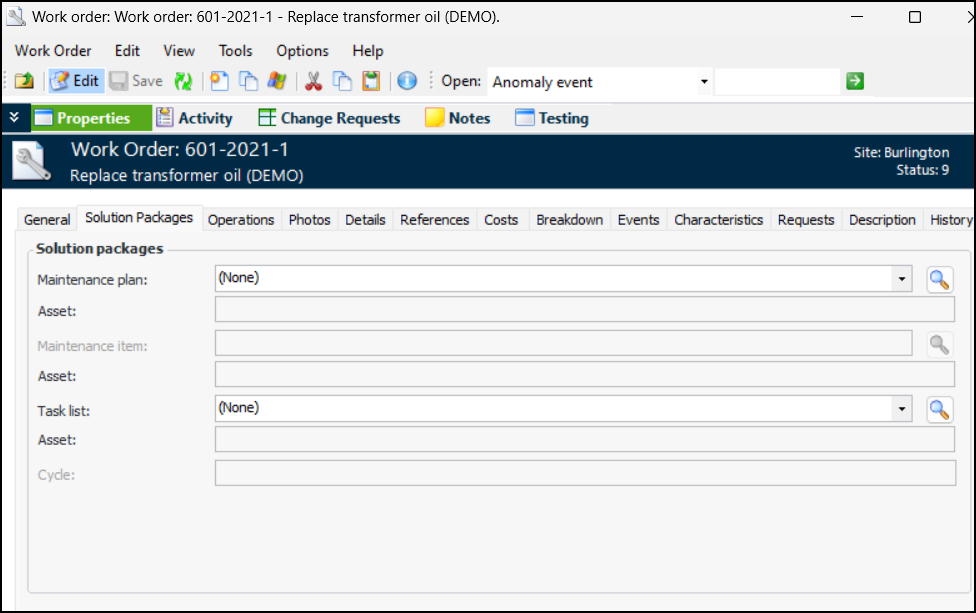
Select the Properties view, Solution Packages tab.
4.
In this example, solution package levels have been defined as Maintenance plan, Maintenance item, and Task list in the site interoperability profile. For more information, see Setting up Site Interoperability Profiles for AWEIS.
5.
6.
7.
8.
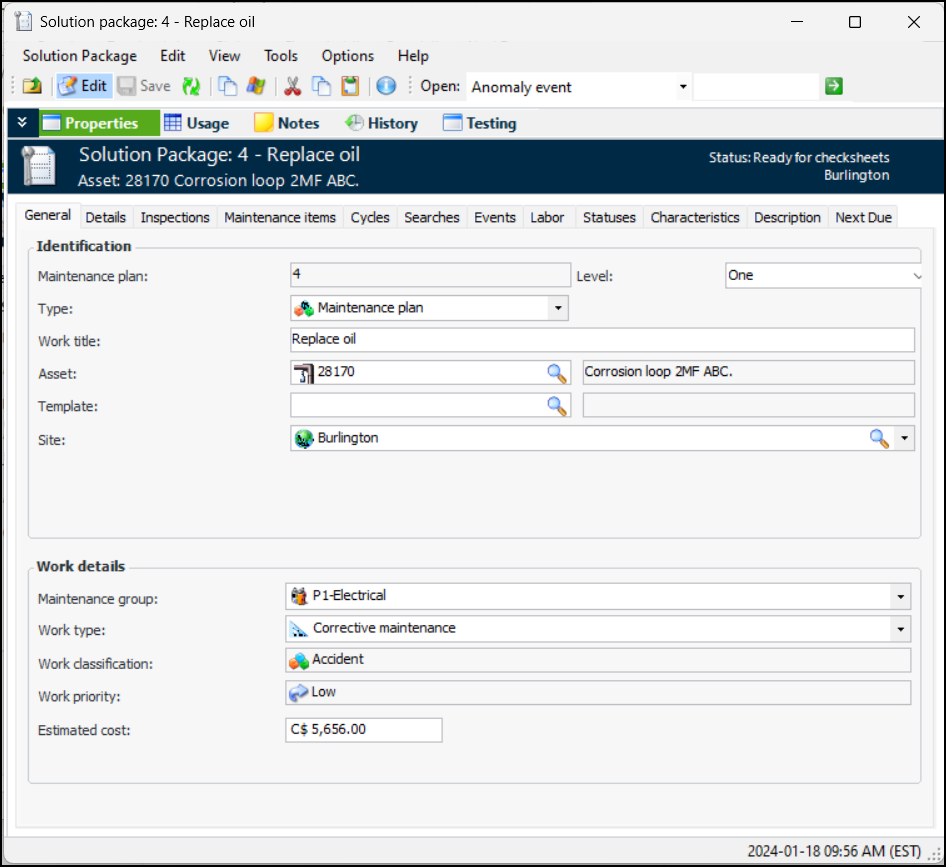
The status must be “Ready for checksheets” before checksheets can be generated.
To change the checksheet creation status, click the Tools menu, click Mark As, and select the status. Possible values are: Ready for checksheets – Tasks and cycles are in place on the solution package
9.

Generating Checksheets for Work Orders

You can create new checksheets and update existing checksheets based on the new work orders received through AWEIS. You can generate checksheets for individual work orders or for the site.
Note that if the standard task references a mobile device (Android or iOS), a mobile computing activity is created rather than a checksheet.
When a checksheet is created or updated, references to the interop work document and solution package are added to the checksheet.

To Generate Checksheets for One Work Order

1.
On the Site window, select the Work Management view and the Work Orders tab.
2.
3.
Click the Tools menu, Checksheets, and then Generate.
Tip: You can also right-click the work order in a list and click Checksheets and then Generate.

To Generate Checksheets for the Site

1.
On the Site window, click the Tools menu, Inspection Management, and then Create Work Order Checksheets.
2.
You can also set up the Create Checksheets for Work Orders scheduled action to evaluate new work orders automatically on a regular basis. For more information, see Creating a Scheduled Action.

Checksheet Generation Horizon

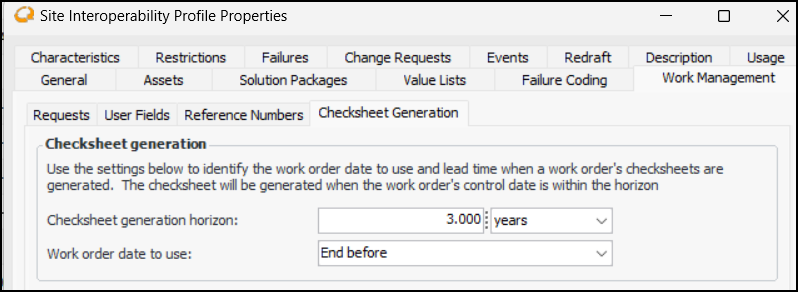
You can set up the checksheet generation horizon to control when checksheets are generated from work orders at the site.

To Set the Generation Horizon

1.
In the Enterprise window, select the Integrations view, the AssetWise Interoperability tab, and then the Interoperability Profiles tab.
2.
3.
Select the Work Management tab and the Checksheet Generation tab.
4.
5.
6.
7.
For more information, see Setting up Site Interoperability Profiles for AWEIS.

Creating Checksheets Based on Activity Codes

The activity code on an interop work order or work request can specify that a checksheet is to be generated, even though the work document does not reference a solution package. This mechanism is often used for repair work that requires follow-up inspections.
If you are using object part, damage code, and activity code, you can specify on activity codes that checksheet generation is required. The checksheet will be generated when the work document referencing the activity code is saved.

To Set up Activity Codes to Generate Checksheets

1.
From the Site window, select the Work Management view and the Settings tab. Select the Work Management tab and the Interoperability work management settings node in the tree.
Tip: You can also select the Administration menu and then Work Management Settings. The Work Management Settings dialog appears.
2.
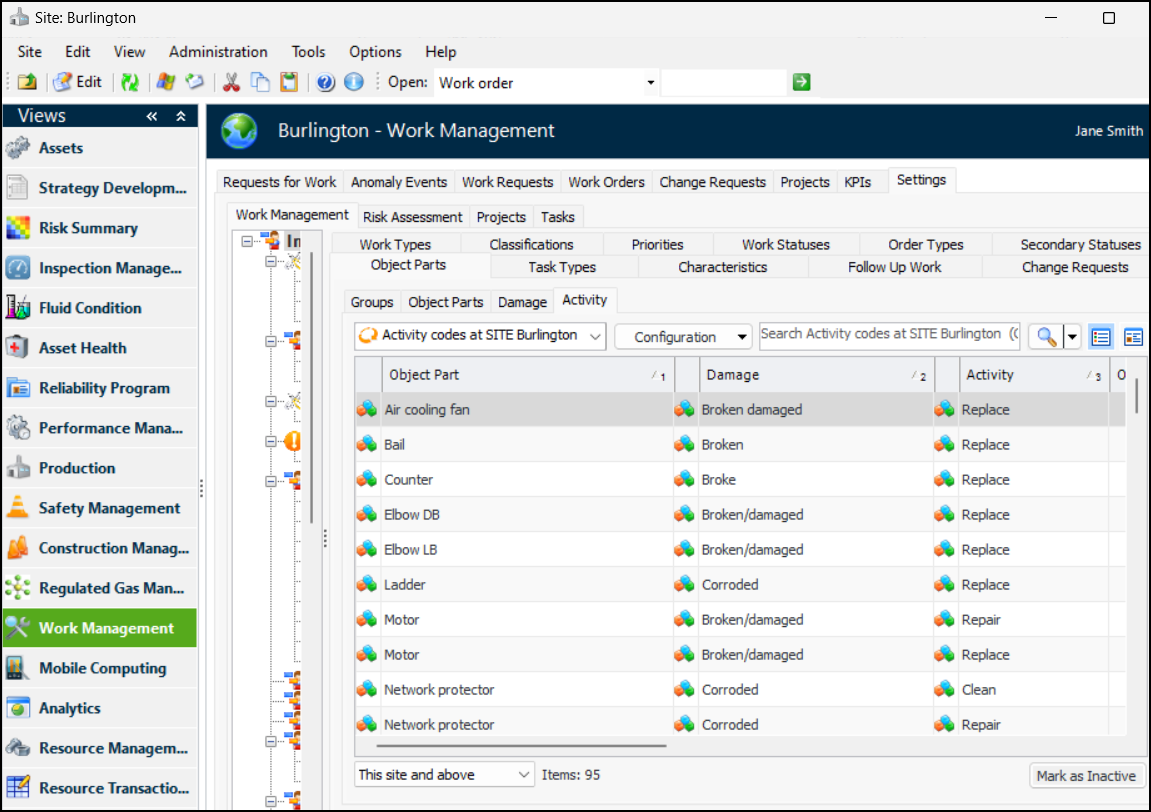
Select the Object Parts tab and the Activity tab. This tab displays the activity codes for the site. For example:
Note that you can only create activity codes in the context of creating object parts and damage codes. For more information, see Setting up Object Parts, Groups, and Related Codes.
3.
4.
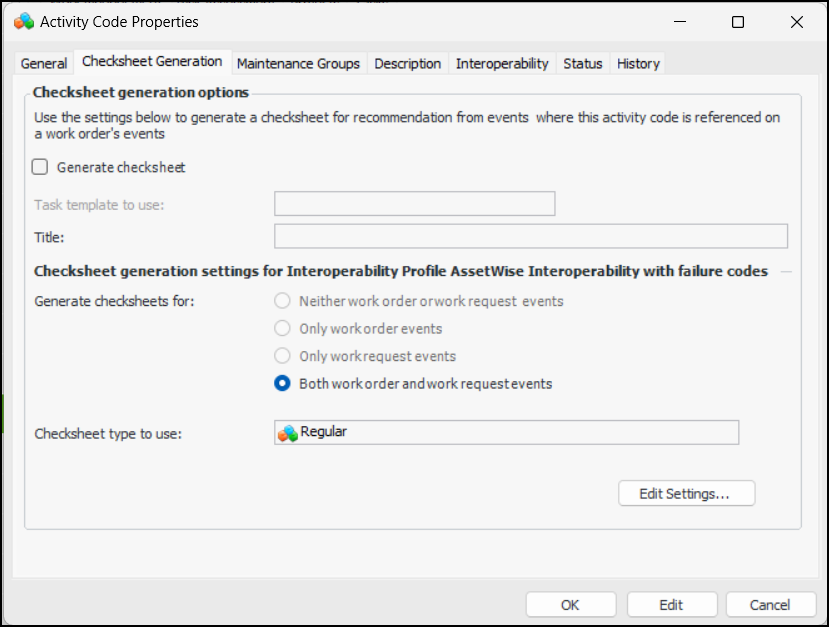
Select the Checksheet Generation tab.
5.
6.
Click Generate checksheet to enable the functionality.
7.
8.
The Checksheet generation settings for the site interoperability profile area displays the settings from the profile. Click Edit Settings if you wish to change the profile. The Edit Checksheet Generation Settings dialog appears, where you can make changes.
9.
Click OK to save the code and close the Activity Code Properties window.

Creating Checksheets Based on Failure Codes

The failure code on an interop work order or work request can specify that a checksheet is to be generated, even though the work document does not reference a solution package. This mechanism is often used for repair work that requires follow-up inspections.
If you are using failure codes, you can specify on individual codes that checksheet generation is required. The checksheet will be generated when the work document referencing the failure code is saved.

To Set up Failure Codes to Generate Checksheets

1.
From the Site window, select the Work Management view and the Settings tab. Select the Work Management tab and the Interoperability work management settings node in the tree.
Tip: You can also select the Administration menu and then Work Management Settings. The Work Management Settings dialog appears.
2.
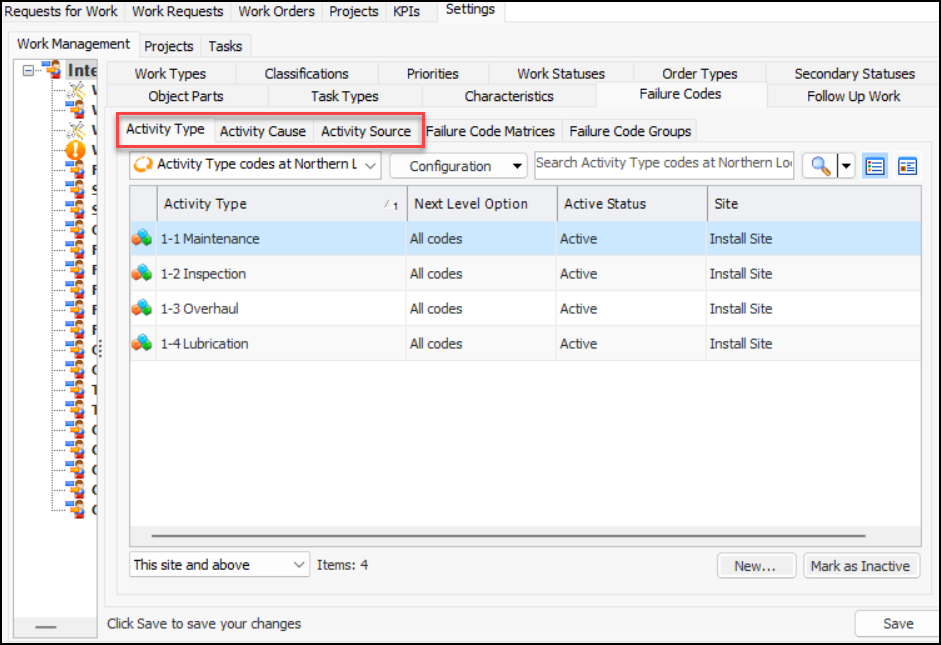
Select the Failure Codes tab. This tab displays a tab for each of the failure code levels (up to five) defined in the site interoperability profile. For example:
In this example, the failure codes are for “Activity Type”, “Activity Cause”, and “Activity Source”.
For related information, see Setting up Failure Codes.
3.
4.
5.
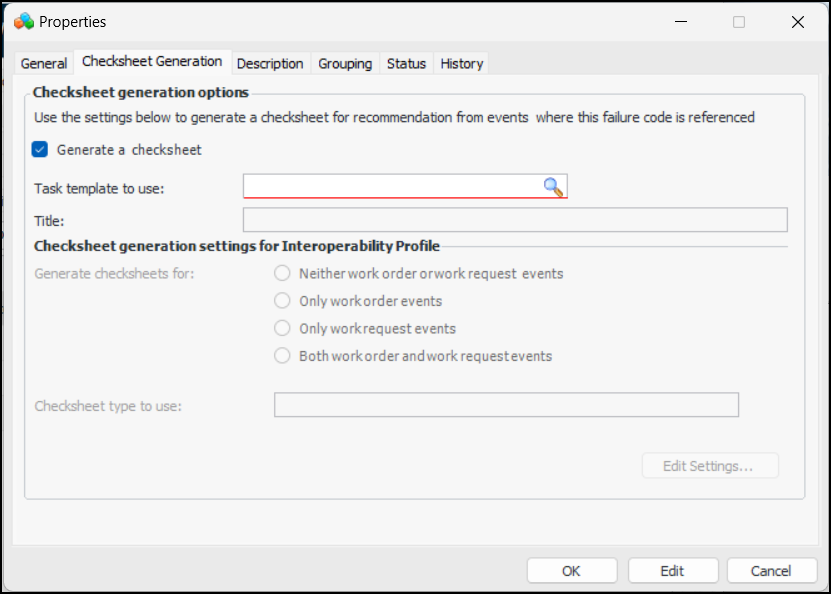
Click Generate a checksheet.
6.
7.
Click OK to save the failure code instance and close the dialog.