Splitting Checksheets

You can split a checksheet into two or more checksheets and move indicator readings from one checksheet to another. This is handy, for example, when two or more inspectors are assigned to complete inspection tasks within the available time.
Note: Checksheet splitting is a “generally available” product feature. You must first enable feature 118 to use the functionality in APM. In the Enterprise window, select the Features view and the Enabled Features tab. Click Browse, select “Checksheet splitting” and click OK. If APM is running as a smart client, click Refresh Enabled Features on the server. Then restart the client to use the functionality.
The checksheet type and checksheet status assigned to the checksheet determine if checksheet splitting is supported.
When the standard task’s due date calculation is based on checksheet completion, the due date is updated when the last checksheet is completed. The due date is based on the checksheet completion date and standard task frequency.
Changes made to a checksheet’s source interop work order are copied to all checksheets in the split grouping. As an example, consider the case of a source work order whose “start before” and “end before” dates change. When the source work order is saved, all checksheets in the split grouping have their “planned start” and “planned completion” values changed accordingly. For this example, the checksheet type’s work order synchronization settings specify that checksheets are updated with changes in the work order’s values.
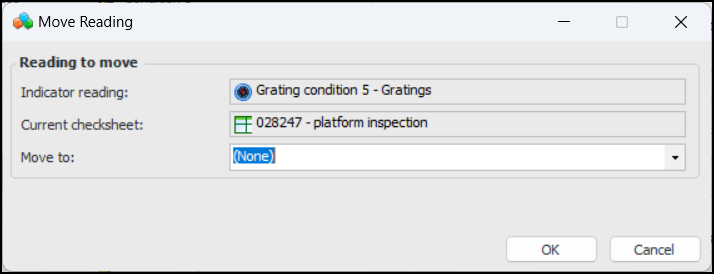
There are a few ways to move readings between checksheets in a grouping.
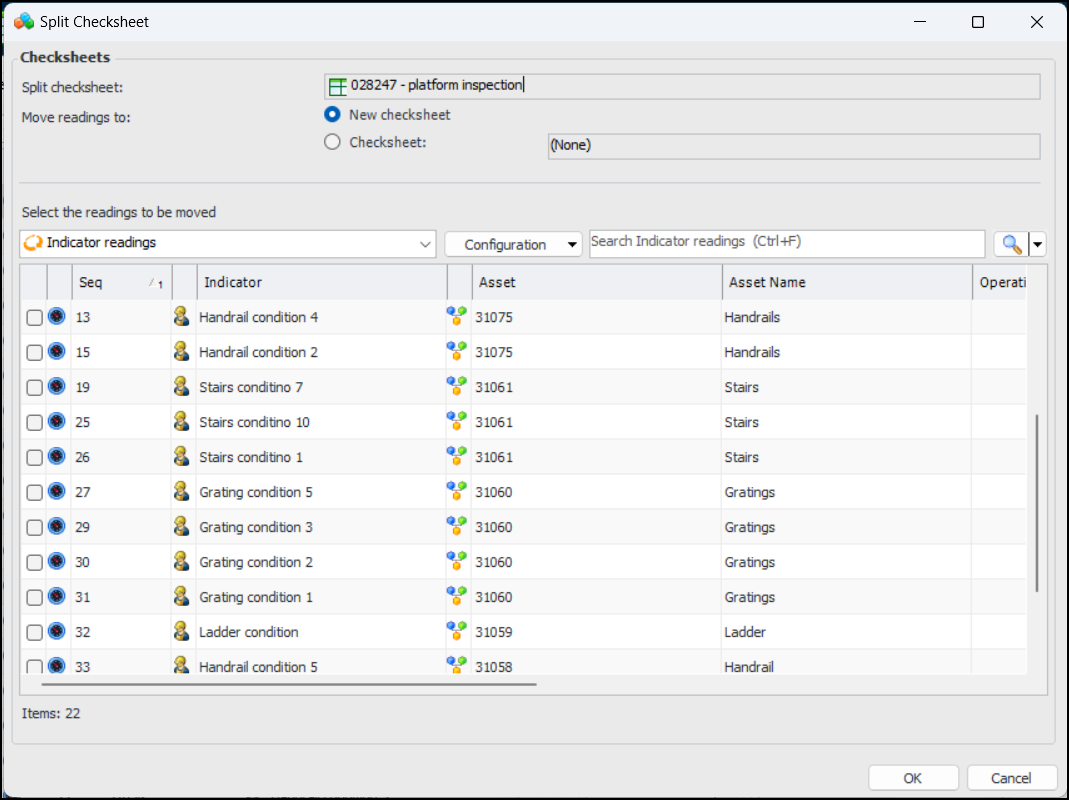
In a Checksheet window, click the Tools menu and then Split. The Split Checksheet dialog appears. For example:
You can create a checksheet or move readings to an existing checksheet. Select the indicators to move and click OK.
The Move to list shows only checksheets in the same checksheet grouping.
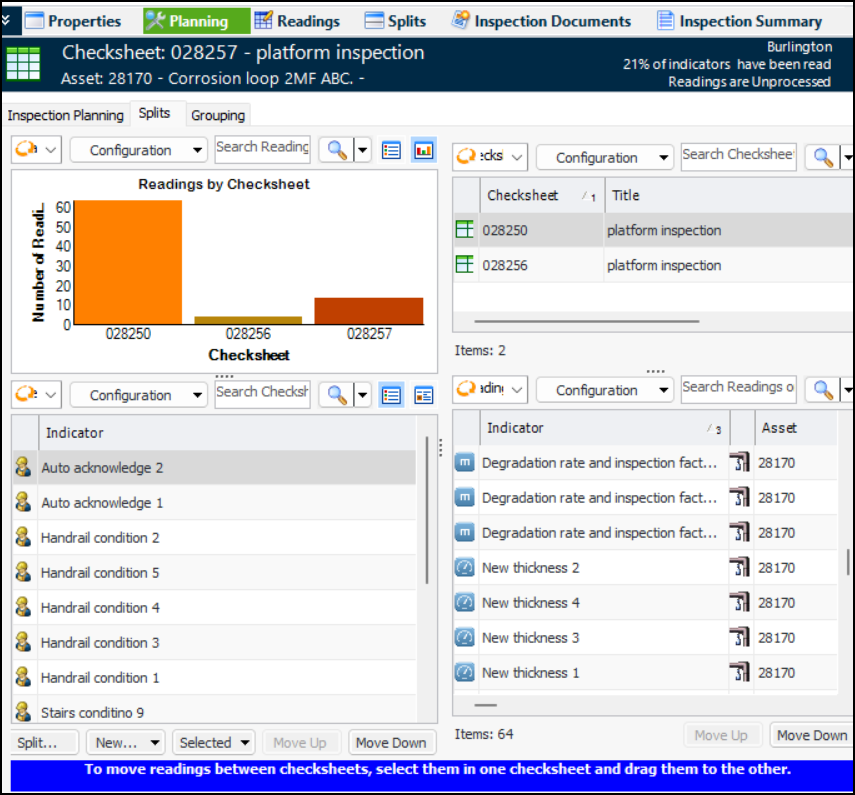
In the Checksheet window, select the Planning view and the Splits tab.
Drag and drop one or more indicator readings from one checksheet to another in the grouping.
When a checksheet has been split, the two (or more) resulting checksheets are numbered individually, but they are also identified by their common checksheet grouping. You can view checksheet groups in the Site window, Inspection Management view, Checksheets tab, Splits tab.
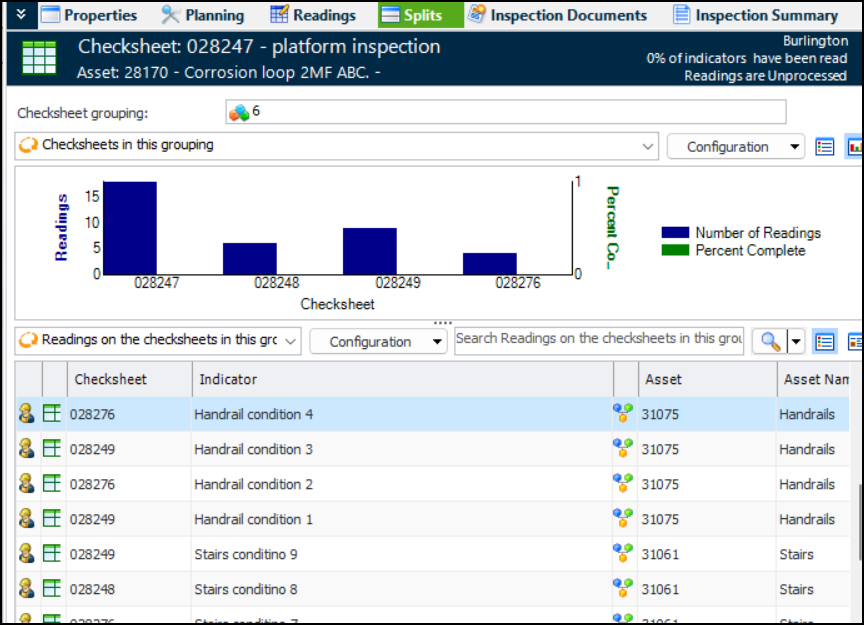
You can also view the checksheet grouping in the Checksheet window, Splits view:
The view shows the grouping number, a chart showing number of readings and percent complete, and a table of the readings on the checksheets in the grouping. You can also select configurations showing readings removed from the checksheet or readings by checksheet.