|
Creating an Asset Prioritization Analysis
• If AWEIS is active and the analysis includes interop assets, when you apply the results, asset change requests are created and sent to the external CMMS to update equipment consequence priorities. To make this process successful, ensure that an asset change request type has been defined and assigned to the site. See Setting up Asset Change Request Types and Setting up Asset Change Request Statuses.Tip: You can mark an asset prioritization analysis as inactive, which prevents it and its assets from being edited. The Worksheet view is not displayed in the Asset Analysis window of inactive analyses.To Create a Prioritization Analysis
1. Tip: You can also create the analysis from the Asset window. Select the Strategy Development view and the Prioritization tab.
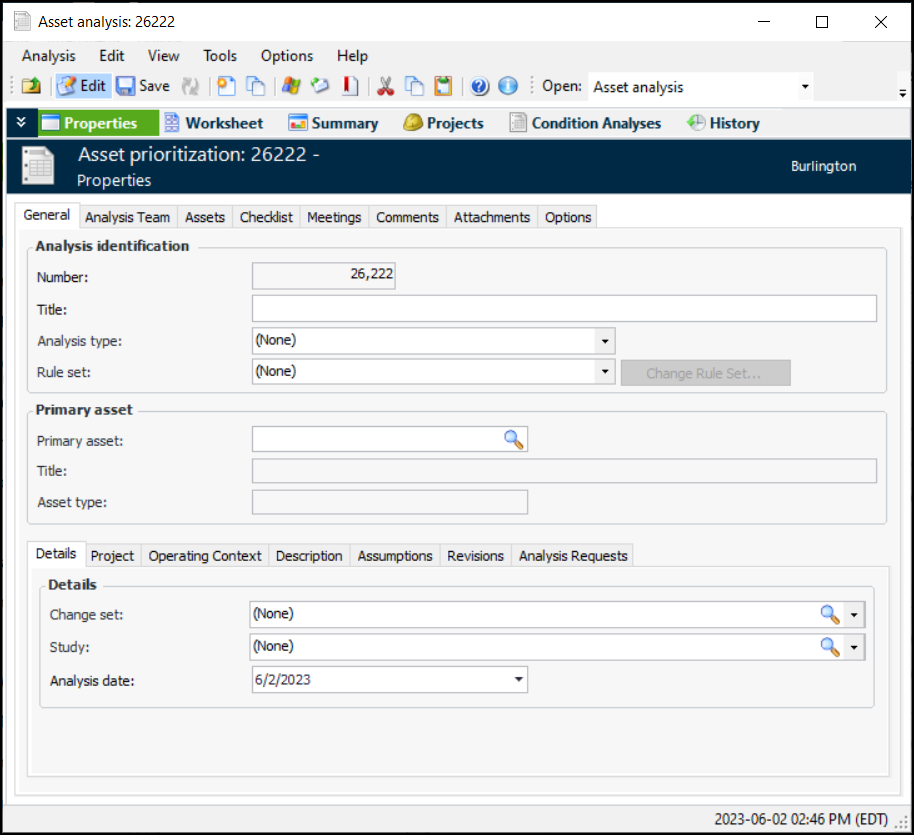
2. Click New. The Asset Analysis window appears:
Note: If you wish to add, remove, or change the rule set after the analysis has been saved, make sure that editing is enabled and click Change Rule Set. In the Change Analysis Rule Set dialog, you can view the current rule set’s criteria and either select a new rule set or delete the set. When you click OK, APM adds any new analysis criteria to the analysis and removes any criteria that are no longer needed.Note: If you change the rule set after scores have been calculated, the Worksheet view shows the previous analysis results until you recalculate scores.
4. Select the primary asset to be analyzed, if appropriate. If you select a primary asset, it is added to the Assets tab automatically. When you browse for other assets to add to the analysis, only the primary asset’s descendants are available for selection.
5. On the Details tab, you can select a change set from the list. This is usually a change authorization or change set number from a Management of Change (MOC) system.
8. On the Project tab, you can add the analysis to a reliability project and associate the analysis with a project task. Reliability projects are typically used to organize and track analyses and objects. They usually use project tasks rather than work orders.
9. On the Operating Context tab, you can record the circumstances in which the asset operates.
10. Use the Description tab to describe the analysis, its purpose, and so on.
11. On the Analysis Team tab, you can add team members, identify the facilitator, and assign members to roles. For more information, see Adding Team Members to a Prioritization Analysis.Tip: If the analysis was created when an analysis request was processed, the Analysis Requests tab displays the request.
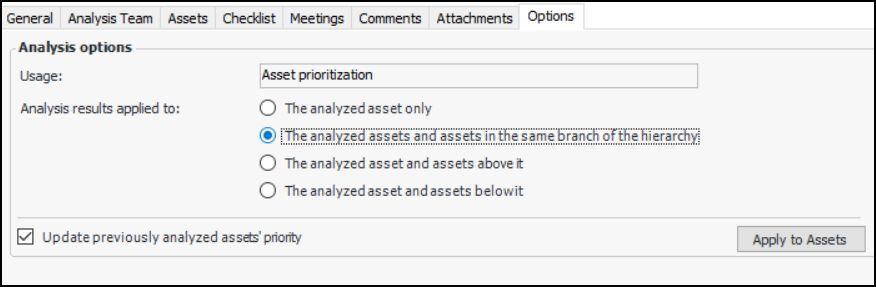
12. Select the Options tab.
• The analyzed asset only – Only the assets included in the current analysis have their consequence priority numbers or conditions updated
• The analyzed assets and assets in the same branch of the hierarchy – Only the assets included in the analysis and their descendants and ancestors in the hierarchy are updated
• The analyzed asset and assets above it – Only the assets included in the analysis and their ancestors in the hierarchy are updated
• The analyzed asset and assets below it – Only the assets included in the analysis and their descendants in the hierarchy are updated
This option takes into account the selected Analysis results apply to option. For example, if descendant assets are to be updated and Update previously is selected, all assets below the analysis asset in the hierarchy are updated, whether they have been analyzed separately or not.If Update previously is not selected, descendant assets are updated until the system identifies an asset that has been analyzed separately. At that point, the update process stops.