|
Working with Reminders
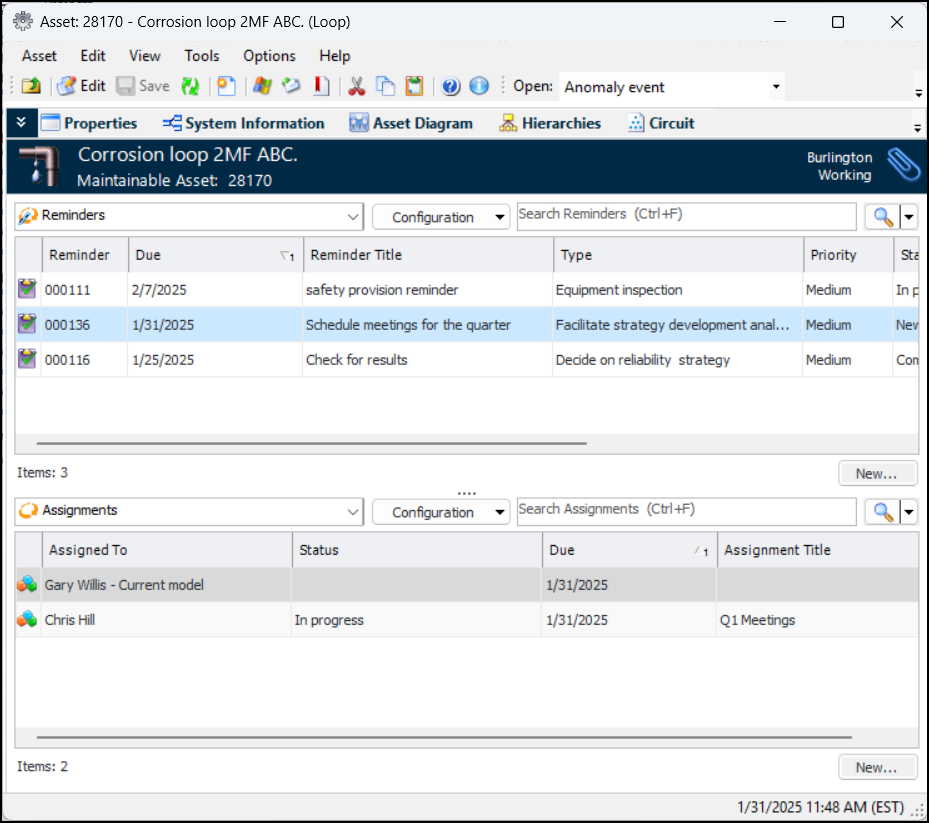
Reminders are tasks and employee assignments that can be added to most objects in APM. Here is an example of the Reminders view in the Asset window:Note: Reminders are a generally available product feature. You must first enable feature 139 to use the functionality in APM. In the Enterprise window, select the Features view and the Enabled Features tab. Click Browse, select “Reminders and assignments” and click OK. If APM is running as a smart client, click Refresh Enabled Features on the server. Then restart the client to use the functionality.To Create a Reminder
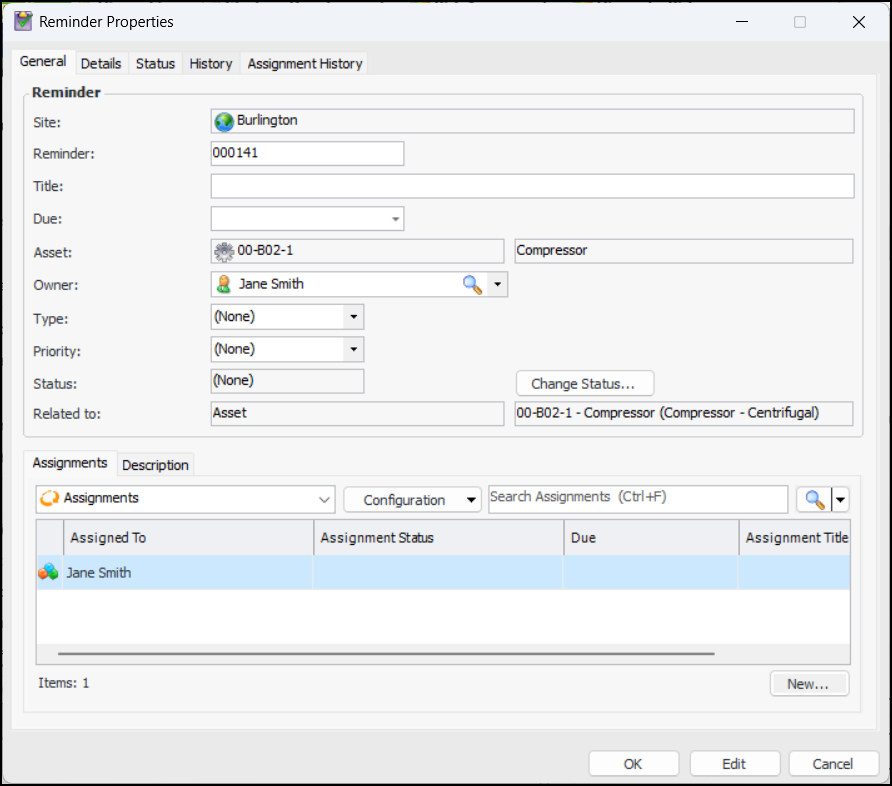
1. The Related to boxes display the class and name of the reminder’s object.
3. In the General tab, you can change the reminder number, but the identifier must be unique.
6. Note: Once the reminder is saved, you must click Change Status if you wish to change its status.
10. Select the Description tab to add more information.
11. Click OK to save the reminder and close the window.To Add an Assignment to a Reminder
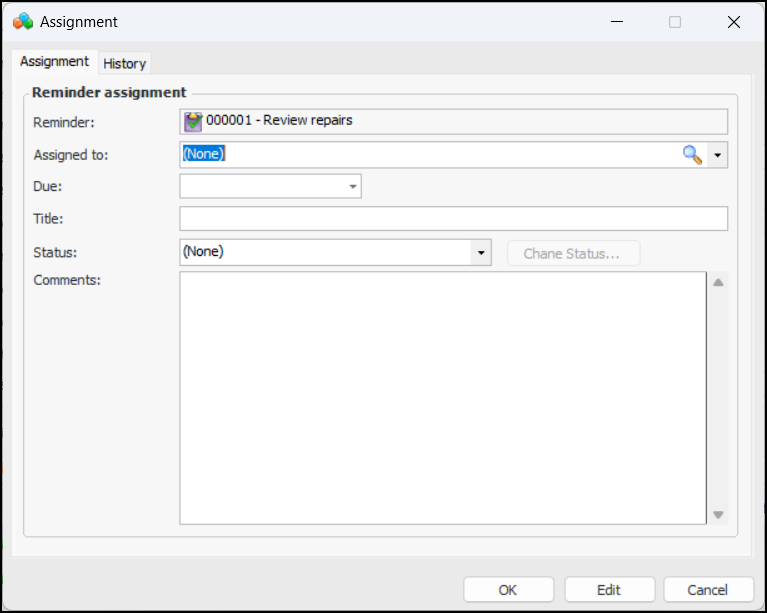
2. Click New. The Assignment dialog appears.Note: Once the assignment is saved, you must click Change Status if you wish to change its status.
7. Provide more information in the Comments box.
8. Click OK to save the assignment and close the dialog.To View Reminders
•
• In object windows, reminders are listed in the Reminders view or tab.
• Your My Desk view in the Site window can also display the Reminders tab with configurations showing your assignments and reminders. For more information, see Setting up My Desk Views.