Working with an Inspection Report

When you have created the inspection report and collected the checksheets for review, you can perform a holistic, detailed analysis of the results of the checksheets and inspections. The analysis involves a detailed review of all of the indicator readings that have been taken. For each indicator, you can view the processed readings and degradation history to look for abnormal changes in the asset condition or degradation rate. You can read the collection notes to look for any information that will help you assess the health of the system.
You can also read the analyses, summaries, and recommendations on each of the checksheets. These narratives can be valuable input to your report because they provide the inspectors’ insight into what they observed.
Note: To copy the checksheet’s analysis, summary, recommendations, and photographs to the inspection report, ensure that the report type allows checksheet properties to be copied.
The inspection report contains three narrative sections: inspection analysis, inspection summary, and recommendations. The narratives are an important output of the inspections because they document your thoughts on the condition of the assets, what actions need to be performed, if any, and when the next inspection needs to be performed. When you have finished the analysis, it is time to complete each of the narratives.
As a result of the analysis, you can create anomaly records (failures) to track the status of individual problems, acknowledge alarms, and submit requests for one-time corrections. You can also review the degradation rates of the indicators inspected, overriding the calculated rates when appropriate. You can document recommendations, review next inspection dates for indicators and standard tasks, and override next inspection dates if appropriate.
When the report is finished, you can send it to one or more designated approvers to be reviewed and vetted, rejected, or forwarded. For more information, see Sending an Inspection Report for Approval.
When the report type specifies that reports represent regulatory inspections, you can update checksheet readings to indicate that they are regulatory.
You can keep track of inspection reports by monitoring their statuses as they move through the process of analysis, review, and approval. In some cases, you can change the status manually. For more information about statuses, see Setting up Inspection Report Statuses.
You can print a report listing all of the inspection reports for a site or a specific asset. The report includes the inspection report numbers, summaries, statuses, completion dates, regulatory inspection settings, and any selected inspection photographs.
You can add inspection reports to your Favorites list to monitor them.
You can view audit records by event and data element in the History view.
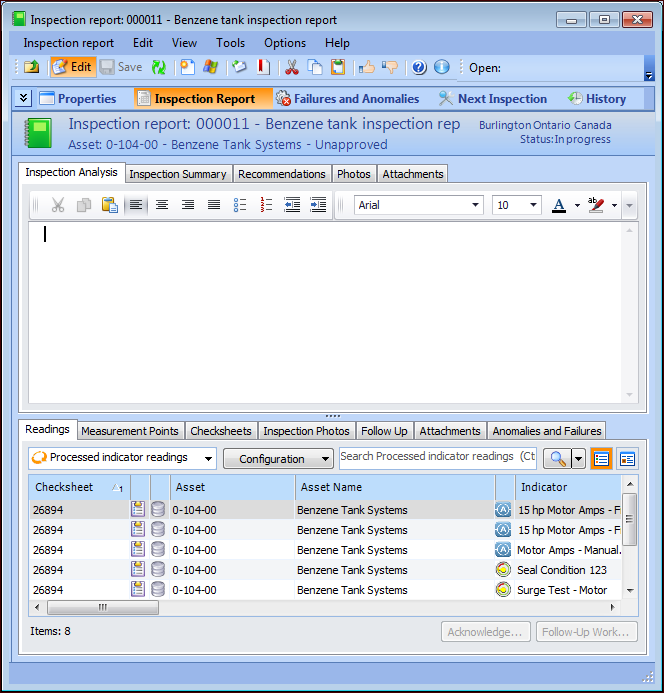
This topic explains how to use the Inspection Report view in the Inspection Report window to review information and record the narratives. It includes links to detailed topics where appropriate.

To Work with the Inspection Report

1.
Note: If the report type allows it, the Inspection Analysis, Inspection Summary, Recommendations, and Photos tabs display information copied from the checksheets’ Inspection Summary view, if available.
2.
Use the Inspection Analysis tab to record your review of the assets’ indicator readings and degradation history. Refer to the tabs below, which list the readings, follow-up actions, and information collected during inspection, such as photographs and attachments. Very often, checksheet notes, analyses, summaries, and recommendations are useful to the analysis.
3.
In the Inspection Summary tab, you can provide a synopsis of your findings and analysis.
4.
In the Recommendations tab, you can document the actions to be taken and when the next inspection should be performed.
5.
Select the Photos and Attachments tabs to store supporting material with the report. For more information, see:
6.
The Readings tab lists the processed readings on all of the checksheets referenced on the report. In this tab, you can do any of the following:
Select a reading and click Follow-up Work to create a work request or work order. See Requesting Follow-up Work from an Inspection Report.
7.
Select the Measurement Points tab to view the processed measurement point readings on all of the checksheets referenced on the report.
8.
Select the Checksheets tab to view the checksheets referenced on the report. You can add checksheets to the report by clicking Browse. The Browse Checksheets dialog lists all of the checksheets for the site. Select one or more and click OK to add them to the report.
9.
Select the Inspection Photos tab to view all of the photographs attached to the readings.
10.
Select the Follow Up tab to view the work orders, work requests, and failure mode review requests for the readings.
11.
Select the Attachments tab to view all of the attachments for the readings and checksheets.
12.
Select the Anomalies and Failures tab to view the failure records that have been created for the checksheets.