|
Working with Favorites
Use favorites to track important objects, such as an indicator that is in an alarm state and the work order created to acknowledge the alarm. You can view your list of favorites, open a favorite, and initiate actions on the favorite from the Favorites view or from a list of object favorites. You can also mark favorites as being read or unread, set their priority as high or low, and flag them for follow-up.To View All of Your Favorites
Open the Site window and select the Favorites view. Configurations are available that display favorites:To View Your Favorites of a Type of Object
To Mark a Favorite as Read or Unread
Right-click the favorite and click Mark as Read or Mark as Unread. In the Favorites view, when the favorite is marked as unread, it is displayed in blue, bold textTo Set a Favorite’s Priority
•
• Tip: Select “Favorites by priority” in the list of configurations. The Priority column displays each favorite’s priority.
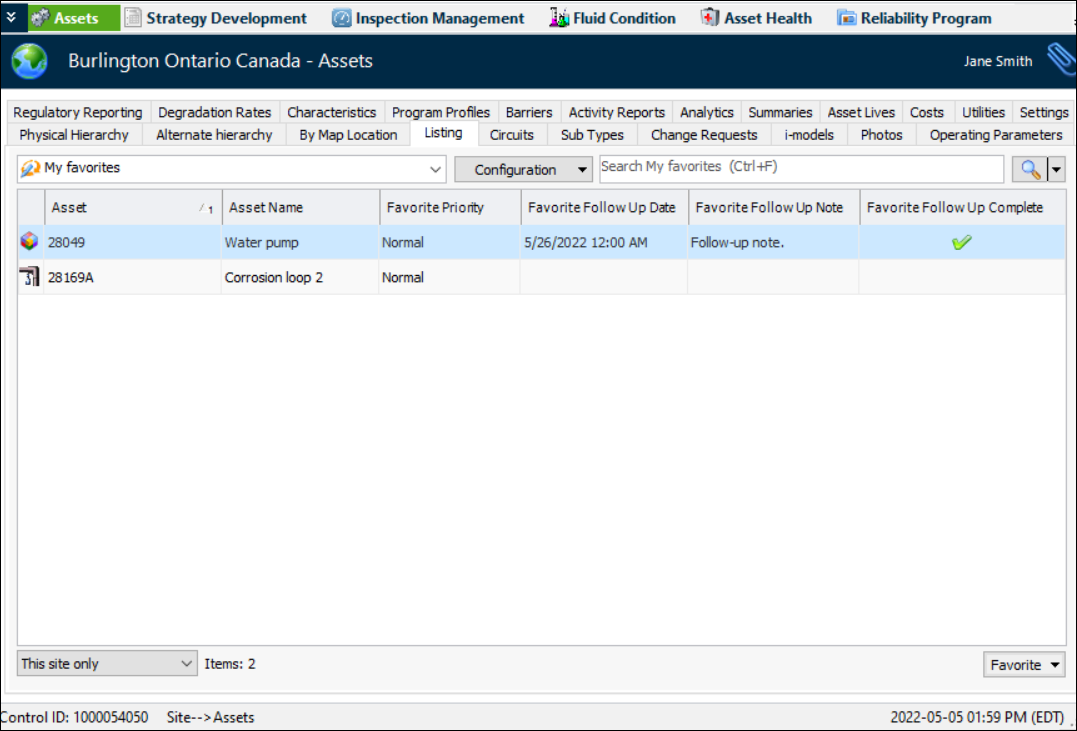
• In a My Favorites table, select the favorite. In the Favorite list, click Set Priority As, and then High or Low.To Flag a Favorite for Follow-up
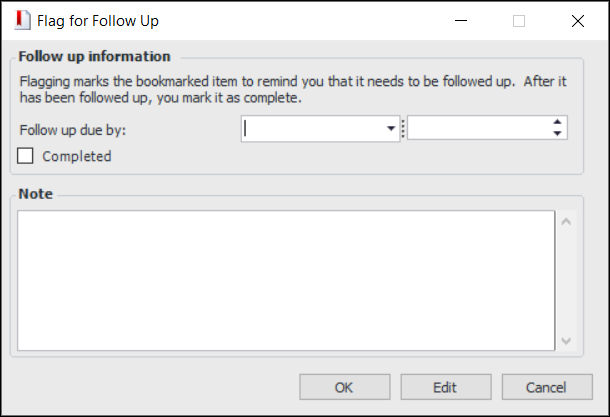
• In the site’s Favorites view, right-click the favorite and click Flag for Follow Up. The Flag for Follow Up dialog appears.
• In a My Favorites table, select the favorite. In the Favorite list, click Flag for Follow Up. The Flag for Follow Up dialog appears.
3. Enter the follow-up action in the Note box.Tip: If the action has already been completed, click Completed.
4. Click OK.Tip: In the Favorites view, select the “Follow up” configuration to view a table listing follow-up flags that have not been marked “Completed”.Select the “Favorites by priority” or “Chronological order” configuration. The Follow up note column displays the follow-up action that you entered.To Open a Favorite
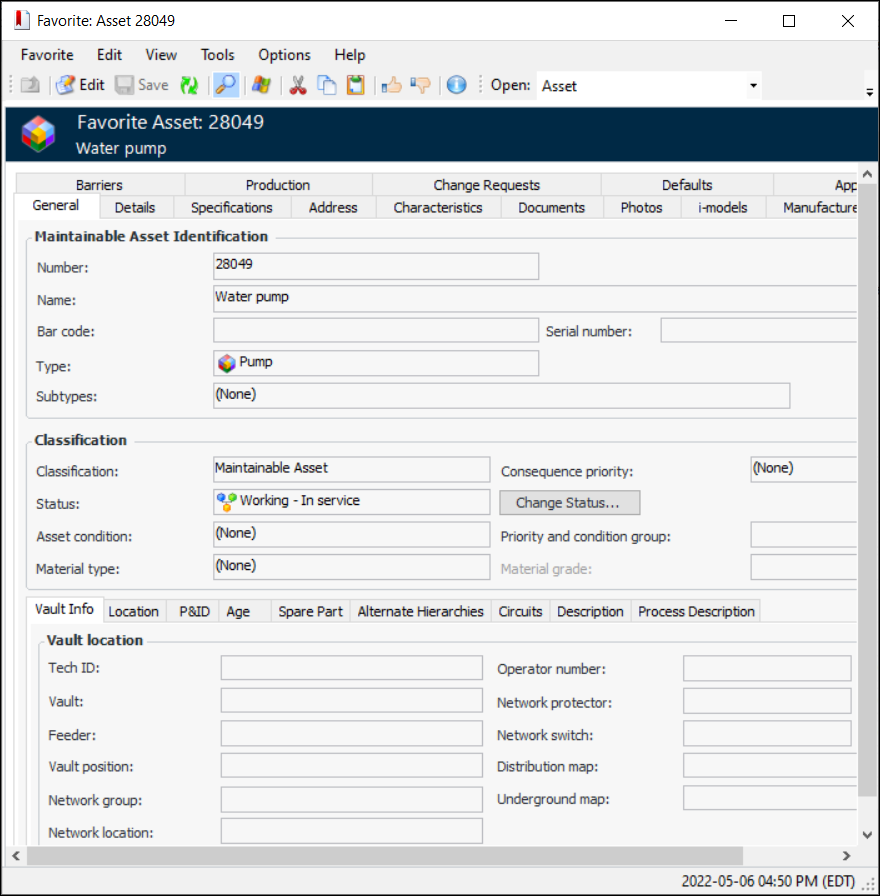
1. From the Favorites view or a My Favorites table, double-click the favorite you want to open. The Favorite window appears. Here is an example for an asset:
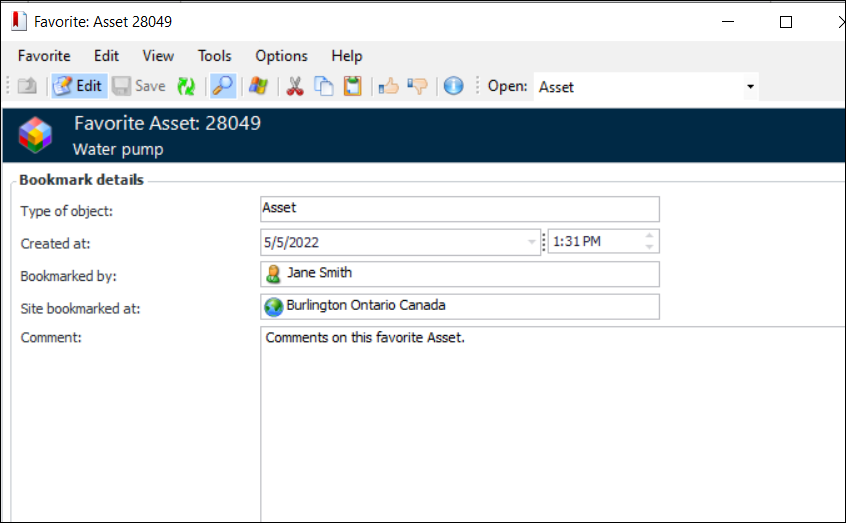
2. In the View menu, click Details to see information about the favorite and to add comments. For example:
3. Click the View menu to flag the favorite for follow up. You can add and change the information and mark the follow-up action as Completed.
4.
5. Click the Tools menu to set the priority.