|
Creating User Roles
Users can take advantage of summary information in the Overview view or search of items using the Queries view, if these views are assigned to their roles.Note: You must activate workflows at the enterprise level before they can be added to user roles. Activated workflows must be added to site properties to make them available in Site windows. See Activating APM Workflows.To Create a User Role
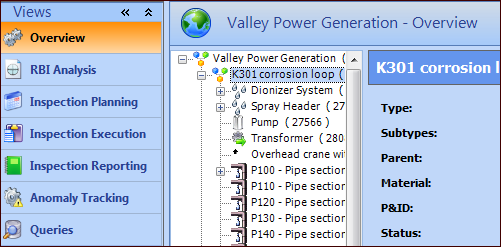
2. Select the Security view, Users tab, and then the User Roles tab. This tab lists the user roles defined for the enterprise.
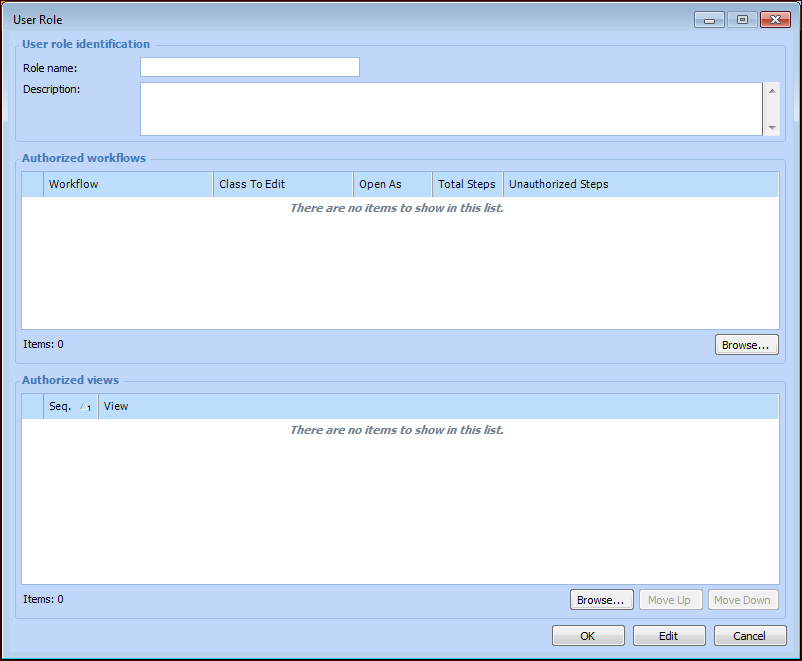
3. Click New. The User Role dialog appears:
6. Click Browse at the bottom of the Authorized workflows table. The Browse Workflows dialog lists the activated workflows.
7. Select the workflows that are appropriate for the role and click OK. The workflows are listed in the table.
8. Click Browse at the bottom of the Authorized views table. The Browse Views dialog lists standard site views, such as Assets, as well as views provided for workflows. Workflow views are:
•
•
9. Select the views appropriate for the role and click OK. The views are added to the table.
10. Arrange the views in the order they should appear in the view bar. Select a view in the table and click the Move Up or Move Down button as needed.
11.