Overview of APM Workflows

APM workflows are role-based wizards for completing well-defined tasks. The wizards are designed to guide the user through the progressive steps required to complete the task at hand and to provide information relevant to the step being performed. When workflows are activated for the site, the users’ roles control the views and wizards available to them in APM.
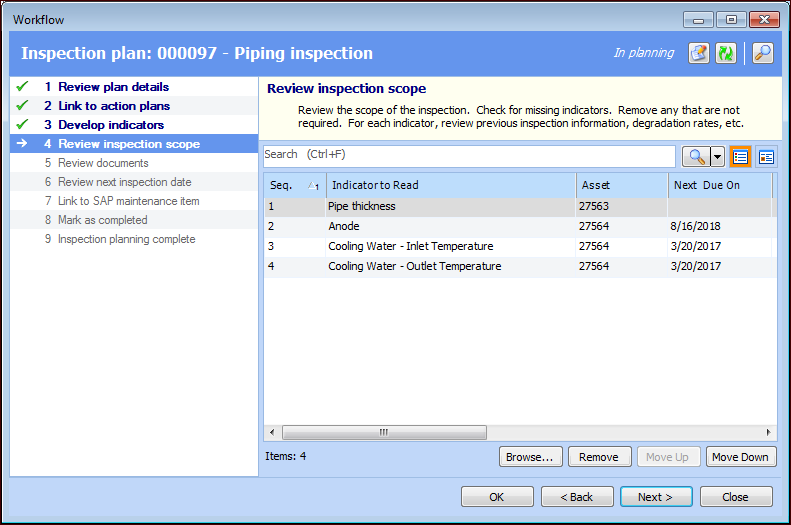
APM comes with six workflows. As an example, here is the wizard for a new inspection plan (standard task) showing the fourth step:

Standard Features of Workflows

These features are common to workflows as shown in the example above.
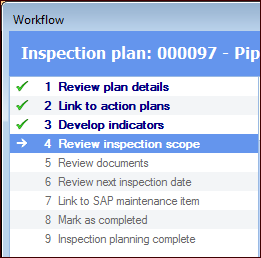
The wizard opens to the appropriate step in the workflow.
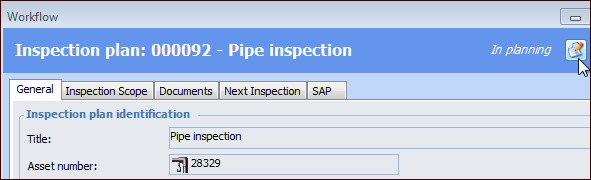
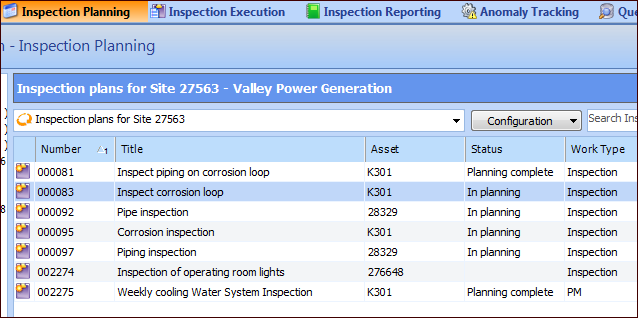
The status of the workflow, shown in the banner, indicates a stage in the task’s completion. For example, when inspectors refer to the Inspection Planning view for a list of inspection plans, they can tell at a glance which items need to be completed and which are ready to execute
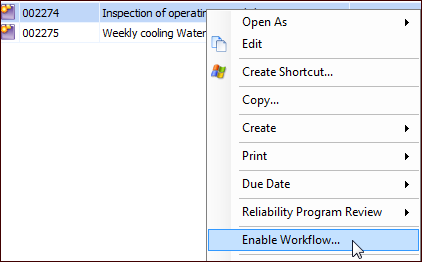
Note: To use a wizard to edit an existing item that predates workflows, right-click it in the list and click Enable Workflow:
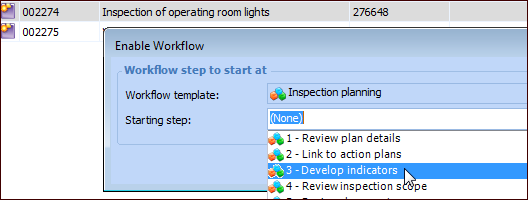
The Enable Workflow dialog that appears allows you to select the starting step. For example:
The form view is ideal when many items need to be reviewed or updated. The user works on one item at a time and uses the arrow buttons to move between them

Roles Determine the User’s Tasks

User roles are essential to APM workflows. The role definition determines the views and workflows available to users with that role.
APM comes with the Inspector. Contractor, and MTA2 Facilitator and Team Member roles as examples. The Inspector role allows users to perform tasks like creating RBI and CPR analyses, creating inspection plans, executing inspections, reviewing inspection results, and creating anomalies or failures. The Site window’s views reflect these tasks:
Contractors might perform only the inspection execution task, and their Site window is set up accordingly.

Additional Views for User Roles

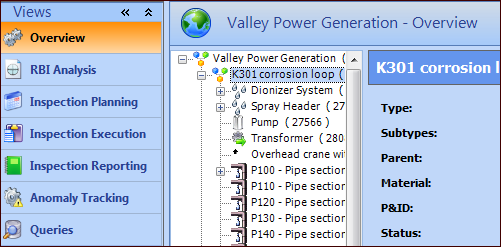
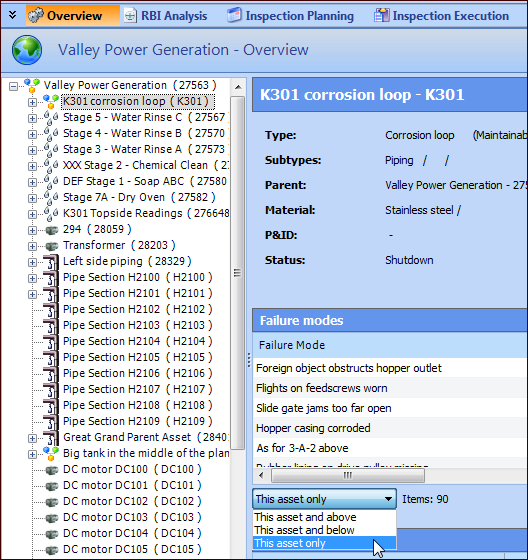
Overview and Queries site views can be assigned to user roles. The Overview lists assets in a hierarchical tree. Select an asset to view its information, failure modes, indicators, inspection plans, checksheets, inspection reports, and anomalies. Each table can be adjusted to show information for different levels of asset. For example:
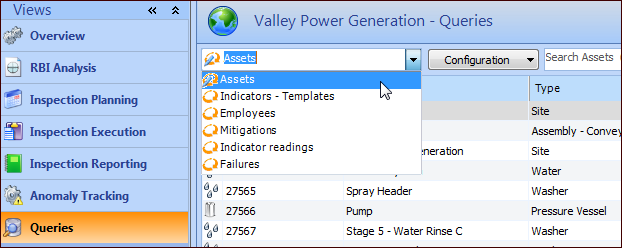
The Queries view provides table configurations for APM objects:
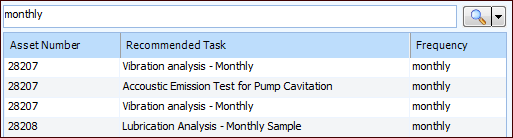
Users can search for values and filter and sort columns.

Supplied Workflows

APM comes with several workflows. They assume that APM has been configured to interact with SAP Plant Maintenance and that document approval functionality has been set up for checksheets and inspection reports.
Users can take advantage of summary information in the Overview view or search of items using the Queries view, if these views are assigned to their roles.

Setting up Workflows

Setting up workflows for your users involves assigning roles in their User records. You can modify the user roles provided with APM or add new ones, choosing workflows and selecting and ordering the views that users are authorized to access. Before users can make use of their roles, you must activate workflows at the enterprise level and assign them to sites.
Note: We do not recommend using checksheet statuses on sites that use workflows because statuses can conflict with workflow tasks. For more information, see Setting up Checksheet Statuses.