|
Viewing Resource and Employee Availability on a Schedule
• Employees: The total number of employees who are available to the schedule or to the trade. Use the number of employees as a guideline only, in combination with the hours available for each trade and employee. For example, the schedule might say that you have 2 employees available: Joe and Jane. If Jane is available full-time but Joe is only available half-days, you can only schedule work for 1.5 full-time employees.
• Availability: The number of person-hours, trade-hours, or resource-hours available on the schedule. Depending on which level of data you are reviewing, this is either the total number of hours available for all employees, for the employees of a trade, or for an individual employee. For example, you have 3 employees available to the schedule, two mechanics for 30 hours each (Jane and Jim), and one machinist for 20 hours (Joe). The total availability is 80 hours, the mechanic trade availability is 60 hours, and Joe’s employee availability is 20 hours.
• Scheduled: The number of hours of work that has been added to the schedule, assigned to the trade or resource, or assigned to an employee. APM calculates the trade’s scheduled hours based on the trade requirements planned for the scheduled tasks. APM calculates the employee’s scheduled hours based on the scheduled tasks that are assigned to that employee.
• Remaining availability: The number of hours that are remaining to be scheduled for the schedule, trade or resource, or the employee. APM calculates remaining availability by subtracting the scheduled hours from the total availability. For example, if the welder trade is scheduled for 6 hours and the total availability of welders is 10 hours, the remaining availability will be 4 hours. Remaining availability is never shown as a negative value. If the scheduled hours exceed the available hours, the remaining availability is set to zero. The difference is shown in the over-scheduled hours.
• Over-scheduled: The number of hours that are scheduled that exceed the availability.To View Trade, Resource, and Employee Availability for a Schedule
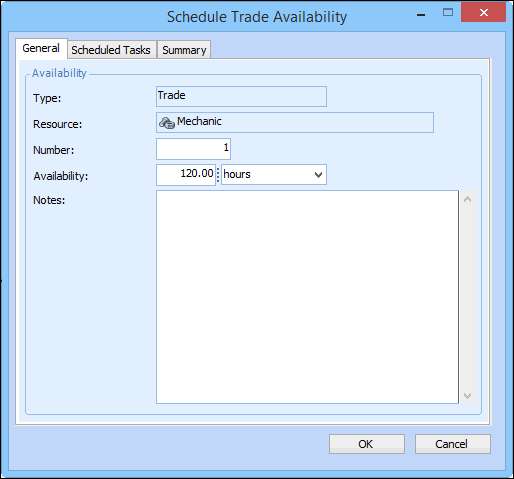
2. To see a graph of the schedule's trade availability, select the Worksheet view.
4.
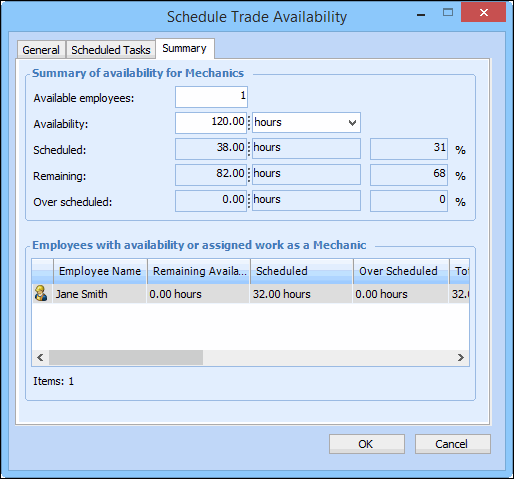
5. Select the Summary tab to view a summary of the availability information for the trade and a list of the employees scheduled to work. For example:
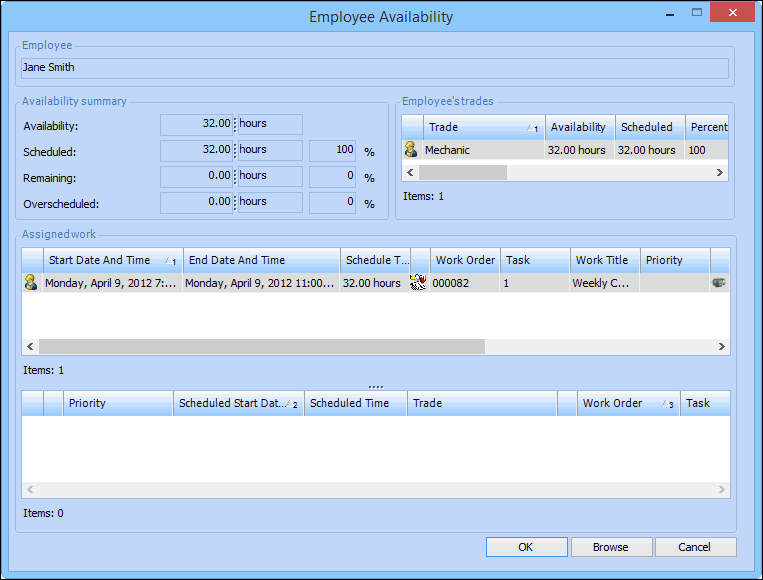
7. To work with employee availability, from the Worksheet view, double-click the bar for that employee on the Employee Availability summary chart. The Employee Availability dialog appears. For example: