Locking a Schedule

After you have finished adding tasks to a schedule, you can lock it. This allows you to monitor the amount of work that has been added to the schedule afterwards.
For example, you might start setting up the next week’s schedule on the preceding Thursday. By Friday afternoon, you have completed the schedule and the affected production and maintenance departments have agreed to it. As employees work with the schedule through the week, not all of the scheduled tasks may be completed because they may be preempted by more urgent tasks.
If you have locked the schedule, you can track the number of these urgent tasks. After the schedule is locked, any tasks that are later added to the schedule are flagged. You can use this flag if you create printed reports for your schedules.

To Lock a Schedule

1.
2.
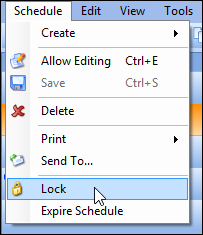
From the Schedule menu select Lock. APM locks the schedule.
3.
If additional tasks are added to the schedule, a warning message appears stating that the schedule is locked. If you click Yes to continue, the task is added to the schedule and is flagged as having been added after the schedule was locked.