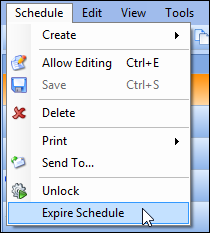
Expiring a Schedule Manually

A schedule that has passed its end date can be used as a source of tasks for another schedule and as a source of information for any scheduling compliance and analysis reports that you are running. Other than these uses, old schedules serve no function. You can reopen an expired schedule at any time.
Any work order tasks that were included on the old schedule but were not completed should be returned to the work backlog so that you can re-schedule them.
You can have APM automatically expire your schedules for you. You can also expire a schedule manually. When a schedule is expired, APM:
Note: If you return scheduled work to the backlog when the schedule is expired and you then re-schedule the work, the system does not add the trade requirements back to the new schedule. It is assumed that some of the work has been completed and, therefore, you must add new trade requirements for the remaining work.
Expired schedules are not deleted automatically unless that option is selected in the schedule’s properties. In order for schedules to be automatically expired, the Expire Schedules action must be run for the site. You can run this action from the site’s Tools menu, Work Management option, or your system administrator can schedule this action to run on a regular basis.
This topic explains how to manually expire a schedule.

To Manually Expire a Schedule

1.
2.
From the Schedule menu, select Expire Schedule.
3.