Work Templates

You can create templates for standard tasks and standard jobs that make it easy to create and maintain asset reliability programs. Work templates are especially useful if you will be creating many standard tasks and standard jobs for assets that are similar. This section explains work templates.

Task Templates

Task templates are reusable plans that allow you to quickly create standard tasks for a group of assets. For example, you could set up a task template for taking the vibration readings on pumps. If the same standard task is performed on each of the pumps, using a task template simplifies the creation and maintenance of the individual standard tasks. You might define separate task templates for taking the vibration readings for engines and gearboxes.
The task template contains much of the same information that is defined on the standard task. This includes resource requirements for the task, specific indicators to be read, and the procedures and documents that are applicable to the task.
However, a task template does not identify an asset, while the standard task does. Task templates are intended for use with several similar assets, so you can add indicator templates to them. If the task template is only for use with one asset, there is no value in defining the task template; you can simply define the standard task from scratch. Similarly, you cannot set up dynamic routes on task templates, since routes are asset-specific.
When you set up a task template and then use it to create standard tasks, APM maintains a link between each standard task and the template. If you need to change the standard tasks later on, you can make the change once in the task template and then apply the changes to the standard tasks.

Task Template and Standard Task Comparison

The following table compares task templates and standard tasks:
TOP

Job Templates

Job templates are reusable plans that can be used for more than one asset. For example, you might create a job template for the scheduled maintenance for a particular make and model of truck. If the same standard tasks are performed at the same intervals for each of the trucks, using a job template simplifies the creation of the individual standard jobs.
A job template is a means of grouping indicator and task templates so that you do not have to create indicators and standard tasks on each asset. You can use job templates to set up a reliability program framework for use with a number of assets. Job templates are not asset-specific; they are used with a number of different assets. Therefore, only task templates can be referenced by the job template. Asset-specific standard tasks cannot be referenced by a job template. Similarly, only asset-specific standard tasks can be referenced by a standard job.
The job template contains much of the same information that is defined on the standard job, including a list of tasks and the triggering cycles for the tasks. However, triggering rule clauses can refer to specific asset indicators and, therefore, cannot be included on job templates. Once you create a standard job from the template, you can add the triggering rules.

Job Template and Standard Job Comparison

The following table compares job templates and standard jobs:
 
TOP

Using Templates to Create Asset Reliability Programs

If you have a lot of assets that are similar to each other, you can use templates to quickly and easily create reliability programs for the assets. APM allows very flexible creation of both work standards and work templates. For example, you might have a standard task to “change the oil on Truck 100”. If you want to apply this standard task to the entire truck fleet, you can create a “change oil” task template from the Truck 100 standard task. You can then use the “change oil” task template to create standard tasks on all of your trucks.
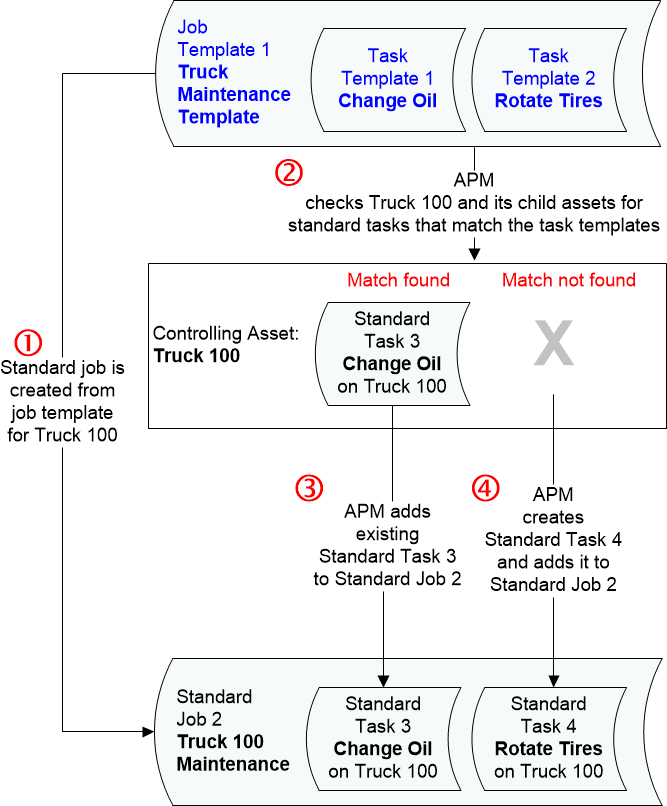
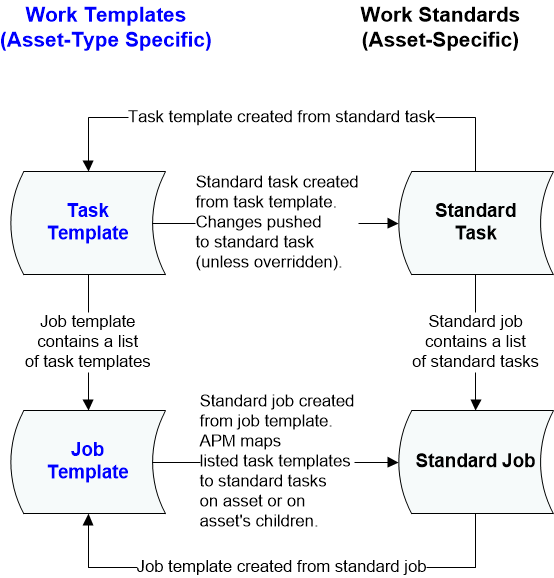
The relationships between task templates, job templates, standard tasks, and standard jobs are shown in the following diagram.
When you create a standard job from a job template, APM tries to match each of the listed task templates to a standard task on the controlling asset or on the asset’s children. To make the match, APM looks for standard tasks already based on the template or for standard tasks with the same name as the template. If APM cannot find a matching standard task on the asset or on any of its children, APM creates a new standard task on the controlling asset. This is illustrated in the following example:
If you have an existing standard job that you want to apply to other assets, you can create a job template from the standard job. When you do this, APM automatically creates task templates for each of the standard tasks listed on the standard job.
 
TOP

Using Task Templates to Update Standard Tasks

Task templates provide an easy method of maintaining a number of standard tasks. When you change the definition of the task template, APM can apply the change to the standard tasks based on the task template. This not only simplifies the maintenance of standard tasks, it also ensures that all of the standard tasks are updated.
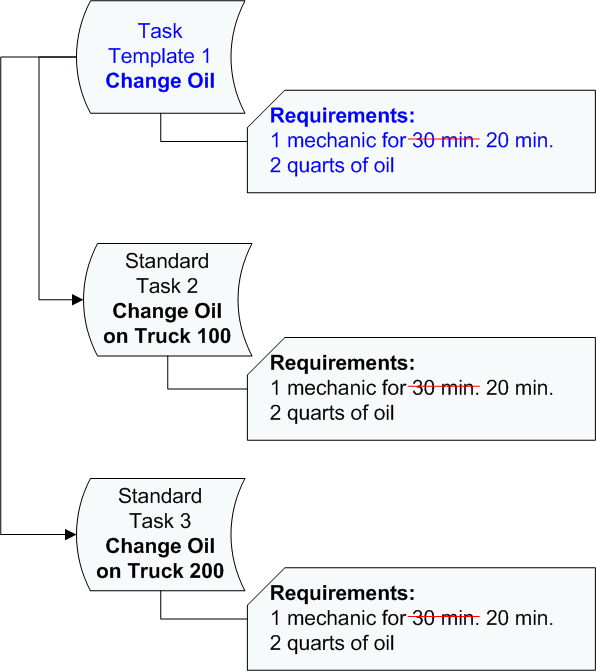
Using the change oil task template as an example, assume that when the task template was first defined it was estimated to take 30 minutes to change the oil on a truck. Over time, it is noticed that it is only taking 20 minutes to change the oil. You can change the task template resource requirement to reflect the new standard time of 20 minutes. The new value is applied to all of the change oil standard tasks that are based on the task template. This example is shown below:
TOP

Overriding Task Template Values on a Standard Task

APM can update standard tasks when the task template changes. This can save you a lot of time and effort in maintaining your standard tasks and also helps to ensure consistent task definitions across assets.
However, if some assets have differences, for example, a different operating condition, you might need to change the standard task to suit the asset. You can override some of the task template values on the standard task while keeping the link to the rest of the task template.
The following standard task values are linked to the task template but can be overridden on the standard task:
Requirements (materials, tools, trades, and services)
To edit detail properties, you can choose to “allow detail overrides”. If you edit the standard task’s detail properties, future changes made to the task template’s detail information will not be applied to the standard task. However, you can remove overrides, replacing either the detail values or all values with those from the template.
Indicators, requirements, and documents that were identified on the task template can be removed from a standard task. Indicators, documents, and requirements that are not included on the task template can be added to a standard task. You can also change the properties of requirements that have been added using a task template (such as the number or amount required). The advantage of keeping the link to the template is that, if indicators, documents, or requirements are added to the template, the standard task receives the update while retaining any overrides.
Much of the rest of the information on a standard task that is not in the above list is not linked to the task template and can be changed at any time. The following information is not linked to the template:
Note that you cannot change the work type of standard tasks that are linked to task templates.

Example

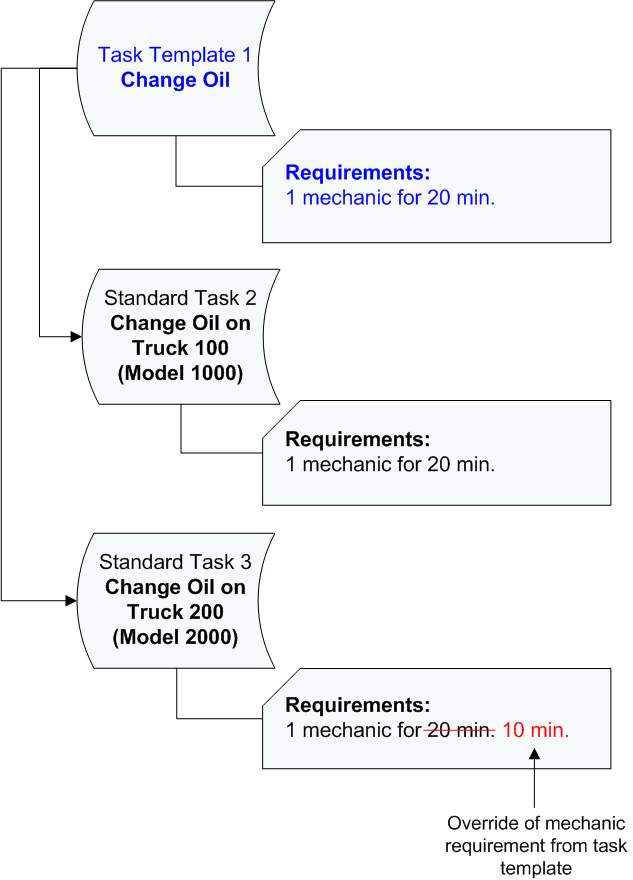
The “change oil” task template is an example. In the truck fleet, most trucks are model 1000, but a few trucks are model 2000. On model 1000 trucks, an oil change takes 20 minutes. However, the model 2000 trucks are easier for the mechanics to work on, and an oil change only takes 10 minutes. The rest of the task template information is the same for both models of truck. You would define the task template and standard tasks as follows:
This setup is shown below:
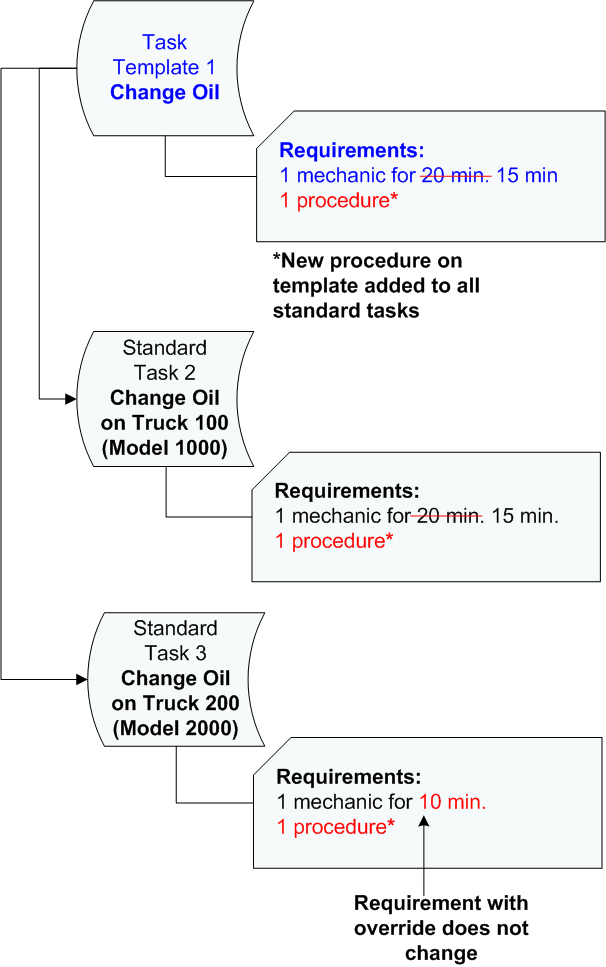
If you now change the task template to say “1 mechanic for 15 minutes”, standard task 2 would accept the change, but standard task 3 would not. However, if you add a new procedure to the task template, for example, this change would be accepted by both standard tasks. This is shown in the following diagram:
When work order tasks are created for the standard tasks, the work orders reflect the information from the task template plus any overrides that have been entered on the individual standard task. Therefore, the work order created for standard task 2 contains a requirement for a mechanic for 15 minutes, while the work order created for standard task 3 contains a requirement for a mechanic for 10 minutes.
TOP

Standard Task Override Options Table

The following table shows your options for overriding template values, and how APM handles this.
TOP

Applying and Acknowledging Task Template Changes
When the task template planner has finished editing the template, he or she can apply the changes to the standard tasks. When the changes are applied, APM flags each standard task that changed, records the list of changes, and notifies the planner of each standard task that changes have occurred. This allows the standard task’s planners to review each change and to ensure that the task definition is still appropriate for the selected asset.
Note: If the task template planner is the same person as the standard task planner, APM does not send an email or change the standard task status to “needs review.”
After the standard task planner has reviewed the changes that were made to the standard task, he or she can acknowledge the change to clear the “needs review” status. If any of the changes are not appropriate for the standard task, the planner must make the necessary changes (overrides) in the standard task.
TOP