Creating a Work Document Change Request

Change requests specify updates to be performed on work documents in the external CMMS (for example, SAP) that manages assets and work. AssetWise Enterprise Interoperability (AWEIS) conveys requests to the CMMS and returns updates for the interop documents in APM. APM supports work document change requests for work orders and work requests.
Creating a work document change request involves selecting the work order or work request and the request type and then entering the new information for the work document. Depending on the requirements set out in the request type, the change request might need to be sent for approval. When these steps are complete, the request can be submitted to AWEIS.
APM sends a change request to AWEIS when one of the following occurs:
APM proceeds if the request’s approval status is either “Not required” or “Approved”. When the request has been sent, its interop status changes to “Sent”. For information about the approval process, see Sending a Work Document Change Request for Approval.
This topic explains how to:

To Create a Work Document Change Request

1.
Work Order window, Change Requests view. Click New
Work Request window, Change Requests view. Click New
Site window, Work Management view, Change Requests tab. Click New
Checksheet window if the checksheet references a work order or work request (check the Properties view, Source tab). Click the Tools menu and click New Work Order Change Request or New Work Request Change Request
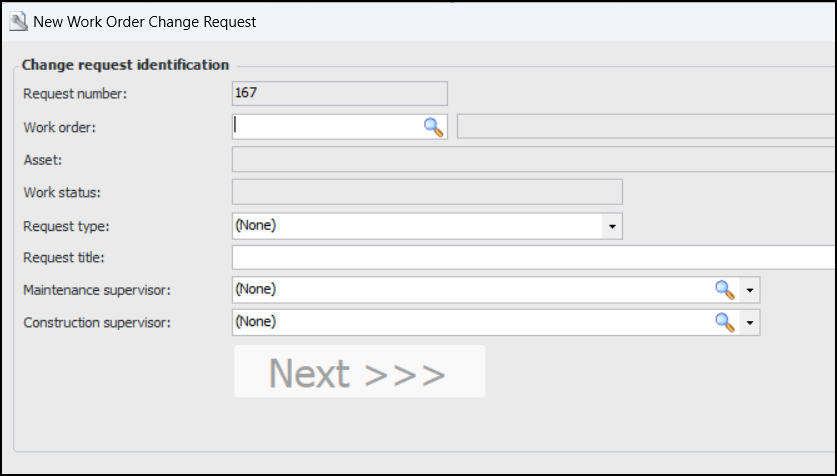
The New Work Order Change Request or New Work Request Change Request window appears, showing the start panel. This example was initiated from the Work Management view, Change Requests, Work Orders tab:
2.
Or
3.
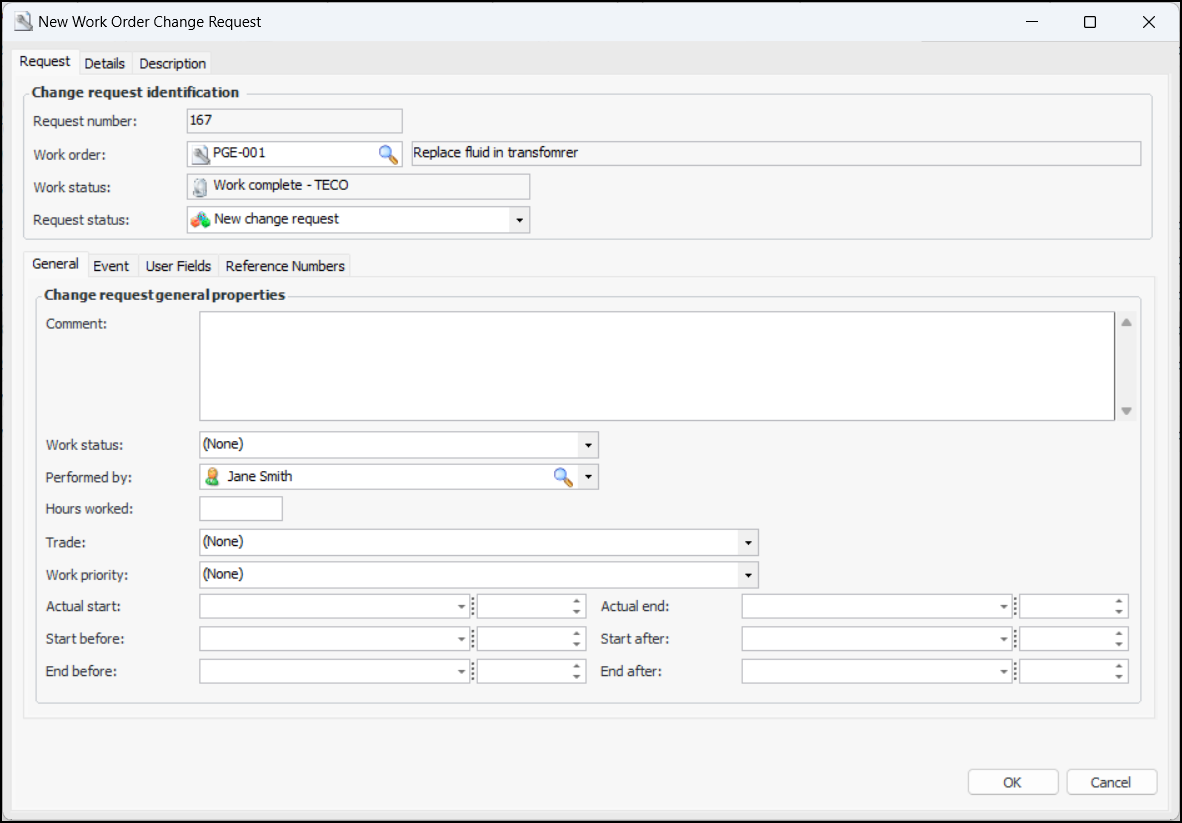
Click Next. The New Work Order Change Request or New Work Request Change Request window appears. Here is an example for a work order:
4.
5.
6.
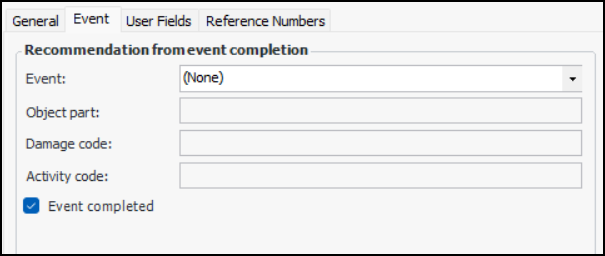
The Event tab is available if the request type specifies that “Event completion” is included. For example:
You can select an event, object part, damage code, and activity code.
If the site uses failure codes (rather than object part, damage and activity codes), you can select event, part, damage, and action.
7.
If available, select the User Fields and Reference Numbers tabs and add or revise information.
8.
Select the Details tab to view and edit data from the start window. For example, you can change the request type or edit the request title.
9.
Select the Description tab to add information.
10.

To Submit the Change Request to AWEIS
1.
In the Site window, select the Work Management view and the Change Requests tab.
2.
Select the Work Orders or Work Requests tab.
3.
Note: If the change request must be sent for approval, it is sent to AWEIS automatically when the request is approved.