Exporting Schedules to Microsoft Project 

This topic explains how to export schedules to Microsoft Project and work with Project files and schedules.
After you have defined schedules in APM, you can export the contents to Microsoft® Project (MS Project). Exporting a schedule to MS Project allows you to use advanced scheduling functions, such as task dependencies and resource leveling, and to view the schedule in various ways, such as a Gantt or Pert chart. For example, you might want to use MS Project’s leveling feature to fine-tune a complex shutdown schedule.
Note: Exporting schedules will only work with the latest supported version of MS Project.
You can also export a set of schedules and sub-schedules to an MS Project file. This allows you to work with multiple schedules in one file, to work with master and sub-projects, or for two schedulers to combine their schedules in one project.
APM creates a link between your APM schedule and the MS Project file. While the schedule is linked, you cannot make changes to it in APM, with the exception of adding tasks. This ensures that no conflicting changes are made to your schedule.
The schedule information can be modified in MS Project, and the updated information can then be imported back into your APM schedule.
However, some changes are visible only in the MS Project file. If you add new tasks or split tasks in MS Project, they will not appear in the schedule when you import it back into APM. You should add or split the tasks in APM and then re-export the schedule to MS Project.
For this reason, you can use MS Project to fine-tune your schedules, but you should use APM to manage work orders and tasks, enter time cards, and so on. As work is completed on a schedule, you can update the completion status of the work order tasks in MS Project.

Exporting Schedules

When you export a schedule to Microsoft Project, APM creates a Project file with the current contents of your APM schedule, including scheduled tasks, labor requirements, assignments, and availability. APM creates columns in Project’s standard views to display APM work order, asset, and scheduling data.
You can export your schedule to one or more new Project files or to an existing one. When you re-export a schedule, you can export the entire schedule or only changes you have made. You can also export a set of APM schedules to a new or existing Project file.
TOP

Mapping Scheduling Priorities

In APM, you can match each of your scheduling priorities to an equivalent Microsoft Project priority. You should do this if you will be exporting APM schedules to work with in Microsoft Project.
Microsoft Project uses numbers to prioritize its tasks. A task can be assigned a priority from 0 to 999. The lower the number, the lower the priority. A priority of 1000 is a special value in Microsoft Project that indicates that the task will not be leveled. In APM you can specify that a specific scheduling priority means that schedule entries cannot be leveled.
For example, if in APM you have a simple list of three scheduling priority values of high, medium, and low, you could enter these matching Microsoft Project priority values
TOP

Exporting Multiple Schedules to a Project File

You can export multiple schedules to MS Project. The schedules can be exported to a single MS Project file or to multiple MS Project files that are linked as MS Project master and sub-projects.
The schedule hierarchy is used to determine which schedules are included in the export. The current schedule and its descendants are included in the export. For this reason, it is important that you initiate the export from the correct schedule.
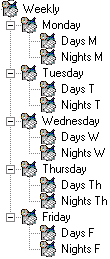
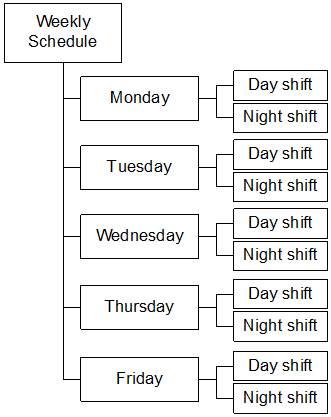
For example, you might have the following schedule hierarchy:
If you open the Weekly Schedule and perform an export, all of the schedules are exported. If you open the Friday schedule and perform an export, only the Friday schedule and Friday’s Day and Night shift schedules are exported.
TOP

Exporting to a Single Project File

When multiple schedules are exported to a single MS Project file, the system copies the contents of each schedule to the Project file.
The schedules are copied in the order they are positioned in the schedule hierarchy:
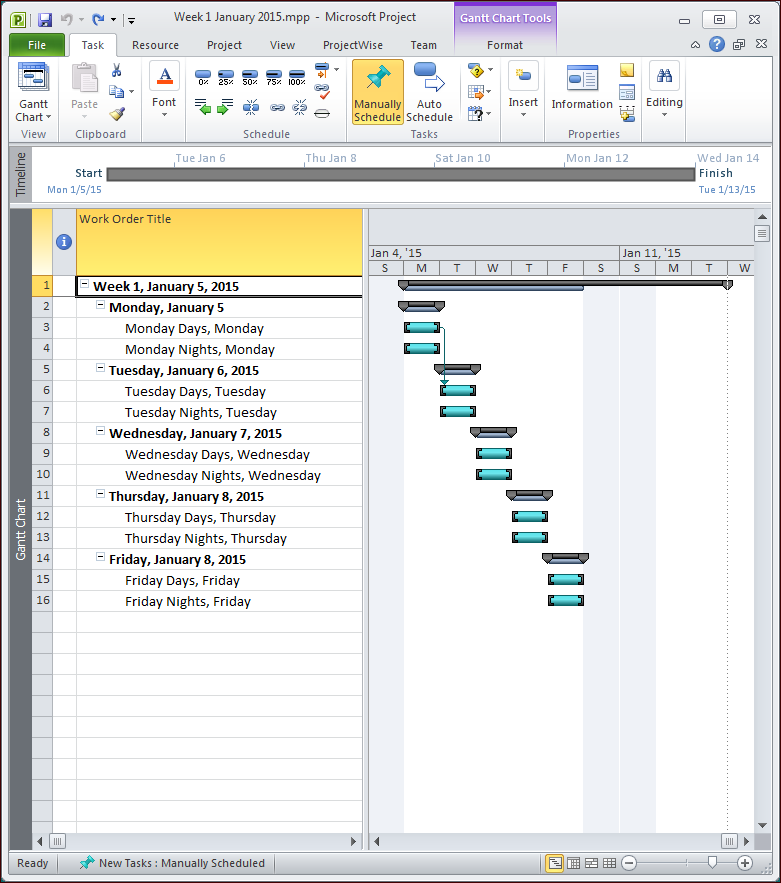
For example, if you have a Weekly schedule hierarchy with Monday to Friday daily schedules and two shifts, the schedules would appear in the MS Project file as follows:
TOP

Summary Tasks

You can request the creation of summary Project tasks for any one of the following:
You can use summary tasks to take advantage of a number of the organization and viewing functions in MS Project. (For more information on summary tasks, see the MS Project Help file).
If summary tasks are requested, a project-task is created for each schedule exported. The schedule’s summary project-task precedes the project-tasks for its work orders and tasks. The schedule’s name is copied to the work order task title column in the summary task.
When work order summary tasks are requested, a separate project-task is created for each work order with a task on the schedule. The exported work order tasks are included as subtasks.
TOP

Master Projects and Sub-Projects

When master projects and sub-projects are requested, the system creates a project structure mirroring the schedule hierarchy. A separate MS Project file is created for each schedule exported.
The projects are linked using MS Project’s “insert-project” function. A master project is created for the top schedule exported. A task is included on this project for each of its child schedule’s projects. A sub-project is created for each child schedule. If the exported schedule hierarchy includes more than two levels of schedules, additional levels of master and sub-project are created; a project file can be both a sub-project and a master project.

Naming the Project Files When Multiple Files Are Created

When multiple files are created by the export, the individual MS Project files are named as follows:
All of the MS Project files are created in the folder identified on the MS Project Export dialog.
TOP

Determining Which Work Order Tasks To Export

The following rules are used to determine which work order tasks are exported when multiple schedules are being exported. The same rules are used whether the schedules are being exported to a single MS Project file or if master and sub-projects are being created.
For example, a task is initially scheduled on a weekly schedule. It is then added to the Tuesday schedule and subsequently to the Tuesday Day Shift schedule. Only the entry from the Tuesday Day Shift schedule is included in the export.
Using the example of the task that was scheduled on the Weekly, Tuesday and Tuesday Day Shift, assume the same task was also included on the Wednesday Day shift. In this case, two tasks are created on the project: one for the Tuesday Day Shift, the other for the entry on the Wednesday Day shift.
TOP

Adding Tasks

You should add entries for new work order tasks to a schedule in APM, not to the exported schedule in MS Project. If you add new tasks in MS Project, they will not appear when the schedule is imported back into APM. For example, you could export your schedule to MS Project and complete the resource assignments and leveling functions, and then realize there is capacity for additional tasks.
You can add new task entries to the APM schedule, re-export your changes to the same MS Project file, and then complete the schedule in MS Project.
Note that you can move tasks between a set of schedules in MS Project, provided that work order task has been exported already as part of another schedule.
TOP

Adding a Schedule to an Existing Project File

You can add a new schedule to an existing MS Project file. For example, after exporting a number of schedules to a project, a new schedule is created, and you want to add this schedule’s contents to the existing MS Project files.
To do this, you need to re-export your schedule hierarchy, starting from the parent schedule. If you re-export the hierarchy to the same MS Project file, the contents of the file will be replaced.
TOP

Information Exported to the MS Project File

For each scheduled task, each resource (employee or trade) requirement, and each task assignment on the APM schedule, APM creates a MS Project task, resource, and task assignment.
The following information is exported to MS Project:
Schedule entries which have been entered with a duration in days are shown with a duration in hours in MS Project. For example, a schedule entry requirement for a mechanic for two days will be exported as a requirement for a mechanic for 48 hours.
APM includes in the export completed and closed tasks, which are shown as being 100% complete in MS Project. This provides a complete picture of the schedule, including task dependencies that were defined based on one of the closed tasks.
Note: If your schedule includes requirements for non-catalog resources (that is, services or tools not listed in your resource catalog), you should ensure that the description for each requirement is unique. This will ensure that the names of the MS Project resources that are created are also unique.

Working With Exported Schedules in Microsoft Project

After you have exported your APM schedule to MS Project, you can start working with the schedule in MS Project.
In MS Project, you can make the several types of changes to your schedule. These changes appear when you import your schedule back into APM:
TOP

Moving Tasks Between Different Schedules

Tasks that are moved between schedules are updated in the APM schedules during import. When APM imports the MS Project file, it places moved tasks onto the peer schedule that matches the starting date for the new task.

Schedule Hierarchy

APM supports moving tasks in MS Project, provided the tasks are moved or added to peer schedules. For example, you have a weekly schedule, five daily schedules (Monday to Friday), and two shift schedules under each daily schedule:
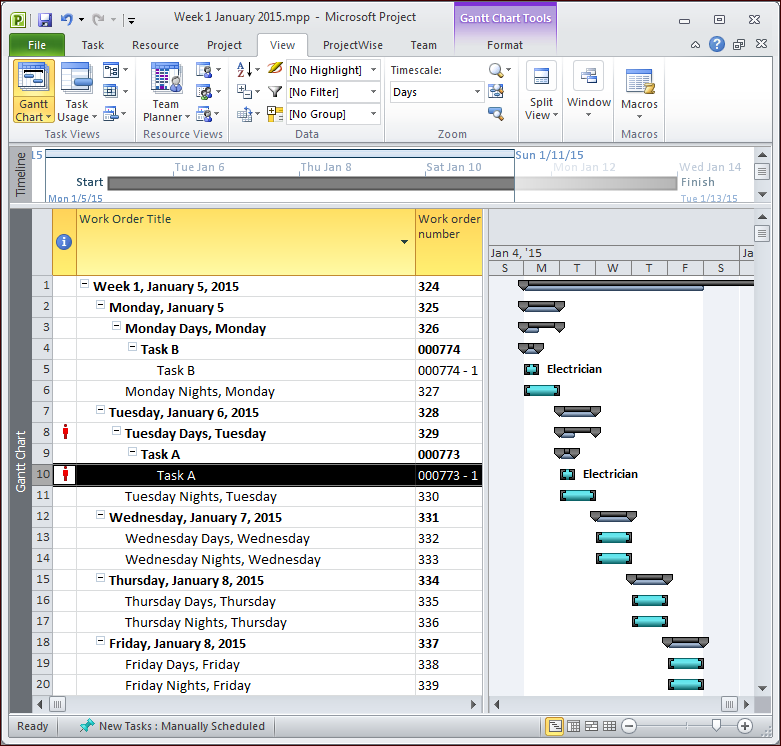
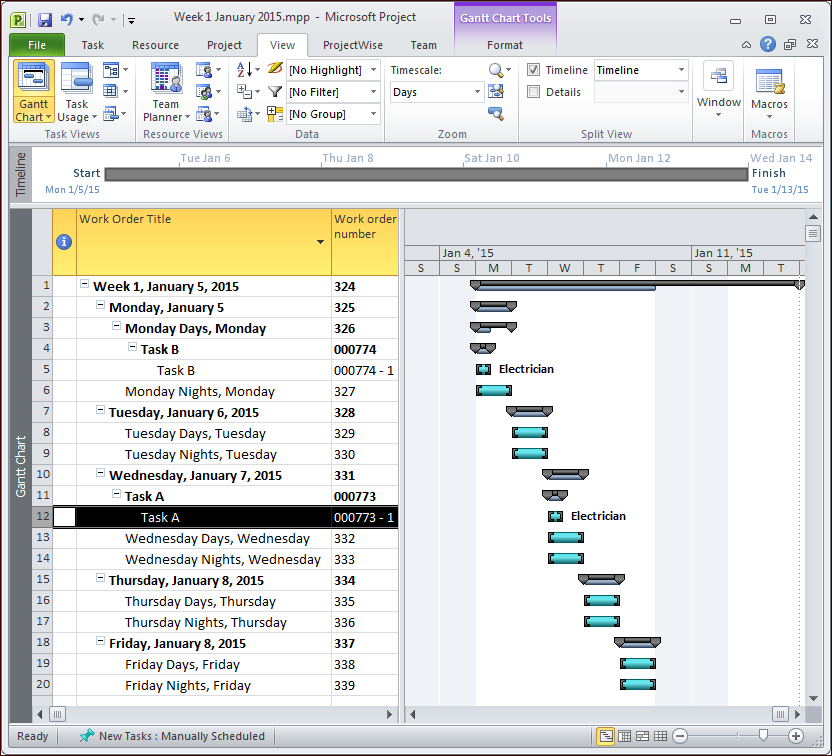
You then export the weekly schedule and its children to MS Project, and move task A from the Monday Day shift to the Tuesday Day shift. When you import the Project back into APM, APM moves work order task A to the Tuesday Day shift schedule.
However, you can only move tasks from a peer schedule to a peer schedule. In Project, you could move task A from Monday Day shift to the Wednesday summary task.
When you import the schedule back into APM, APM searches for a peer (shift) schedule with the new start date and moves the work order task there (for example, to the Wednesday Day shift schedule).
TOP

Information Imported From MS Project Back Into APM

When you re-import a schedule back into APM, some of the schedule information is copied to the APM schedules, and some is not.

Schedule Information Imported from Microsoft Project

On the imported schedule, the following information is updated with the MS Project values:

Schedule Information Not Imported from Microsoft Project

The following information is not updated on the imported APM schedule (the information remains available in MS Project):
TOP

Dependencies and Constraints

Successors and predecessors are used in MS Project to identify the relationship between two tasks: one task depends on the start or finish of another task to begin or end. Successor and predecessor relationships imported from MS Project are updated on the APM schedules.
Note: APM only supports dependencies (links) created between work order tasks. If you create a link to a schedule summary task or a work order summary task, this link will not be shown in APM.
Constraints are used in MS Project’s leveling logic to tie a task to a specific date, for example, a task may be defined as finishing no later than a specific date. When you import a schedule from MS Project into APM, task constraint values are stored but not used or defined in the APM schedule or work order task. If the schedule is re-exported to MS Project, the constraints are included in the export.
TOP

Updating an MS Project File as Work is Completed

Once work begins, you can update the work completion status for work order tasks on a schedule that you have exported to MS Project. The work progress is updated based on activity reported against the work order task in APM.
When you update the actual work completion status for tasks on a schedule, the following information is updated in the MS Project file:
TOP

Exporting to an Existing Project File

You can use the export to MS Project to update an existing Project file. This feature can be used in a number of situations. For example:
TOP

Clearing the Link Between Schedules and Project Files

When you export your schedule to MS Project, APM creates a link between your APM schedule and the MS Project file. You can break this link by clearing the MS Project file. If you break the link before you import the schedule back into APM, the changes you made in MS Project will not be shown in APM. Any additional changes you make to the MS Project file can no longer be imported to the APM schedule.
You can re-create the link by exporting the schedule to MS Project.
Situations for which you would clear the link include:
TOP

MS Project Templates

When you export schedules to MS Project, you can have APM use your own MS Project template file. Using the template, you can create your own custom fields and columns to use when working with the schedules in MS Project.
Note: When creating a template file, the effort-driven option must be cleared in the project options. Selecting this option might cause inappropriate changes to schedule entry durations. To clear this option on the Tools menu, click Options, click the Schedule tab, and then clear the New tasks are effort driven option.
Note: APM relies on specific fields and columns for the export process. You must not customize or alter any of these fields in your MS Project template file. Fields with an asterisk (*) must not be hidden in your template file.
TOP