|
Scheduling Concepts
Simple Schedules
Availability Schedules
Scheduling Work
Schedule Hierarchies
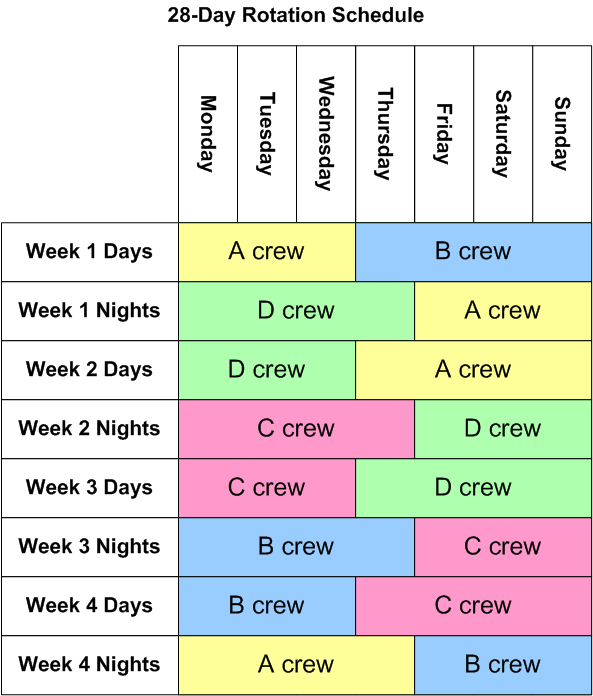
For an example of a more complex schedule hierarchy, see Setting up Schedule Templates for a 28-Day (4-Week) Shift Rotation.Schedule Templates
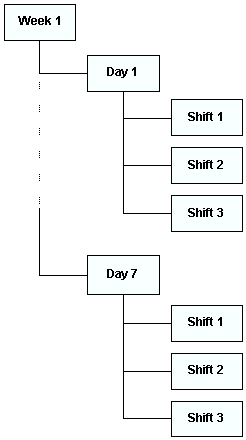
Schedule Template Hierarchy
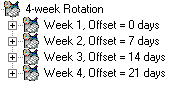
Offset Start Dates Within a Schedule Template Hierarchy
For complete instructions on setting up templates for this example, see Setting up Schedule Templates for a 28-Day (4-Week) Shift Rotation.Scheduling Standard Jobs Automatically
Resource Availability
Setting Up Schedule Availability
• Use the availability entered here: You can enter the availability at a trade level directly on the schedule or template. You cannot use this option to enter employee availability. Availability for other resources can also be entered.
• Calculate the trade availability based on the employees scheduled to work: Employees scheduled to work during the schedule period are included in the availability. APM summarizes these records to calculate the trade availability. Availability for other resources can be entered manually.
• Calculate the trade availability based on the employees assigned to the schedule’s maintenance groups: APM calculates availability based on the maintenance groups selected for the schedule and the employees that are assigned to the maintenance groups. The availability is based on the employees’ primary trade and is tracked by trade, employee, and employee/trade. Availability for other resources can be entered manually.
• Sum the availability from the schedule’s child schedules: APM calculates the schedule’s availability by totaling the availability from the child schedules. This option is normally used in a schedule hierarchy where the child schedules calculate availability using one of the other options.Employee Availability
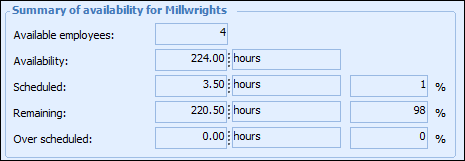
Viewing Availability Data
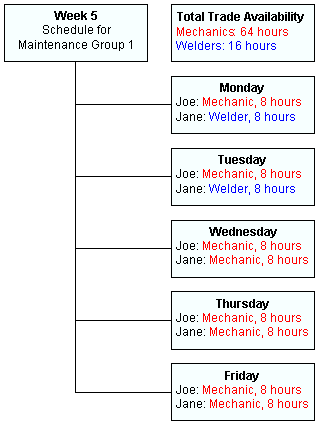
• Employees: The total number of employees who are available to the schedule or to the trade. Use the number of employees as a guideline only, in combination with the hours available for each trade and employee. For example, the schedule might say that you have 2 employees available: Joe and Jane. If Jane is available full-time but Joe is only available half-days, you can only schedule work for 1.5 full-time employees.
• Availability: The number of person-hours, trade-hours, or resource-hours available on the schedule. Depending on which level of data you are reviewing, this is either the total number of hours available for all employees, for the employees of a trade, or for an individual employee. For example, you have 3 employees available to the schedule, two mechanics for 30 hours each (Jane and Jim), and one machinist for 20 hours (Joe). The total availability is 80 hours, the mechanic trade availability is 60 hours, and Joe’s employee availability is 20 hours.
• Scheduled: The number of hours of work that has been added to the schedule, assigned to the trade or resource, or assigned to an employee. APM calculates the trade’s scheduled hours based on the trade requirements planned for the scheduled tasks. APM calculates the employee’s scheduled hours based on the scheduled tasks that are assigned to that employee.
• Remaining availability: The number of hours that are remaining to be scheduled for the schedule, trade or resource, or the employee. APM calculates remaining availability by subtracting the scheduled hours from the total availability. For example, if the welder trade is scheduled for 6 hours and the total availability of welders is 10 hours, the remaining availability will be 4 hours. Remaining availability is never shown as a negative value. If the scheduled hours exceed the available hours, the remaining availability is set to zero. The difference is shown in the over-scheduled hours.
• Over-scheduled: The number of hours that are scheduled that exceed the availability.Percentage Availability During a Shift
Tracking Trade Versus Employee Availability
Multi-Trade Employees
Employees Shared Between Maintenance Groups
Tracking Availability for Job Contractors, Services, Tools, and Equipment
Non-Catalog Resources
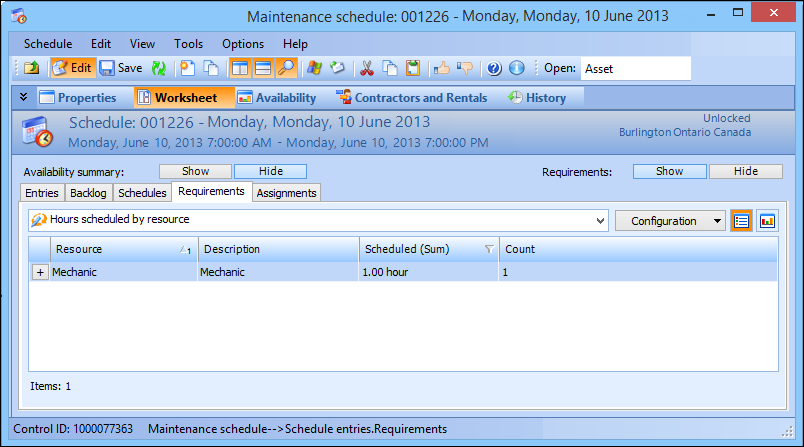
You can view the hours scheduled for all resources (catalog and non-catalog) on the schedule’s Worksheet view, Requirements tab, Hours scheduled by resource configuration.Expiring Schedules
Expired schedules are not deleted automatically unless that option is selected in the schedule’s properties. In order for schedules to be automatically expired, the Expire Schedules action must be run for the site. You can run this action from the site’s Tools menu, Work Management option, or your system administrator can schedule this action to run on a regular basis.Locking Schedules
Exporting Schedules to Microsoft Project
After you have defined schedules in APM, you can export the contents to Microsoft® Project (MS Project). Exporting a schedule to MS Project allows you to use advanced scheduling functions, such as task dependencies and resource leveling, and to view the schedule in various ways, such as a Gantt or Pert chart. For example, you might want to use MS Project’s leveling feature to fine-tune a complex shutdown schedule.