What’s New in APM 7.22

APM 7.22 introduces the next phase of enhancements to improve quantitative RBI in your workflow. With this release, you can automate the process of analyzing a failure mode’s criticality using lookup tables and delivered calculations. In addition, using anomaly risk assessment and integration, you can perform risk assessment when creating requests for work.

Contents

Anomaly Risk Assessment – Requests for Work
APM Mobile Inspections
Approvals
Asset Change Requests
Asset Management
Configuring the APM Environment
Data Loaders
Fluid Condition Tracking
Inspection Management
Performance and Stability Enhancements
Regulated Gas Management – Supervisors on Transactions
Strategy Development Analysis
Strategy Development Analysis – Practical RBI
Work Document Change Requests

Anomaly Risk Assessment – Requests for Work

APM 7.21 introduced support for integrating APM with an external Anomaly Assessment and Tracking (AA&T) system. With the help of AWEIS and other middleware, anomaly events are sent to the AA&T system, which then becomes the master system for the events. Information, including event statuses, is sent to APM to keep the two systems synchronized.
Note: Support for anomaly risk assessment is generally available. However, you must first enable feature 108 to use the functionality in APM. In the Enterprise window, select the Features view and the Enabled Features tab. Click Browse, select “Anomaly risk assessment” and click OK. If APM is running as a smart client, click Refresh Enabled Features on the server. Then restart the client to use the functionality.
As of APM 7.22, you can perform risk assessment when creating requests for work (without acknowledging an alarm). When activated, the functionality is available whether you are creating the request from scratch or adding follow-up work to an indicator reading, checksheet, failure record, inspection report, maintenance action plan, reliability program review, or safety override incident.
The work type site settings determine if risk assessment is required on requests for work. Your organization decides the circumstances that require risk assessment. For example, work type site settings might specify that only Inspection and Corrective tasks be assessed. For related information, see Setting up Site-Specific Work Types.
The risk assessment process consists of the following steps:
1.
2.
3.
4.
5.
For more information, see Performing Risk Assessment on a Request for Work.
For information about setting up this functionality, see Anomaly Risk Assessment Settings.

APM Mobile Inspections

The following enhancements are included in APM 7.22 and APM Mobile Inspections 2.5.

Download Checksheet Documents

You can now download checksheet documents to mobile devices, specifically, standard documents in jpg, png, or pdf format stored outside of the APM database. When these documents are attached to a standard task, they are copied to its checksheet:
When the checksheet is downloaded to a mobile device, the documents are included.
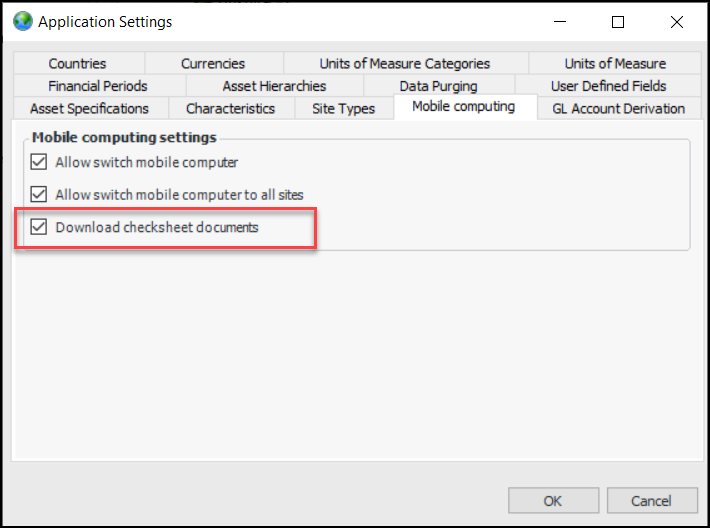
To enable this functionality, set a mobile computing setting at the enterprise level:
In the Enterprise window, click the Administration menu and then Application Settings
Select Download checksheet documents:
For more information, see Assigning Checksheets to a Mobile Device.

Upload Size Limit

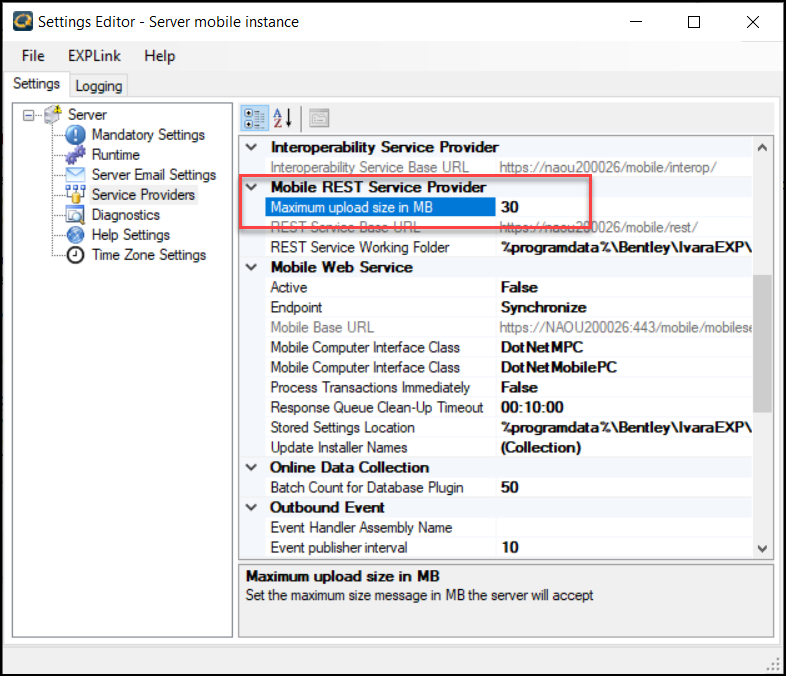
The Maximum upload size in MB setting is now configurable. For example, you can increase the value from the default of 30 MB to accommodate the original size of large photographs.
To access the setting:
In the Configuration list, click Full Settings
In the Settings Editor, click the File menu and then Show Advanced Settings
Select the Service Providers node and scroll down to the Mobile REST Service Provider node:
Change the value in Maximum upload size in MB, as needed

Approvals

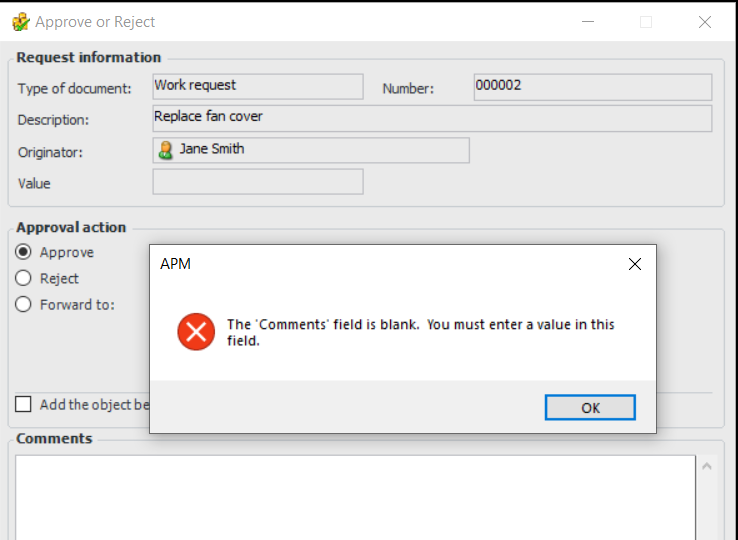
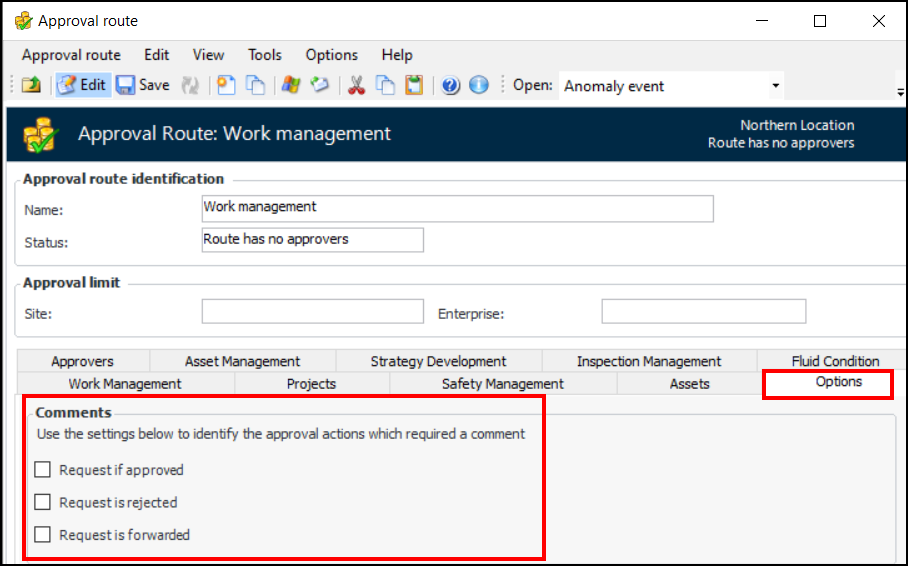
You can now require approvers to enter comments when approving, rejecting, or forwarding an approval request. For example, when the approver clicks OK on the Approve or Reject dialog, the following error can be displayed:
You can set these options on the approval route. Select the Options tab:
For more information, see Creating Approval Routes.

Asset Change Requests

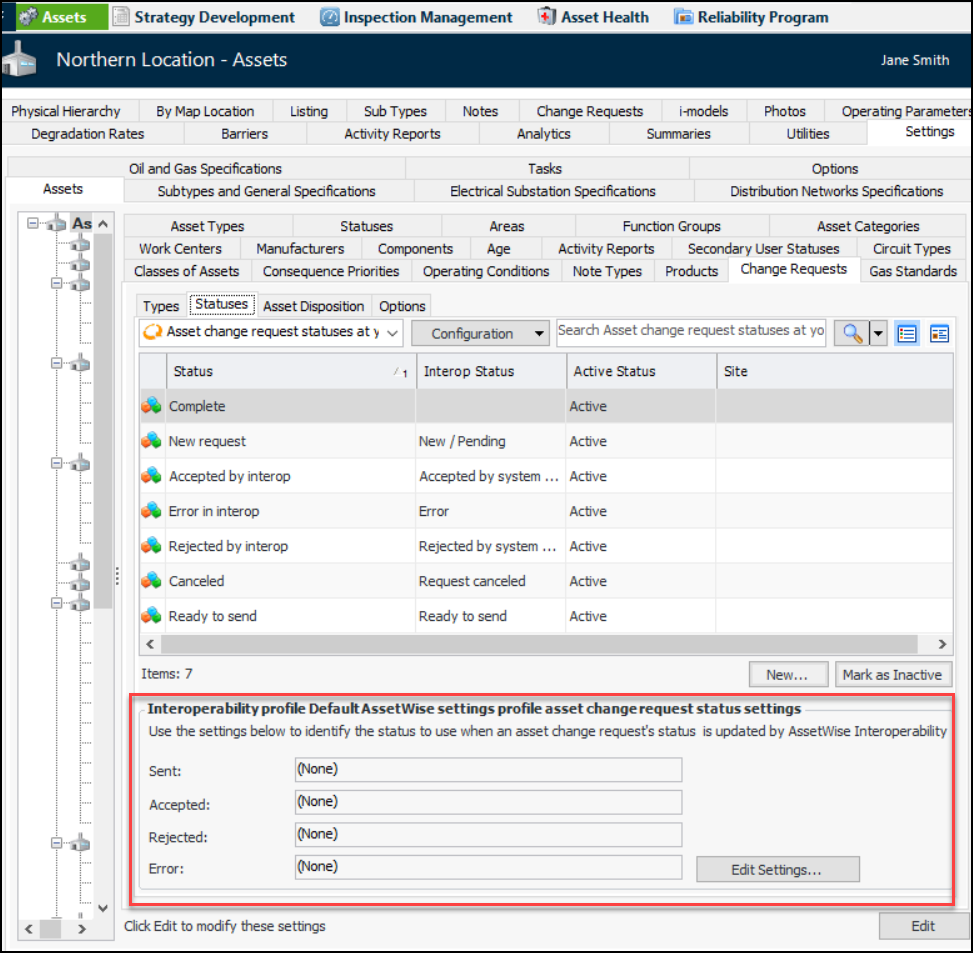
Setting up APM to use asset change requests to communicate updates to the CMMS is now more convenient. When setting up asset change request statuses, you can assign them to corresponding interop statuses at the site level. The site interoperability profile is updated automatically.
In the site’s Assets view, select the Settings, Assets, Change Requests, and Statuses tabs. The panel at the bottom of the window displays the settings from the active site interoperability profile.
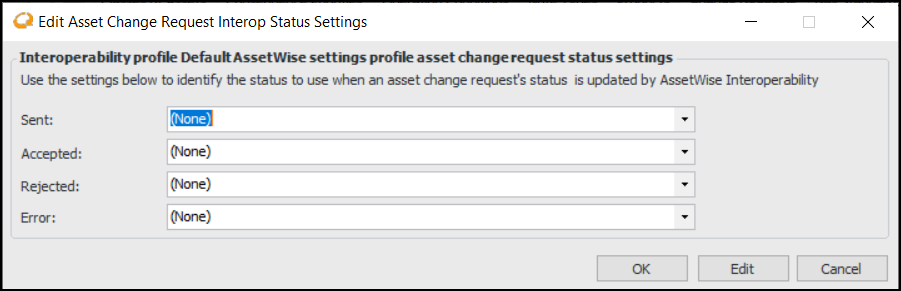
Click Edit Settings to open the Edit Asset Change Request Interop Status Settings dialog:
For each of the interop events, select an asset change request status. Note that a status is not available for selection if it has not been assigned a corresponding interop status in its properties.
For more information, see Setting up Asset Change Request Statuses.
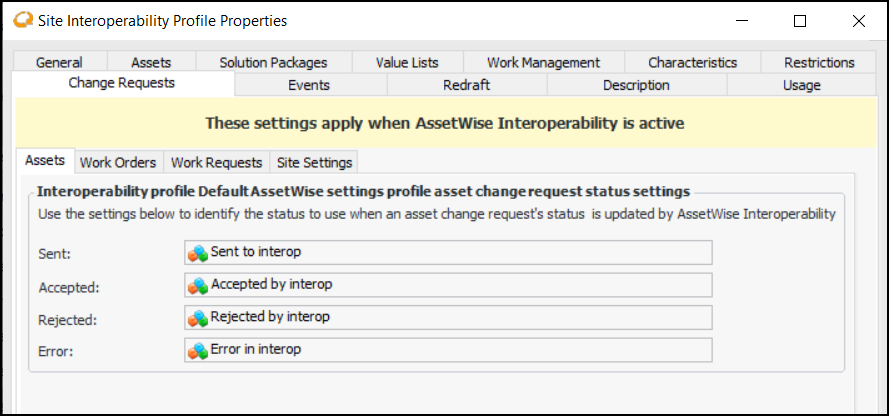
When you click OK, the current site interoperability profile is updated. For example:
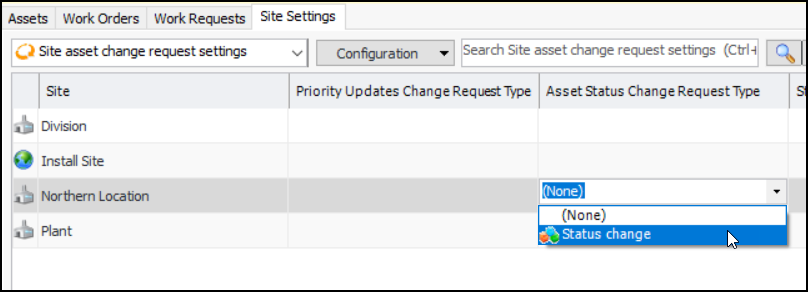
In the Site Interoperability Profile window, Change Requests tab, you can select the Site Settings tab to view asset change request types and statuses for the sites in the enterprise. You can press F2 to edit the values from this location:
When creating an asset properties change request, you will see an information banner at the top of the window if asset change request statuses have not been defined in the site interoperability profile. Click Edit Settings to assign values.
Asset prioritization analyses use asset priority change requests to update equipment consequence priorities in the CMMS. When you are developing an analysis, APM displays a banner in the Asset Analysis window, Properties and Worksheet views if the asset change request type has not been selected for the site. You can click Edit Setting to open a dialog where you can select a type.

Asset Management

The following enhancements were made to asset specifications.

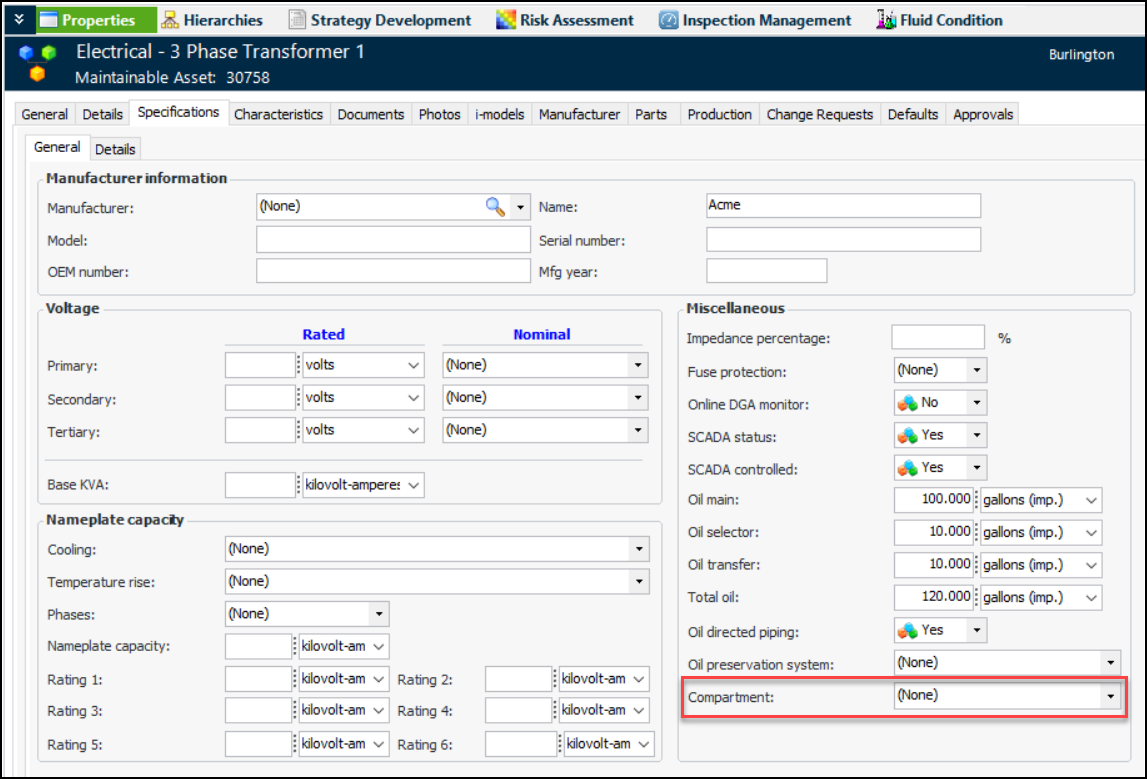
Electrical Substation Asset Specifications – Compartment

The “Compartment type” attribute was added to asset specifications, asset change requests, and construction forms. For example:
This change affects the asset Specifications tab, asset change requests, and construction forms for the following asset types:

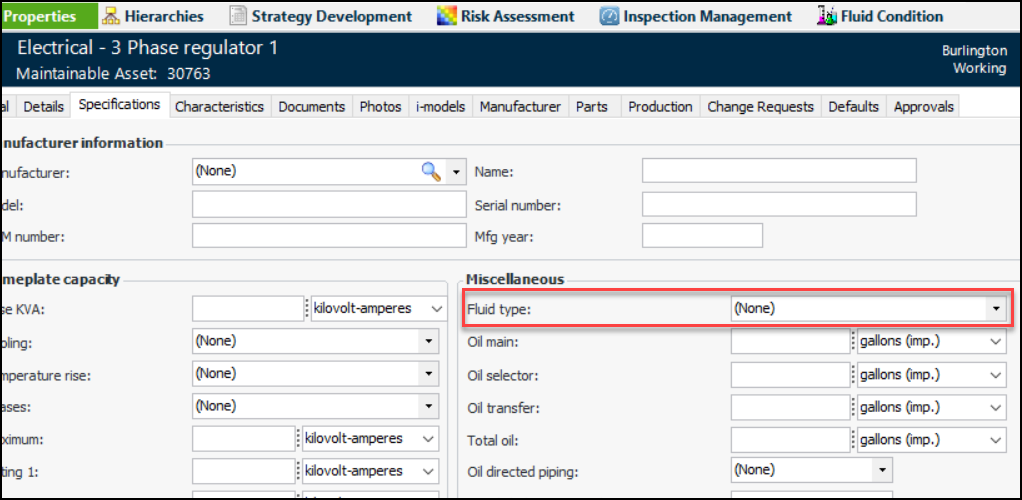
Electrical Substation Asset Specifications – Fluid Type

The “Fluid type” attribute was added to asset specifications, asset change requests, and construction forms. For example:
This change affects the asset Specifications tab, asset change requests, and construction forms for the following asset types:

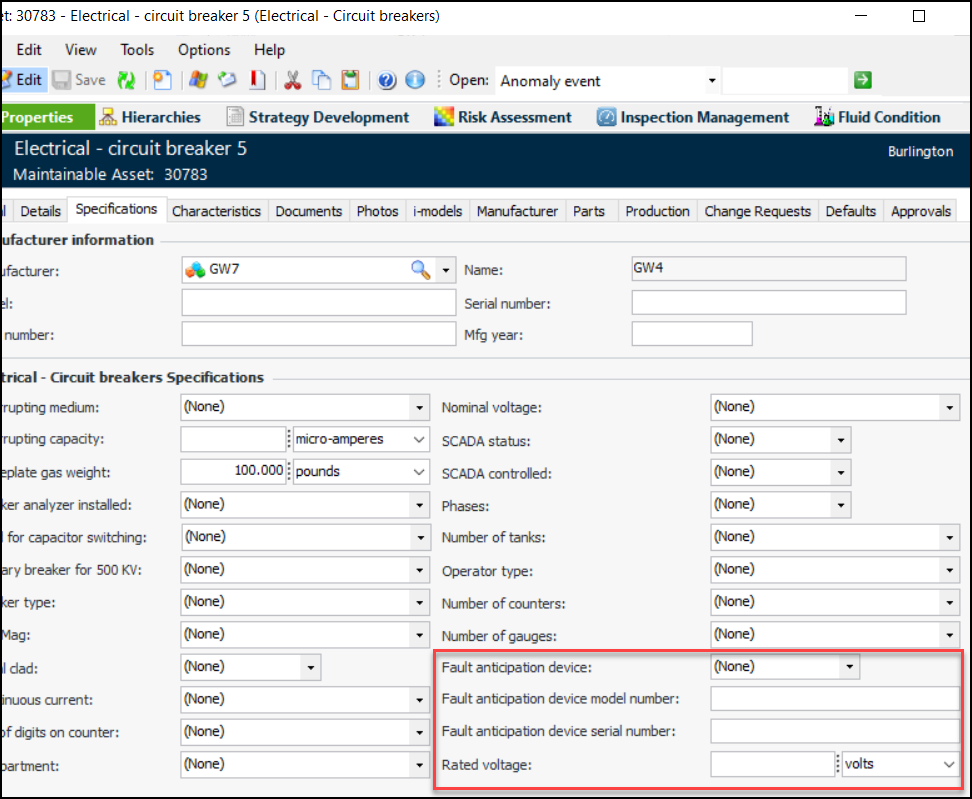
Circuit Breakers – Fault Anticipation

Four attributes were added to asset specifications, asset change requests, and construction forms for electrical circuit breakers: Fault anticipation device (Yes or No), fault anticipation device model number, fault anticipation device serial number, and rated voltage. For example:

Configuring the APM Environment

The following changes were made for this release.

Email – SMTP Credentials Removed from the Client

For security reasons, SMTP credentials have been removed from the APM smart client. This means that the Smart Client Packager no longer includes SMTP credentials, and you can no longer enter settings for the SMTP plugin in client email settings.
When you wish to send an email from the smart client (for example, to send an APM object), you will need to use Microsoft Outlook. Automatic emails (for example, indicator alarm notifications), are sent from the server using the configured SMTP plugin.
Note: We strongly recommend changing the SMTP username and password in server instances. Be sure to repackage and deploy client installers.
For related information, see “Setting up Email” in APM Installation Guide.

Default Web Browser Updated

When you add a URL in an asset’s Image view, APM now uses the Windows Edge browser by default. This control is also used in 4D indicator Readings view, map coordinates, the Criticality matrix on failure modes, and so on.

Bentley CONNECT Authentication Type

Previously, only user IDs assigned the Windows authentication type could log in to APM with the Administrator privilege. Now, Bentley CONNECT users can also use the Administrator privilege.
For more information, see Creating an APM User ID.

Environment Passwords

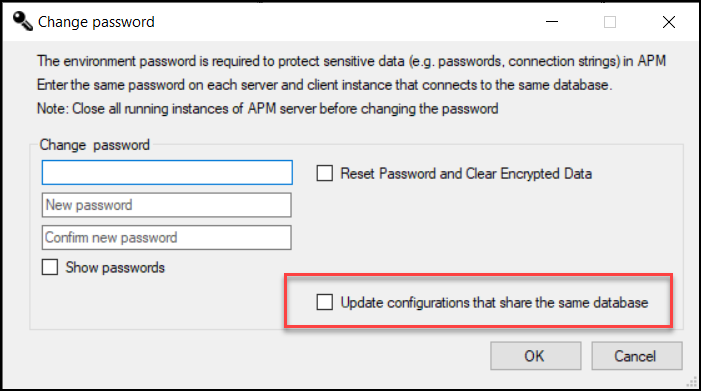
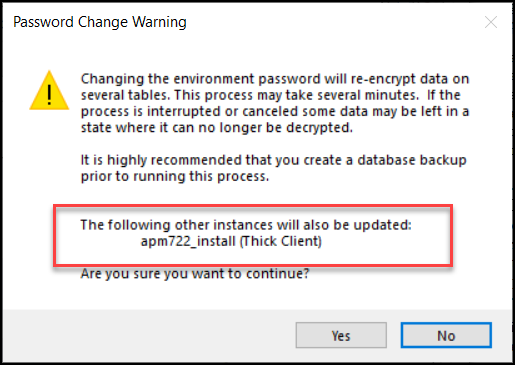
When adding, changing, or resetting environment passwords in APM Configuration, you can now select to update instances that share the same database:
Password Change Warning messages list the other instances that will be updated. For example:
For more information, see “Adding the Mandatory Environment Password” in APM Upgrade Guide.

Data Loaders

The following data loaders were introduced or updated in this release.

Standard Task – Last Done On

The date that the standard task was last done has been added to the standard task data loader import template. You can access this data loader in the Enterprise window, Data Loaders view, Reliability Program tab.

Maintenance Action Plan Inspection Tasks

The new maintenance action plan inspection tasks data loader is available in the Enterprise window, Data Loaders view, Strategy Development tab. You can use it to import standard tasks linked to failure modes.
Note: Support for this data loader is generally available. However, you must first enable feature 87 to use the functionality in APM. In the Enterprise window, select the Features view and the Enabled Features tab. Click Browse, select “Maintenance action plan inspection task data loader” and click OK. If APM is running as a smart client, click Refresh Enabled Features on the server. Then restart the client to use the functionality.

Fluid Condition Tracking

This version introduces the following changes.

Lab Fluid Sample

The following attributes have been added to fluid sample results:

Indicator Bar Code

When entering indicator readings that capture fluid sample information, you can now scan the indicator bar code to identify the reading’s asset. This is in addition to support for asset bar codes.

Inspection Management

Inspection Effectiveness of Indicators

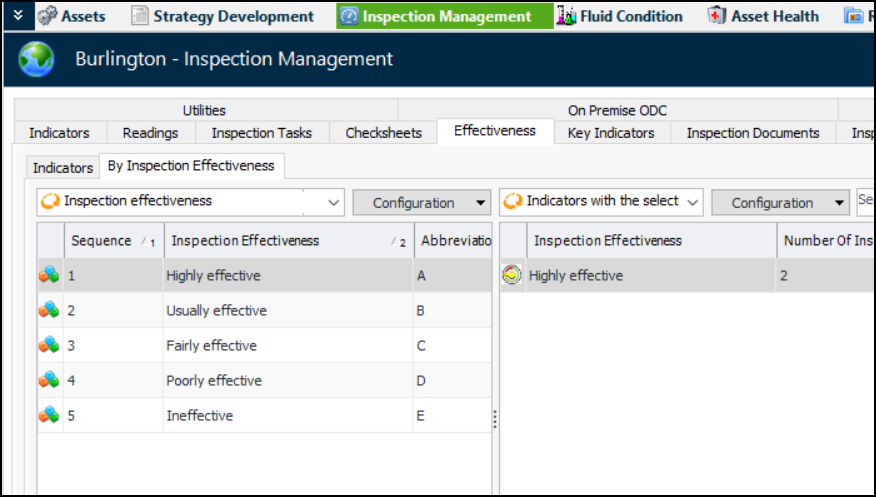
The Site window, Inspection Management view now displays the Effectiveness tab. The Indicators tab lists all indicators on the site that support inspection effectiveness values:
On the By Inspection Effectiveness tab, you can select a value and see a list of indicators that have been assigned that value. For example:
For more information, see Tracking the Inspection Effectiveness of Indicators.

Incorrect Indicator Readings

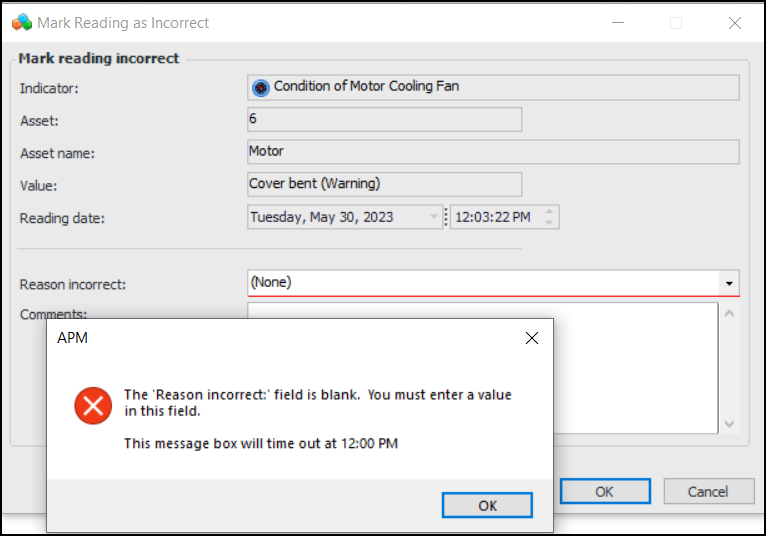
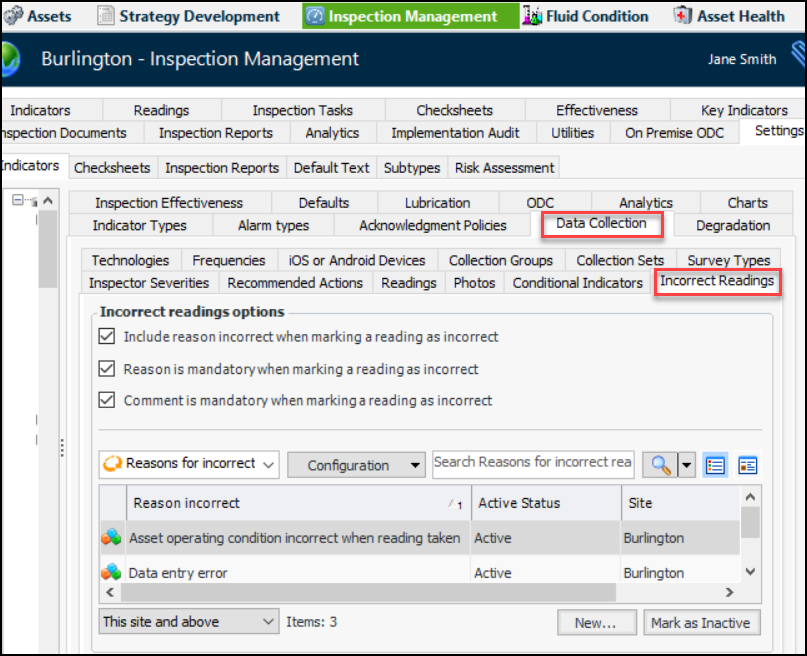
You can now specify that, when flagging an indicator reading as incorrect, the user can (or is required to) enter a reason, comment, or both. For example, if a reason is mandatory, an error prevents you from closing the Mark Reading as Incorrect dialog:
You can set options and add readings by selecting the site’s Inspection Management view, Settings and Data Collection tabs, and then the Incorrect Readings tab:
For more information, see Setting Options for Incorrect Indicator Readings.

Performance and Stability Enhancements

The following improvements were made for this release:

Regulated Gas Management – Supervisors on Transactions

When creating a gas transaction, you will find that the list of supervisors available for selection now includes employees who have the maintenance supervisor, construction supervisor, or both designations.

Strategy Development Analysis

The following enhancements were delivered in this release.

Copy Properties from Primary to Secondary Action Plans

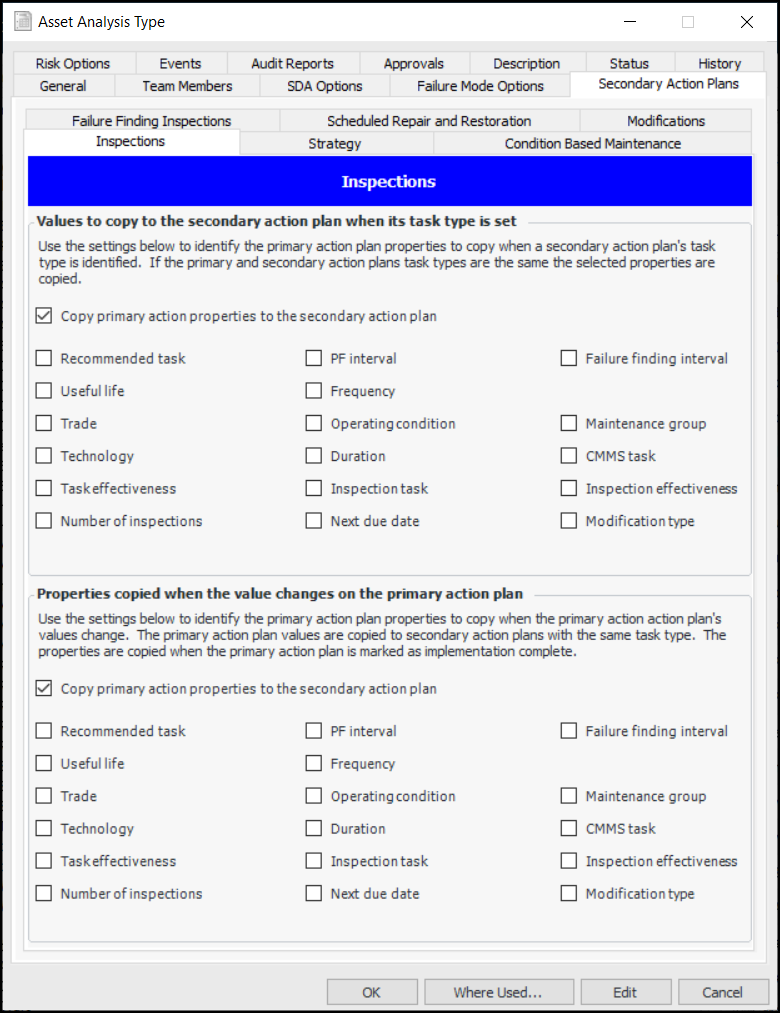
In analysis types, you can now specify the default properties to be copied from a primary action plan when a secondary action plan with the same recommended task is added to the analysis. You can also specify which properties are updated in a secondary action plan when the properties change on the primary plan.
To create or modify analysis types for the site, select the Strategy Development view, Settings tab. On the Analysis Types tab, open a new or existing analysis type and select the Secondary Action Plans tab. For example:
Enable one or both of the copy options and select the appropriate properties.
There is a tab for each type of recommended task that is likely to be used for both primary and secondary action plans in the same analysis. The recommended task types are:
For more information, see Setting up Analysis Types.

Strategy Development Analysis – Practical RBI

APM 7.22 introduces the next phase of enhancements to improve quantitative RBI in your workflow. Using this release, you can provide the ability to automate the process of analyzing a failure mode’s criticality using lookup tables and delivered calculations. You can also define your own custom calculations.
Note: Support for criticality evaluation calculations is generally available. However, you must first enable feature 115 to use the functionality in APM. In the Enterprise window, select the Features view and the Enabled Features tab. Click Browse, select “Practical RBI - criticality evaluation calculations” and click OK. If APM is running as a smart client, click Refresh Enabled Features on the server. Then restart the client to use the functionality.

Calculation of Criticality Evaluation Rankings

Additional formulas and evaluations calculate the probability of failure and consequences for a failure mode based on various lookup tables and calculations to produce criticality evaluation rankings.
The existing Calculation function now supports calculations that determine ranking values for criticality evaluations. In the criticality evaluation, the user is presented with a series of evaluation categories. Each evaluation category consists of a series of questions.
Previously, the user would select the appropriate question for the failure mode being evaluated. The selected question has a ranking assigned to it. The ranking is used to select the corresponding probability or severity (health and safety, environmental, or reputation).
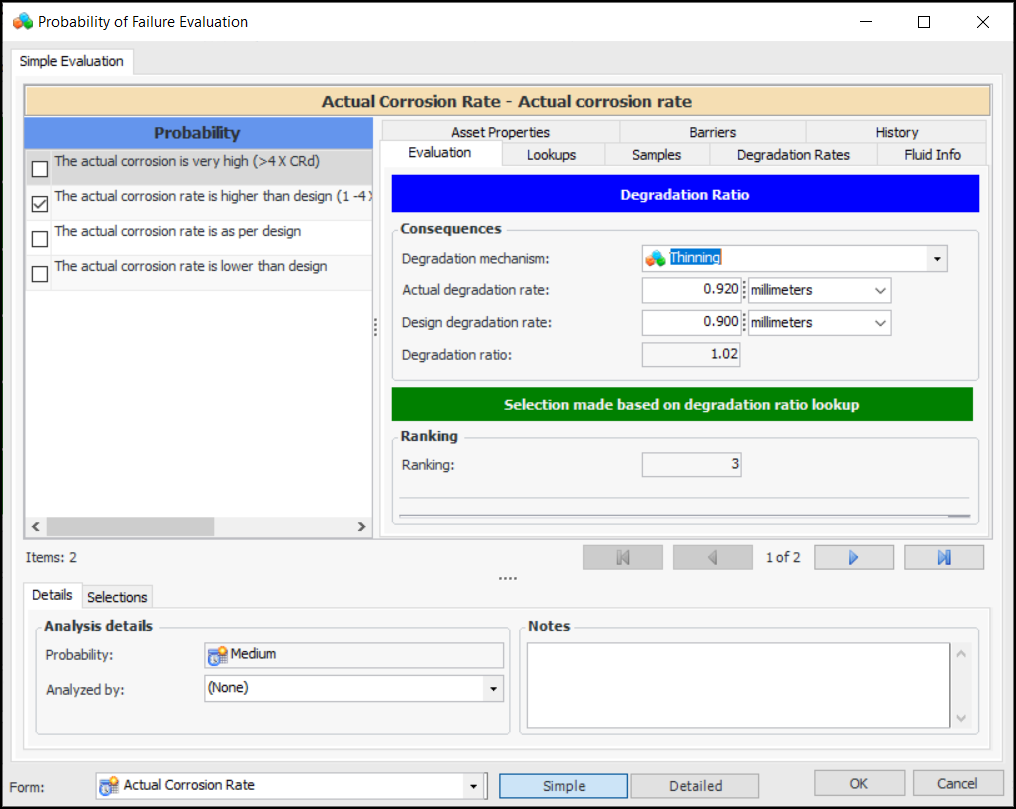
The ranking calculation now provides an option to automate the determination of the ranking based on one or more inputs and the formula defined for the calculation. In most cases, the formula consists of a lookup table or a series of lookups. Once the ranking has been calculated, APM selects the corresponding question associated with the Evaluation Category.
In this example, the user selected a degradation mechanism and entered the actual degradation rate. APM determines the degradation ratio and ranking, identifies the lookup table used, selects the probability question, and determines the probability.
These changes allow you to determine:

RBI Lookup Tables

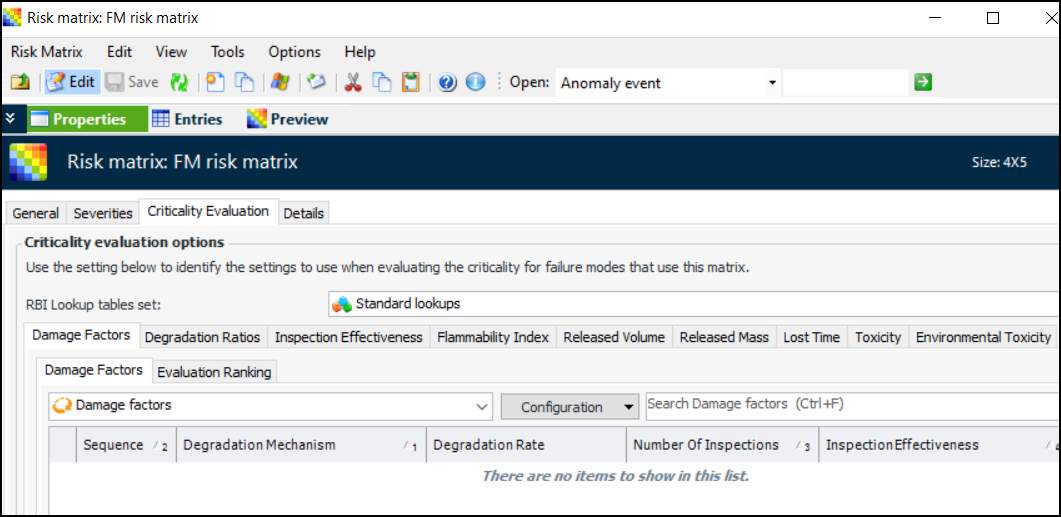
You can view the new lookup tables in the Risk Matrix window. Select the Criticality Evaluation tab. In the RBI lookup tables set list, select “Standard lookups”. For example:
In the install database, some lookup tables are populated with standard values. For example, the flammability index lookup table contains values published by the National Fire Protection Association (NFPA). The table is used in the Fire category in Health and Safety questionnaires.
The following lookup tables are now available:

Setup Tasks for Practical RBI Evaluations

Setting up APM to use the lookup tables and calculations involves the following steps:

Work Document Change Requests

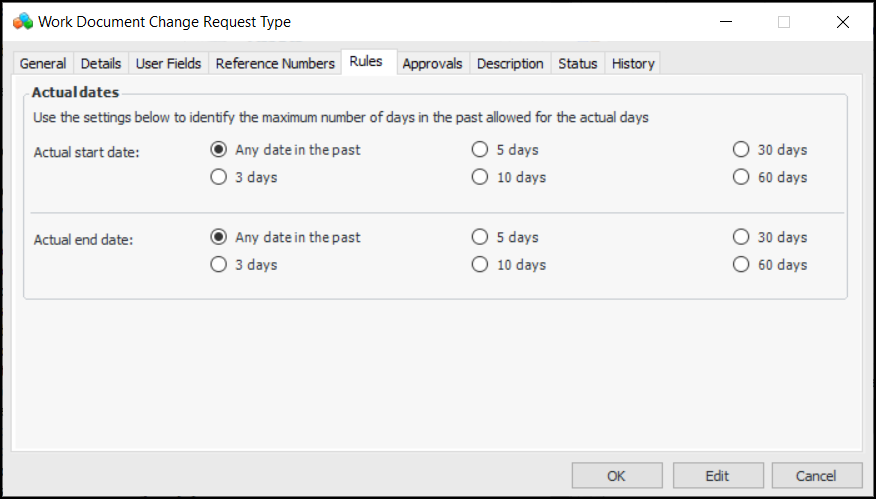
You can now limit the number of days in the past that are acceptable for a work document’s actual start and end dates. These settings are available in the Work Document Change Request Type window.
First, select the Details tab and ensure that Actual start date and/or Actual end date are selected. The Rules tab becomes available, where you can select the maximum number of days in the past allowed:
If a user tries to save a work document change request that has an actual date outside of the range defined on its request type, an error message appears displaying the reason it cannot be saved, for example, “Actual end date cannot be more than 3 days in the past”.