What’s New in APM 7.18

Some of the enhancements made to AssetWise Performance Management (APM) in release 7.18 pertain to APM when AssetWise Enterprise Interoperability (AWEIS) has been implemented to exchange data with an external CMMS. For example, this release introduces a handy tool for work document characteristics. You will also find news about the expansion of project management functionality, strategy development analysis, Favorites, and more.

Contents

Approvals
Asset Management
AWEIS – Characteristic Mapping for Work Documents
AWEIS – Various Enhancements
Bookmarks are now Favorites
Configuring the APM Environment
Construction Management
Data Loading
Fluid Condition Tracking
Inspection Management
Performance and Stability Enhancements
Project Management
Regulated Gas Management
Strategy Development Analysis

Approvals

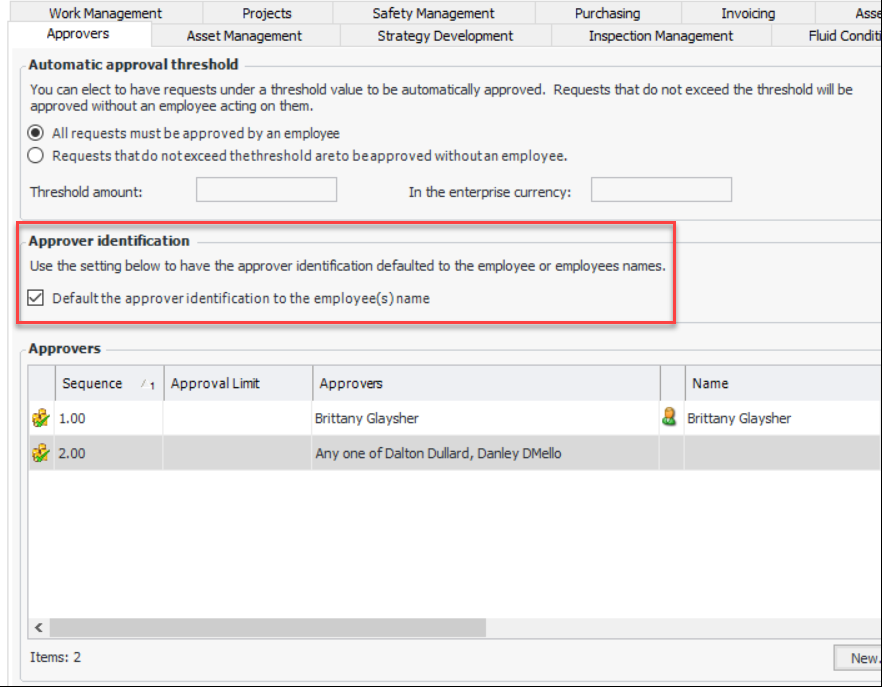
When setting up approval routes, you have a new tool for identifying and updating approvers. On the route, you can specify that approver identification defaults to the name of the employee. For example:
If multiple approvers are selected, their names are concatenated, for example, “Any one of name 1, name 2”.
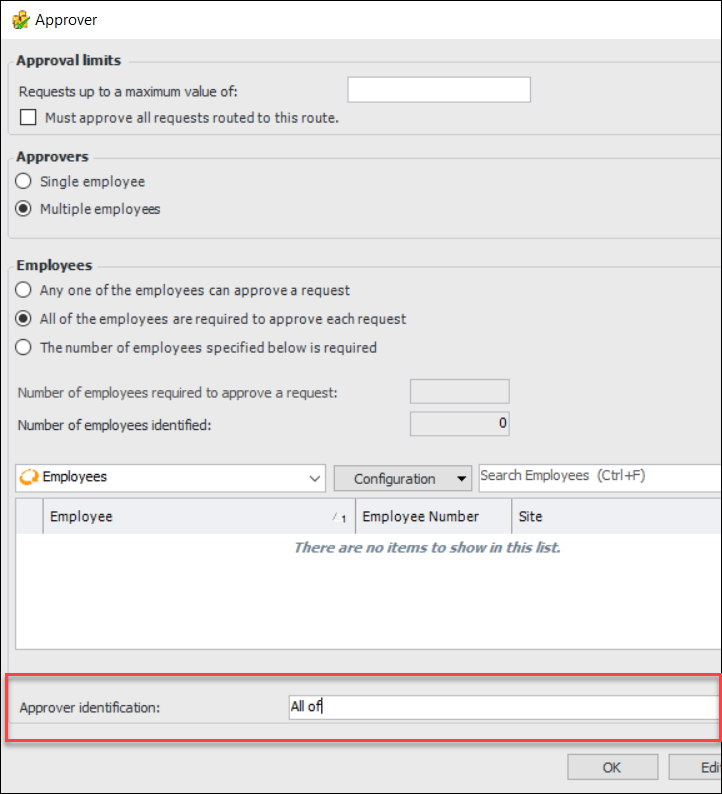
The Approver dialog now displays the Approver identification box. This example is for multiple employees, all of whom are required to approve documents on the route:
When the Default approver option is selected for the route, employee names are shown in the Approver identification box as they are added. You can then edit the approver identification, as needed. For example, you could change the list of names to “All shift supervisors”.
For more information, see Document Approvals.

Asset Management

The following changes were made to asset management.

Asset Notes

Asset note is a new APM object that allows you to attach notes to an asset, objects associated with assets, and non-related objects (such as indicator templates).
Note: The Asset Note functionality is generally available. You must first enable feature 58 to use the functionality in APM. In the Enterprise window, select the Features view and the Enabled Features tab. Click Browse, select number 58 “Notes support” and click OK. If APM is running as a smart client, click Refresh Enabled Features on the server. Then restart the client to use the functionality.
The following objects support notes:
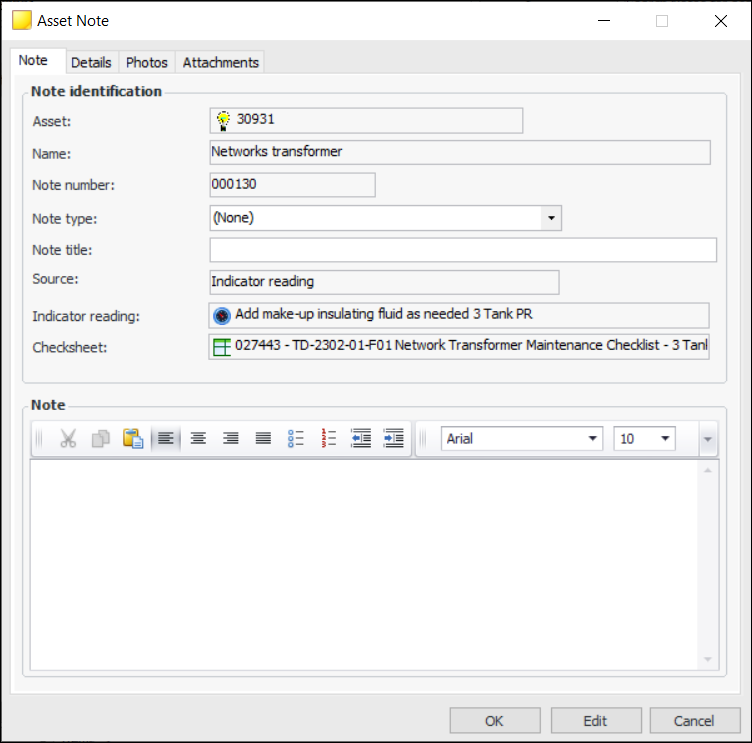
To add a note to an object, select the Notes view or tab and click New. The Asset Note dialog appears, showing the related asset (if any) and the source object. This example was added to an indicator reading:
Note that you must save a new ad hoc indicator reading before you can add a note.
Besides entering a title and text, you can select a note type, browse for photos, and add attachments. The Details tab shows the employee who entered the note, the date and time it was entered, and the source object type.
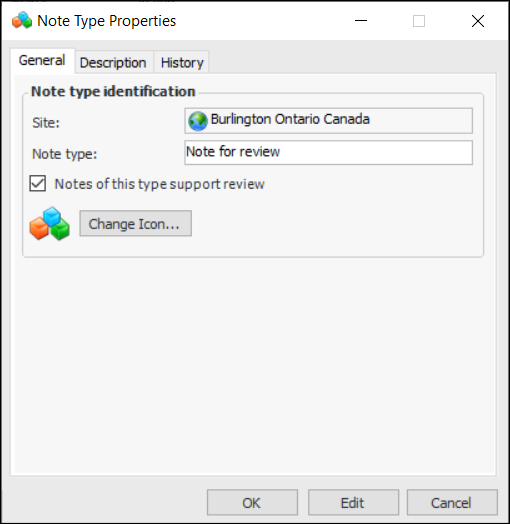
Set up note types in asset settings. In the Site window, select the Assets view, Settings tab, Assets tab, and Note Types tab. Note types allow you to group notes by type or purpose. The note type also determines if notes can be reviewed:
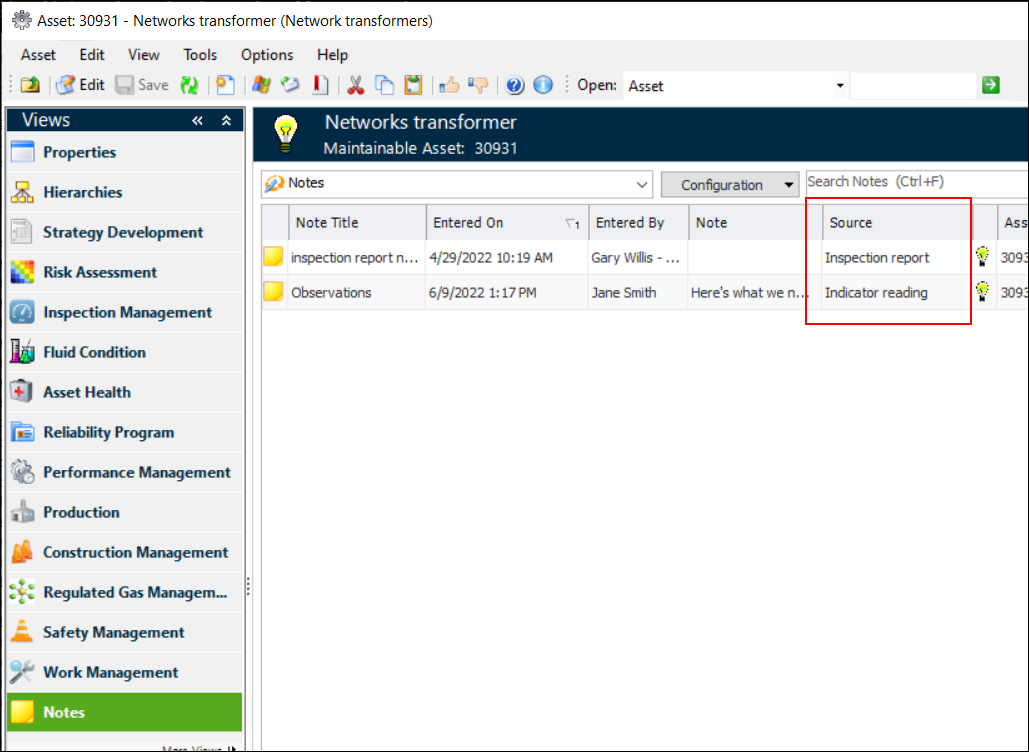
In the Asset window, the Notes view displays all of the notes attached to the asset and its related objects. The Source column indicates the objects with attached notes. For example:
Other objects have either Notes views or tabs. In a downtime incident, click the View menu and then Notes to see a table of notes. For objects with related assets, the view or tab offers two configurations: one listing the notes attached to the current object and the other listing notes attached to the object’s asset.
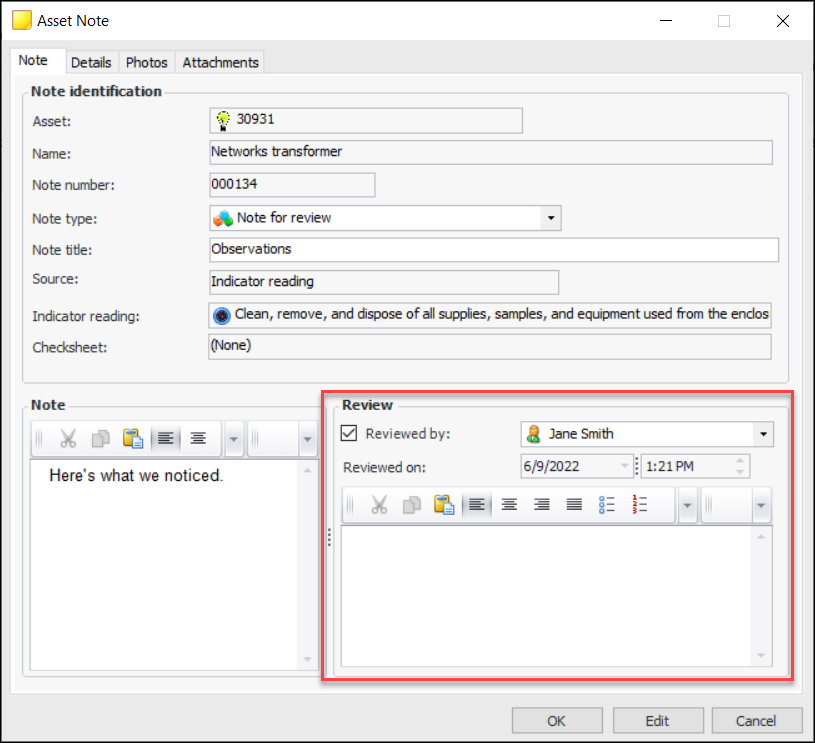
When the note type supports reviews, you can open a note to read it, add comments, and mark it as reviewed. For example:
In APM Remote, asset notes are available on the following objects:

Asset Properties – Sort Field

The Sort field box has been added to the Asset window in the Properties view, General tab, Location tab. This property is also available in APM Remote and APM Mobile apps. The value is a company-specific short term for the equipment used for searching, sorting, and filtering.

Asset Specifications

For shunt reactor asset types, MVAR rating was added to asset specifications.

Asset Specifications – Display Documents

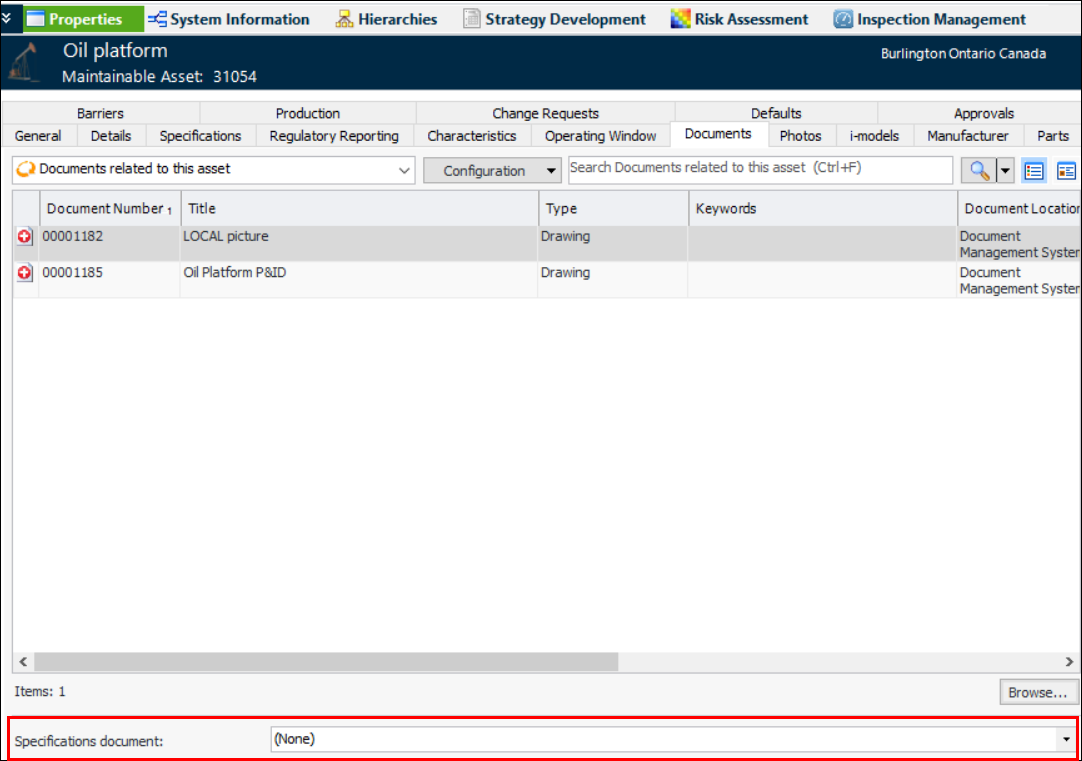
As of this release, you can make a document available for display on an asset’s Specifications tab. The document must be linked to the asset and can be any of the file types supported for APM standard documents.
When support is enabled in the asset type, the Specifications document list is available in the Asset window, Properties view, Documents tab:
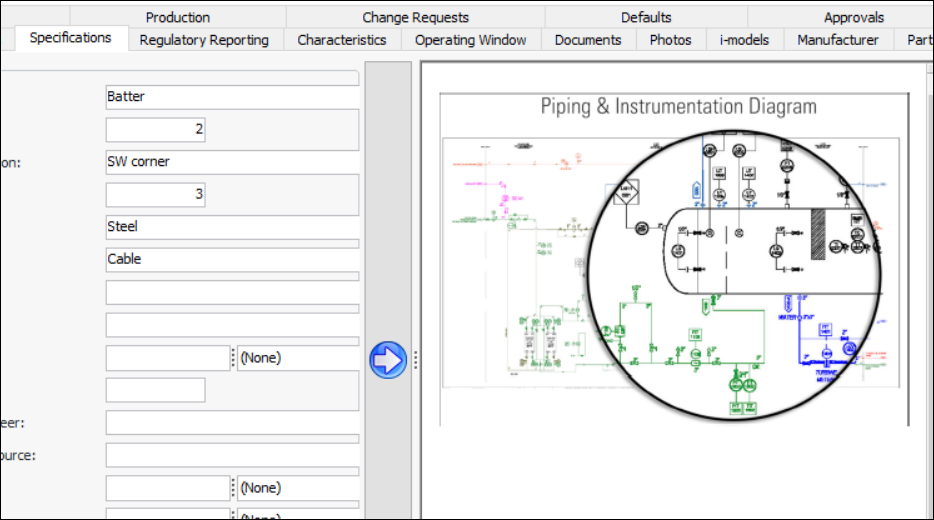
When a document is selected, you can view it by selecting the Specifications tab and clicking the sidebar button:
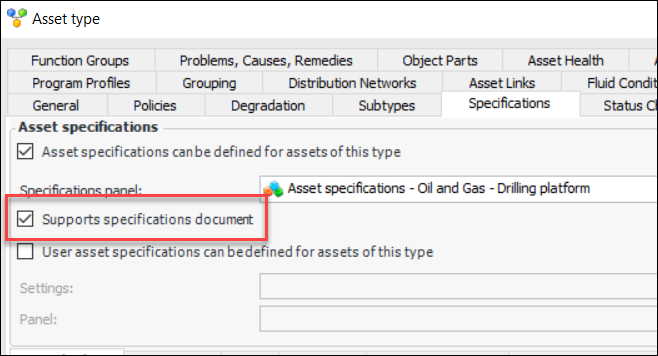
Enable the option on the asset type’s Specifications tab:
Note: The Supports Specifications Document functionality is available for preview. You must first enable feature 104 to use the functionality in APM. In the Enterprise window, select the Features view and the Enabled Features tab. Click Browse, select number 104 “Support for displaying asset P&ID or other document as part of asset specifications” and click OK. If APM is running as a smart client, click Refresh Enabled Features on the server. Then restart the client to use the functionality.
For more information:

AWEIS – Characteristic Mapping for Work Documents

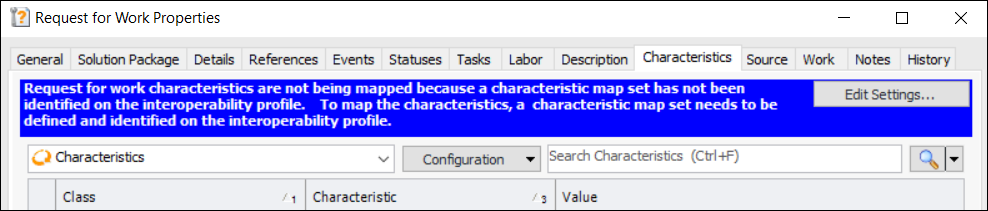
Characteristic values will not be communicated between the CMMS and APM, or vice versa if map sets are not selected in the Site Interoperability Profile. If this step is missed, a message is now displayed in the work documents’ Characteristics tabs in APM.
For example, if a map set has not been selected for requests for work, in all Request for Work windows, the Characteristics tab displays a message in the banner, as well as the Edit Settings button. For example:
Click Edit Settings to open a dialog where you can select the map set. If needed, you can define characteristic classes, add characteristics, and select default characteristic classes for sites using this dialog.
For more information, see Setting up Characteristic Mapping for Interop Work Documents.
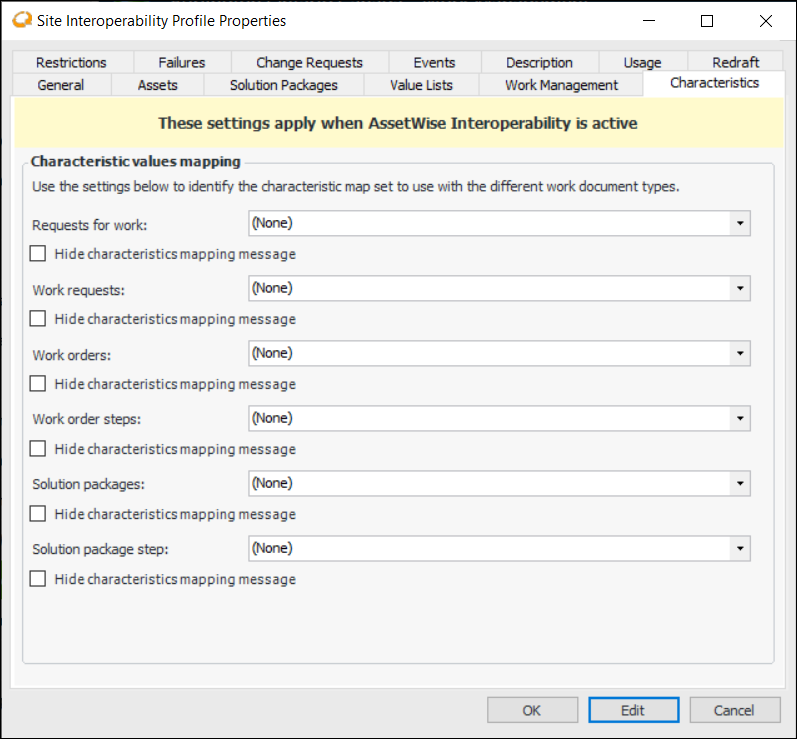
If you do not intend to use characteristic mapping for a type of work document, you can prevent the message from being displayed. In the Site Interoperability Profile dialog, select the Characteristics tab.
Click Hide characteristics mapping message to prevent the message from appearing in the document’s Characteristics tab.

AWEIS – Various Enhancements

The following enhancements were introduced in this release.

Work Document Change Request Types

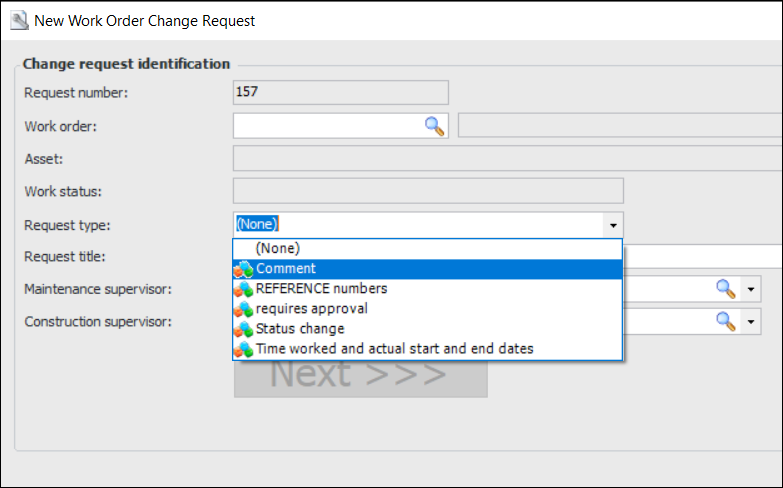
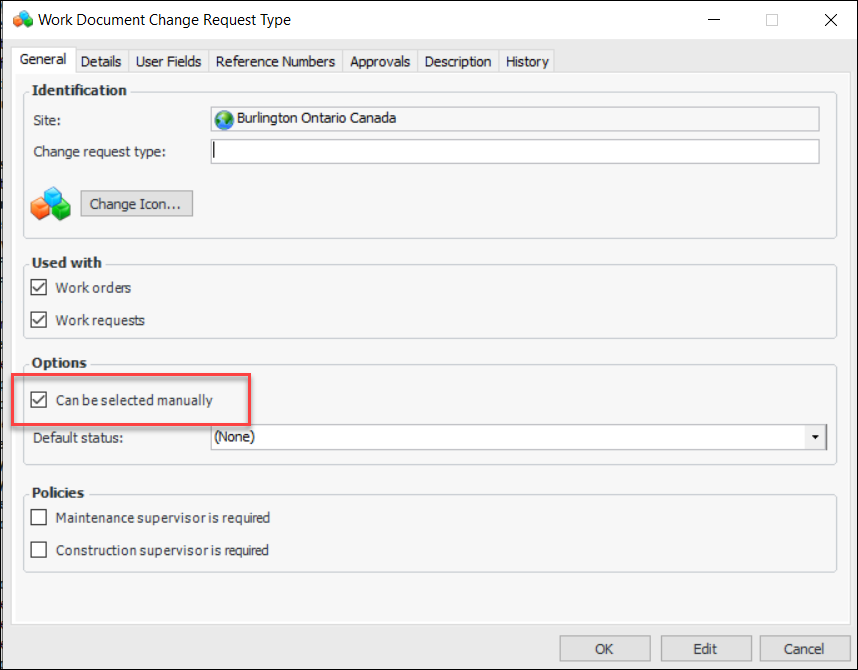
The request type can have a major effect on workflow; for example, some types could be used only for checksheet completion. You can now reduce the number of request types that are available for selection when you create a request from scratch. Only types that are allowed to be selected manually are displayed in the selection list:
In the Work Document Change Request Type window, select the General tab:
The Can be selected manually option is selected by default in new request types. You can clear the option to prevent the type from appearing in the selection list.

Solution Package – Communicating Due Date Changes to CMMS

When a solution package’s next due date changes in APM, a request for work can be generated and sent to the CMMS to communicate the change.
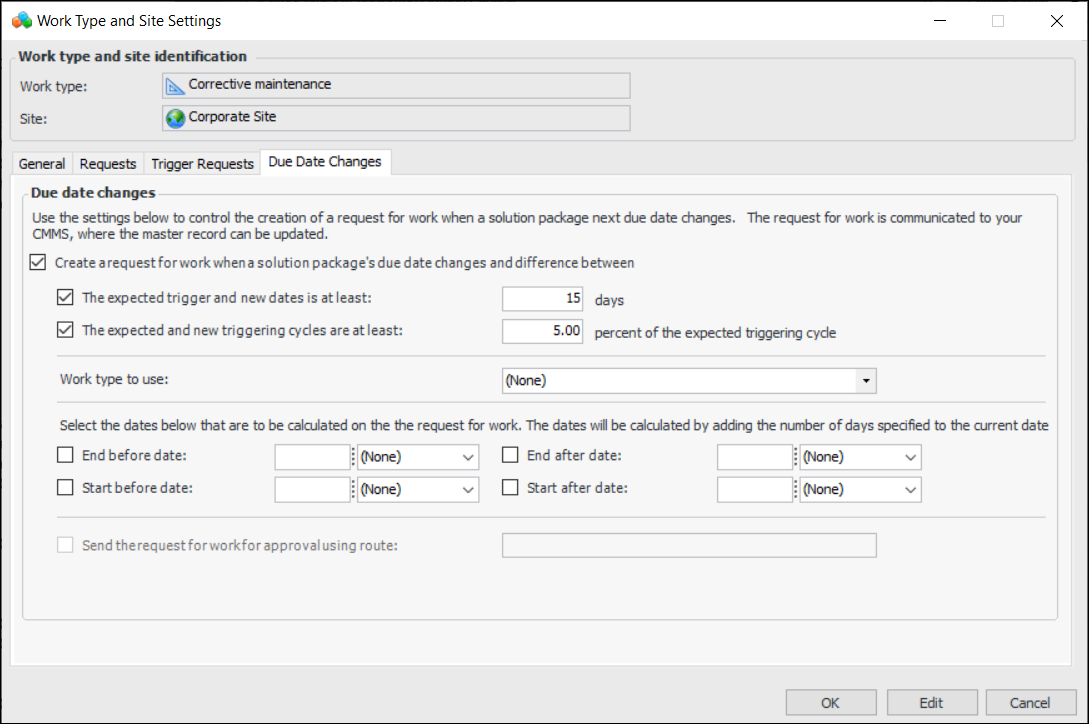
The solution package’s work type site settings determine if a request for work is required. Open the Work Type Properties window, select the Site Settings tab, and open the site settings that were created for the site. In the Work Type and Site Settings window, select the Due Date Changes tab. For example:
In this example, a request for work is generated when the due date changes and:
The selected work type is assigned to the request for work, along with the solution package’s asset.
You can also select which dates are calculated on the request for work.
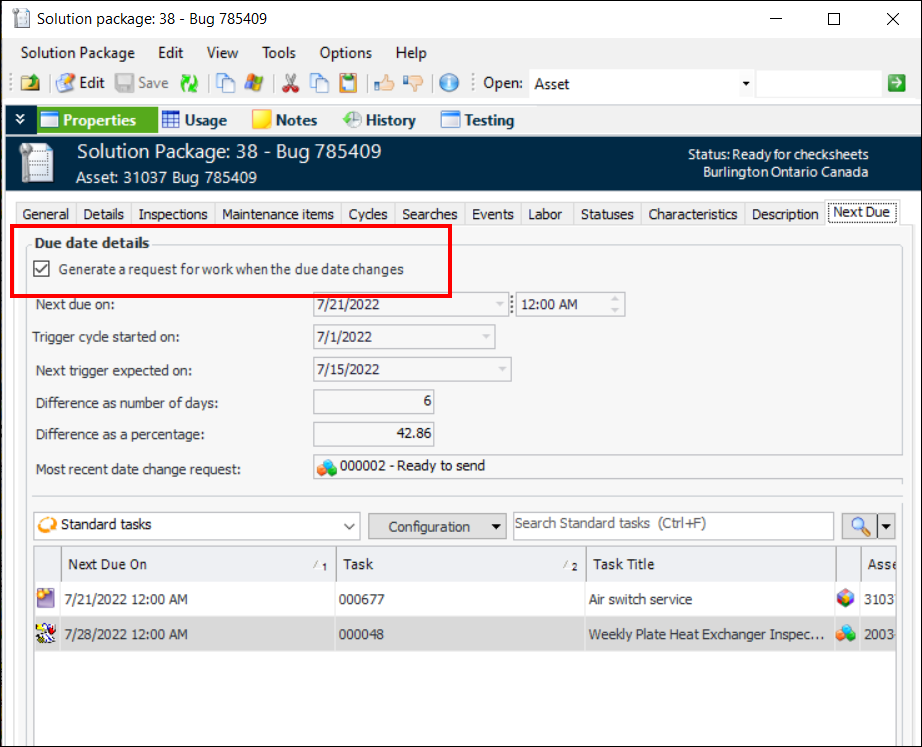
Note that the solution package must also specify that a request for work be created when the due date changes. For example:

Solution Package – Expected Trigger Date

The following information is now displayed in the Solution Package window, Properties view, Next Due tab:
Next due on – Date on which the solution package tasks are to be started, as calculated by APM, based on the standard tasks’ due dates
Trigger cycle started on – Date on which the current triggering cycle started, as communicated by the CMMS
Next trigger expected on – Date on which the next trigger is expected to start, as communicated by the CMMS
Difference as number of days – Difference in days between the solution package’s next expected trigger date (from the CMMS) and the next due date (calculated by APM). The absolute value of the difference is shown as a whole number
Difference as a percentage – Difference between the number of days between the date on which the trigger cycle starts and the next due date and the difference between the date on which the trigger cycle started and the next expected trigger date
Most recent date change request – ID of the most recent request for date change
The values that originate in the CMMS must be imported into APM as solution package characteristic values and then mapped to the solution package fields. For related information, see Setting up Characteristic Mapping for Interop Work Documents.

Asset Change Request – Specific Location Information

In the New Properties Change Request window, Change Request tab, the asset location information is now more specific:
Street address and City text boxes have been added in the Asset identification area
The Location text box was removed from the Specifications area

Bookmarks are now Favorites

Bookmarks have been renamed “Favorites”. As expected, you can use favorites to monitor a variety of APM objects in one location. Favorites can also be generated by APM, for example, to inform employees about asset conditions or a problem with work flow.
Select the Favorites view in the Site window to see the list of objects. You will also find new “My favorites” configurations available for most objects listed in the Site window, from assets to invoices.
Note: “My favorites” configurations are not available on tabs that use the master/detail style.
As before, you can mark a favorite as high or low priority and as having been read or unread. You can flag a favorite for follow-up, note the action required, and mark the action complete. You can remove items from your favorites list at the site level and for yourself and other employees at the enterprise level.
For more information, see Overview of Favorites.

Configuring the APM Environment

This section explains changes to software requirements and configuration. For a full list of requirements, see APM Installation Prerequisites.

.NET Framework

APM 7.18 works with .NET Framework 4.7.2 (rather than 4.7.1 as in previous versions). This version of .NET Framework is needed on all smart, thick, and remote clients, as well as the application server.

APM Configuration

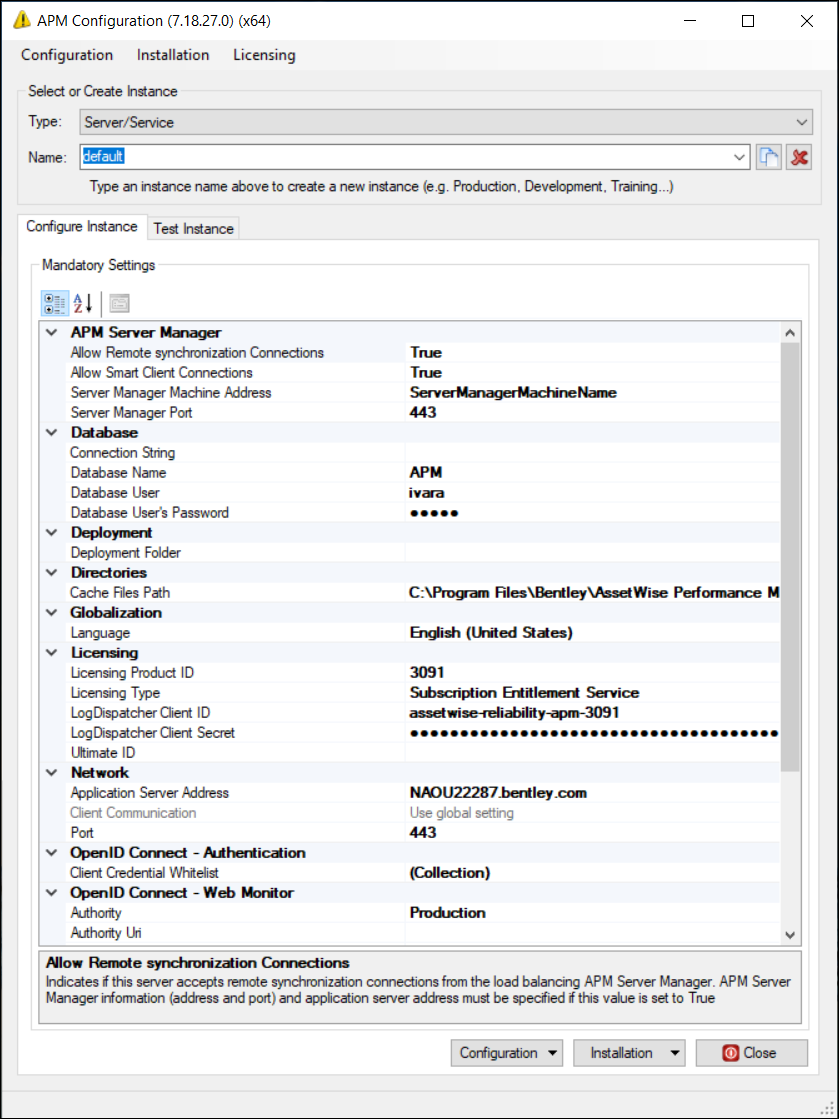
In the APM Configuration window and Settings Editor, settings have been reviewed to ensure that Mandatory sections include all (and only) settings that must be configured to get an instance running. This means that vital settings such as authentication server for Bentley CONNECT, licensing, and OpenID Connect can be defined in the APM Configuration window (as well as in the Settings Editor). For example:
Seldom-used settings required for special cases and fine-tuning are either shown under appropriate nodes or are available as advanced settings in the Settings Editor. For example, the global communication protocol is shown in the Settings Editor advanced settings under the Mandatory Settings node, under Network. In new blank instances, the protocol defaults to “HTTPS” and the ports to “443”.

APM Configuration Window – Changed Defaults

Default values for some Network settings have changed. This will affect your environment if your instances use the defaults. The new defaults are:
Global communication protocol changed to “HTTPS” (from “HTTP”)
Port changed to “443” for HTTPS (from “80”)
Application server address now defaults to blank
If you have left these default values as is and never changed them, they will be replaced during the upgrade process. When upgrading to 7.18, check your instances to ensure that these values are correct for your environment.
Note: To use the HTTPS protocol, you must have obtained and implemented a TLS certificate. For more information, see “Implementing a TLS (SSL) Certificate” in APM Installation Guide.

Security Logging

The following logging rules are now available:
The default logging directory is
%programdata%\Bentley\IvaraEXP\SecurityLogs\
To use security logging, you must open the Ivara.Pers.Security.Logging* rule and change the target (write To) to Seq or the SecurityFile log. For more information, see “Enabling Security Logging” in APM Installation Guide.

APM Remote – Intermec Barcode Scanner

The Intermec barcode scanner SDK files (ISDC_HID.dll and ISDC_RS.dll) are no longer shipped with APM. Be sure to save these files before upgrading to 7.18 if you wish to continue to include the plugins in the Remote Packager. The Packager looks for the files in the bin\Plugins\DeviceInteractions directory.
Integration files (such as bin\Ivara.BarcodeReader.exe and bin\Plugins\DeviceInteractions\Ivara.BarcodeReader.Plugin.Intermec.dll) are still shipped. The functionality is unchanged other than the removal of the SDK files.

Construction Management

Two enhancements were made to construction management.

Asset Groups for More Asset Types

APM and APM Remote now support construction forms with asset groups for single-phase transformer, single-phase regulator, and CT/PT/CCVT asset types.
For related information, see Setting up Construction Form Templates.

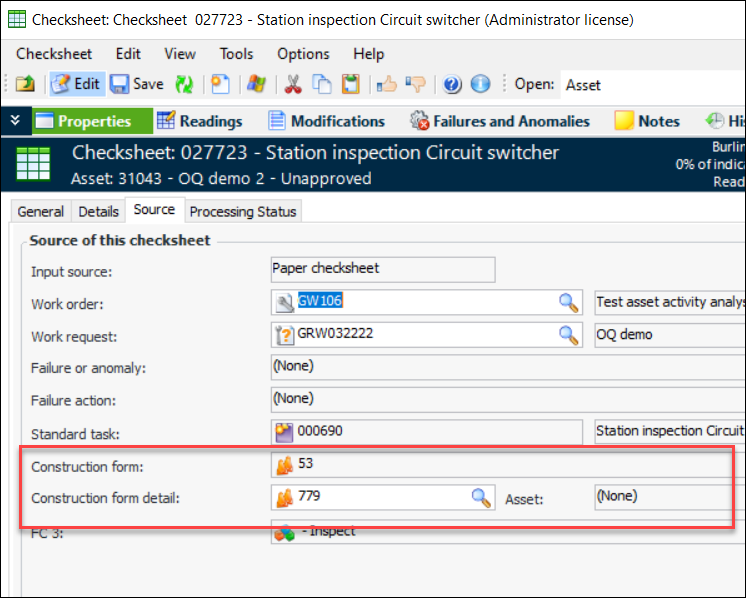
Link Checksheet to Construction Form Detail

You can now link an ad hoc checksheet to a construction form detail.
In the Checksheet window, select the Properties view and the Source tab. Make sure that editing is enabled. Click the browse icon () to select the construction form detail. The related asset and construction form are displayed. For example:

Data Loading

Lots of things happened with data loaders this release.

Attachment Support on Data Loaders

Data loaders for indicator readings, assets, and standard tasks now support up to five attachments. The attachment type must be one of File, Folder, Note, or URL.
Note: Embedded file attachments are not supported on data loaders.
For each attachment, the import template displays the following columns:
Attachment # (1 to 5)
Attachment # Type (File, Folder, Note, or URL)
Attachment # Description
For more information, see:

Indicator Data Loader

The following properties were added to the Indicator data loader for fluid sample collection:
The properties were added for 4D indicators:

Standard Task Due Date Data Loader

This new data loader is available in the Enterprise window, Data Loaders view, Inspection Management tab. The data loader is used to update the standard tasks’ next due dates. Two functions are supported:
The data loader properties are:
Note: The Standard Task Due Date Data Loader functionality is generally available. You must first enable feature 89 to use the functionality in APM. In the Enterprise window, select the Features view and the Enabled Features tab. Click Browse, select number 89 “Standard task due date data loader” and click OK. If APM is running as a smart client, click Refresh Enabled Features on the server. Then restart the client to use the functionality.

Maintenance Action Plan Corrective Tasks Data Loader

This release introduces a data loader that updates maintenance action plans with references to corrective tasks or solution packages. It supports strategy development analyses and templates. In the case of analysis templates, standard task or solution package templates must be referenced.
The data loader properties are:
Note: The Maintenance Action Plan Corrective Task data loader is generally available. You must first enable feature 88 to use the functionality in APM. In the Enterprise window, select the Features view and the Enabled Features tab. Click Browse, select number 88 “Maintenance action plan corrective task data loader” and click OK. If APM is running as a smart client, click Refresh Enabled Features on the server. Then restart the client to use the functionality.

Fluid Condition Tracking

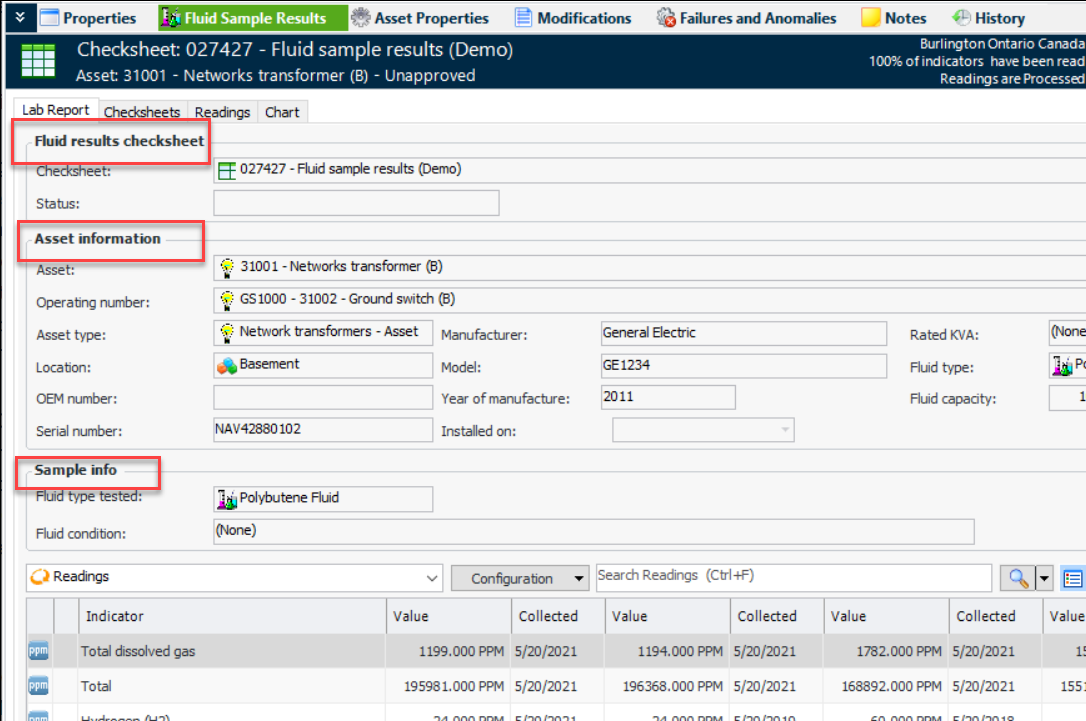
The Lab Report tab has been modified to clearly differentiate between information about the checksheet, the asset and the sample that was tested:
The Lab Report tab appears in the Checksheet window, Fluid Sample Results view, as well as in the Lab Fluid Sample window, Results Report view.

Inspection Management

Several enhancements were made to indicators for 7.18.

Publish Indicator Readings

APM now supports publishing indicator readings to an external system. When selected readings are processed, APM generates an XML document that can then be consumed by Bentley Enterprise Connection Services (BECS).
This functionality supports numeric and cumulative indicators only.
The new Publish Indicator Readings interface package includes the following indicator reading properties:
Note: The Publish Indicator Readings functionality is generally available. You must first enable feature 92 to use the functionality in APM. In the Enterprise window, select the Features view and the Enabled Features tab. Click Browse, select number 92 “Publish indicator readings to an external system” and click OK. If APM is running as a smart client, click Refresh Enabled Features on the server. Then restart the client to use the functionality.
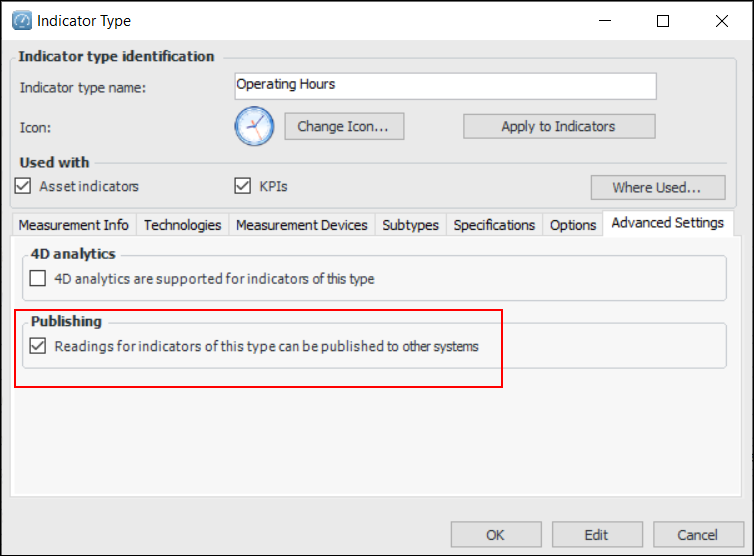
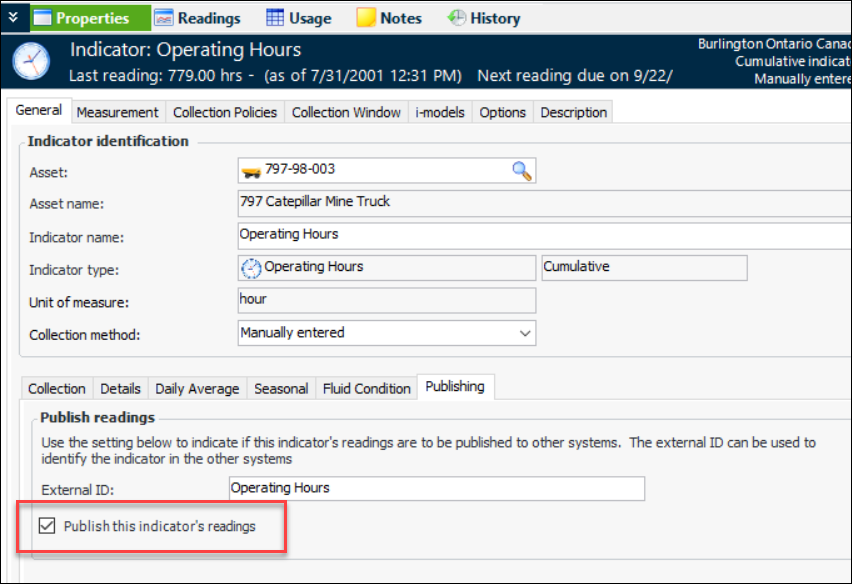
Setting up APM to publish indicator readings involves these steps:
For more information, see Setting up Site Interoperability Profiles for AWEIS
For more information, see Setting up APM Outbound Events.
Create or update indicator types. In the Indicator Type window, select the Advanced Settings tab and click Readings for indicators of this type can be published to other systems
Create or update indicators or indicator templates to allow readings to be published. In the Indicator window, select the Properties view and General tab. The Publishing tab is available if the indicator type supports publishing. Click Publish this indicator’s readings.

Reset Meter for Cumulative Indicators

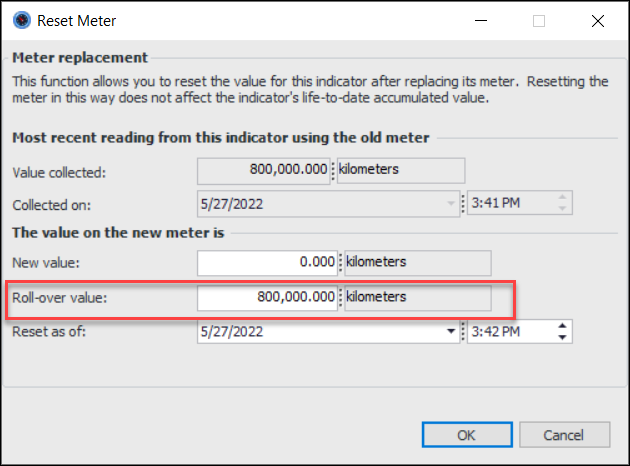
Cumulative indicators that record accumulated values can have roll-over values. The roll-over value is the point at which the meter value is returned to 0.000. For example, when the counter reaches 999,999.9 kilometers on a mobile asset, you might reset the meter to zero.
The Reset Meter dialog now displays the indicator’s roll-over value. For example:

Browse Indicators – Select Subset from Standard Task

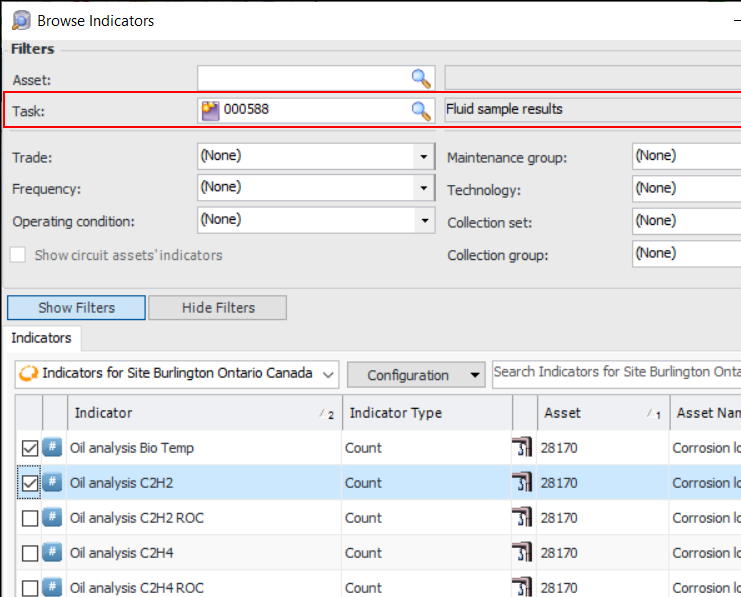
It is now easier to add indicators to an object, such as a checksheet or work order task, by selecting individual indicators from a standard task or template. For example, click Browse Indicators in a Checksheet window to open the Browse Indicators window. Select a standard task to view, filter, and select from the task’s indicators:
This new functionality makes it easy to create multiple checksheets from a single standard task, for example.

Mark Multiple Checksheet Indicators as “Unavailable”

You can now mark two or more readings on a checksheet as unavailable. The Mark as Unavailable dialog appears only once and shows information for the first reading. The information you supply – Operating condition, note, and “applies to” option – is applied to all of the selected readings when you click OK. This functionality is available in APM (desktop) and APM Remote.

Checksheet Status – Includes Ready to Download and Export

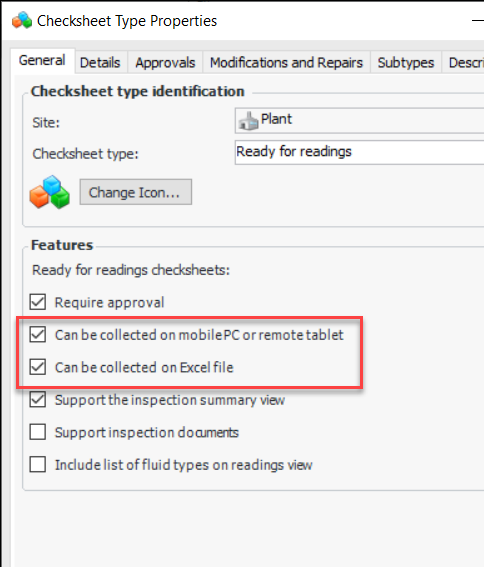
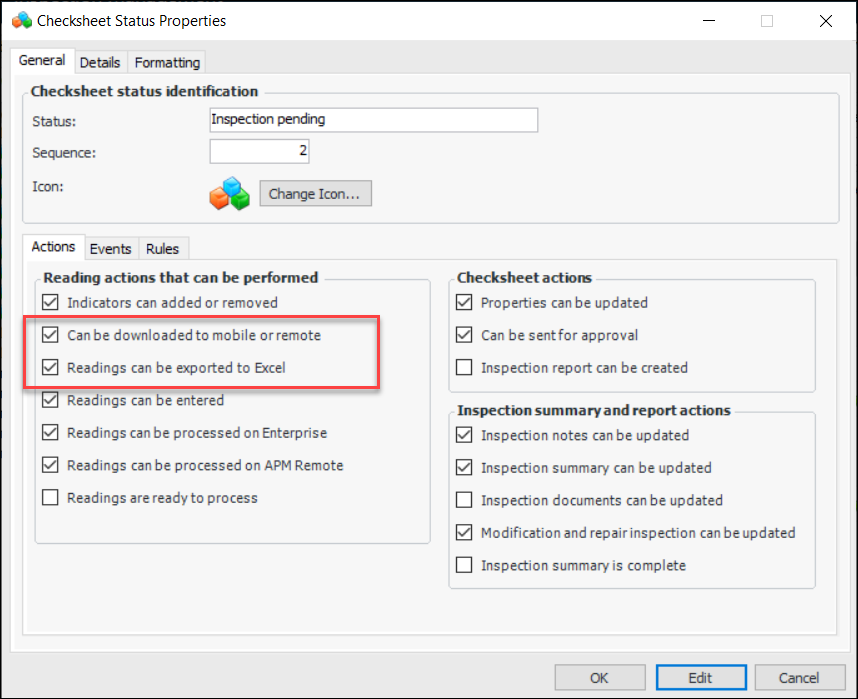
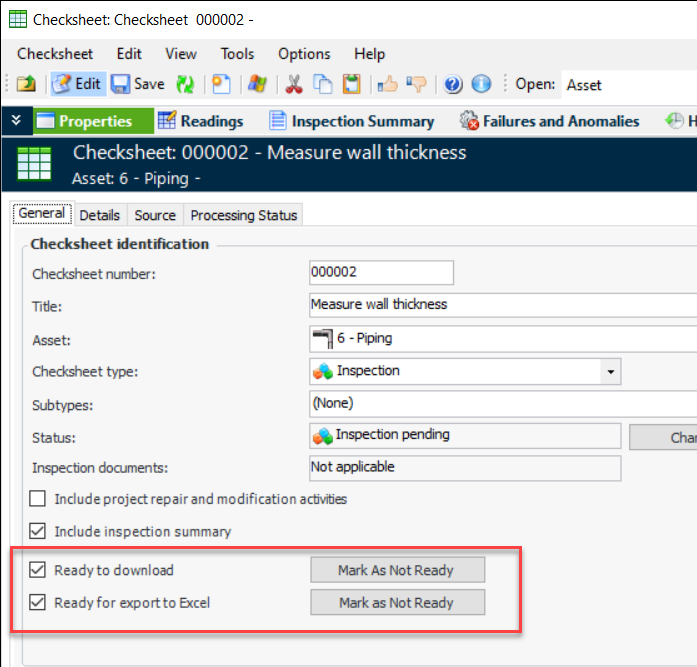
Your organization can now use checksheet type and status to mark a checksheet as ready to be downloaded to APM Remote or APM Mobile Inspections and as ready to be exported to Excel®. Individual checksheets can also be marked manually. For example, checksheets might require that an inspection plan be reviewed and validated before the checksheets can be downloaded to mobile devices for readings to be taken.
Setting up this functionality involves:
Checksheets with a type and status that support these options are automatically marked as ready to download or export. If necessary, you can mark the checksheet as not ready by clicking the appropriate button. For example:
When you upgrade to APM 7.18, any existing checksheets are automatically marked as ready for download and export.

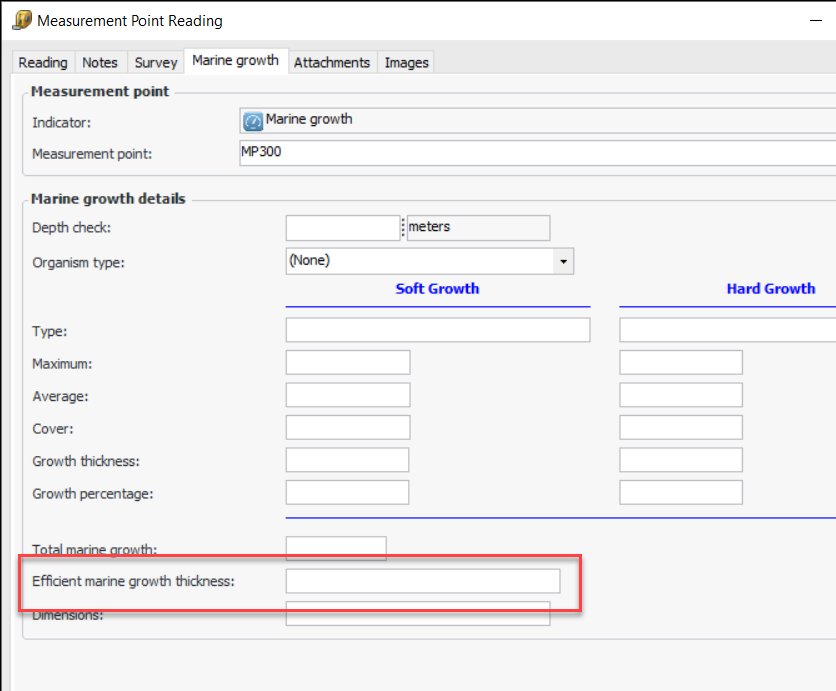
Marine Growth Subtype for Measurement Point Readings

Properties, a value list (organism type), and a calculation have been added to the marine growth subtype for measurement point readings.
The Efficient Marine Growth Thickness (EMGT) value is calculated whenever an input value is added or changed. The calculation is:
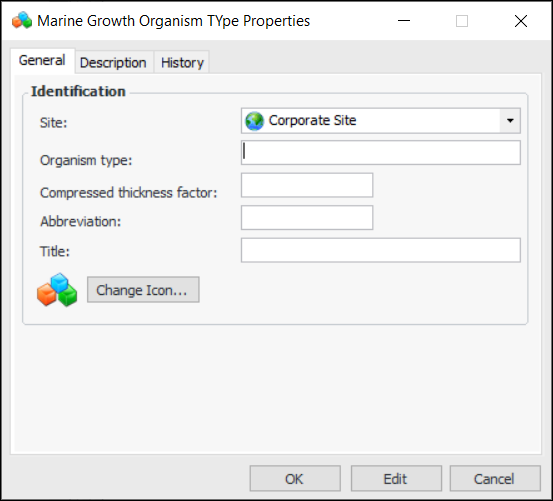
EMGT = ((Hard Growth Percent * Hard Growth Thickness) + (CTF * Soft Growth Percent * Soft Growth Thickness)) / 100
When an indicator supports the Marine Growth subtype, its Measurement Point Reading windows display the Marine growth tab. For example:
When thickness and percentage values are added for soft and hard growth, the EMGT value is calculated automatically.
To add organism types, open the Site window and select the Inspection Management view and Settings tab. On the Subtypes tab, select the Subsea and Organism Types tabs. Click New to open the Marine Growth Organism Type dialog, where you can name the organism and enter its Compressed Thickness Factor (CFT), which is used in the calculation:

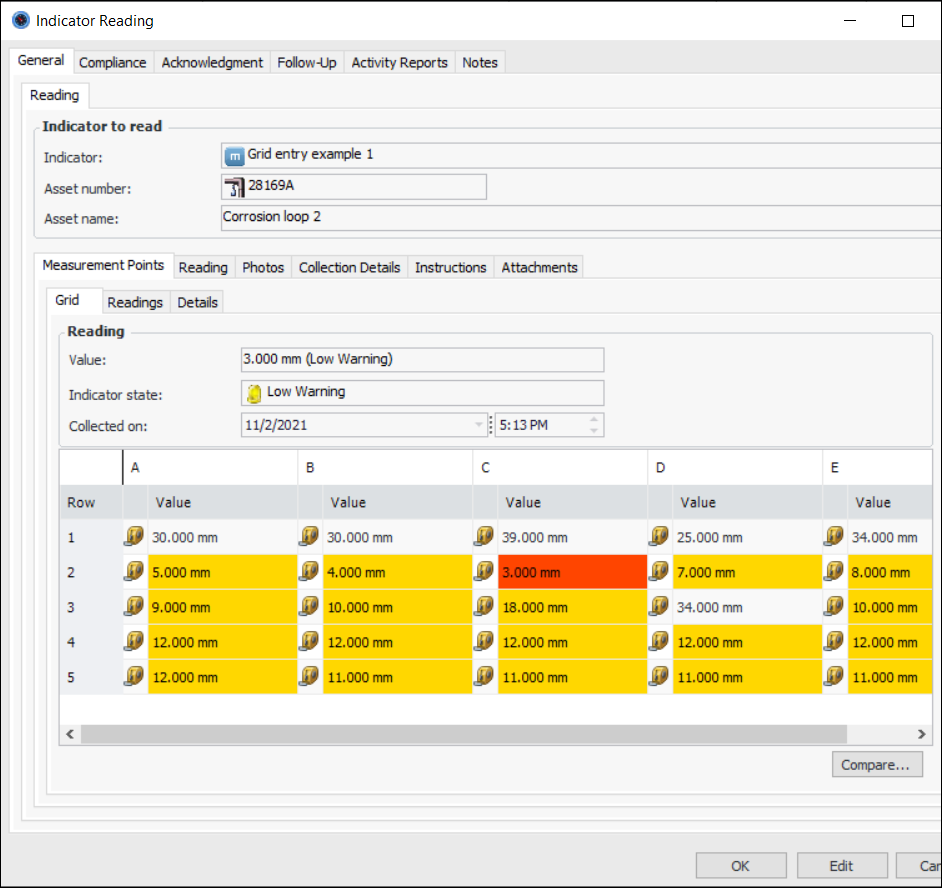
Viewing Measurement Point Readings in a Grid Format

This release introduces measurement point readings displayed in a grid format. For example:
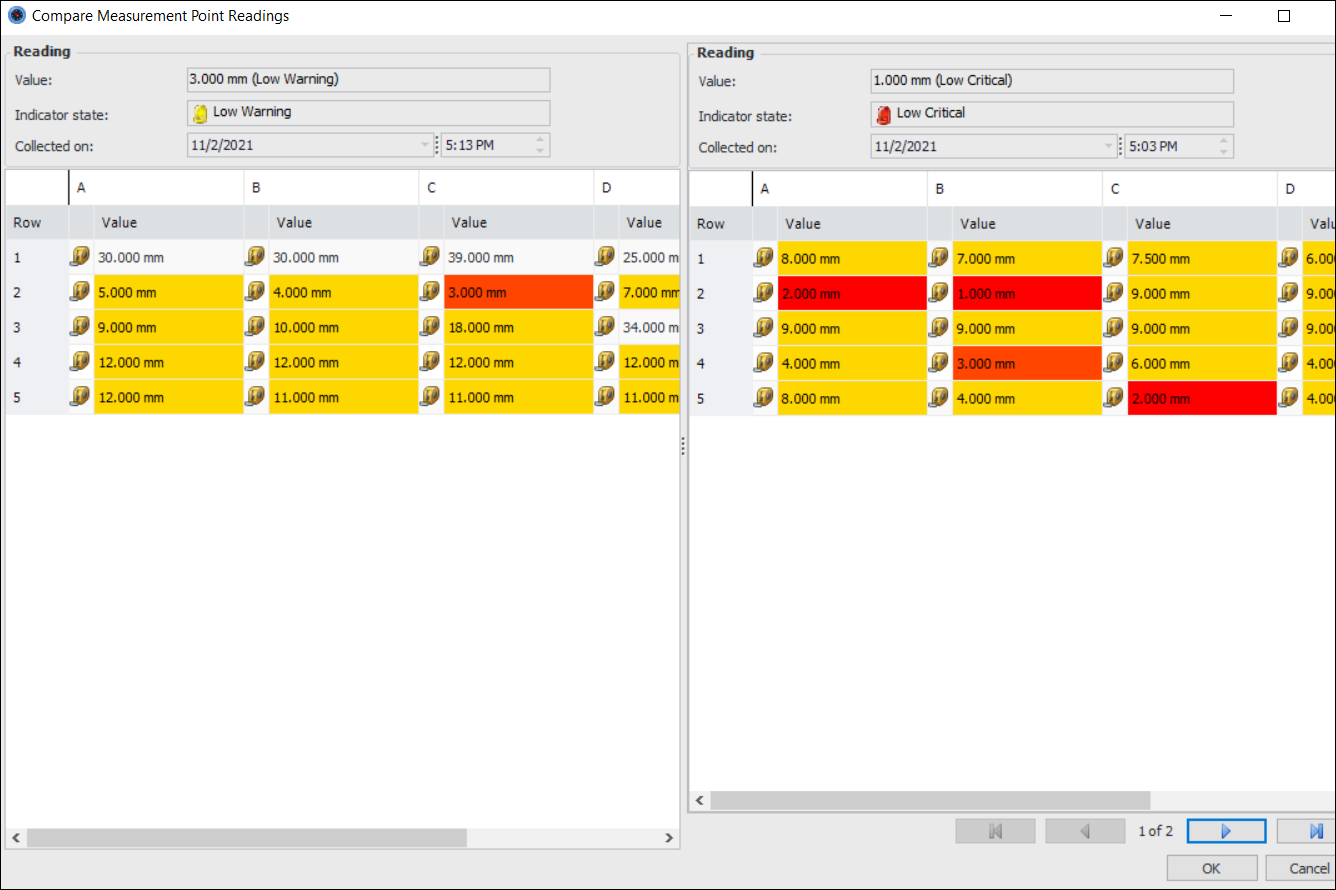
Click Compare to view the current reading side-by-side with previous readings. For example:
Note: This functionality is generally available. You must first enable feature 90 to use the functionality in APM. In the Enterprise window, select the Features view and the Enabled Features tab. Click Browse, select “Support display of an indicator reading’s measurement point values in a grid format” and click OK. If APM is running as a smart client, click Refresh Enabled Features on the server. Then restart the client to use the functionality.
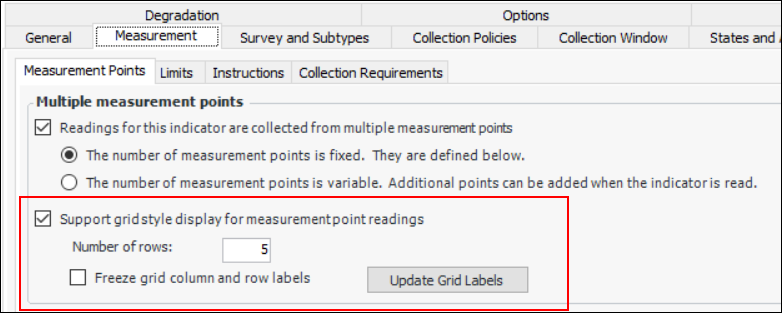
You can set this up for indicators that support measurement point readings. In the Indicator window, Properties tab, select the Measurement and Measurement Points tabs.
Select Support grid style display for measurement point readings. The default number of rows is 5; typically, you would set this to the number of measurement points readings.
Grid labels, by default, consist of capital letters for columns and numbers for rows. As you add measurement points to the reading, you can update the label names by clicking Update Grid Labels.
If you wish to provide your own labels, select Freeze grid column and row labels.

Fabric Inspection Subtype for Measurement Point Readings

The default unit of measure (UOM) for Total Surface Area values has been added to survey subtype options. You can set the default UOM in the Indicator Type window, Surveys tab, Unit of measure defaults area.

Create a Checksheet from a Task Template

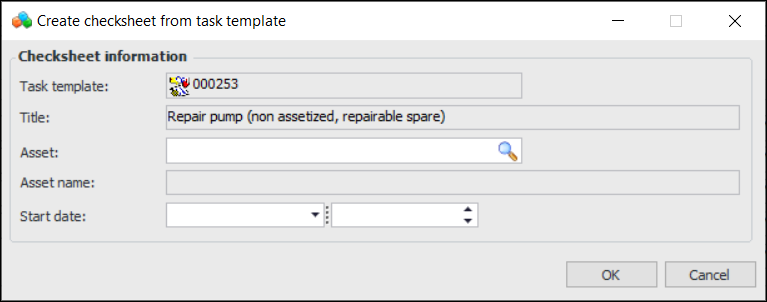
As of this release, you can create a checksheet from a standard task template. In the Standard Task window, click the Tools menu, Indicators, and Create Checksheet. The Create Checksheet from Task Template dialog appears, where you can select an asset and set the start date:
When you click OK, a standard task is created for the asset, indicators are created from the indicator templates (if they did not already exist), and the checksheet is created.
In the checksheet’s properties, the number and name of the task template is identified as its source.
Note: This functionality is generally available. You must first enable feature 83 to use the functionality in APM. In the Enterprise window, select the Features view and the Enabled Features tab. Click Browse, select “Ability to create a checksheet from a Task Template” and click OK. If APM is running as a smart client, click Refresh Enabled Features on the server. Then restart the client to use the functionality.
Platform Inspection Subtypes for Measurement Point Readings
This release introduces several Platform indicator subtypes for measurement point readings. When a subtype is assigned to an indicator type, measurement point readings for indicators of that type display the subtype’s Specifications tab. Each measurement point reading displays the appropriate specifications.
Note: This functionality is available for preview. You must first enable feature 103 to use the functionality in APM. In the Enterprise window, select the Features view and the Enabled Features tab. Click Browse, select “Support for Platform Inspection subtype on Measurement Point Reading” and click OK. If APM is running as a smart client, click Refresh Enabled Features on the server. Then restart the client to use the functionality.
The following measurement point reading subtypes are available:
The following value lists are available to support the subtypes:
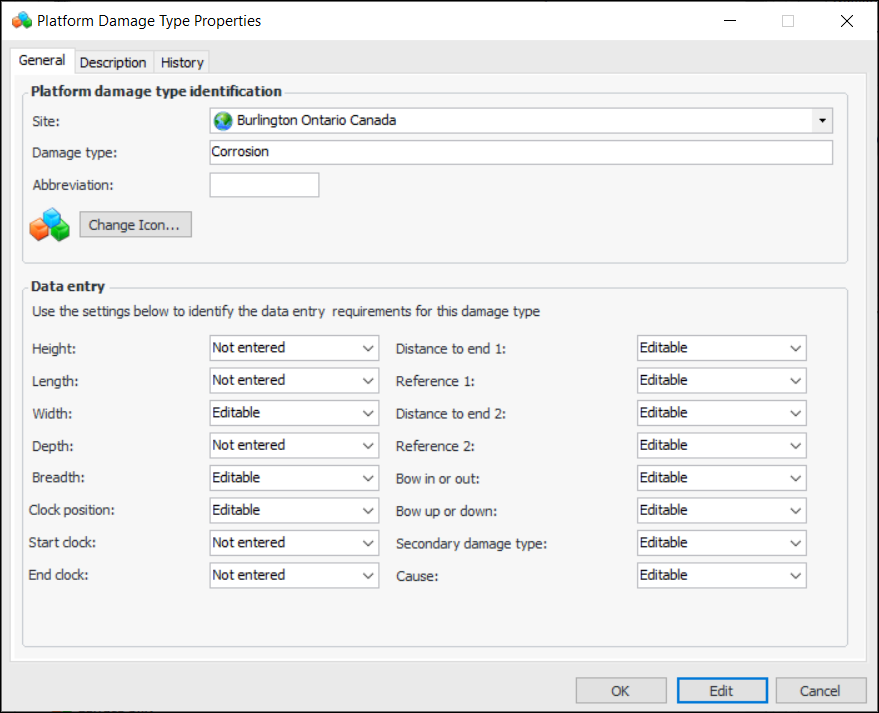
The platform damage type provides settings to control which properties are enabled, depending on the type of damage. For example, different properties are supported for abrasion than for corrosion or misalignment. Each data point, for example, Clock position, can be designated as either “Editable” or “Not entered”:
For information about adding a Platform subtype to indicators, see **Setting up Indicator Types.
You can add values to an indicator subtype, as explained in Adding Values for Indicator Subtypes.

Performance and Stability Enhancements

This release includes several small enhancements that positively impact performance, memory usage, and database load.

Project Management

The following enhancements have been made to project management.

Reliability Projects

The functionality associated with projects has been expanded to allow different types of analyses and objects to be linked to a project. Objects that can be linked to a project are:
Note: This functionality is generally available. You must first enable feature 99 to use the functionality in APM. In the Enterprise window, select the Features view and the Enabled Features tab. Click Browse, select “Support for reliability projects” and click OK. If APM is running as a smart client, click Refresh Enabled Features on the server. Then restart the client to use the functionality.
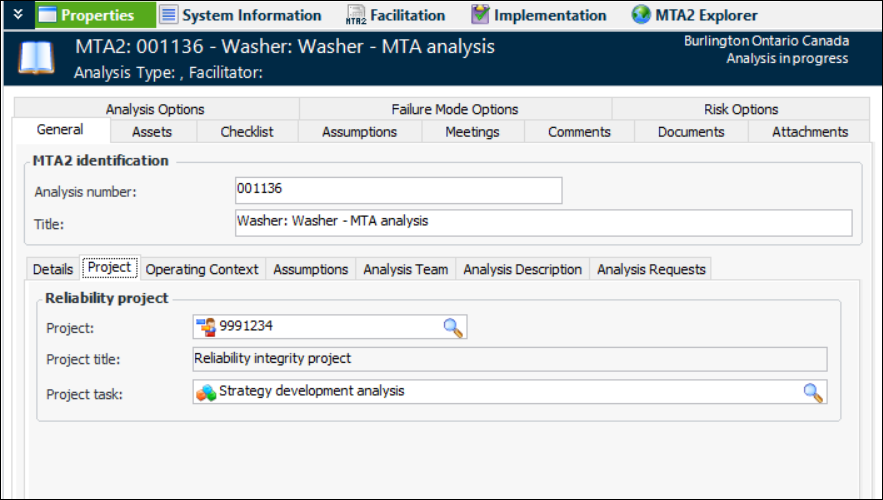
All of the objects that support links to projects have new Project tabs. For example, here is an MTA2 analysis showing the Properties view, General tab, and Project tab:
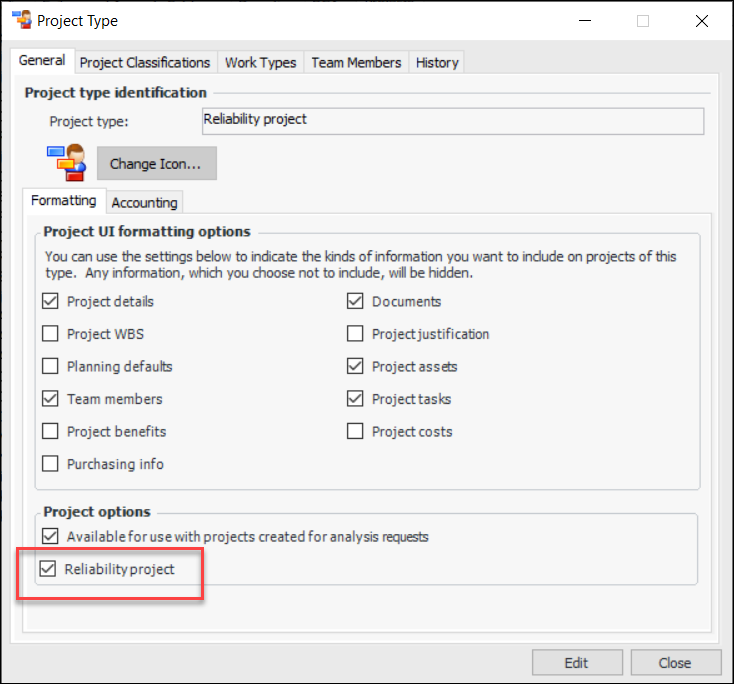
To set up this functionality, you can create or modify project types to include the Reliability project option:
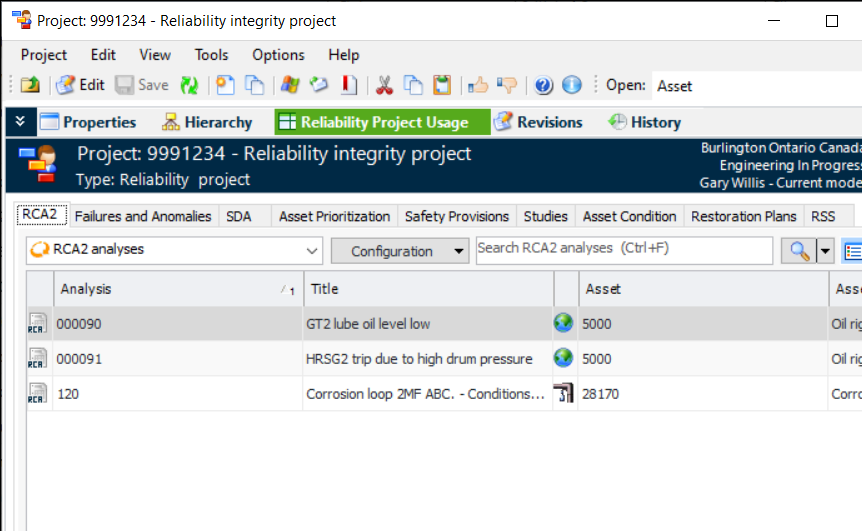
Projects with this option display the Reliability Project Usage view with tabs listing the objects linked to the project. For example:
Project Tasks

You can now identify tasks to be performed on a project. Project tasks provide a simple way to identify actions without requiring work orders and work order tasks. Project tasks have limited properties and are not meant to replace work orders when work planning is required.
Note: This functionality is generally available. You must first enable feature 98 to use the functionality in APM. In the Enterprise window, select the Features view and the Enabled Features tab. Click Browse, select “Support for project tasks” and click OK. If APM is running as a smart client, click Refresh Enabled Features on the server. Then restart the client to use the functionality.
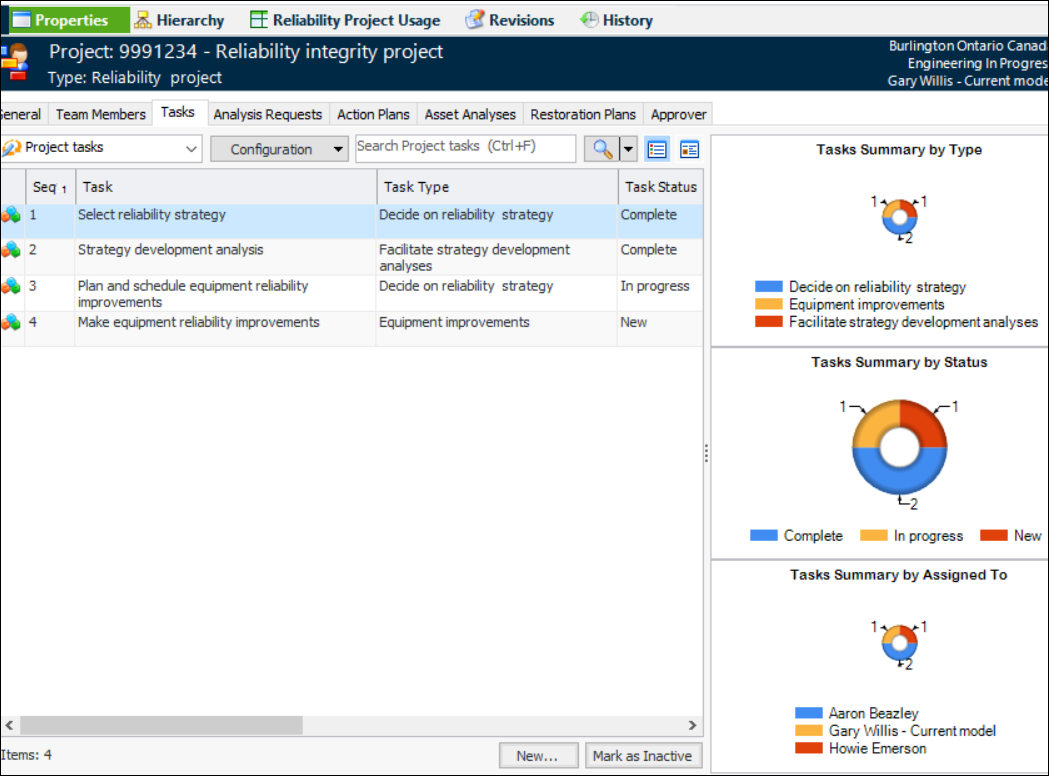
Select a project task when linking an object (for example, an analysis) to a project. You can add tasks to a project in the Tasks tab. This example shows how tasks and task statuses can be used:
You can define task types and statuses in project settings. In the Site window, click the Administration menu, Performance Management Settings, and then Project Management.
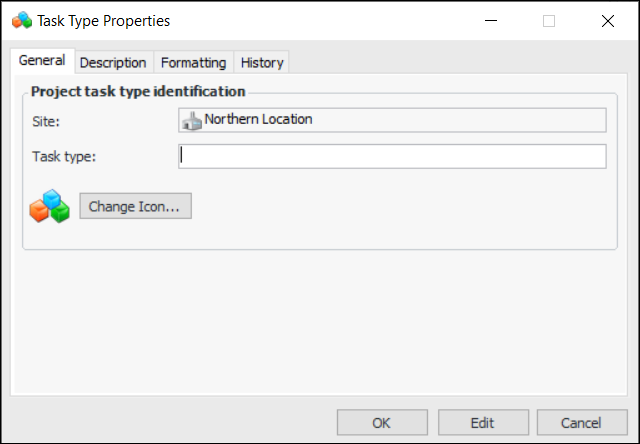
In the Project Management Settings dialog, select the Project Tasks tab. Click New and, in the Task Type dialog, define the type:
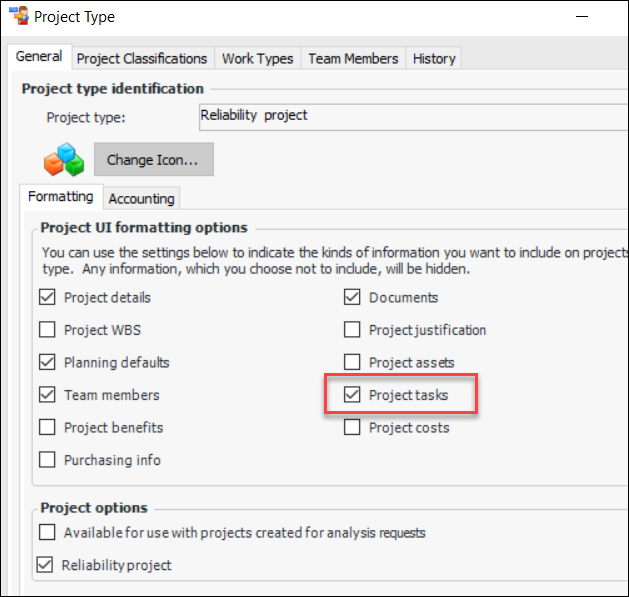
In the Project Management Settings dialog, select the Project Types tab. Open one or more project types and ensure that Project tasks is selected:

Project Team Members

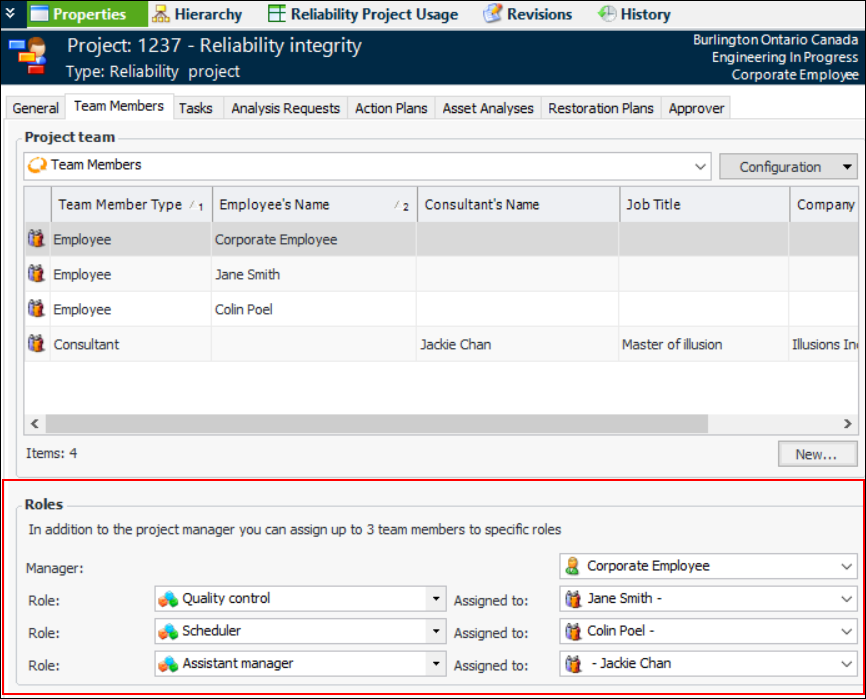
In addition to the team manager, you can now identify up to three roles in the project team and assign members to those roles. For example:
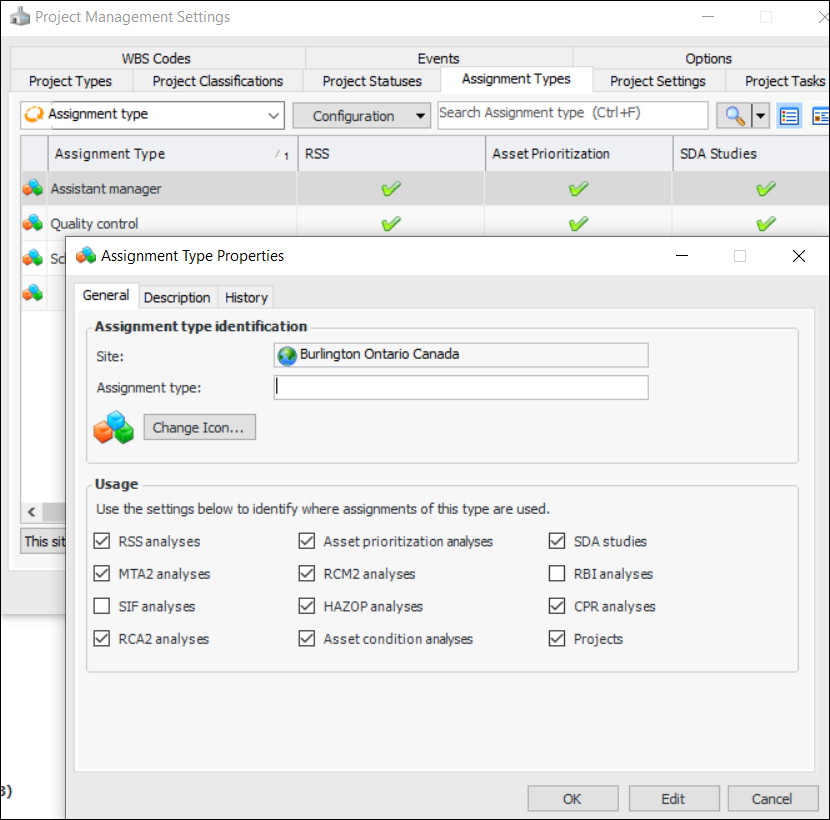
To set up this functionality, define assignment types in project settings. In the Site window, click the Administration menu, Performance Management Settings, and then Project Management.
In the Project Management Settings dialog, select the Assignment Types tab. Click New to open the Assignment Type Properties dialog, where you can name the assignment type and select the objects where it is available:

Regulated Gas Management

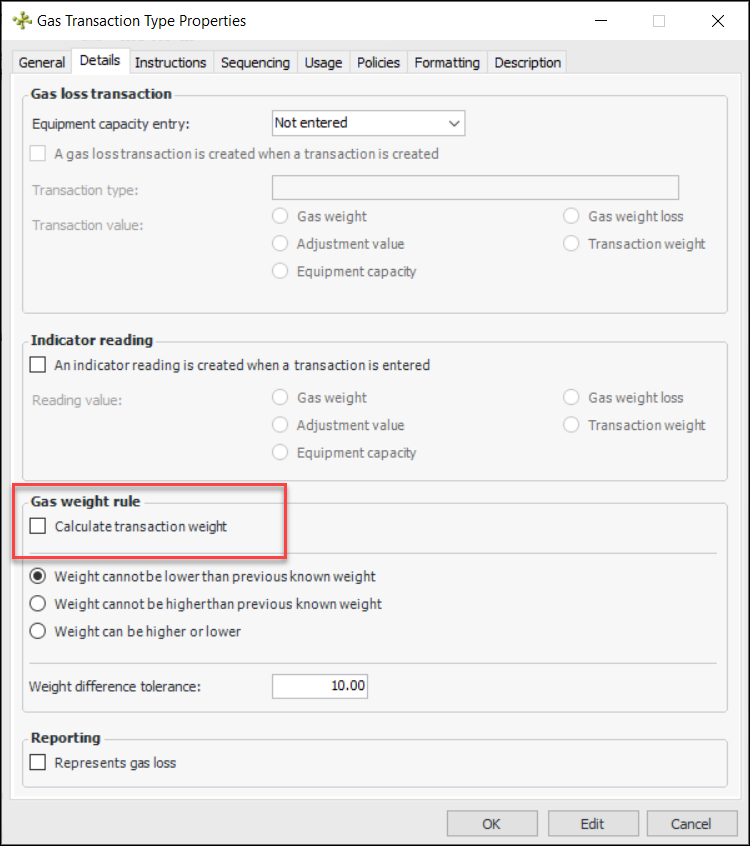
You can now prevent the gas transaction weight from being calculated for a specific transaction type, such as a Receipt from the vendor.
To prevent gas transaction weight from being calculated, select the Regulated Gas Management view, select the Settings tab, and the Transaction Types tab. Open the Gas Transaction Type window and click Edit. Select the Details tab. In the Gas weight rule area, clear the Calculate transaction weight option. For example:
When you upgrade to APM 7.18, this new option is automatically selected in your existing transaction types. Similarly, the option is selected by default in new transaction types.

Strategy Development Analysis

APM 7.18 features the following enhancements to strategy development.

Roles for Team Members

Functionality that was added for projects has been extended to several objects that support teams. You can now add up to three roles to objects and assign them to team members. The objects are:
When setting up assignment types, you can specify where a role can be used.

Isograph Availability Workbench®

APM supports Availability Workbench v2.21 (32 bit) or higher. The APM integration plugin has been verified to work with Availability Workbench 2.1.19.0 and 5.0.0.1.

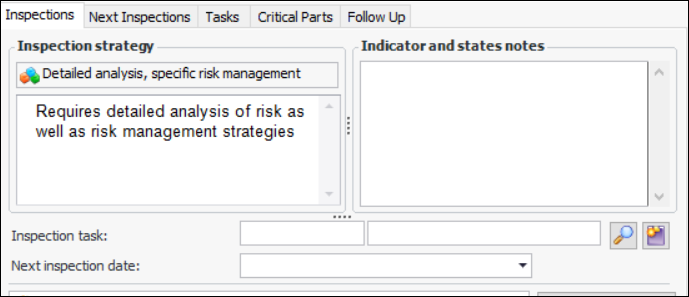
Inspection Strategy in Action Plans

If an inspection strategy has been assigned to the failure mode, the strategy and its description are now displayed on the Inspections tab. For example:
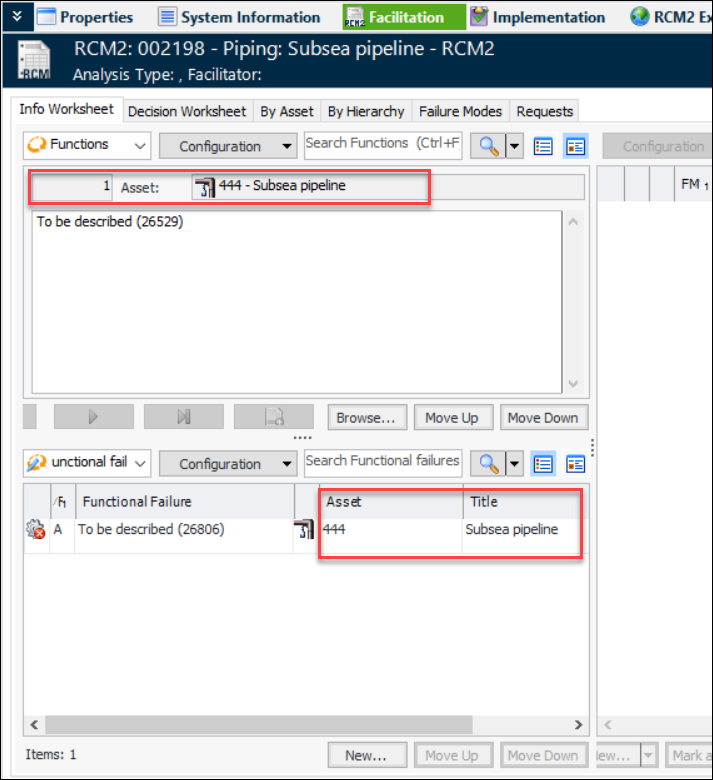
RCM2 Analysis – Asset Identified in Facilitation View

The asset number and title are now displayed more prominently for functions and functional failures in the Facilitation view, whether you are viewing the information in a form or table. For example: