What’s New in APM 7.16

Some of the enhancements made to AssetWise Performance Management (APM) in release 7.16 pertain to APM when AssetWise Enterprise Interoperability (AWEIS) has been implemented to exchange data with an external CMMS. This release also introduces fluid condition tracking and enhancements to assets, construction management, indicators, and more.

Contents

Asset Management
AWEIS – Work Management
CONNECTION Client and Log Dispatcher Settings
Construction Management
Fluid Condition Tracking
Inspection Management
Online Data Collection (ODC) – On-Premise Agent Deployment
Procurement – Invoicing
Remote Computing
Strategy Development Analysis

Asset Management

The following enhancements have been made to assets.

Characteristic Settings on Asset Type

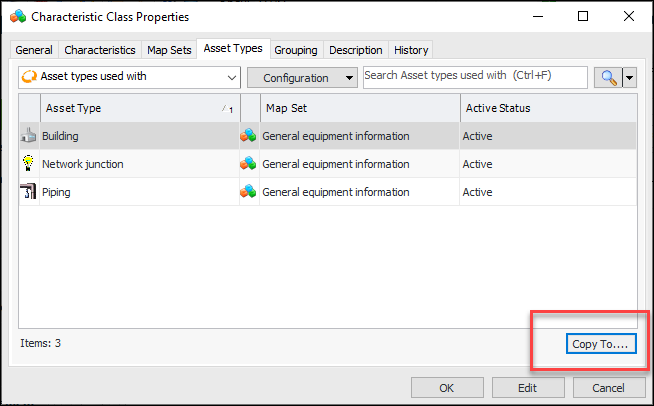
It is now easier to add characteristic classes and map sets to asset types. From the Characteristic Class Properties window, select the Asset Types tab and click Copy To:
Browse for the asset types, select them, and click OK.
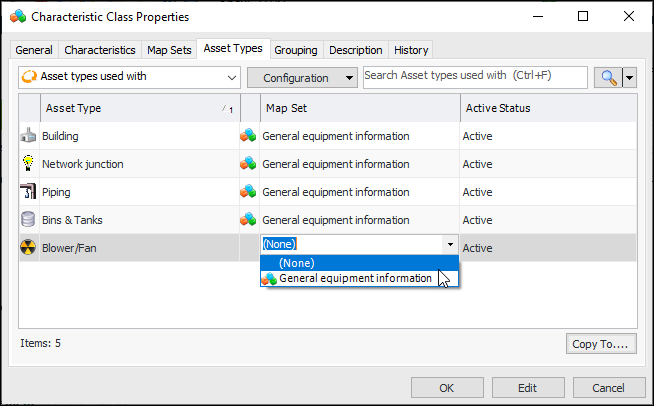
To quickly add a map set to each of the asset types, select the class in the table and press F2 to open the Map set field for editing. For example:
Select a map set from the list and press Enter.
As well, the Asset Type window, Characteristics tab now has a Browse button to make it easier to add characteristic classes to the type.

Country of Manufacture

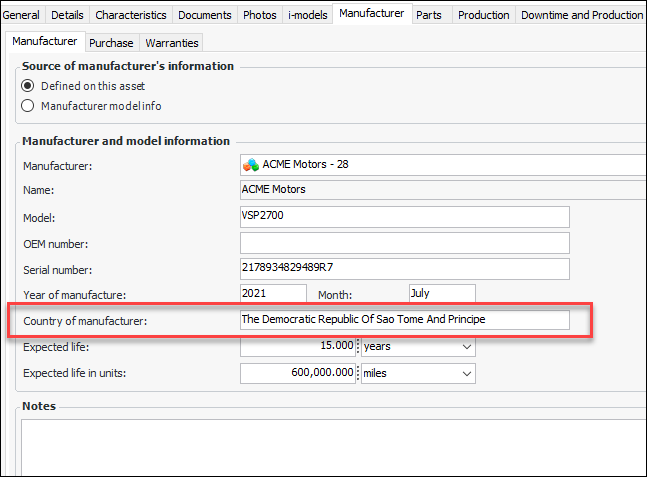
When you are recording manufacturer information on an asset, you can now enter as many as 50 characters in the Country of manufacturer field:

Electrical Substations Specifications

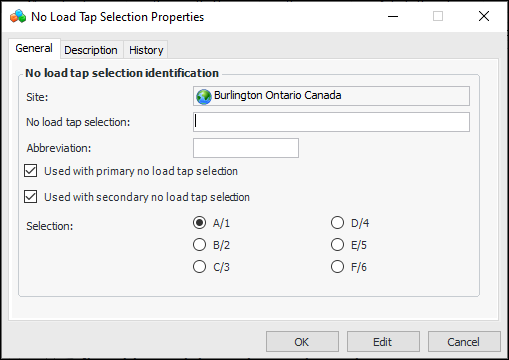
The “No-load tap selections” value list is now available in asset specifications. For example:
When setting up construction form templates and asset change requests, you can specify if the property is mandatory.

Degradation Minimum Value Calculations

The following calculations have been added or updated in the APM Install database:
For related information, see:

Default Representative Degradation Indicators

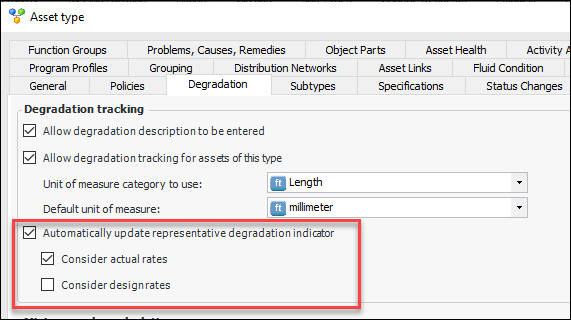
When defining degradation information on assets, you can have APM select the degradation indicator with the highest degradation rate as the asset’s default representative degradation indicator. You can specify whether to consider the actual rate, design rate, or both. If both rates are considered and the highest actual and design rates are identical, APM selects the indicator based on its actual rate.
To set this up, open the Asset Type window and select the Degradation tab. Select Automatically update representative degradation indicator. Then select Consider actual rates, Consider design rates, or both. For example:
For assets that use the asset type, in the Degradation Info tab, Degradation Indicators tab, you can change the default representative indicator as needed. You can also click Evaluate to have APM review rates and select the appropriate one according to the settings on asset type.
APM also evaluates the representative indicator when it processes indicator readings and when degradation rates change.

Asset Links

This release introduces support for links between assets beyond the relationships provided by physical hierarchies. For example, in the case of distribution network assets, links could be established between a transformer and its network switch, network junction, and ground switch. The advantages of links include:
Note: Support for asset links is a “generally available” product feature. You must first enable feature 76 to use the functionality in APM. In the Enterprise window, select the Features view and the Enabled Features tab. Click Browse, select “Support for asset links” and click OK. If APM is running as a smart client, click Refresh Enabled Features on the server. Then restart the client to use the functionality.
Setting up asset links involves the following steps:
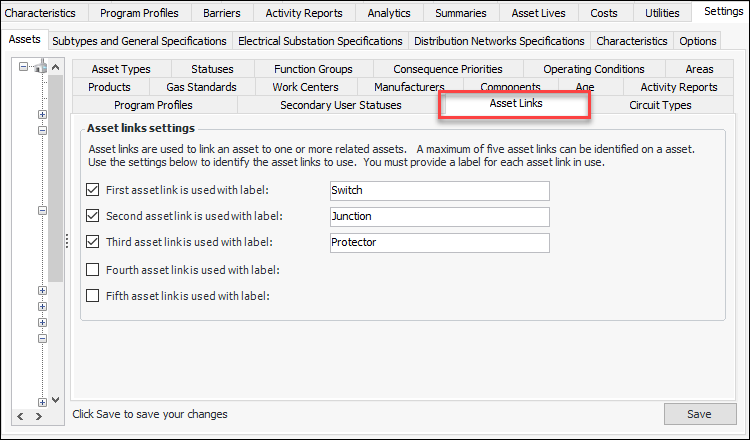
Define labels for as many as five asset links at the site level. In the Site window, select the Assets view, Settings tab, and Asset Links tab. Click Edit and then select and name the links. For example:
When you click Save, the links become available on asset types and assets.
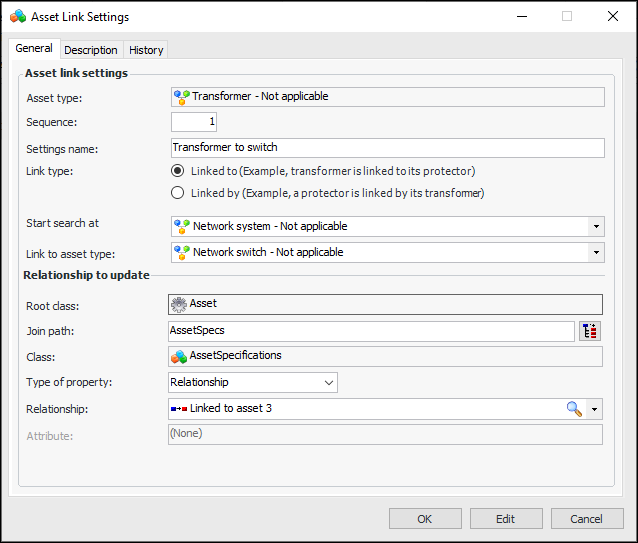
Set up link relationships between asset types. For example, to create links between transformers and network switches, open the transformer’s Asset Type window and select the Asset Links tab. Once you enable linking in this tab, you can define settings by clicking New. The Asset Link Settings window appears. Here is a completed example:
In this example, the Start search at asset type defines the point where logic starts applying asset links. When the logic that sets the asset links executes, it starts with the first asset with this type in the hierarchy, traversing up from the current asset.
The relationship between the root class and the AssetSpecifications class can be to one of five possible links. Here it is to “Linked to asset 3”.
You can create any number of link settings, but a maximum of five can be active.
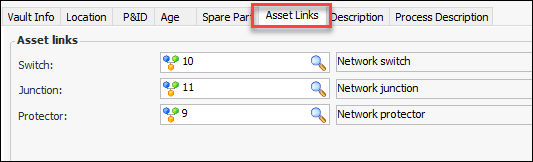
When links are set up between asset types, the Asset window for a “linked from” asset displays the Asset Links tab on the General tab. Here is an example of a transformer:
For network distribution assets, the first three linked assets are also displayed on the Vault Info tab.
You can refresh the links in the Asset window by clicking the Tools menu and Update Asset Links. You can also update all assets of a specific asset type. Right-click the asset type in a list and click Update Asset Links. This is handy when you introduce or update link settings and then wish to apply them to existing assets.

AWEIS – Work Management

The following modifications are introduced for requests for work and solution packages.

Requests for Work

The solution packages available for selection in a request for work can now be filtered according to the request’s asset. In the Site Interoperability Profile window, select the Work Management tab and the Requests tab. In the Solution packages area, you can select an option to filter the solution packages:

Work Priority and Work Classification

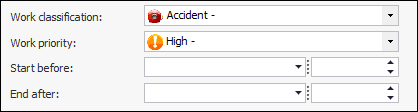
Wherever interop work information is displayed (for example, in requests for work), work priority and classification fields show the icon, priority or classification, and the title. For example:

Task Numbering on Solution Packages

You can specify the amount to increment sequence numbers as they are added to solution packages. In the Site Interoperability Profile window, select the Solution Packages tab. In the Task numbering area, specify the number to increment by. For example:

Browse Standard Tasks on Solution Package

The Inspections tab in the Solution Package window now provides a Browse button so that you can browse, filter, and select one or more standard tasks or templates to add to the package. By default, the Browse Tasks window filters by the solution package asset.

CONNECTION Client and Log Dispatcher Settings

As of this release, CONNECTION Client must be installed and active on computers running APM application servers, whether you are using SELECTServer or SES licensing. For information about CONNECTION Client, including how to install it, see the Bentley Communities page CONNECTION Client.
As of this release, Log Dispatcher and Ultimate ID settings are required on thick-client and server/service instances. The Log Dispatcher is used to collect consumption metrics for your SELECT and Connect (SES) license subscription. The Log Dispatcher relies on the Ultimate ID, which is a customer-specific identifier.
For information about defining Log Dispatcher settings, see “Setting up a Server/Service Instance” in APM Installation Guide.
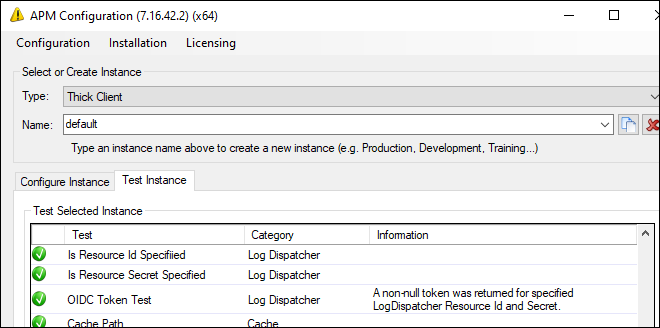
This release introduces tests for Log Dispatcher settings and the CONNECTION Client user session on thick-client and server/service instances. Testing returns errors if the Log Dispatcher resource ID or resource secret is not found. An OIDC Token Test error indicates that either the Log Dispatcher resource settings are incorrect (or missing) or the OpenID Connect Authority setting is incorrect. Here is an example of a successful thick-client test:
The User Session Active test returns an error if your CONNECTION Client is inactive.

Construction Management

These enhancements to construction forms are new for this release.

Electrical Substation Specifications

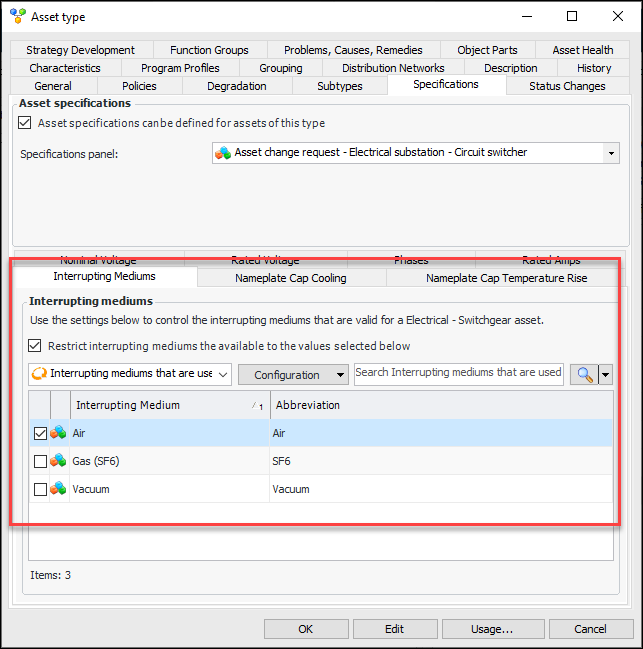
You can use asset type to restrict the values available to users when selecting an interrupting medium, nameplate cap cooling value, or nameplate cap temperature rise value on a construction form or asset change request. For example, in the Asset Type window, select the Specifications and Interrupting Mediums tabs. When you click the Restrict option, the values are listed in the table. Select the values that will be available and click OK.

Synchronous Condenser Construction Form

The following changes have been made to the construction form for synchronous condensers:

Regulator Single Phase

In the construction form for single phase regulators, the Metal Clad Unique Number attribute has been replaced by Number of digits. The “number of digits” value list is available in the Electrical Substation Specifications tab in asset settings.

Fluid Condition Tracking

You can now use APM to collect and track samples of fluids such as oil, hydraulic fluids, greases, and lubricants to monitor equipment fluid condition for different asset types (transformers, engines, pumps, and so on).
In APM, a sample consists of the fluid as well as the syringe and bottle used to collect the specimen. Indicator readings are used to record the collection of samples. Once collected, the samples are sent to an internal or external laboratory for testing. Test results are imported or entered into APM as indicator readings in fluid condition checksheets.
Note: Recording fluid samples on indicator readings and tracking fluid condition test results are “generally available” product features. You must first enable features 53 and 54 to use the functionality in APM. In the Enterprise window, select the Features view and the Enabled Features tab. Click Browse, select “Fluid condition tracking and results” and “Fluid sample support” and click OK. If APM is running as a smart client, click Refresh Enabled Features on the server. Then restart the client to use the functionality.

Fluid Sample and Condition Tracking Process

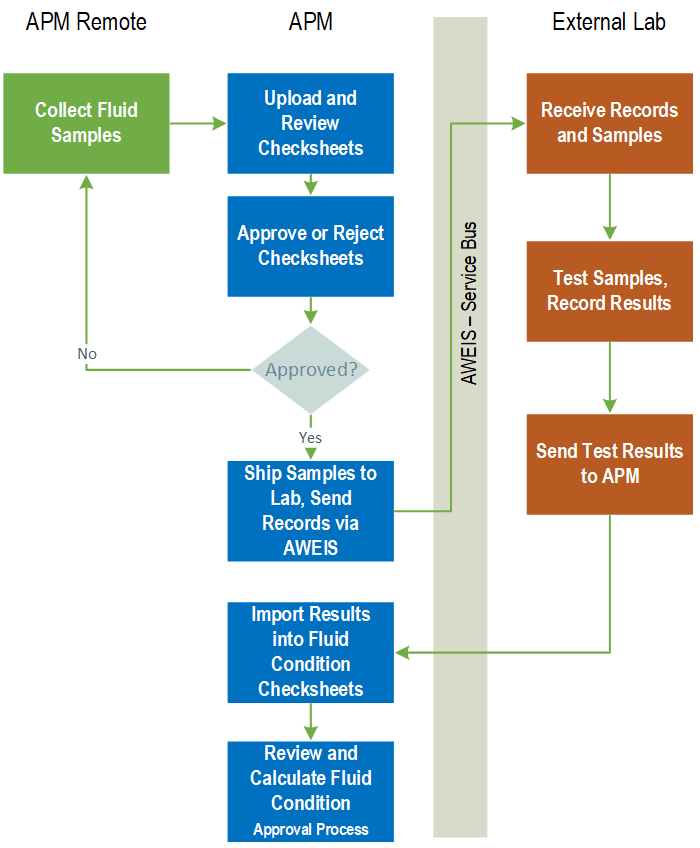
The following illustration of the process depicts the sample being recorded in APM Remote. The reading is uploaded to APM desktop, where the rest of the steps in the process are performed.
This diagram assumes that an external lab performs testing and that AssetWise Enterprise Interoperability (AWEIS) conveys information about samples and lab results.

Step 1 - Take Fluid Samples

The inspector collects fluid samples when inspecting assets and records indicator readings. For example, the indicator “Primary chamber oil sample” might be one of a number of indicators included in an inspection checksheet for the round. The inspector records in the reading that the sample was taken and enters required information, for example:
Information such as the test lab, fluid type, and gas standard is defaulted from the indicator and can be changed, if required. Inspectors can also provide instructions for the lab and select and suggest additional tests.
If inspectors are unable to take a sample, they select the “sample not taken” indicator state and record the reason in inspection comments.
Note: If inspectors notice problems with fluid levels, for example, when taking samples, they can enter a reading on the appropriate indicator and record inspection comments. If appropriate, a request for work can be generated to address a problem.
Optionally, checksheets that record samples can be reviewed or approved by a supervisor. This step typically involves:
When a sample collection checksheet is processed, APM automatically creates a lab fluid sample for each reading and generates the fluid condition checksheet.
For detailed information, see Entering Fluid Sample Indicator Readings.

Step 2 - Create Fluid Sample Receipts

APM provides functionality for verifying that samples have been received from inspectors, sending documents about samples to a lab, and verifying that an internal lab has received matching samples.
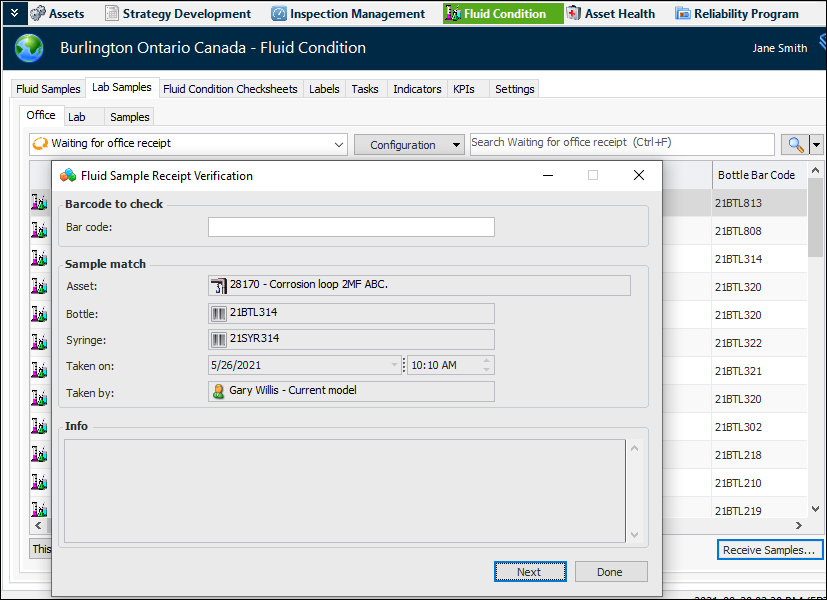
Before the samples are sent to the lab, the internal compliance officer verifies the information on each bottle and syringe, generating a receipt on the lab fluid sample. In the site’s Fluid Condition view, select the Lab Samples and Office tabs. The default table configuration lists samples that are “Waiting for office receipt”.
Click Receive Samples to open the Fluid Sample Receipt Verification window. When you scan (or enter) a bar code, APM checks that a matching bar code exists in the system, that the bar code has been assigned to a sample, and that it was not previously received. For example:
Continue scanning bar codes until you run out of bottles and syringes. When you click Done, the window closes and the samples you scanned are moved to the “Ready to send to lab” configuration.
Before shipping samples to an internal or external lab, you can generate documentation in the form of XML packages that are then conveyed to the lab using AWEIS or another method. APM generates an XML package that includes a list of the samples and the indicator readings (test results) for each sample.
On the Lab Samples tab, Office tab, select the “Ready to send to lab” configuration and click Send to Lab. The Send Fluid Samples window appears, where you can select the lab, browse for samples to send, and click OK.
Then select the “Send to Lab Requests” configuration to see a list of requests. You can double-click a request to open the Sample Set window, which confirms that the XML package was generated and lists the samples.
If testing is performed in a lab within your organization that has access to APM, lab personnel can receive and verify samples. In the site’s Fluid Condition view, select the Lab Samples and Lab tabs. Click Receive Samples to open the Fluid Sample Receipt Verification window. As you scan bar codes one after the other, APM matches the codes and records the receipt.
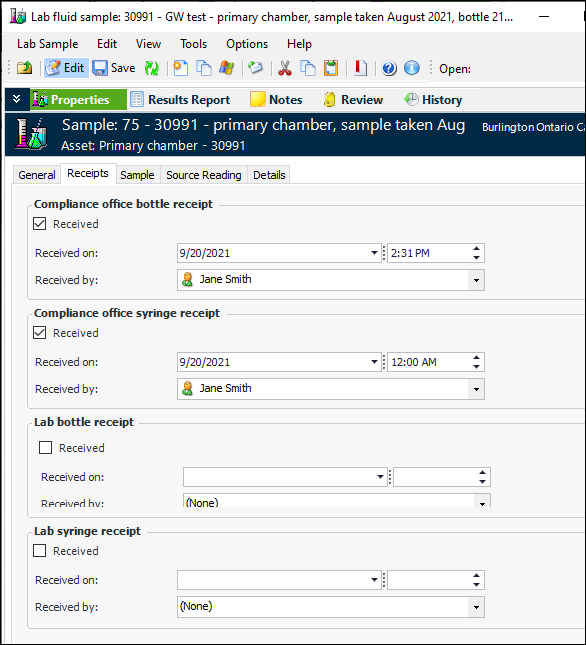
You can view a fluid sample’s receipts in the Lab Fluid Sample window. Select the Properties view, Receipts tab. For example:
For more information, see Creating Fluid Sample Receipts and Sending Samples to the Lab.

Step 3 - Lab Tests - Import Results

The lab tests the samples, typically using specialized analysis hardware and software.
For external labs, test results are sent to APM using AWEIS. The XML document populates the staging table and is imported as indicator readings in the fluid condition checksheet. The Fluid Sample Results data loader is used to import the information, which also means that results can also be imported using Excel workbooks based on the data loader template.
For related information, see Data Loading.
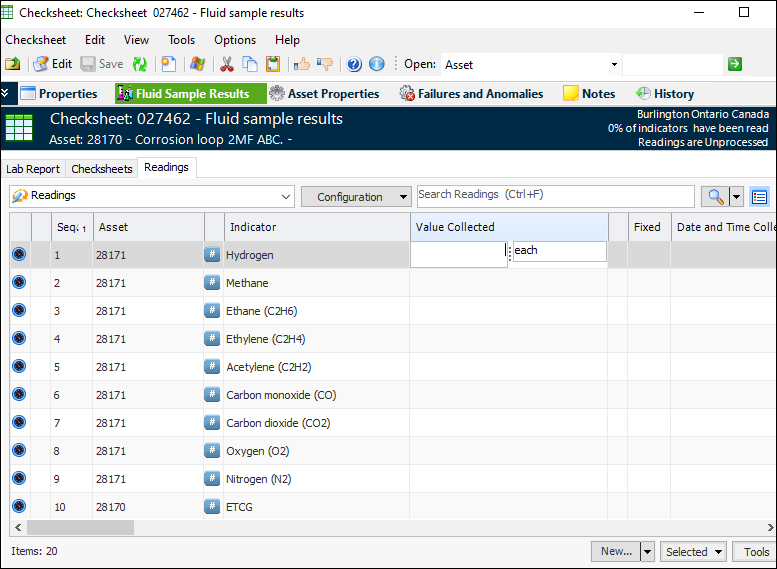
Internal labs can also record test results as indicator readings in the checksheet. In the site’s Fluid Condition view, select the Fluid Condition Checksheets tab and open a checksheet. In the Checksheet window, select the Fluid Sample Results view and the Readings tab. For example:

Step 4 - Evaluate Fluid Condition

A fluid condition checksheet records the lab test results for a sample, including results collected over time so that you can see trends in fluid condition. You can implement calculated indicators to determine rate of change and fluid condition codes.
While working with the lab report in a fluid condition checksheet, you can trigger calculated indicators as many times as needed and review the results before processing the checksheet.
Processed checksheets can be sent for approval or review. Typically, the engineering supervisor calculates values and reviews results. When the supervisor is satisfied, the checksheet is marked as reviewed or sent for approval.

Change Tracking

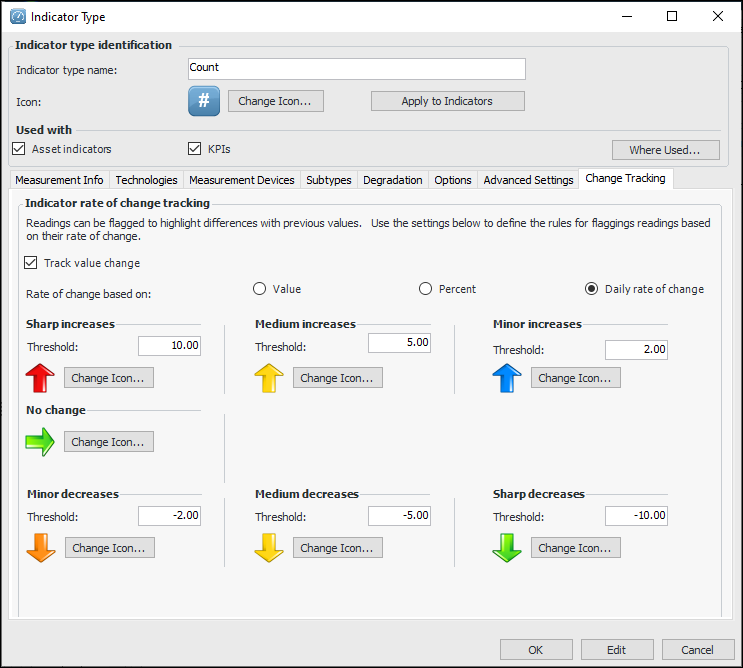
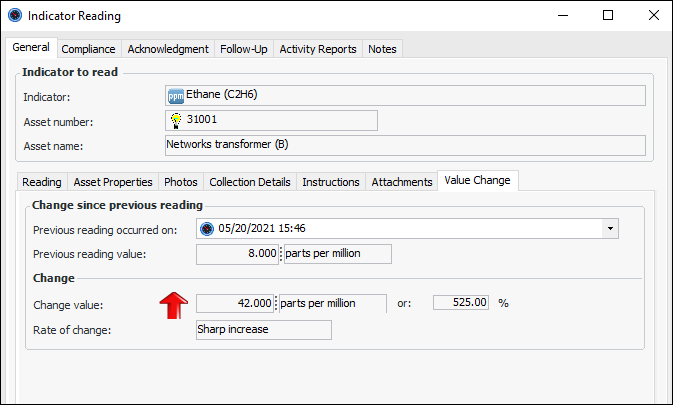
You can now set up numeric indicator types to track the rate of change between a reading value and its previous reading. Rate of change can be based on values, percentages, or daily rate of change. You can set the thresholds and icons for sharp, medium, and minor increases and decreases. For example:
In an indicator reading, the Value Change tab displays the change since last reading:
After implementing the functionality on an indicator type, you can calculate change values for indicators with existing readings. In the Site window, select the Inspection Management view and Readings tabs. Select one or more readings, right-click, and click Calculate Change Value.
For more information, see **Setting up Indicator Types.

Review and Approval Processes

The following documents that can be reviewed or approved:
Both the review and approval processes are supported. One or the other can be used with checksheets and lab sample objects.
A review is an informal process where a user with the appropriate security privilege marks the object as reviewed. The system captures the name of the user and the time when the object was reviewed.
The approval process is more formal. When approval is being used, the object (the checksheet or lab sample) is sent for approval and an approval route is selected. The approval route identifies the named users who are required to approval the object. The route might identify that:
The same process does not have to be used with all objects. For example, formal approval can be used with the inspection and results checksheets, while informal review is used with the lab sample. In fact, it is possible to identify the process used based on the type of object. For example, the inspection checksheet can require formal approval, while the results checksheet uses the informal review process.
The process used is determined when the object is created. For example, when a checksheet is created, the system determines if the formal approval or informal review process is required, based on checksheet type and status. Similarly, when the lab sample is created, the system determines if the approval or review process is required.

Printing Bar Code Labels

Use the Generate and Print Labels function to print a set of bar code labels for bottles or syringes to attach to receptacles that can then be distributed to inspectors to use when taking samples. You can:
It is also possible to print a single label. The following information is entered for the label:

Setting up APM for Fluid Sample and Condition Tracking

Besides enabling features 53 and 54, you can prepare APM for taking fluid samples and tracking fluid condition by setting up value lists, creating task templates, and more. First, set up these value lists:
Checksheet types – Add or modify checksheet types to include the Fluid Types view and support the checksheet’s use for fluid condition results
Fluid types – Add or modify fluid types to support fluid samples. You can also set durations for testing bottles and syringes, define rush request settings, assign fluid tests, and identify contaminants. See Setting up Fluid Types. Fluid sample tests – Add fluid sample tests, for example, “Color”, “Furans”, or “Dissolved gas”. The tests can then be selected in fluid types, fluid samples, and types of test
Once value lists have been defined, you can set up indicator templates and standard task templates to collect samples and record test results. You can also set up calculated indicators to determine rate of change and fluid condition based on test result readings.
For related information, see:

Fluid Type

Fluid type is an APM value list that previously was maintained in Asset subtypes and specifications settings. When fluid sampling and condition tracking is enabled, you can also define fluid types in Fluid Condition settings.
The Fluid Type record now determines whether the type identifies:
Note: When you upgrade APM, existing fluid types in your database are automatically set to “Used as product carried in pipe or vessel”.
In fluid types that support sampling, you can specify the time requirements for completing testing on samples in bottles, syringes, or both. You can also specify that rush requests are supported for bottles and/or syringes. For example, when a syringe is used to collect transformer oil for dissolved gas analysis, rush settings reflect shorter sample life, compared to a sample collected in a bottle that undergoes different tests. When an inspector records a sample in an indicator reading and specifies that rush settings are in effect, base time requirements are overridden by rush durations.
For more information, see Setting up Fluid Types.

Inspection Management

The following enhancements are new for indicators and checksheets.

Position of Calculated Indicators on Checksheets

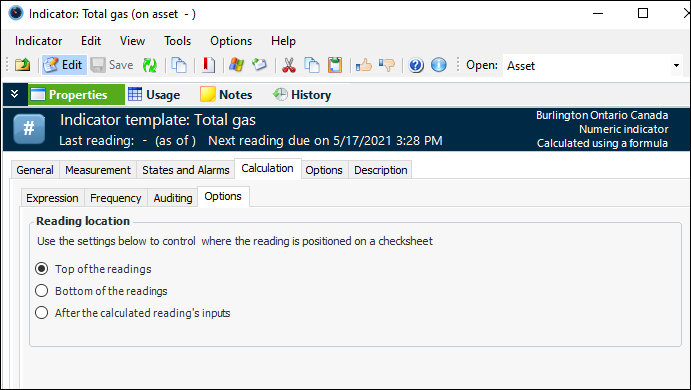
You can control where the calculated reading is positioned on a checksheet: top of the readings, bottom of the readings, or after the calculated reading’s inputs.
Open the calculated indicator or indicator template. In the Indicator window, select the Properties view, Calculation tab, and Options tab to select the appropriate setting. For example:

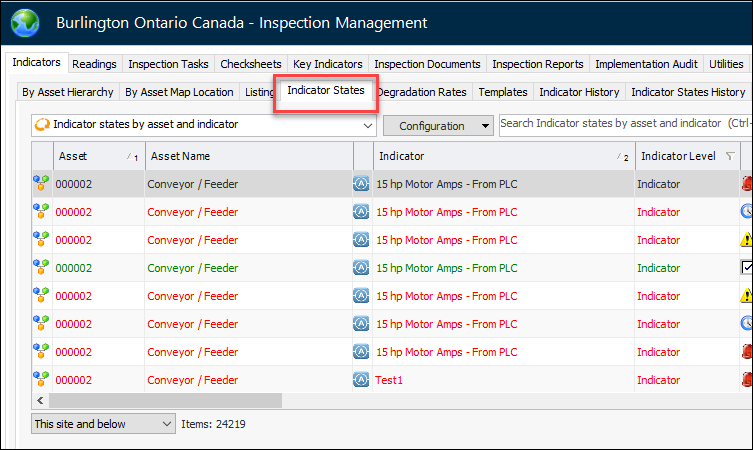
Site’s Indicator States

The table of indicator states has moved from the Utilities tab to the Indicators tab in the site’s Inspection Management view. For example:
This provides higher visibility to the list of indicator states, which may prove helpful if you need to use mass update on a larger number of indicator states.

Inspection Photo Displayed on Acknowledgment Work Document

With this release, when you acknowledge an indicator alarm with a work request or work order, the photo attached to the indicator reading is now available in the work document. Select the Photos tab to view the table of acknowledgment reading photos.

Checksheet Approvals

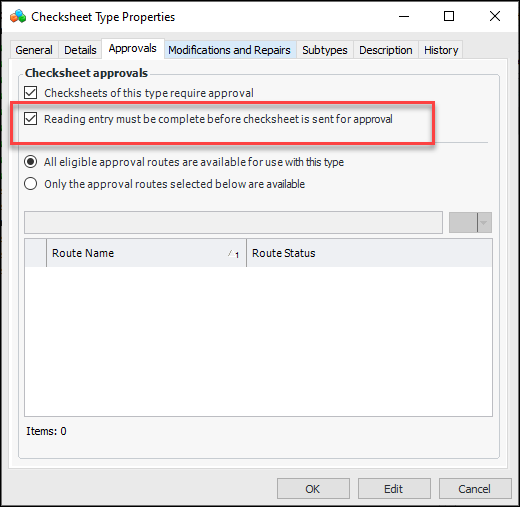
You can prevent incomplete checksheets from being sent for approval by setting an option on the checksheet type:
When a checksheet is sent for approval, APM verifies that the percentage of readings meets the minimum requirement and that all mandatory readings have been entered. If these criteria are not met, a message is issued and the Send for Approval action is stopped.

Indicator Templates for Corrosion Inhibitor Analysis

The APM Install database now contains two indicator templates for use by users who monitor the availability of inhibitors to prevent pipe and tank corrosion. The templates are:
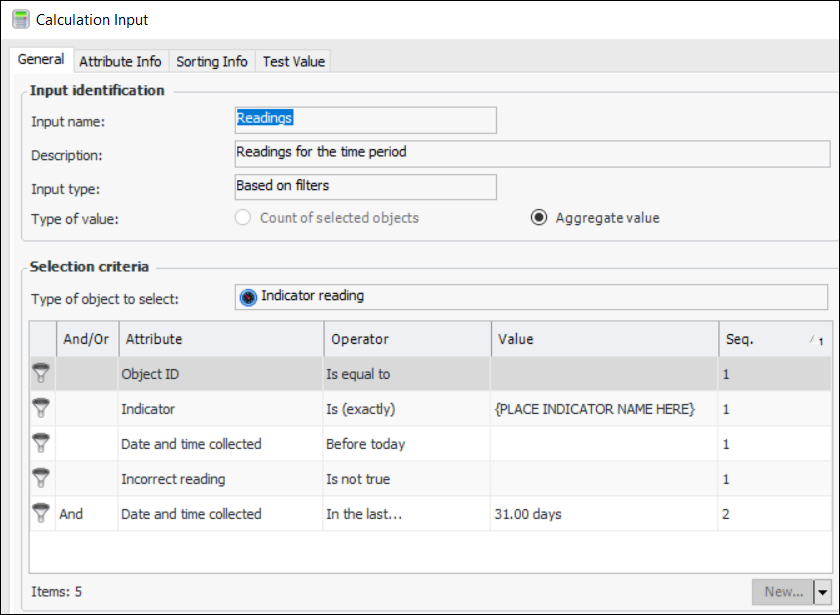
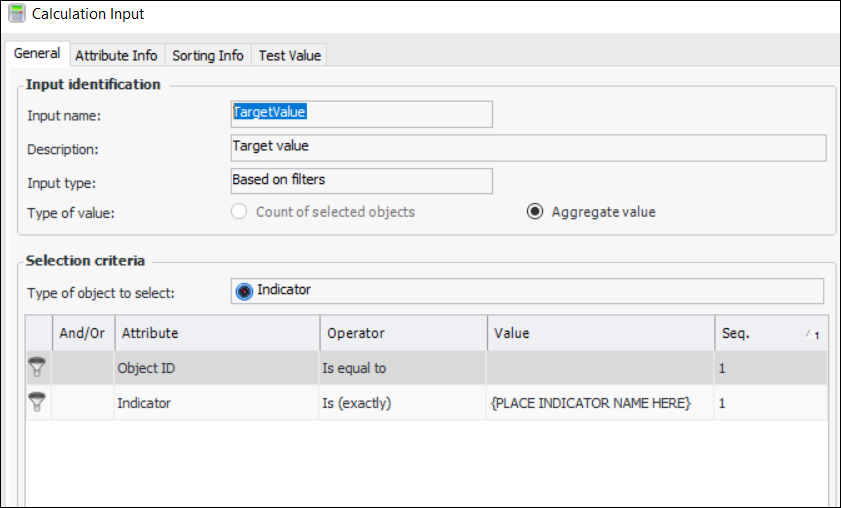
Corrosion Inhibitor Availability for last 30 days – Calculated on a daily basis. Set up inputs based on readings for the time period and target value.
For example:
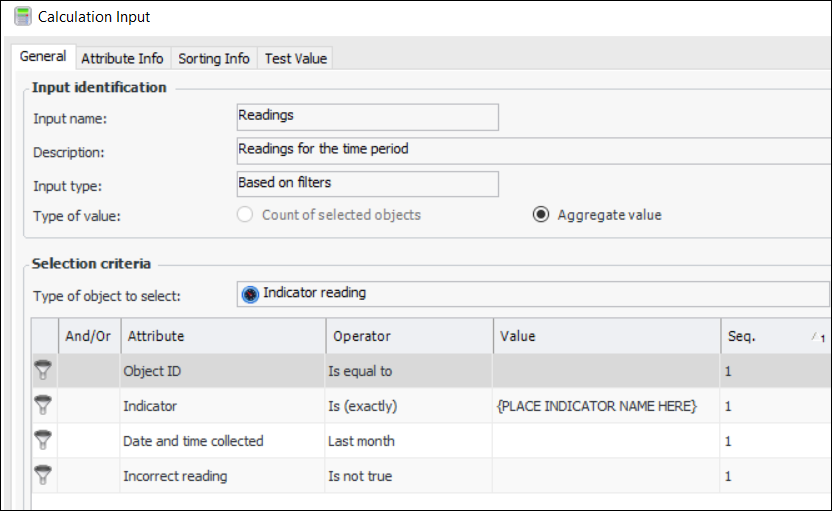
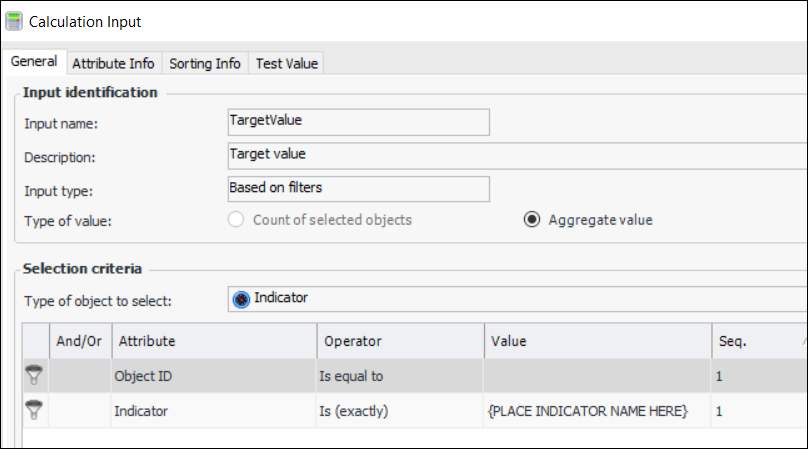
Corrosion Inhibitor Availability for last month – Calculated on a monthly basis. Set up inputs for readings for the time period and target value. For example:

Online Data Collection (ODC) – On-Premise Agent Deployment

This release provides a convenient way to deploy the On-Premise ODC Agent installer. Rather than copying the .msi file to the machine that will host the agent, you can direct users to download the file from the Deployment page in Server Manager. For information about setting this up, see APM ODC Guide.
When you upgrade to APM 7.16, additional steps are required to implement this feature. See APM Upgrade Guide.

Procurement – Invoicing

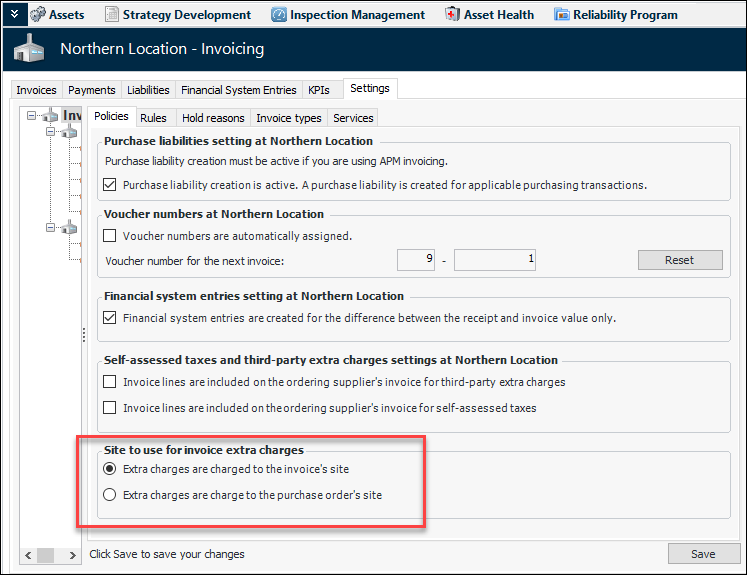
You can now specify in invoicing settings whether extra charges are charged to the invoice’s or purchase order’s site. In the Site window, select the Invoicing view and Settings tab:

Remote Computing

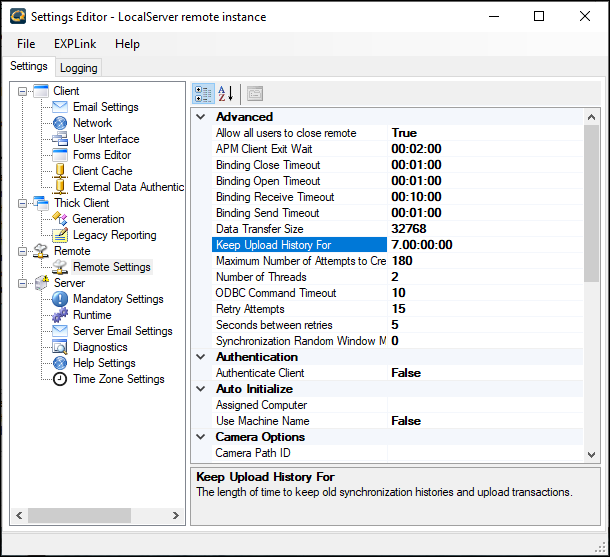
Growth of the APM Remote database is controlled by an advanced setting in the remote instance’s Settings Editor. The “Keep Upload History for” option specifies the length of time to keep old synchronization histories and upload transactions. When the synchronization process completes, records that are older than this value are removed from the database.
This settings now also removes older entries from the oq.upgradelog table to prevent the database from growing to an unmanageable size. You can change the default value of 7 days, if required. For example:
For more information, see APM Remote Setup Guide.

Strategy Development Analysis

The following enhancements have been made to strategy development analysis.

Support for Type of Inspection Questionnaire or Analysis

This release introduces the Type of Inspection questionnaire for use in risk-based inspection (RBI) analyses and other types of analyses (for example, MTA2 or RCM2). You can use the framework provided to develop an evaluation for your organization.
Note: Support for type of inspection evaluations is a “generally available” product feature. You must first enable feature 74 to use the functionality in APM. In the Enterprise window, select the Features view and the Enabled Features tab. Click Browse, select “Support for type of inspection evaluation as part of the failure mode RBI analysis” and click OK. If APM is running as a smart client, click Refresh Enabled Features on the server. Then restart the client to use the functionality.
In the RBI process, the Type of Inspection evaluation occurs after the confidence analysis:
Setting up and using a Type of Inspection questionnaire involves the following steps:
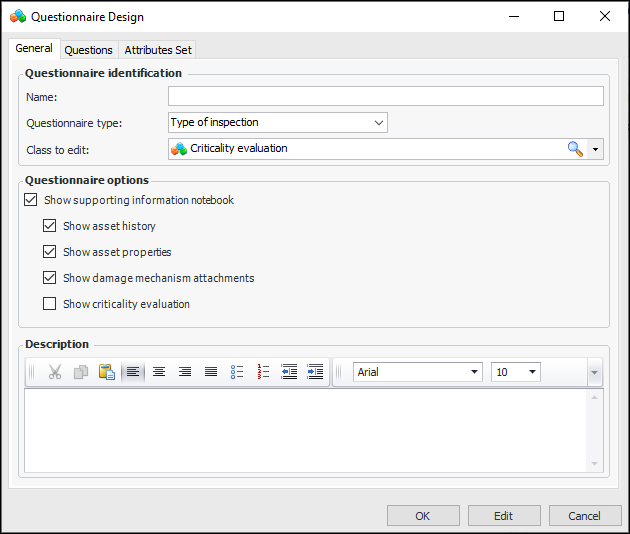
Log on to APM with the administrator privilege and define the questionnaire. On the site’s Strategy Development view, select the Settings and Type of Inspections tabs. Click New to open the Questionnaire Design window. For example:
You can set options and define questions and answers. For related information, see Setting up Susceptibility to Failure Questionnaires.
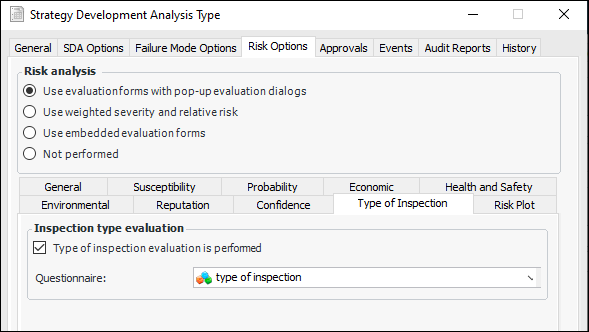
You can also specify the questionnaire in the asset type. In the Asset Type window, select the Strategy Development and Risk Analysis tabs. Create or modify site settings for the asset type to include the Type of Inspection evaluation.
In the Strategy Development Analysis window, Properties view, Risk Options tab, the Risk Options tab contains the Inspection Type tab
The Strategy Development Analysis window contains the Type of Inspection view, which lists failure modes that include the analysis
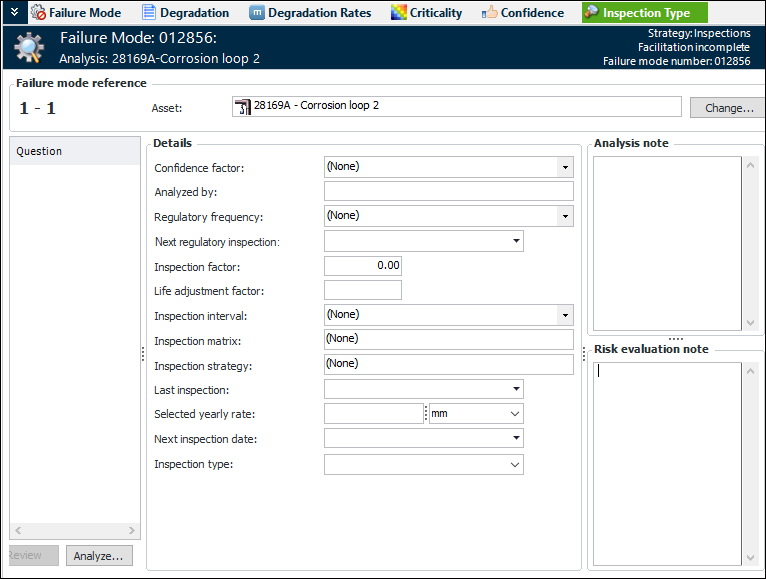
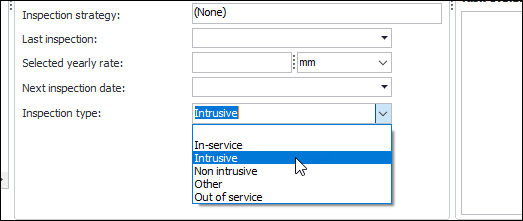
When you create a failure mode, the Maintenance Action Plan window contains the Inspection Type view (after the Confidence view), where you can complete the analysis. Here is an example before the evaluation has been designed:

Risk Summary Window Reorganized

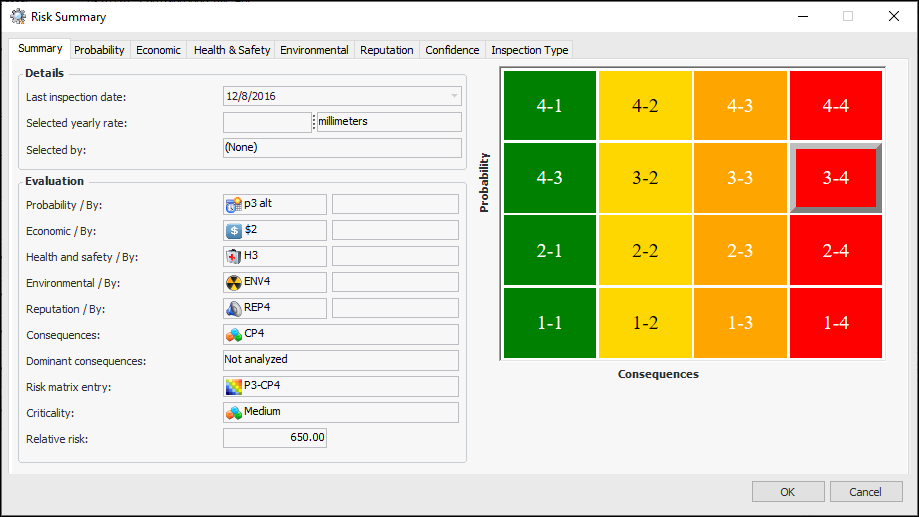
In the Maintenance Action Plan window, Criticality view, you can click Summary to open the Risk Summary window. The window displays the results of the risk analysis and a tab for each of the questionnaires that were used to evaluate probability of failure, consequence severities, confidence, and type of inspection (if supported). For example:

Editable Inspection Task Description on an Action Plan

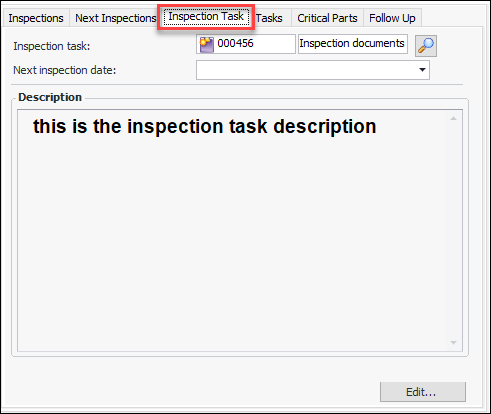
When you add an inspection task on the Inspections tab of a maintenance action plan in a strategy development analysis (MTA2, RCM2, RBI, CPR), the Inspection Task tab is added to the window. This tab shows the inspection task and a Description box.
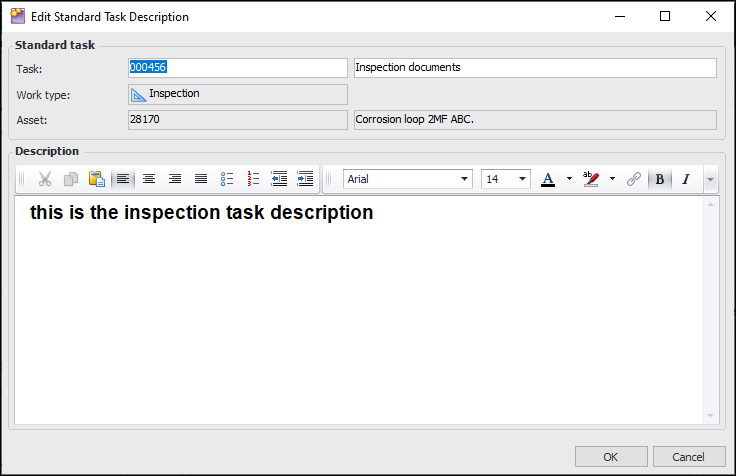
Click Edit to open the Edit Standard Task Description dialog, where you can add and change the information: