What’s New in APM 7.15

Some of the enhancements made to AssetWise Performance Management (APM) in release 7.15 pertain to APM when AssetWise Enterprise Interoperability (AWEIS) has been implemented to exchange data with an external CMMS. This release also introduces enhancements to assets and 4D Analytics indicator readings.

Contents

Approvals
Asset Management
AWEIS – Asset Change Requests
Construction Management
Inspection Management
Mobile Computing– Inspections 2.0

Approvals

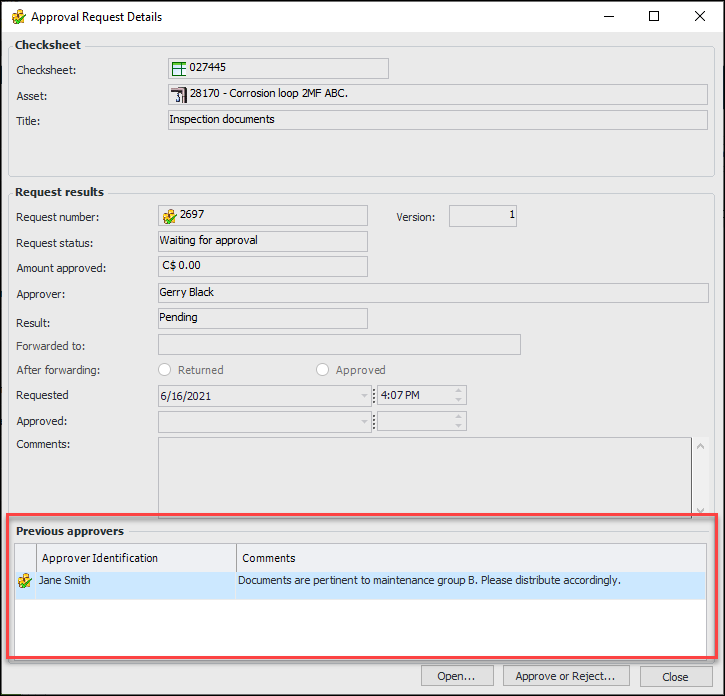
You can now view a list of previous approvers and their comments in the Approval Request Details and Approve or Reject windows. For example:
For related information, see Overview of Document Approvals.

Asset Management

The following enhancements to assets are introduced in this release.

Original Equipment Manufacturer (OEM)

OEM number has been added to the asset specifications for electrical substations and distribution network asset types that include manufacturer information. OEM number is also available in asset change requests and construction forms for those assets.

Properties for Distribution Network Assets

This release includes changes to properties on network asset panels (asset specifications, asset change requests, and construction forms).

Ground switch

Primary connection chamber

Junction

User Asset Specifications Class

This release includes a shell class that Services personnel and administrators can use to add custom properties to an asset. The User Asset Specifications class provides an alternative to using Asset Specifications, creating asset subtypes, and in some cases, customizing the Asset class.
User Asset Specifications is an owned-by-1 class, owned by Asset. It includes support for the following properties:
Using the settings of class User Asset Specification Settings, you can identify which of the 20 properties are used. You can provide a name for each property.
Settings on asset type allow you to specify if user asset specifications are used with assets of the type. You can select the settings to use, which means different properties can be used with different types of assets. You can also select the panel to display.
Note: This functionality is available as a Technology Preview. To use it in APM, you must first enable feature 75. In the Enterprise window, select the Features view and the Enabled Features tab. Click Browse, select “Support for user asset specifications”, and click OK. If APM is running as a smart client, click Refresh Enabled Features on the server. Then restart the client to use the functionality.

AWEIS – Asset Change Requests

The following enhancements were made to asset change requests, which convey asset updates to the CMMS.

Equipment Removal Requests

When setting up a request type for equipment removal, you can specify that any of the following properties are mandatory:
For more information, see Setting up Asset Change Request Types.

Asset Properties Change Requests

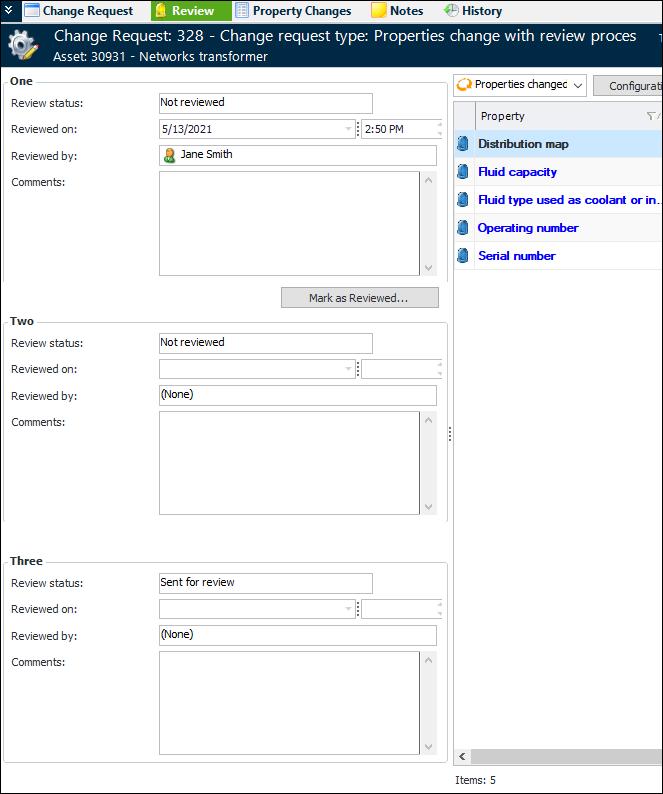
When the review process is active for a properties change request, all levels of review (up to three) are displayed in the Review view at the same time. Here is an example with three levels:
When the first reviewer marks the request as Reviewed, the second level is available to the next reviewer, and so on.
For more information, see Reviewing Asset Properties Change Requests.

Asset Status Available on Properties Change Requests

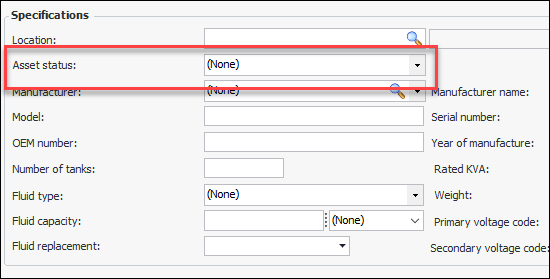
For distribution network assets, the New Properties Change Request window, Change Request tab now includes the Asset status selection list. For example:
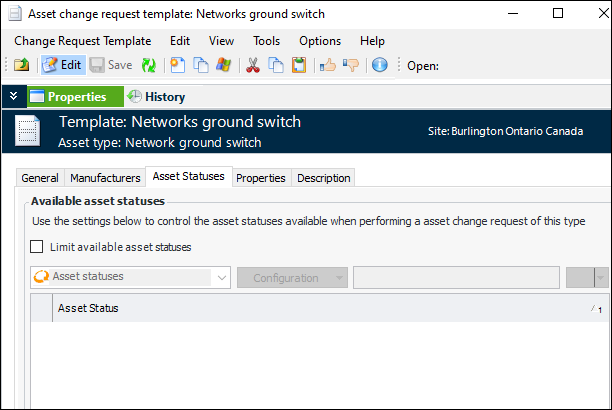
You can limit the asset statuses available in the list in the asset change request template. Select the new Asset Statuses tab, click Limit available asset statuses, and select the statuses to use.

Create Property Change Requests from Construction Form

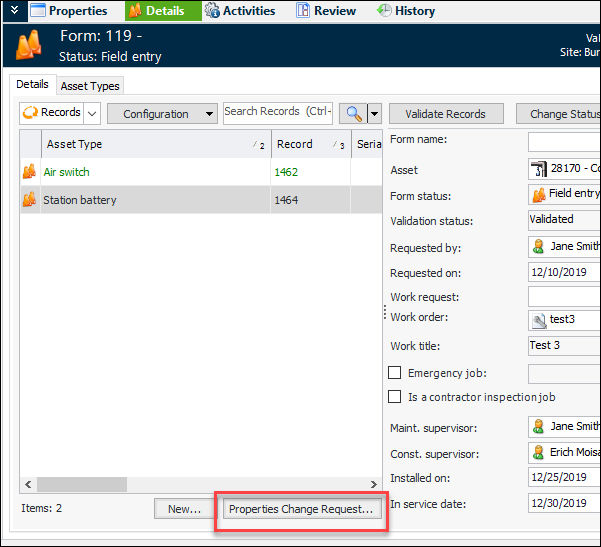
You can now create an asset properties type of change request from the Details view and tab of a validated construction form. Select the record and click Properties Change Request.
The New Properties Change Request window opens with many of the construction form properties defaulted in. For more information, see Creating Asset Properties Change Requests.

Construction Management

This release introduces the following enhancements to construction management.

Interop Work Request Support on Construction Forms

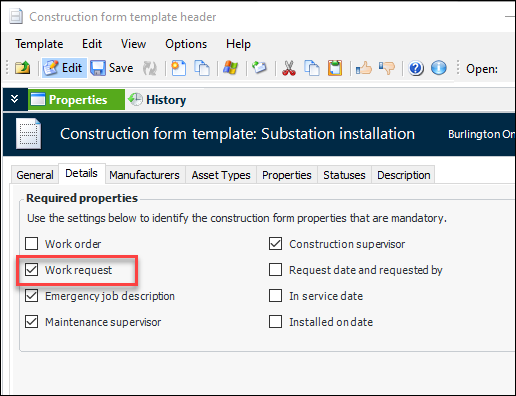
You can now make it mandatory for users to identify the interop work request on construction forms. In the Construction Form Template Header window, select the Details tab and then Work request. For example:
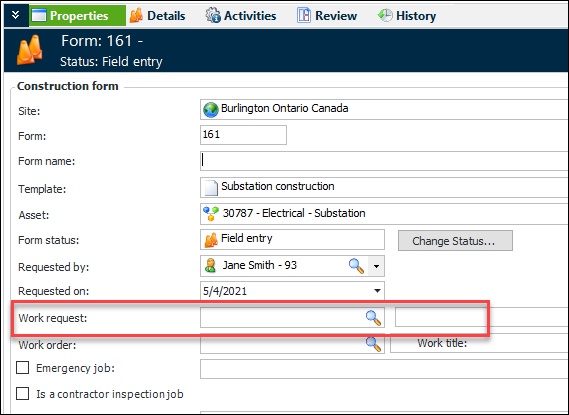
In the Construction Form window, you can browse for interop work requests in the Properties and Details views. For example:

Specifying Parents for Construction Form Detail Assets

In construction form templates, options are now available for assets that are normally associated with a parent asset, for example, a primary chamber considered a child of a transformer.
The Parent asset options are located on the Construction Form Template Asset Type Properties window:
All assets parented under the construction form’s asset – The default option places all assets created from the form under the construction form’s asset in the site hierarchy
Assets are parented under an asset identified on the construction form – When creating a form, you can select from the other form details. When assets are created or updated from the form, the child asset is associated with the selected parent
Assets are parented to an asset record – When creating a form, you can select an asset from the site hierarchy
You can limit the parent assets to selected types. Click Limit assets and select the types in the list.

Making Photos Mandatory on Construction Forms

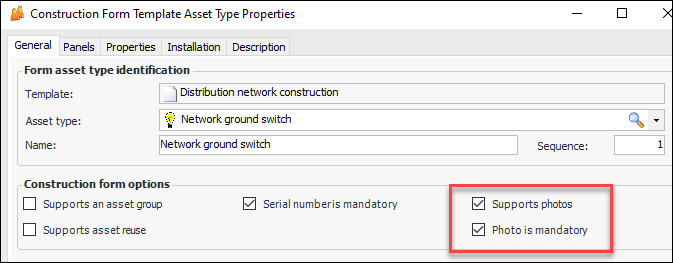
In construction form templates, you can specify that a photograph must be added to construction form details based on asset type. In the Construction Form Template Asset Type Properties window, General tab, select Supports photos and Photo is mandatory. For example:
When you create a construction form using this template, you will not be able to validate the form until assets that require it have attached photos.

Construction Form Activities: Photos and Attachment Tabs

Open the Construction Form window and select the Activities view to find the Photos and Attachments tab. These tabs display all of the photos or attachments related to the construction form details.

Inspection Management

The following enhancements have been made to indicators, checksheets, and so on.

Display Asset Properties on Indicator Readings

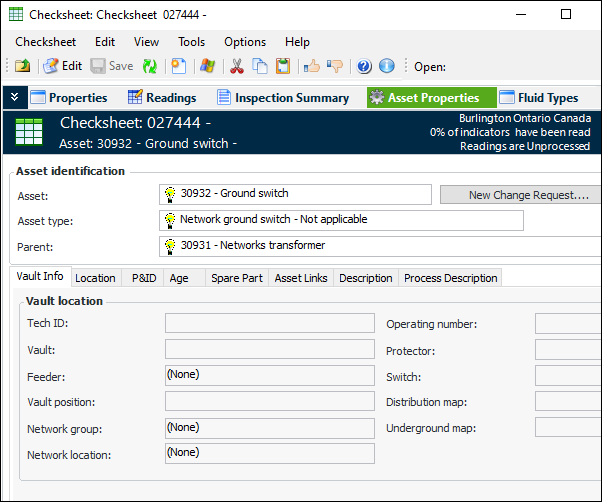
The Asset Type window provides settings to display a set of asset properties in any of checksheets, indicator readings, and requests for work. An Asset Properties view (on Checksheet) or tab (Indicator Reading and Request for Work) is added to the user interface if the asset’s asset type has enabled support for displaying asset properties.
In the Asset Type window, you will find the options on the Policies tab, Assets tab at the bottom of the tab. For example:
Select the appropriate locations and then the asset panel to display, for example, “Properties”. APM provides several simplified asset properties panels to choose from.
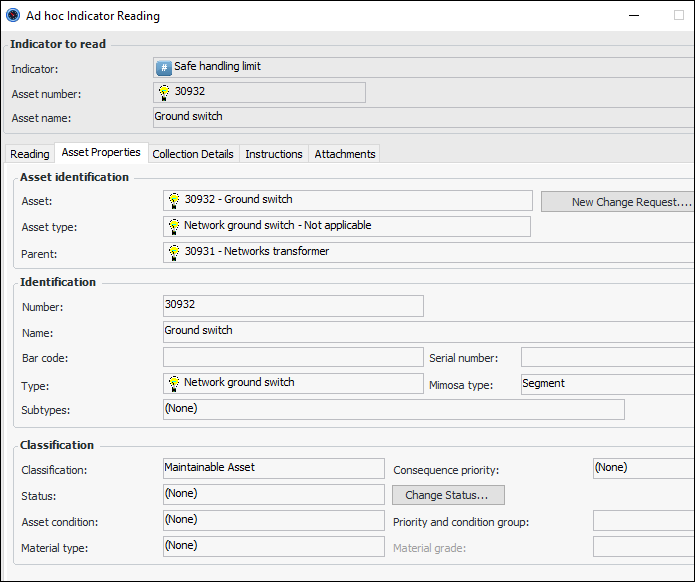
Below is an example of an indicator reading window with the Asset Properties tab. The panel assigned to the asset type is “Properties general information”.
Note that, in this example, you can initiate an asset properties change request by clicking New Change Request.
This example shows the Checksheet window, Asset Properties view when the panel to display is “General properties tab sub notebook”.
Note: This functionality is available as a Technology Preview. To use it in APM, you must first enable feature 65. In the Enterprise window, select the Features view and the Enabled Features tab. Click Browse, select “Display asset properties on selected objects”, and click OK. If APM is running as a smart client, click Refresh Enabled Features on the server. Then restart the client to use the functionality.
This functionality is available in APM and APM Remote.

Work Document Creation for Non-Alarm Readings

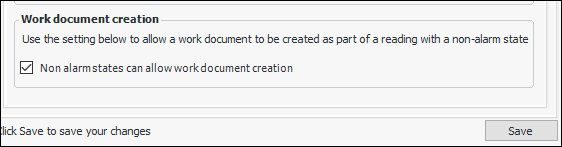
When AWEIS is enabled for a site, you can set an inspection management setting that allows work documents to be created as part of an indicator reading with a non-alarm state.
To enable this option:
1.
Select the Inspection Management view, Settings tab.
2.
Select the Indicators tab, Data Collection tab, and the Readings tab.
3.
Click Edit to modify the site settings. The Edit button is replaced by the Save button.
4.
At the bottom of the tab, select Non alarm states can allow work document creation. For example:
5.
Click Save.
Note that this option is only available for sites where AssetWise Interoperability is active.
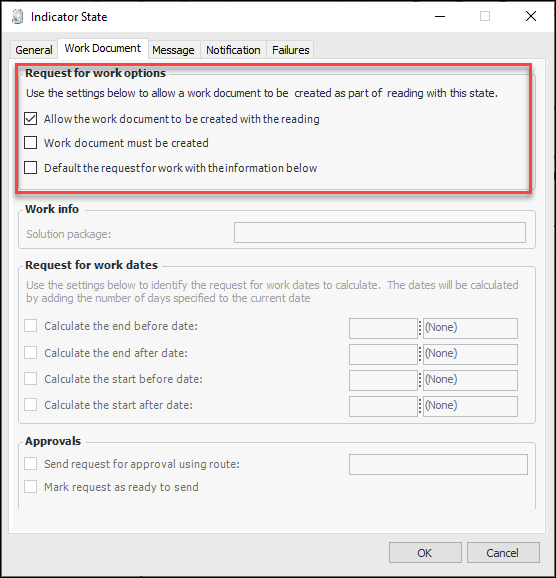
Once the option is enabled, you can adjust or create non-alarm states for indicators and indicator templates to allow work documents to be created with readings. For example:
You can also make work documents mandatory for readings with the state.
Note: Making work documents mandatory is available as a Technology Preview. To use it in APM, you must first enable feature 63. In the Enterprise window, select the Features view and the Enabled Features tab. Click Browse, select “Ability to make the creation of the work document mandatory on an indicator reading”, and click OK. If APM is running as a smart client, click Refresh Enabled Features on the server. Then restart the client to use the functionality.
This functionality is available in APM and APM Remote.

Default Values for Requests for Work on Indicator Readings

On an indicator state, you can select the Work Document tab to specify default information for the request for work. This functionality is available for alarm states and non-alarm states when the creation of work documents is allowed.
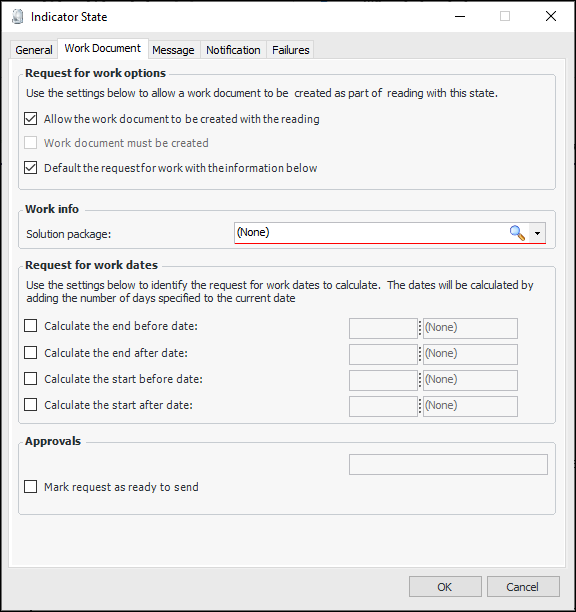
In the Indicator State window, select the Work Document tab, and select Default request info for work info. For example:
Select a solution package or, if you are setting up an indicator template, select a solution package template. You can set options to calculate end and start dates and mark requests as ready to send to interop.
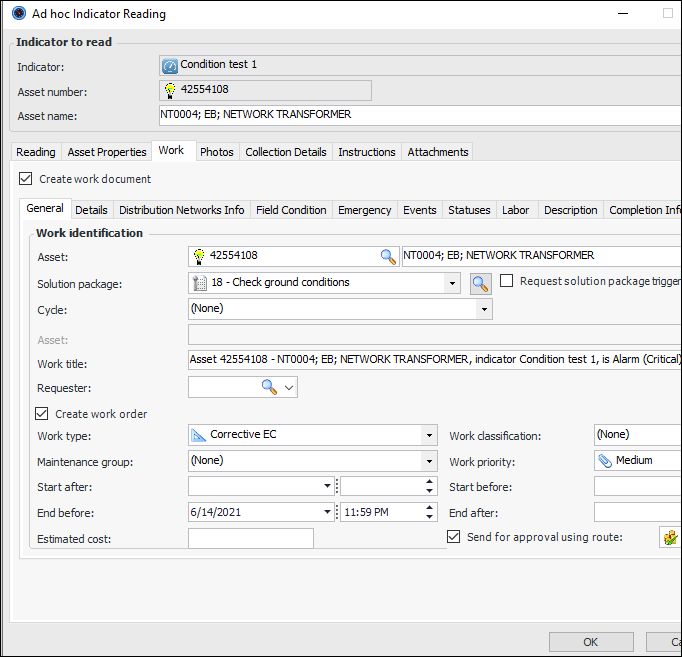
When you enter an indicator reading, the Work tab is available if the indicator state requires it. If work document is mandatory (on a non-alarm state), Create work document is selected and read-only. Default information from the indicator state’s default work document info and the default solution package is displayed. For example:
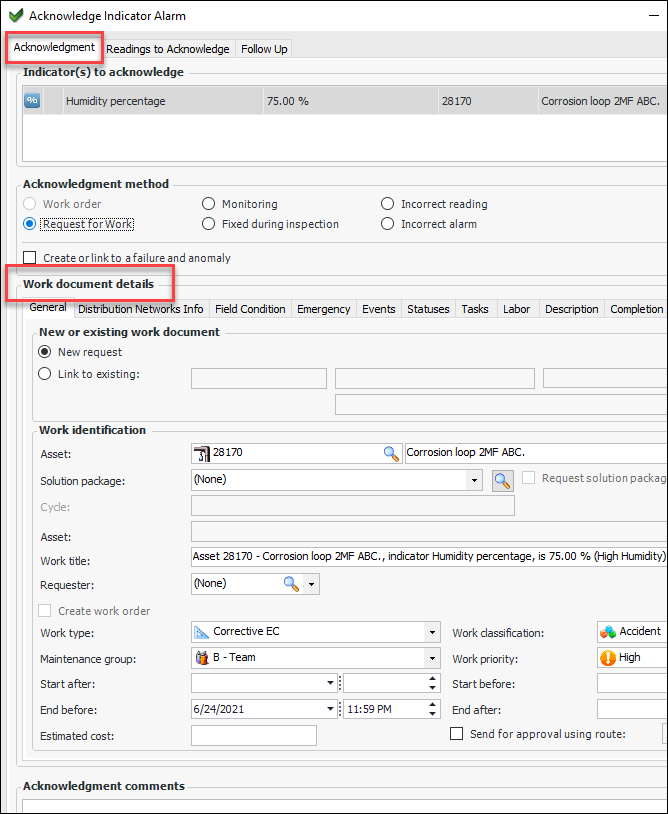
When you are acknowledging an alarm, the Acknowledgment tab displays the Work document details area, which displays the default information for the request for work. For example:

Link Checksheets to Interop Work Requests

When AWEIS is active, you can set up APM to create links between checksheets and interop work requests. This is useful when SAP is the CMMS and a work request (SAP notification) is needed for each asset (equipment or functional location) on a work order (maintenance plan’s object list). Information such as status changes and comments can then be communicated to notifications.
Note: This functionality is available as a Technology Preview. To use it in APM, you must first enable feature 69. In the Enterprise window, select the Features view and the Enabled Features tab. Click Browse, select “Ability to link checksheets and Interoperability work requests”, and click OK. If APM is running as a smart client, click Refresh Enabled Features on the server. Then restart the client to use the functionality.
After checksheets have been generated for interop work orders, the Link Checksheets to Work Requests process runs, launched manually or by a scheduled action. The process checks that linking has been enabled for the site and then reviews the site’s unprocessed checksheets, matching them on interop work orders and assets, and then creating links between checksheets and the interop work requests referenced on the work order. If more than one checksheet matches all criteria, the first one is used.
You can refine the matching process by filtering the checksheets based on any of checksheet type, checksheet status, and work type.
Checksheets that have been matched will have their work request references set to the matching interop work requests. In the Checksheet window, you can see this reference in the Properties view, Source tab.
Setting up APM to generate links involves these steps:
1.
2.
In the Site window, select the Inspection Management view, Settings tab.
3.
Select the Checksheets tab and the Checksheet Generation tab.
4.
Click Edit to modify the site settings. The Edit button is replaced by the Save button.
5.
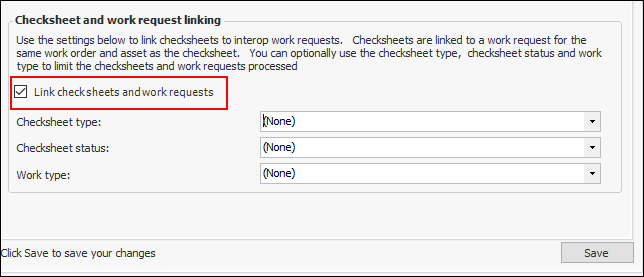
Select Link checksheets and work requests. For example:
6.
7.
Click Save.
You can run the process manually (for example, to test your settings) by clicking the Tools menu, Inspection Management, and then Link Checksheets to Work Requests. To have the process run on a regular basis, set up the Link Checksheets to Work Requests scheduled action. For more information, see Creating a Scheduled Action.
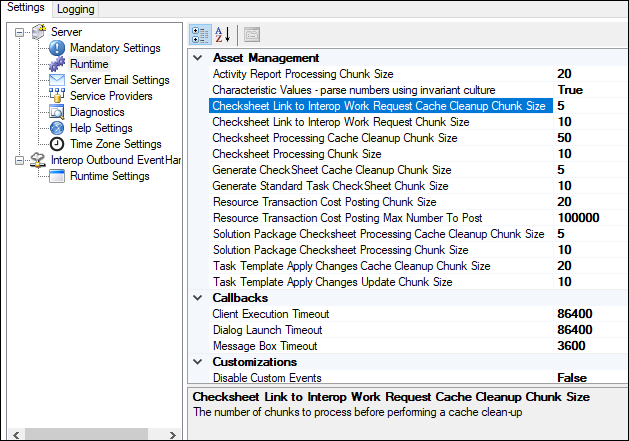
To adjust the performance of the process, you can modify the chunk size and cache cleanup options for the server/service instance.
1.
2.
Click the Configuration list and then Full Settings to open the Settings Editor.
3.
Click the File menu and then Show Advanced Settings.
4.
5.
6.

4D Analytics – Indicator Readings

You can now view the most recent 4D readings from the influx database for a site.
1.
Open the Enterprise window. Select the Sites view, Site Hierarchy tab.
2.
3.
On the right, select the 4D Readings tab. The table lists assets, indicators, 4D Analytics ID, most recent values, and the dates they were collected.
Note: Sorting and filtering on the date/time collected column is not currently supported.

Mobile Computing– Inspections 2.0

When APM generates a checksheet, it creates the mobile checksheet activity at the same time, based on the standard task’s mobile computing settings. For example, when a work order task is created from a standard task linked to a mobile device, the checksheet and mobile activity are also created. Changes to the work order task indicators are automatically updated on the checksheet so that, when the mobile activity is downloaded, the checksheet copied to the mobile device is current.
Note: When APM Mobile Inspections 2.0 becomes available, be sure to upgrade your mobile devices to take advantage of this functionality in APM 7.15.
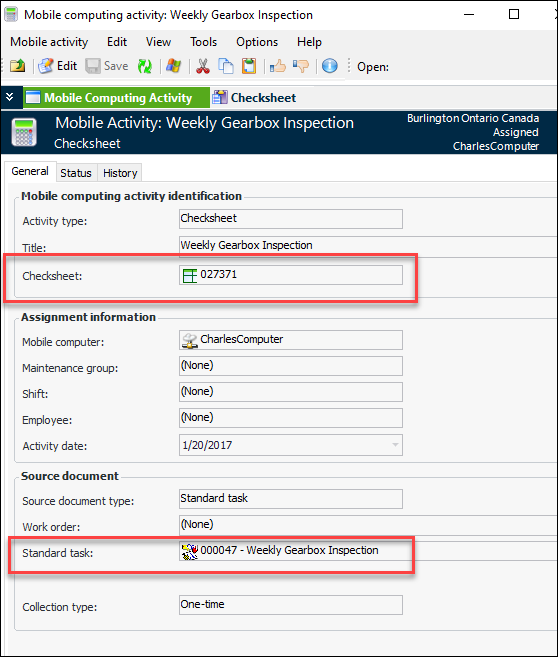
As a result of this enhancement, the Mobile Computing Activity window references the checksheet and the source standard task. For example:
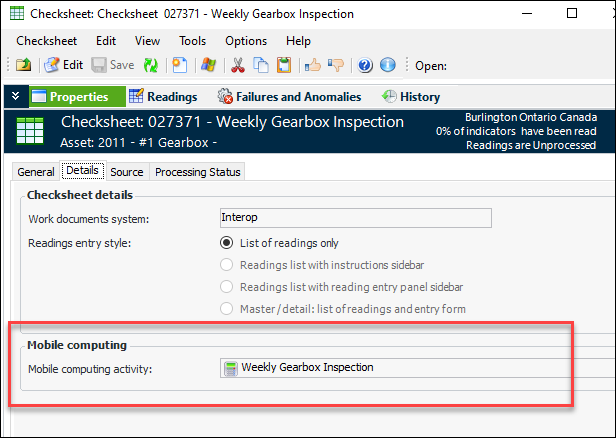
The Checksheet window displays the mobile computing activity. In the Properties view, select the Details tab:
For related information, see Mobile Devices and Activities.