What’s New in APM 7.12.3

Several of the enhancements made to AssetWise Performance Management (APM) in release 7.12.3 pertain to APM when AssetWise Enterprise Interoperability (AWEIS) has been implemented to exchange data with an external CMMS. This release also introduces integration with AssetWise 4D Analytics and enhancements to production loss accounting, regulated gas management, and work management.

Contents

AWEIS – Characteristic Classes – Defaults
AWEIS – Interoperability Data Readiness
AWEIS – Site Integration between APM and CMMS Instances
Data Loading
Integration with AssetWise 4D Analytics
Procurement
Production Loss Accounting
Regulated Gas Management
Supported Software
Work Management

AWEIS – Characteristic Classes – Defaults

Versions of AWEIS previous to 1.1.5.0 used a global default characteristic class for work and asset MIMOSA objects. With the release of AWEIS 1.1.5.0, each CMMS instance needs to be assigned a set of default characteristic classes in APM.
If you are currently using AWEIS 1.1.4.0 or earlier with APM, you must manually set defaults after upgrading to 1.1.5.0 and before the integration is enabled. Failure to enable the defaults might result in duplicate characteristic classes, with existing characteristics using the pre-upgrade global default and the new characteristics using a site-scoped default characteristic class.
This is optional for new AWEIS integrations because AWEIS will automatically create the characteristic classes for the integrated root site.
You can set default characteristic classes for each root integrated site in work management and asset settings. For detailed information, see APM Upgrade Guide.

AWEIS – Interoperability Data Readiness

This release introduces the first of a series of tools for making your APM data “Interop ready,” that is, enabled for synchronization with external systems. You can use Interoperability Data Readiness requests to identify the rules and parameters for updating all or a subset of a class’ instances (for example, all asset types or a selected list of asset types).
When a request is processed, the selected instances are updated as follows:
Processing affects only selected instances that have not already been updated, that is, their Interoperability Active status is “False”. You can process requests manually or set up a scheduled action to run at regular intervals.
The information on a request includes:
You can create one or more requests for each of the classes of APM objects that will have corresponding objects in the external system:
For example, if your CMMS is SAP, you could create two asset requests, one for equipment and the other for functional locations. For large quantities of assets, you could create a request for each site.
Note: This functionality is available as a Technology Preview. To use it in APM, enable feature 36. In the Enterprise window, select the Customization Center view and the Enabled Features tab. Click Browse, select “Updating existing data to be ready for use with AssetWise Interoperability”, and click OK. If APM is running as a smart client, click Refresh Enabled Features on the server. Then restart the client to use the functionality.
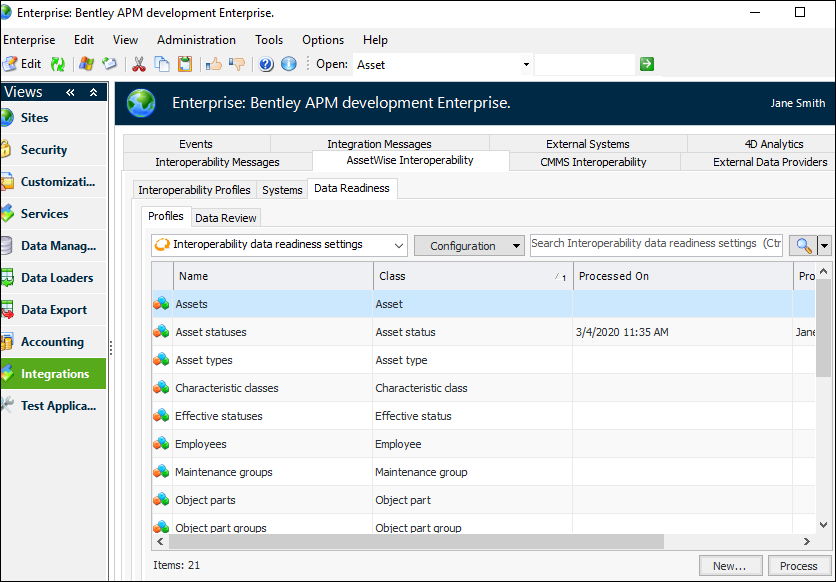
To create, process, and review requests, open the Enterprise window, select the Integrations view, AssetWise Interoperability tab, and Data Readiness tab. For example:
The Data Review tab provides configurations that show instances that are – or are not – ready for interoperability. For example, select “Assets - not ready for AssetWise Interoperability” in the configuration list to view assets that have not been processed, along with their asset types and sites.
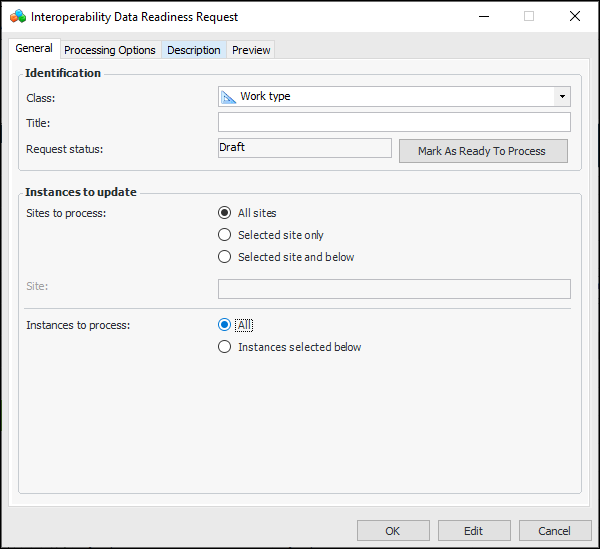
To create a request, select the Profiles tab and click New. In the Interoperability Data Readiness Request dialog, select the class from the list. For example:
You can provide a title for the request, select which sites to process, and select the instances to process. These options allow you to break the processing tasks into smaller chunks and to exclude APM-only objects, for example, some employees or assets.
For more information, see Preparing APM Data for Interoperability.

Selection List Restrictions

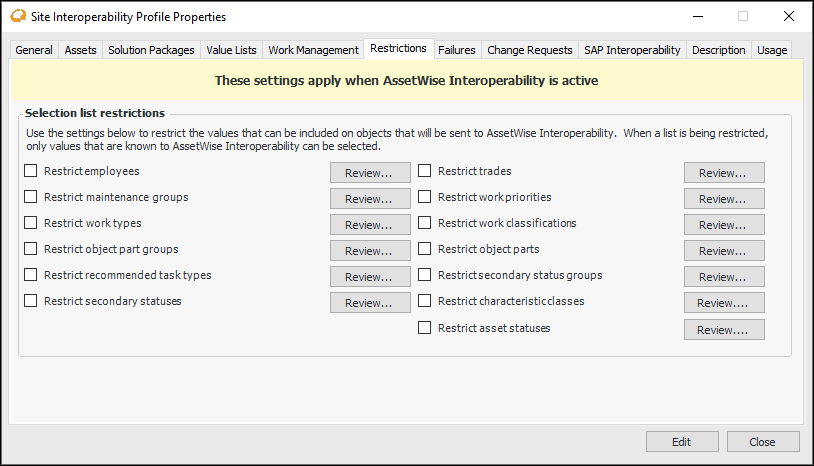
For requests for work and asset change requests, which are created in APM and then conveyed to the CMMS by AWEIS, you can restrict selection lists to objects that are interoperability-enabled; that is, their Interoperability Active statuses are set to “True”.
For example, if employees are restricted, when you create a request for work only interoperability-enabled employees are available in selection lists for requesters and “assigned to” employees on the recommended task.
To set the restrictions, open the Site Interoperability Profile and select the Restrictions tab.
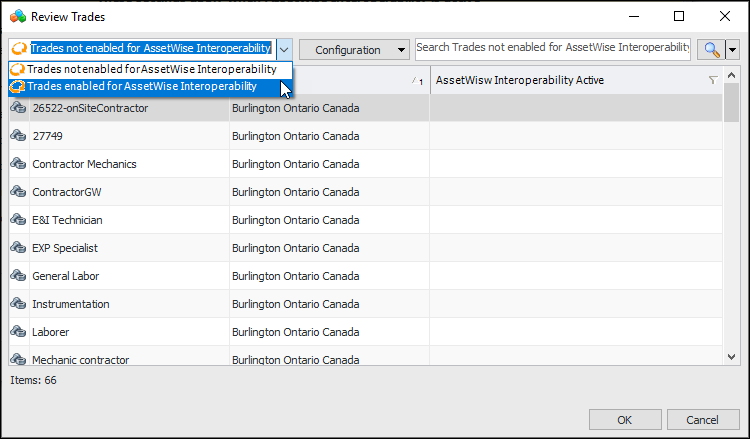
Click Review for any value type to see items that are – or are not – enabled for interoperability. For example:

AWEIS – Site Integration between APM and CMMS Instances

There have been a number of changes in APM and AWEIS to support the integration of two or more instances of a CMMS with sites in a single APM database. For example, a plant in SAP Plant Maintenance could exchange data with a corresponding site in APM. To support the integration, you can maintain site-specific value lists in APM, along with site type settings that control which sites own employees and trade resources. Two elements are essential to the integration: InfoSource elements and AWInteroperabilitySystems.
Each CMMS instance is represented in MIMOSA by an InfoSource object. Each InfoSource has a UUID that uniquely identifies the CMMS. The XML messages exchanged with the CMMS include this InfoSource UUID, which allows AWEIS to manage data that is owned by that CMMS.
In APM, an InfoSource is represented by an AWInteroperabilitySystem object, which has the same UUID as the InfoSource in the XML messages. APM is configured so that each AWInteroperabilitySystem is linked to a root site that owns all of the value lists associated with that InfoSource.
The following changes have been implemented in APM (7.12.3) and AWEIS (1.1.5.0):
For more information, see Setting up Site Integration Between APM and CMMS Instances.

Data Loading

This release includes the following new or enhanced data loaders.

Asset Operating Parameters

This new data loader creates or updates operating parameters for the specified assets.
Note: This data loader is available as a Technology Preview. To use it, enable feature 37. In the Enterprise window, select the Customization Center view, Enabled Features tab. Click Browse, select “Data loader for asset operating parameters”, and click OK. If APM is running as a smart client, click Refresh Enabled Features on the server. Then restart the client to use the functionality.

Asset Warranties

This data loader adds new warranties to assets. It cannot be used to update existing warranties.
Note: This functionality is available as a Technology Preview. To use it in APM, enable feature 38. In the Enterprise window, select the Customization Center view and the Enabled Features tab. Click Browse, select “Data loader for asset warranties”, and click OK. If APM is running as a smart client, click Refresh Enabled Features on the server. Then restart the client to use the functionality.

Assets – Additional Information

The Asset data loader now supports additional properties:

Indicators

The data loader now supports the following properties:

Standard Tasks

The data loader now supports these additional properties:

Standard Task Indicators

The data loader now supports these additional properties:

Work Order Tasks

Work Order Title is supported.

Integration with AssetWise 4D Analytics

APM integrates with AssetWise 4D Analytics to work with large data sets, like the readings that come from Industrial Internet of Things devices. In APM, you can create numeric indicators and record readings by connecting to a database fed by interconnected sensors, instruments, and other devices throughout the plant. The readings and calculation results are displayed in 4D charts and comparative analyses.

Procurement

Emails that are sent automatically on the arrival of materials for work orders now contain the following information:

Production Loss Accounting

This release welcomes enhancements to advanced production loss accounting, which was introduced in 7.12.2.
Note: To use this functionality in APM, enable feature 34. In the Enterprise window, select the Customization Center view and the Enabled Features tab. Click Browse, select “Advanced production loss accounting”, and click OK. If APM is running as a smart client, click Refresh Enabled Features on the server. Then restart the client to use the functionality.

Asset Product Capacity by Month

The new asset product capacity object tracks an asset’s production capacity for a product and month (based on the number of days in the monthly financial period).
The asset product has been expanded to record capacity properties and one or more production loss equations, as well as to generate capacity statistics.
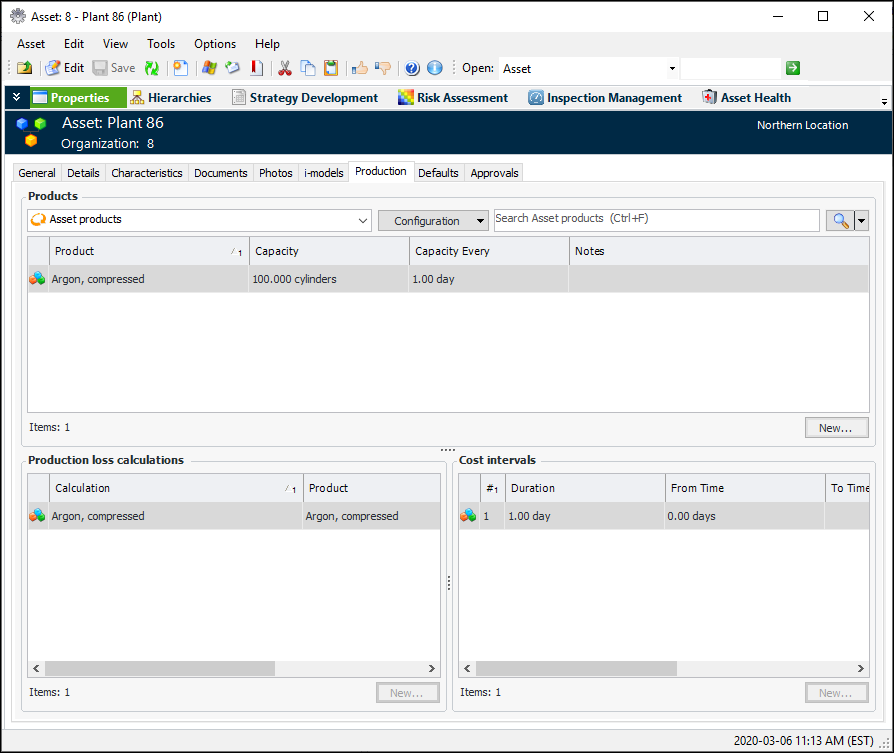
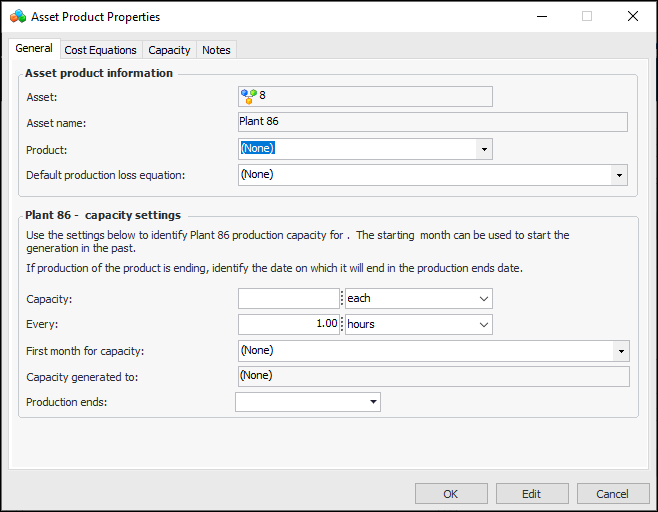
To define capacity settings, open the Asset window and select the Properties view, Production tab. For example:
Click New to add a product to the asset.
Select the product and default production loss equation. (You can create equations once the asset product has been saved. Select the Cost Equations tab.) In the Capacity settings area, fill in the following:
Capacity – Number of units produced in the time period
Every – Production time period, for example, hour or day
First month for capacity – First financial period for tracking capacity
Capacity generated to – Financial period that capacity was last generated for (filled in when capacity is generated)
Production ends – Date on which production ended
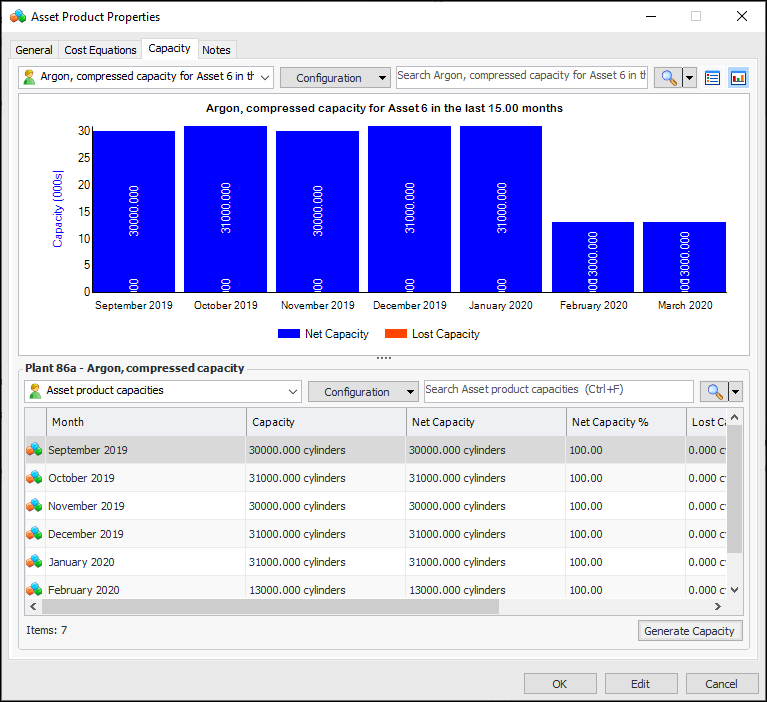
Select the Capacity tab and click Generate Capacity. APM generates asset product capacities for each of the time periods from the first month of production to either the date when production ends or the number of months specified in site settings. In this example, production spanned September 2019 to mid-March 2020.
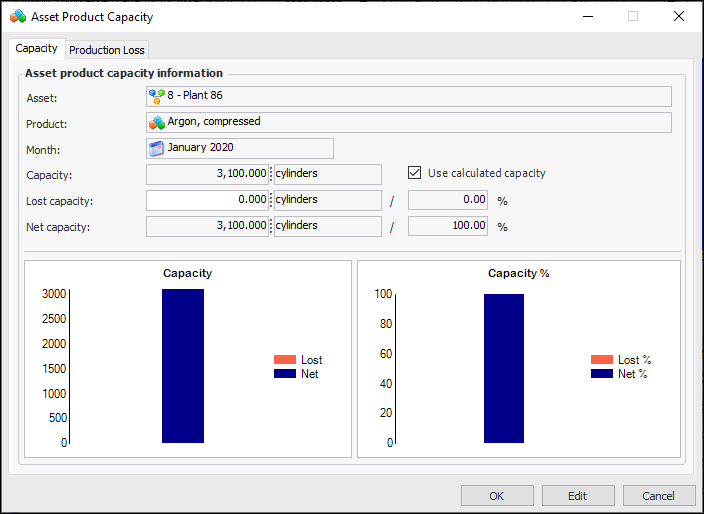
Double-click a capacity in the table or chart to view its information:
You can view asset product capacity for individual assets and for the site. In the Asset window, select the Production view to see production loss events, analytics, and capacity.
You can set up the Generate Asset Product Capacity scheduled action to process asset product capacity for the site in a regular pattern. You can also generate the function manually (for example, for testing purposes). In the Site window, click the Tools menu, Production, and then Generate Asset Product Capacity.
The Production view in the Site window now offers the Capacity tab, where you can view product capacity by asset, product, and month over the course of the horizon set for the site. You can view information by asset product, by asset, by product, and by month.
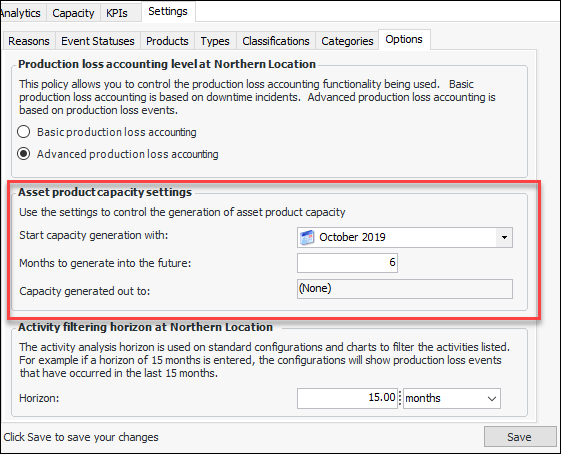
When setting up for capacity generation, you will set defaults in the site settings. Select the Production view, Settings tab, and then the Options tab. Click Edit to enable changes to the site. For example:
Use the settings to control the generation of asset product capacity. For example, if an end date is not set on an asset product, APM uses the value in Months to generate into the future.

Production Loss and Asset Product Capacity

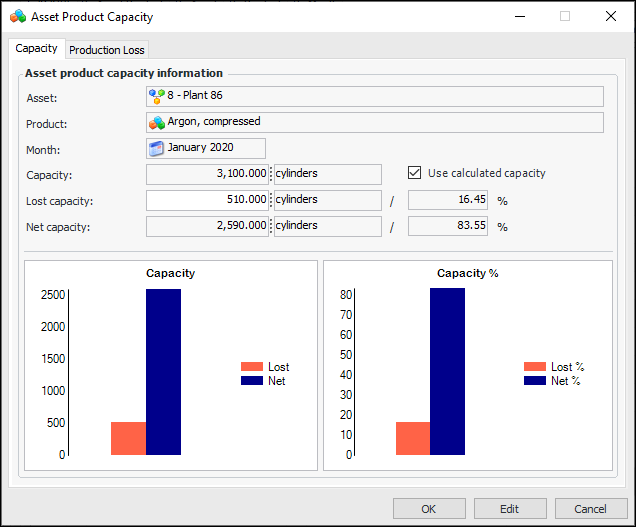
When production loss events are recorded for an asset, APM subtracts the lost capacity from the asset product’s capacity for each affected month. The remaining, or net, capacity is calculated, along with percentages of capacity loss and operating (net) capacity. For example:
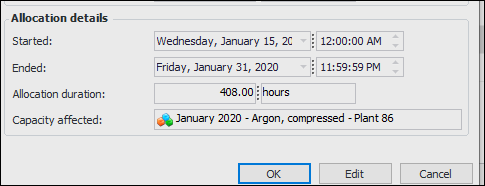
The Production Loss Event Allocation dialog shows the capacity affected for the period, product, and asset. For example:

Production Loss Costs

APM calculates the costs (money and lost product) of production loss events based on the equations assigned to asset products and the duration of the events. A cost equation can take into account different costs depending on the duration of the event. For example:
The equation results in the following costs:

Regulated Gas Management

The following enhancements were made to regulated gas management.

Gas Transaction Site

When a transaction is created from a gas container, the transaction’s site is now automatically set to the transaction asset’s site, rather than to the container’s site.
In the case of missing-from-inventory transactions that do not reference an asset, the transaction’s site is the current site or the asset’s site, depending on whether the transaction was created from the site or an asset.

Calculating Transaction Weight when a Transaction is Back-Dated

In the Gas Transaction window, if the performed-on date/time is prior to the container’s most recent transaction, Transaction gas weight is replaced by the message “Calculation pending”. When you click to OK to save the transaction and close the window, the transaction gas weight is calculated and the transaction tables and window are updated. This allows APM to ensure that the most recent performed-on date is taken into consideration.
If you wish to confirm gas transaction weights, you can select one or more transactions in any tab under the Transactions tab. Then right-click and click Calculate Transaction Quantity.

Add Attachments to Gas Containers

You can now add, view, and delete attachments on gas containers. In the Container window, click the Tools menu, Attachments, and then the action you wish to perform.
For more information, see Working with Attachments.

Set Most Recent Transaction Date

On very rare occasions, gas containers’ most-recent-transaction dates are not updated in a timely way. If it ever becomes necessary, you can run a command that executes the logic to update the dates.
On the Site window, select the Regulated Gas Management view and either the Containers tab or the Transactions tab, By Container tab. Select one or more containers in the table, right-click, and click Set Most Recent Transaction. This command is also available in the Tools menu in the Container window.

Supported Software

Database Software

Although APM supports SQL Server 2014, new customers are required to use SQL Server 2016 or higher. The install database that is included with APM is SQL Server 2016.
APM Remote supports SQL Server 2016 SP1 Express. If supported database software is not present on the Remote computer, with confirmation, the Remote packager utility un-installs older versions and then downloads and installs SQL Server 2016 Service Pack 1 Express.

Microsoft® Windows Operating System

APM no longer supports Windows 7.
For a complete list of supported software, see APM Installation Prerequisites.

Work Management

The following enhancements have been made to work management.

Work Management with AWEIS

On occasion, it is necessary to evaluate interop work orders by regenerating their checksheets. For example, when additional standard tasks are added to a solution package, you might wish to reset the solution package’s evaluation status in order to generate checksheets for the new tasks.
Open the Interop work order dialog, click the Tools menu, and then Reset Solution Package Evaluation Status. The next time that the Create Work Order Checksheets function is executed for the site (Tools menu, Inspection Management, Create Work Order Checksheets), checksheets are created for only the new standard tasks in the solution package.

Limiting Work Description Text

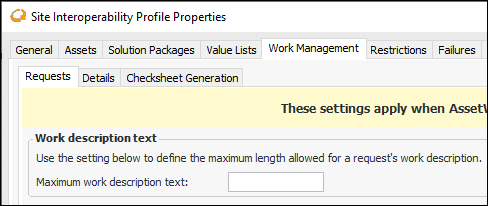
You can specify the maximum number of characters allowed in request for works’ long descriptions. For example, when requests for work respond to two or more indicator alarms, the compiled descriptions and acknowledgment comments can exceed the length allowed by the CMMS.
Set this option in the Site Interoperability Profile properties window. Select the Work Management tab and the Requests tab. For example:
The maximum number you can enter in the box is 1,000,000.