What’s New in APM 7.12.2

Many of the enhancements made to AssetWise Performance Management (APM) in release 7.12.2 pertain to APM when AssetWise Enterprise Interoperability (AWEIS) has been implemented to exchange data with an external CMMS. This release also introduces site time zones, site value lists, and advanced production loss accounting.

Contents

Asset Management with AWEIS
Asset Prioritization Analysis
AWEIS Setup and Activation
Construction Management
Failure Tracking with AWEIS
File Attachments
Inspection Management
Production Loss Accounting, Advanced Version
Production Loss Accounting, Basic Version
Regulated Gas Management – Containers
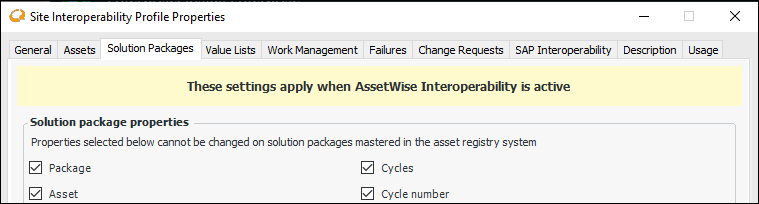
Reliability Program – Solution Packages
Site Time Zones
Site Value Lists
Strategy Development Analysis with AWEIS
Unsupported Software
Work Management with AWEIS

Asset Management with AWEIS

Mimosa Asset Type Property

The Mimosa standard used by AWEIS supports two types of asset object: asset and segment. For example, when the CMMS is SAP, an asset object is identified as either equipment (asset) or functional location (segment). In the past, APM did not distinguish between the two, treating both types of objects as assets. This release of APM introduces a new property on asset type: Mimosa asset type. Possible values for this property are “asset”, “segment”, or “none”. This makes it possible for assets with the same name to coexist on a site. For example, there might be two asset types called “Pumps”, one a segment and the other an asset.
When AWEIS sends a new asset or segment to APM, it looks for a matching asset type with the appropriate Mimosa asset type value. If a suitable asset type is not found, the type is created in APM.
When customers who currently use APM with AWEIS upgrade to this release, the Upgrade Wizard runs a script to set the Mimosa asset type property on the appropriate asset types.

Asset Program Profiles

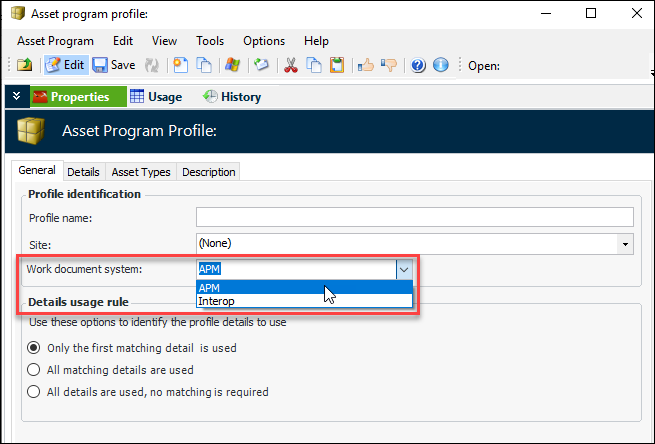
This release introduces a change to asset program profiles in preparation for enhancements that will allow interoperability (using AWEIS) between APM and more than one CMMS. When you are setting up a new asset program profile, you can now select the work document system: either APM (the default) or Interop. Ensure that the profile has the correct work document system for the site. For example:

Asset Prioritization Analysis

The following enhancements have been made to asset prioritization analysis.

Asset Change Requests

When AWEIS is active for a site, asset prioritization analysis now supports asset change requests. This means that, when APM processes an analysis, a change request is automatically created for each Interop asset that is to be updated. The asset change request is sent to the CMMS, where the corresponding assets (equipment and functional locations, for example) are updated.
Note: Processing APM asset change requests to update a CMMS with analysis results will be supported in an imminent release of AWEIS.
The asset change request includes the following information:
Options on the asset prioritization analysis determine which assets are updated. Asset change requests can be created for any of these:
Requests cannot be created for assets above the analyzed asset in the hierarchy.
To set up APM for this functionality:
For more information, see Setting up Asset Change Request Types.

Flagging Analyses as Inactive

You can now mark an asset prioritization analysis as inactive, which prevents it and its assets from being edited. The Worksheet view is not displayed in the Asset Analysis window of inactive analyses.
This can make it easier if you decide that an analysis is not required. You can also delete analyses. However, if you have already calculated scores and applied the analysis results to assets, the analysis cannot be deactivated or deleted.

AWEIS Setup and Activation

This release introduces changes in preparation for enhancements that will allow interoperability (using AWEIS) between APM and more than one CMMS.
The following changes have been made:
Note: If you are already using AWEIS, after upgrading to 7.12.2, you must modify the existing AssetWise interoperability system by identifying the top site. You must do this whether or not you intend to implement site value lists. Otherwise, errors will occur when interoperability is enabled.
For more information, see Setting up Site Interoperability Profiles for AWEIS.

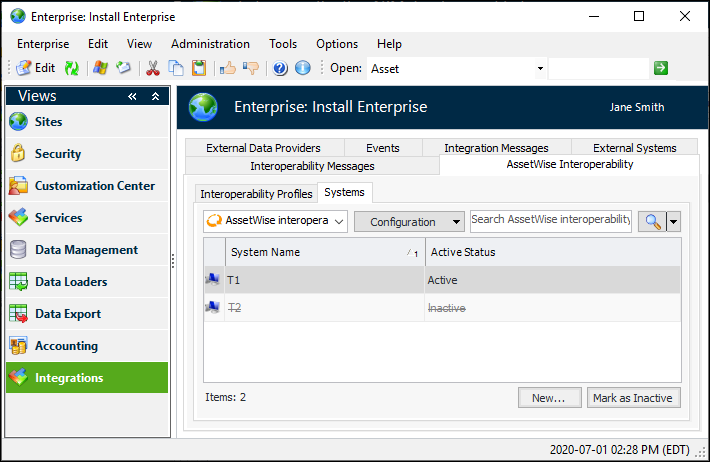
Adding an AssetWise Interoperability System

You can add an AssetWise interoperability system from the Enterprise window, Integrations view, AssetWise Interoperability Systems tab. This tab displays the active and inactive systems for your implementation. For example:
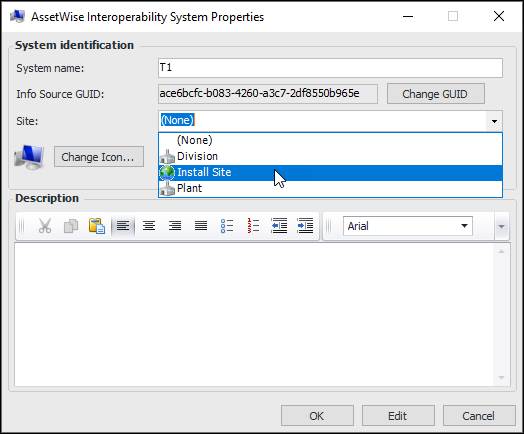
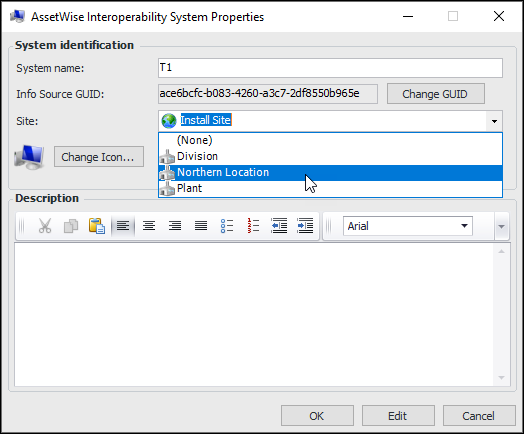
When you click New, the AssetWise Interoperability System Properties dialog appears. Give the system a name and select the appropriate site. For example:
Unless you plan to implement more than one CMMS, set the site value to the enterprise’s top site.
If you wish to support interoperability with more than one CMMS in the future, create one or more value list controls and assign them to sites. For more information, see Site Value Lists.

Construction Management

The following enhancements have been made to construction management.

Asset Change Requests

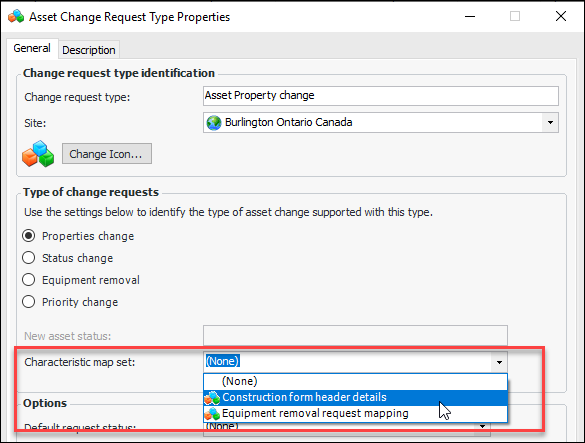
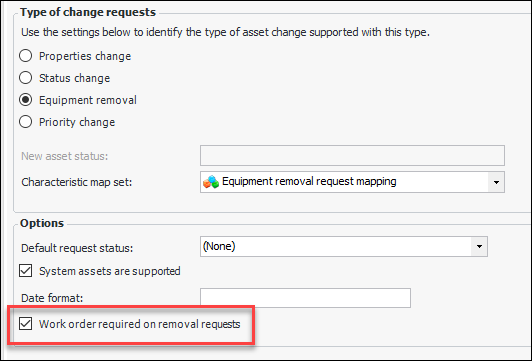
Characteristic support has been extended to asset change requests of all types. This means that you can create a characteristic map set so that information entered in the request is sent to the CMMS (SAP, for example) to update characteristic values. For example, equipment removal requests could include a work order number and the date removed. Property change requests could include the work order number and construction form header properties.
When setting up asset change request types, you can specify the characteristic map. For example:
Equipment removal request types can make the work order number mandatory. For example:
When the asset change request is created, APM refers to the characteristic map set to export information from the construction form or equipment removal request to send to characteristics in the CMMS.
For more information about request types and working with asset change requests, see:
In order to export characteristics with a request, you must first set up the following:
For more information, see Setting up Characteristic Mapping for Asset Change Requests.

Equipment Removal Requests

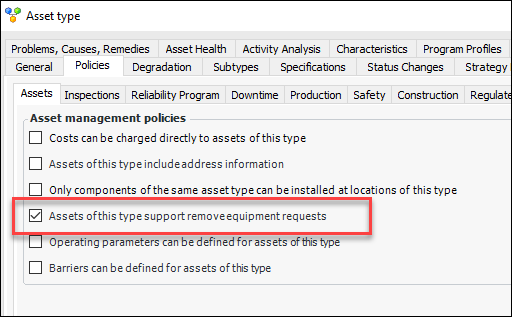
Equipment removal requests are created manually from target assets. Their asset types must support equipment removal requests:
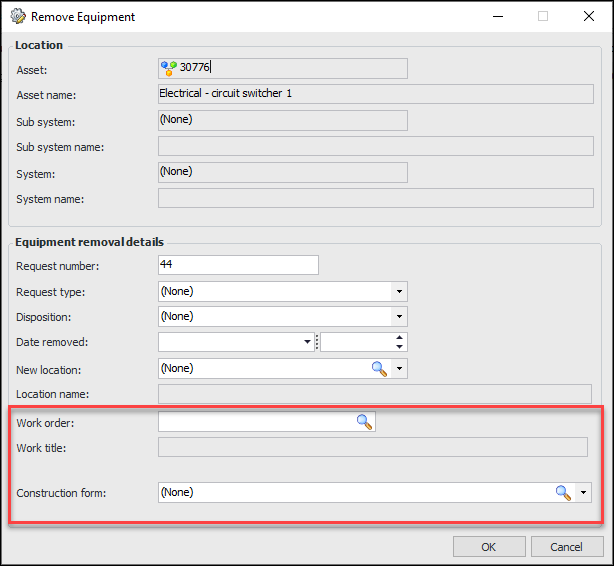
You can now add a work order and construction form in the Remove Equipment dialog. For example, in the Asset window, click the Tools menu and then Request Equipment Removal.
Depending on the change request type’s settings, work order might be mandatory.
Note: You must add construction form and work order to characteristic mapping for asset change requests. Then assign the character map to the asset change request type.

Failure Tracking with AWEIS

The following enhancements have been made to failure tracking.
Note: A future release of AWEIS will support the following APM enhancements.

Failure Records Created from Interop Work Documents

With this release of APM, failure records can be created or updated from the events associated with interop work requests, interop work orders, or both. For example, when AWEIS adds an interop work order to APM, a failure record might be created at the same time, based on the work order’s highest priority event. The appropriate properties are copied to the failure record from the work document, for example, asset, object part, damage code, activity code, and date occurred. The source work document is referenced on the failure record, and the failure is referenced on the source event.
Note: To enable these new features, open the Enterprise window, select the Customization Center view and the Enabled Features tab. Click Browse, select “Failure creation from Interop work requests and orders,” and click OK. If APM is running as a smart or remote client, click Refresh Enabled Features on the server. Then restart the client to use the functionality in the product.
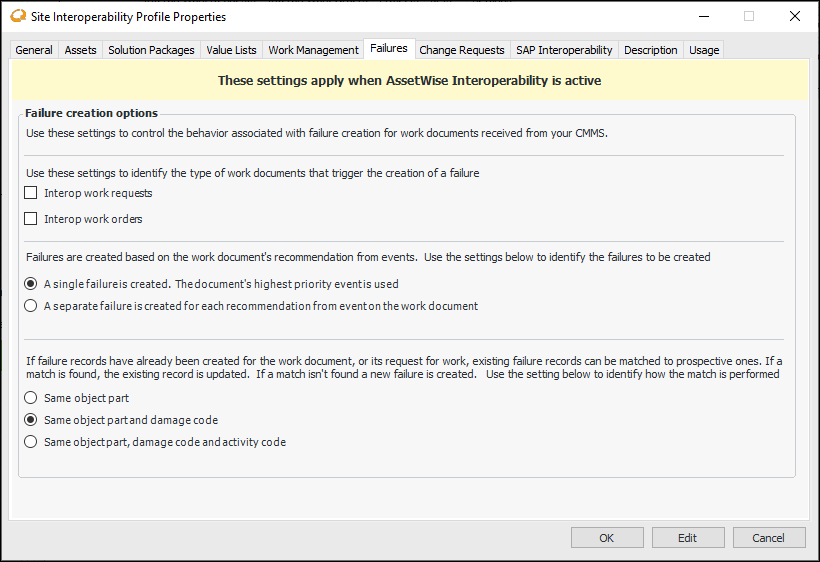
Site Interoperability Profile settings provide options for creating failure records from work documents received from the CMMS. Select the new Failures tab:
These settings control the following:
Note: The setting in the site profile overrides similar settings in individual damage codes.

Failure Statistics for Failure Codes

Statistics are calculated for each object part, damage, and activity code in the failure record. Properties such as time between failure (TBF) and time between repair (TBR) are calculated for each statistic. To calculate the TBF for an object part code and asset, for example, APM looks for a previous failure for the same object part code and asset.

CMMS Information on Failure Records

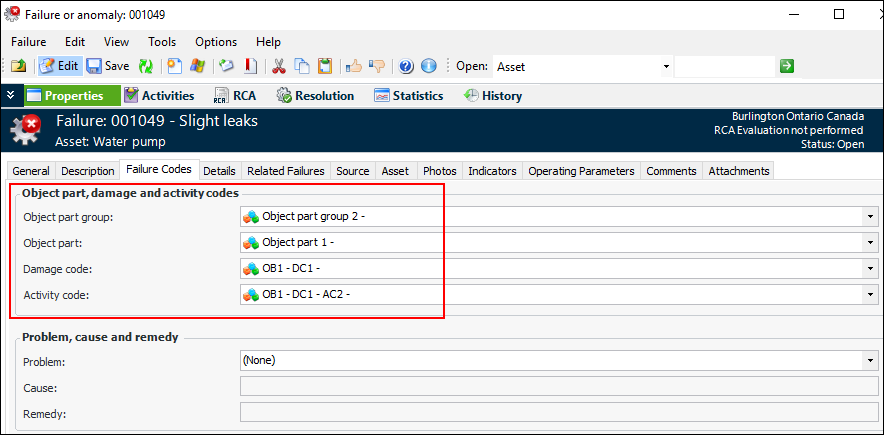
When AWEIS has been implemented, failures now record object part groups, object parts, damage codes, and activity codes. For example:
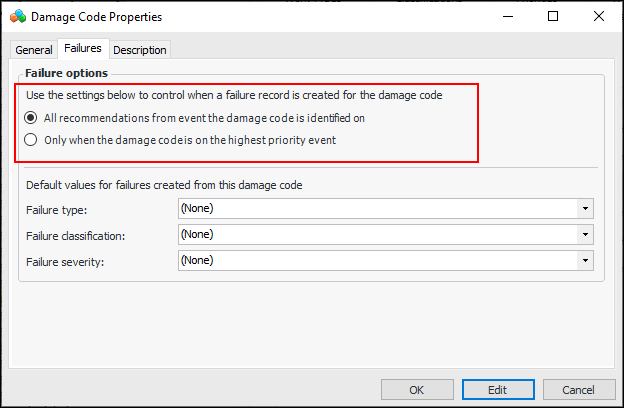
You can have APM create secondary failures based on the damage codes assigned to failures records. The default setting causes APM to create failures on all request for work events that reference the damage code. Alternatively, you can specify that a failure record be created only when the damage code is assigned to the highest priority event.
In work management settings, select the Work Management tab, Object Parts tab, and then the Damage tab. Open the Damage Code Properties dialog and select the Failures tab to set options that specify when failures are created:
In damage code settings, you can also specify default values for failure type, failure classification, and severity for failures.
For example, when you acknowledge an indicator alarm with a request for work and create a failure record, you can select the part group, part, damage code, and activity code. The failure created from the acknowledgment displays the default values specified in the damage code settings.

Failure Modes Provide Failure Codes

When a failure record references a failure mode, information from the failure mode is copied to the failure: object part group, object part, damage code, and activity code. In the Failure or Anomaly window, select the Properties view, Failure Codes tab to view the information.
However, if the failure record originates from an alarm acknowledgment and one or more events were identified on the acknowledgment request for work, failure codes are copied to the failure from the event’s damage code.

File Attachments

Attachments are files, folders, notes, or URLs that you add to APM objects. You can add attachments to any APM object with a main window that has a banner, as well as to indicator readings and comments.
APM now allows only files with specified formats to be added to APM objects as attachments. All of the standard formats are accepted, from .avi to .xlsm. You can see the list when adding a file attachment. In the Open dialog, click the Supported Files list. Trying to attach a file with an unsupported format results in an error message.
Note: You will not be able to open unsupported files in existing attachments.
It is no longer possible to add one APM object as an attachment to another APM object. For example, you can no longer drag one asset’s icon to another asset’s banner to open the Attachment dialog.

Inspection Management

This release introduces the following enhancements to inspection management.

Acknowledgments and Failure Creation

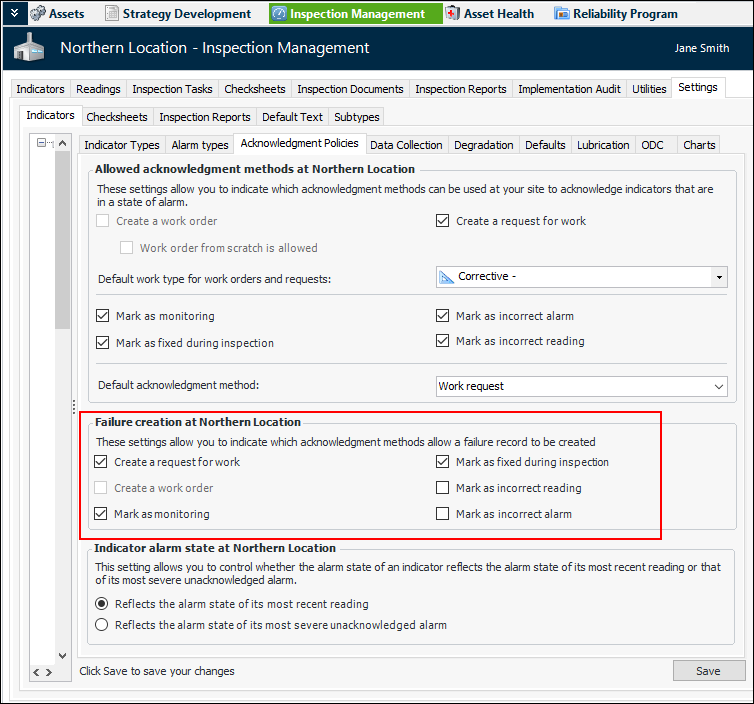
At the site level, you can use inspection management settings to specify which alarm acknowledgment methods allow a failure record to be created. For example:
Note: When AWEIS is active for the site, select Create a work request to allow failures to be created when an alarm is acknowledged with a request for work.
The failure settings on the indicator’s alarm state determine whether Create or link to a failure and anomaly is selected by default in the Acknowledge Indicator Alarm window.
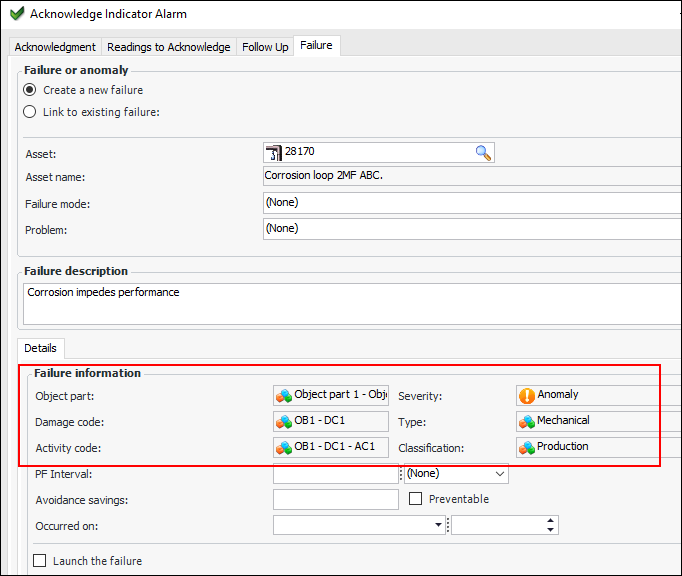
In the Acknowledge Indicator Alarm window, select the Failure tab to view information that is copied from work document details for the highest priority event. The object part, damage code, and activity code are copied from the event. The failure severity, type, and classification are copied from the damage code. For example:
When APM processes the acknowledgment, it creates the failure record and copies information to the failure from the acknowledgment. Similarly, the request for work records information about its source:
When two or more failures are created for an alarm acknowledgment, the event with the highest priority is designated as the primary failure. Failures for lower-level events are designated as secondary. If two events have the same priority, the first one that was added to the acknowledgment is primary.

Acknowledging Alarms with Requests for Work – Work Title

When you acknowledge an indicator alarm with a request for work, APM now automatically enters a default work title in the request that consists of the asset, indicator, and reading value. You can change the work title as required.
For related information, see Acknowledging Indicator Alarms with AWEIS.

Corrective Candidates on Indicators

In the Indicator window, Properties view, the Jobs and Tasks tab has been renamed Candidates. This tab lists corrective jobs (when AWEIS is not active) or solution packages and standard tasks associated with the indicator.

Requesting a Solution Package for an Indicator

When you acknowledge an indicator alarm with a work document or request follow-up work on a reading, the indicator’s candidate solution packages and standard tasks are available for defining the work document.
When you select a solution package, you can then select one of its cycles and set start and end dates for performing the corrective tasks.

Processing Checksheets for a Site

You can now process checksheets for the site either manually or automatically at scheduled intervals. The Process Ready Checksheets method is designed to process large numbers of checksheets, for example, those uploaded from APM Remote to be processed on enterprise.
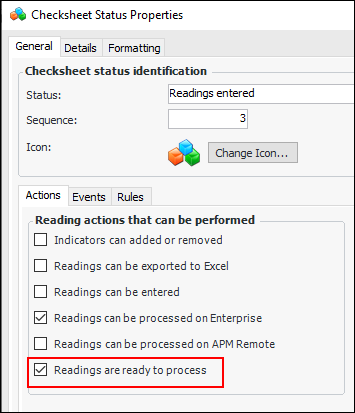
To support the function, the Readings are ready to process setting has been added to checksheet status properties:
When Process Ready Checksheets is triggered, it first identifies unprocessed checksheets with statuses that include “ready to process” and that have the approval status of “approved” or “approval not required”.
You can start the process from the Site window by clicking the Tools menu, Inspection Management, and then Process Checksheets. The progress dialog identifies the number of checksheets, which checksheet is currently being processed, and the number of checksheets that could not be processed due to errors. The dialog includes a Cancel button.
An error occurs if the minimum number of readings has not been entered or mandatory readings have not been taken for the checksheet. The process creates an error object for that checksheet and then continues on to the next checksheet. You can view checksheet errors in the Checksheet window, History view, Processing Errors tab.
You can define the Process Ready Checksheets scheduled action to automatically trigger the method at regular intervals. For more information, see Scheduling Actions.

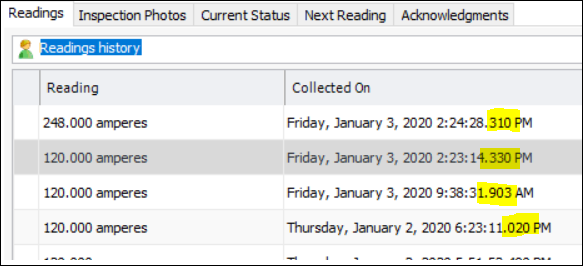
Calculated Indicators – Millisecond Support on DateTime

Note: Millisecond support is available in SQL Server databases only for 7.12.2.
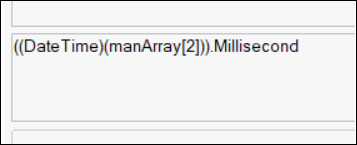
DateTime data members now store values in milliseconds for use in calculations. A DatetTime in a calculation input has access to the Millisecond property:
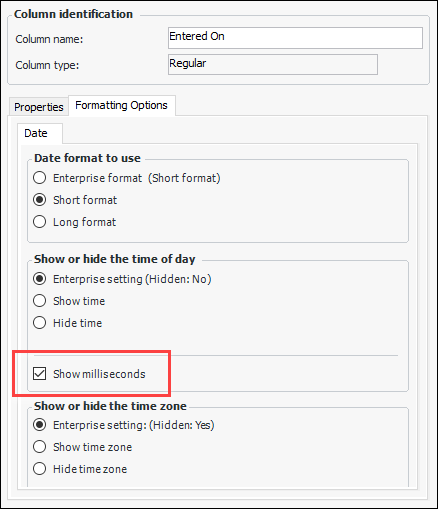
You can display milliseconds in table columns that show dates and times. In the Configuration Column window, select the Formatting Options tab and select Show milliseconds. For example:
For example:

Production Loss Accounting, Advanced Version

Advanced production loss accounting is a new feature that provides more functionality than the basic product loss accounting provided in previous versions. The new features are:
Note: To enable this new feature, open the Enterprise window, select the Customization Center view and the Enabled Features tab. Click Browse, select “Advanced production loss accounting,” and click OK. If APM is running as a smart or remote client, click Refresh Enabled Features on the server. Then restart the client to use the functionality in the product.
Note: A future release will support calculating monetary costs by allocation, calculating asset product capacity by monthly financial period, and calculating asset net availability by product and monthly financial period.

Enable Advanced Production Loss Accounting

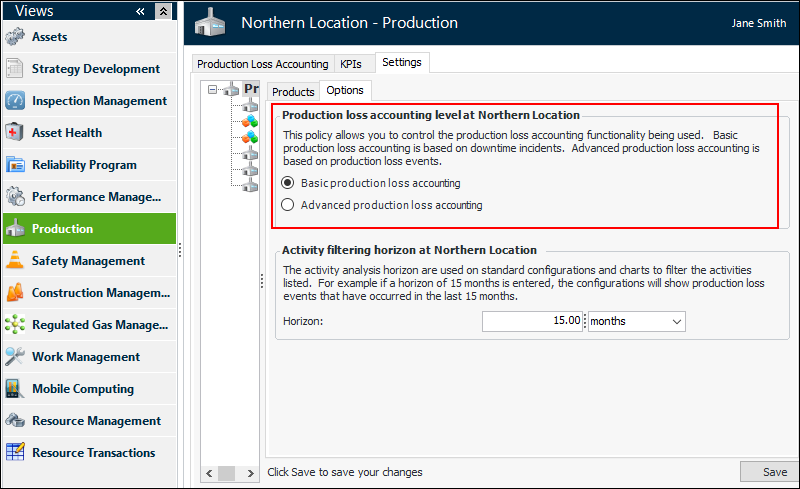
You can choose between basic and advanced production loss accounting for each site:
The production loss accounting level is identified on the site’s Production view settings:

Define Settings in APM

Setting up APM for advanced production loss accounting involves defining:

Create Production Loss Events

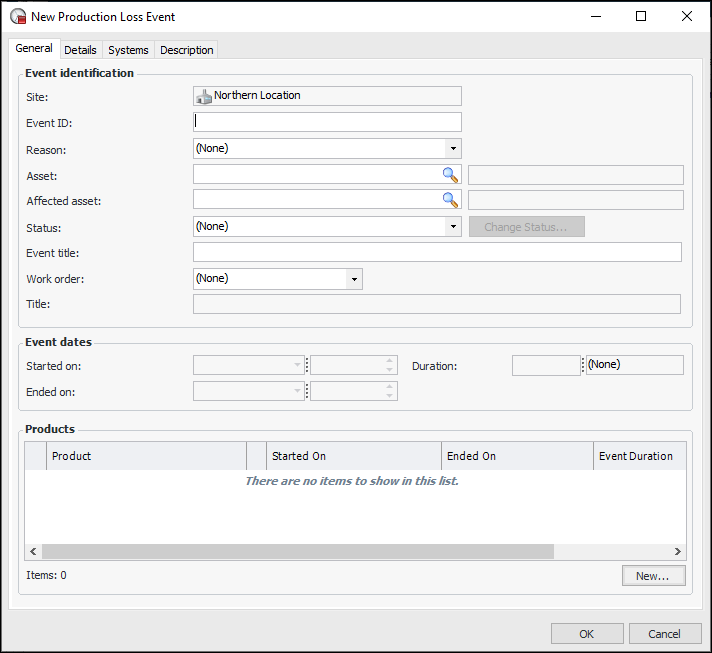
You can create a production loss event from the Site or Asset window, Production view, Events tab. Click New to open the New Production Loss Event dialog. For example:
When completing an event, you must supply:
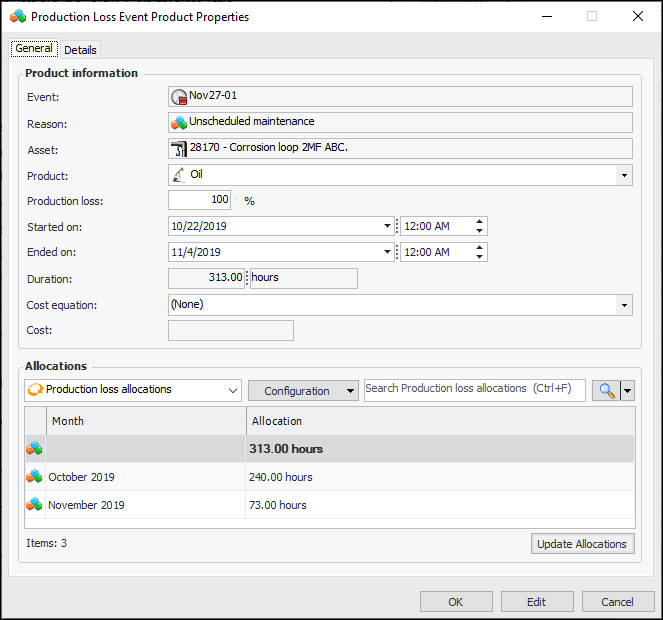
When you have completed the event identification, click New to add a product. The following example (without a cost equation) shows the production loss allocation in total hours, as well as hours in each month that the event spans.
You can add information for as many of the asset’s products as required.

View Production Statistics

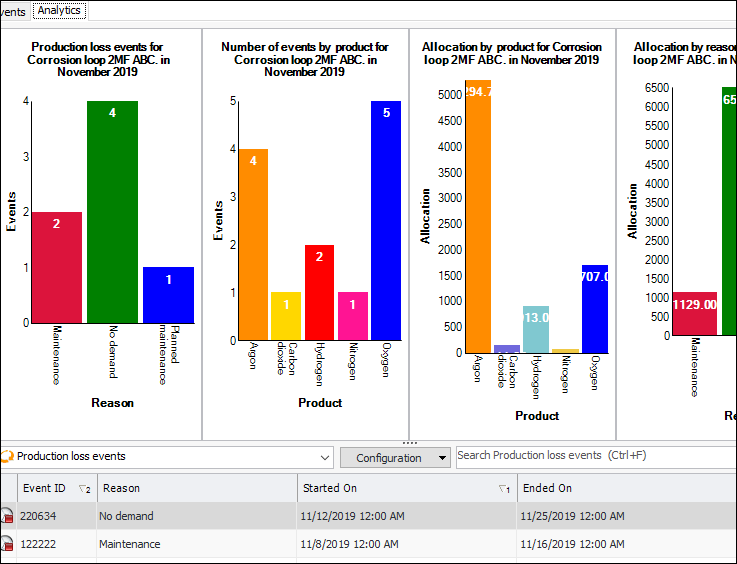
APM provides several ways to review production loss statistics. For example, the Asset window, Production view, Analytics tab displays summary charts for the current month showing production loss events by reason and product, as well as allocation hours by product and reason. For example:
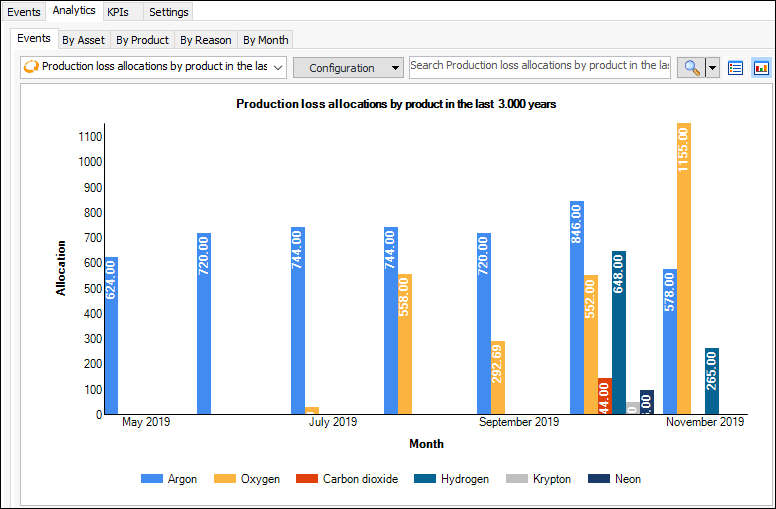
At the site level, select the Production view, Analytics tab for access to events, statistics by asset, product, reason, and month. Several configurations are provided on each tab to display (and export) information. For example, here is a chart view of allocations by product in the past three years:

Production Loss Accounting, Basic Version

Basic production loss accounting, which is based on downtime incidents, continues to be available in APM. When you upgrade to this release, APM is set to use the basic functions, and you must select the advanced option to view and use the new functionality.
Existing data is not affected by upgrading. However, select the new Production view in the Site window to view summary charts, production loss statistics, bad actors, and KPIs. This information moved from the Performance Management view.
You can continue to access downtime incidents and analytics on the Performance Management view.
In the Asset window, Properties view, the Production Loss Accounting tab is now called Production.

Regulated Gas Management – Containers

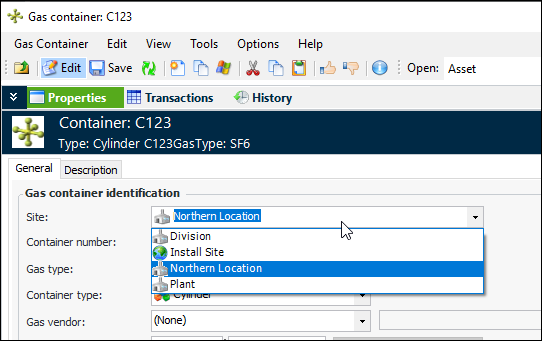
When creating or modifying gas containers, you can now set the container’s site. For example, open an existing container and enable editing. The Site list is available:
To control where containers can be created, you can set up value list controls and assign them to sites. For more information, see Site Value Lists.

Reliability Program – Solution Packages

You can now create templates from solution packages. The Copy Failure Modes wizard does this automatically in some cases (see Failure Mode Copy Includes Solution Packages.)
The solution package’s cycles, tasks, and links are copied to the solution package template. When the solution package contains standard tasks that reference task templates, the task templates are copied to the solution package template. Tasks that do not reference templates are not copied to the solution package template.
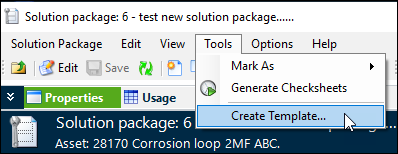
To create a template from a solution package, open the Solution Package window, click the Tools menu and then Create Template:
A confirmation message appears. Click Yes to create the template. The new Solution Package window opens for the template. The source solution package is linked to the new template.

Site Time Zones

APM now supports site time zones. Previously, all sites used enterprise time, whether they were in the same time zone or not. When you select a different time zone for a site, date and time data for the site is displayed in that time zone. If a site has not been assigned a time zone, APM ascends the site hierarchy to find a parent site’s time zone.
As before, date and time data is stored in the database in Coordinated Universal Time format (UTC).
Note: To enable this new feature, open the Enterprise window, select the Customization Center view and the Enabled Features tab. Click Browse, select “Time Zones by Site,” and click OK. If APM is running as a smart or remote client, click Refresh Enabled Features on the server. Then restart the client to use the functionality in the product.

Changing a Site’s Time Zone

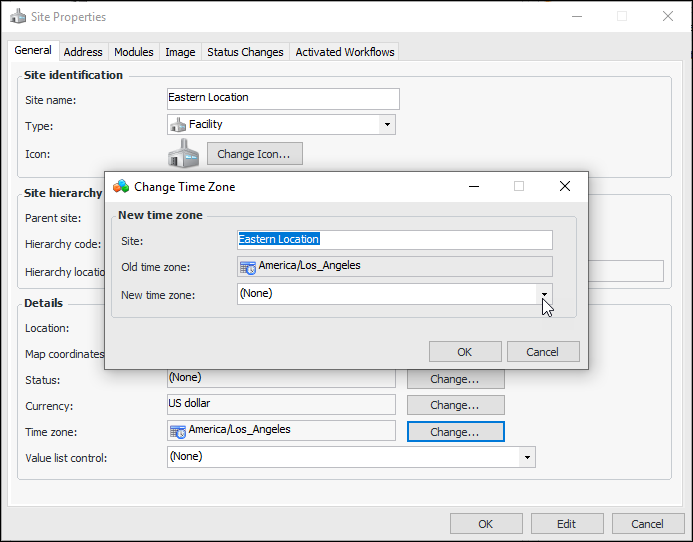
The time zone for a site can be set using its Properties dialog. Click Edit to open the properties for editing. Click Change next to the time zone. The Change Time Zone dialog appears:
Select the new time zone (typically a geographical area) and click OK. When you close the properties dialog, the change is made for the site and becomes the default for child sites that have not been assigned time zones.

Viewing Time Zones

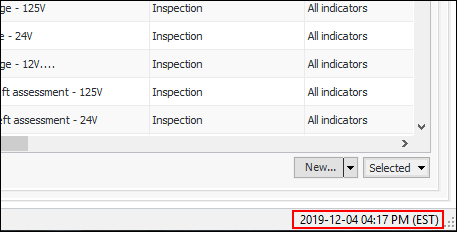
Wherever dates and times are displayed, the data is converted to the time zone of the current site, regardless of the computer’s date and time settings. All main windows in APM now display the site time in the status bar, followed by the time zone abbreviation. For example:
To view the time zone abbreviation for a value in a date or time box, pause the mouse pointer over the date or time. For example:
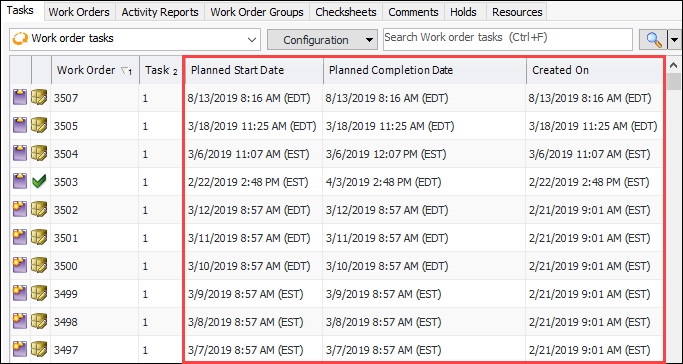
Time zone abbreviations are displayed in tables. For example:
Time zones are specific to each row in the table. For example, if the Tasks tab shown above is set to “From this site and below”, work order tasks created on other sites could have different time zones.
Tables that include date and time data members use the current site’s time zone for any filtering requirements. For example, in the Work Management view, Work Requests tab, the default configuration shows columns for requested completion date and the date and time closed. If you apply the “Last month” filter to one of the columns, it will be accurate to the current site’s time zone.

Display Settings

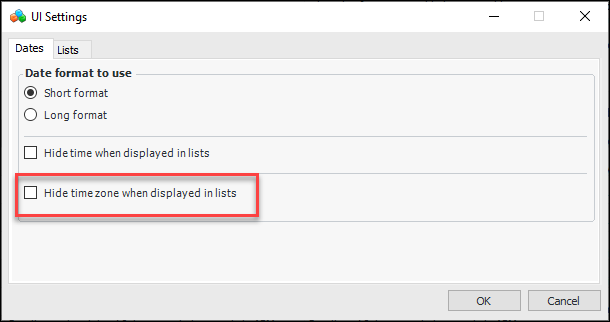
You can hide time zone abbreviations in lists. In the Enterprise window, click the Administration menu and then UI Settings. The UI Settings dialog appears:
Click Hide time zone when displayed in lists and click OK. Refresh the APM view to see the change.
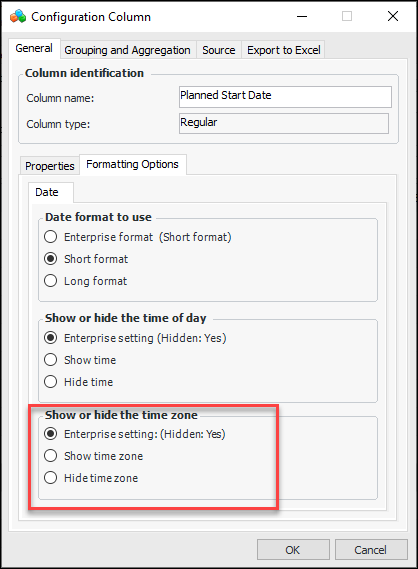
You can also set the formatting for individual columns in a table. In the Configuration Column dialog, select the Formatting Options tab:
The Enterprise setting options show the default formatting that was set in the enterprise UI settings. In the example shown above, time and time zone are hidden by default (Hidden: Yes).
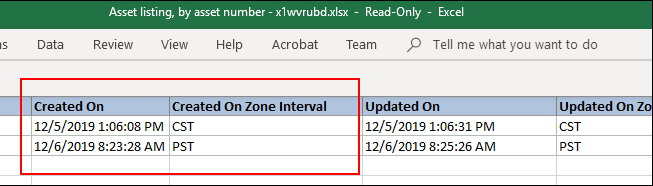
When you export a table to Microsoft Excel, time zone information reflects the display options of the table configuration. When time zone is shown in the table, the spreadsheet shows the time zone in separate columns. For example:

Financial Periods

Costs are charged to the same financial period at every site, regardless of site time zones. The top site’s financial periods and time zone are used.

Upgrading to 7.12.2 – Site Time Zone Considerations

After you have upgraded your database, the top site retains the enterprise time zone. Child sites automatically use the parent’s time zone. You will notice in child sites’ Properties dialogs that the Time zone boxes are blank. You can change the time zones for sites that require it.
For detailed information about time zone considerations when upgrading to 7.12.2, see “Site Time Zones (APM 7.12.2)” in APM Upgrade Guide.

Site Value Lists

This release introduces site-specific value lists. You can now restrict a value list (for example, asset types or maintenance groups) to the site where it is used. Rather than being available to all sites in the hierarchy, these value lists are available only at the specified site and the sites below it in the hierarchy. This enhancement allows each site to have value lists that are specific to the CMMS with which it communicates.
Starting with release 7.12.2, the APM Upgrade Wizard checks all value lists that support site values. If the site reference is blank, the wizard sets it to the top site in the enterprise.
Note: If you are using AWEIS, after upgrading to 7.12.2, you must modify the existing AssetWise interoperability system by identifying the top site. You must do this whether or not you intend to implement site value lists. Otherwise, errors will occur when interoperability is enabled. See Setting up Site Value Lists.

Supported Value Lists

In this release, the following value lists support site identification:
Note: Default characteristic classes have been moved from application settings to the site level. For example, to view or change the default class for asset characteristics, open the Site window and then select the Assets view, Settings tab, Characteristics tab, and then Options tab.
Note: In site interoperability profiles, you can specify a site to filter lists of available secondary statuses.

Viewing Site Value Lists

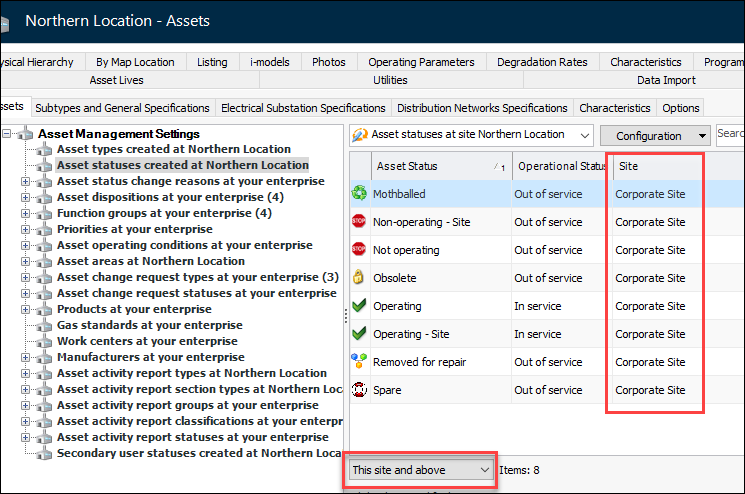
On the Site window, tables that show site-specific value lists include Site columns and use the default recursion filtering “This site and above”. For example:

Setting up Site Value Lists

Setting up site-specific value lists involves these steps:
To update the AssetWise interoperability system, open the Enterprise window, select the Integrations view and then the AssetWise Interoperability Systems tab. Locate and double-click the system to open the AssetWise Interoperability System Properties dialog.
Click Edit, select the appropriate site, and click OK.
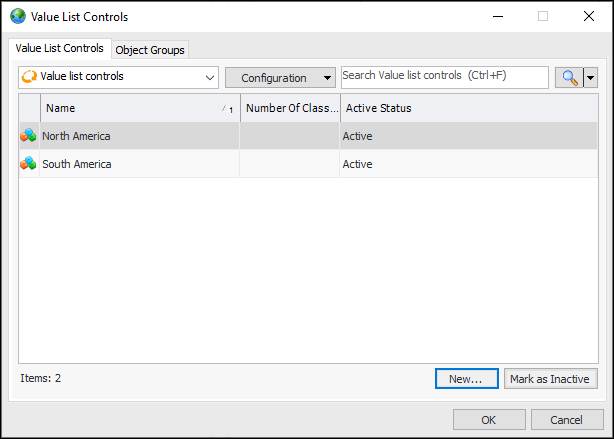
In the Enterprise window, click the Administration menu and then Value List Controls. The Value List Controls dialog appears:
You can create two or more value list controls and then assign them to different sites. You can also mark controls as inactive until they are ready to implement.
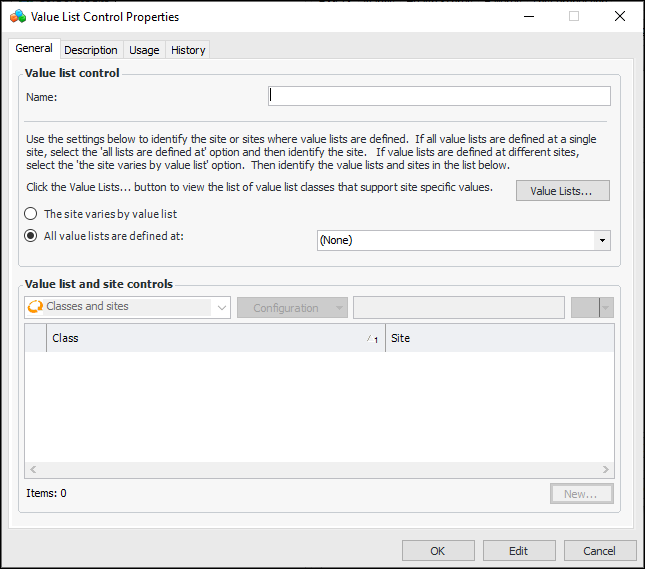
Click New to open the Value List Control Properties dialog:
Name the control and select one of the following:
All value lists are defined at – Select the site from the list
The site varies by value list – You can click Value Lists to see a list of classes that support site values
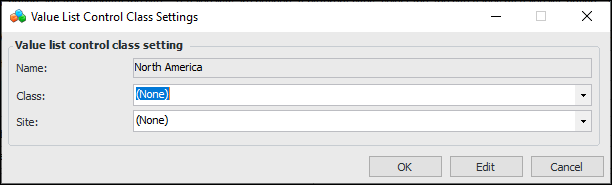
Click New to open the Value List Control Class Settings dialog:
Select the class and site. When you click OK, the setting is added to the table.
When you have created all of the class settings for the control, click OK to close the properties dialog.
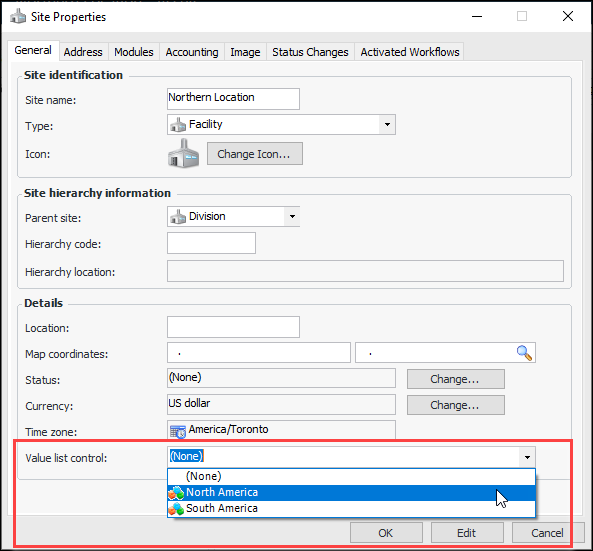
In site properties, you can select the value list control for the site. In the Site menu, click Properties. Select an option from the Value list control list at the bottom of the dialog:
Click OK to save the option and close the dialog.

Strategy Development Analysis with AWEIS

This release includes the following enhancements to strategy development analysis.

Maintenance Action Plans – Solution Packages

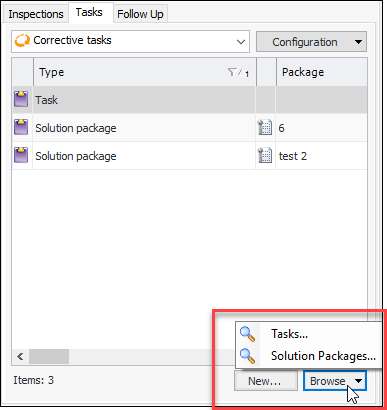
When defining an action plan for a failure mode, you can now browse solution packages to add as corrective tasks. In this example, standard tasks and solution packages are available:

Failure Mode Copy Includes Solution Packages

With this release, the Copy Failure Modes wizard copies solution packages and solution package templates that are included as corrective tasks on action plans to new or existing analyses.
When you copy an analysis, its solution packages or templates and (optionally) cycles are copied to the target. Solution packages are sent from the CMMS and cannot be edited in APM. They reference an asset.
When you are copying to or from an analysis template, solution package templates and (optionally) cycles are copied. Solution package templates are created in APM and do not reference an asset.
There are two cases where APM creates a solution package template from a solution package:

Unsupported Software

As of version 7.12.2, APM no longer supports SQL Server 2012 database software.
Note: For a complete list of supported software, see APM Installation Prerequisites.
APM no longer supports importing analyses from EXP Professional.

Work Management with AWEIS

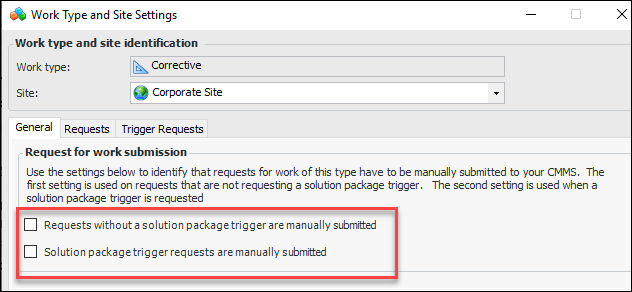
By default, requests for work must be manually marked as ready to send. You can now have APM automatically submit requests for work when they are created and saved. The requests’ Interop status changes to “Ready to Send”. The options that control this behavior are located in work types.
To have requests automatically marked as ready to send, create or edit a work type. In the Work Type dialog, select the Site Settings tab. Click New to create the setting.
On the General tab, clear the options for manual submission. For example:
Click OK. You can then assign the work type to requests for work.
For more information, see Setting up Site-Specific Work Types.