What’s New in APM 26.0.0

Among other enhancements, this release introduces several enhancements to indicators and checksheets, as well as to fundamental functionality such as settings reviews, attachments, and drag-and-drop.

Contents

Assets – Asset-Focused Views Now Support Lists of Assets
Attachments
AWEIS – RFW Approvals
Construction Form Properties Based on Manufacturer Rules
Data Loading
Data Management – Update Log
Drag and Drop
Failure Tracking – Primary and Secondary Failures
Inspection Management
Package Manager
Performance and Stability Enhancements
Personnel – Employees Settings Review
Security Profiles – Security Setup Mode in Smart Clients
Standard Documents – Embedded Files
Standard Tasks
Strategy Development – RCM2 Analysis

Assets – Asset-Focused Views Now Support Lists of Assets

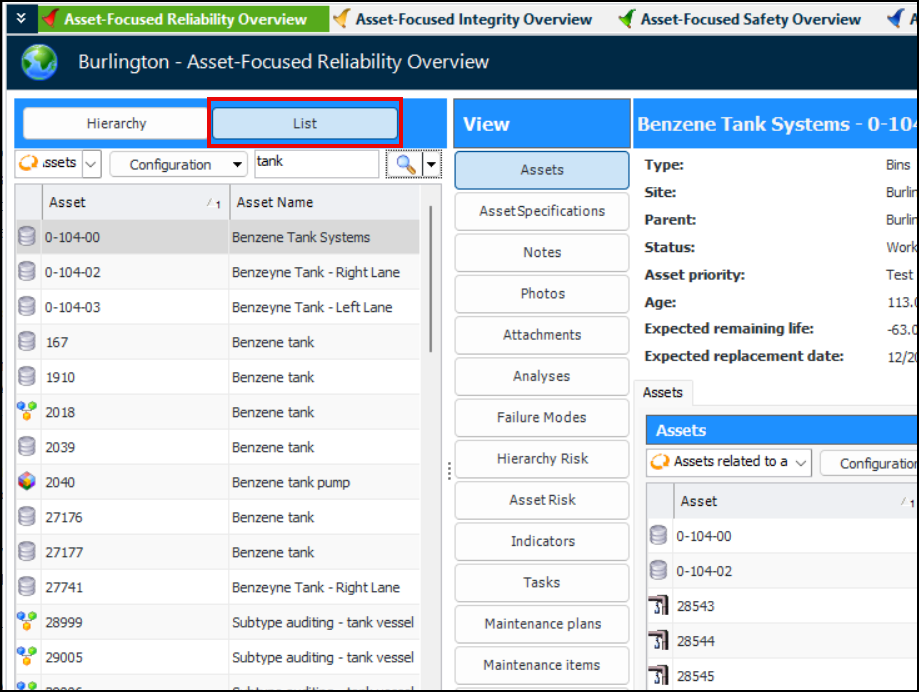
The Reliability, Integrity, Safety, and Asset Health asset-focused overviews have been updated with Hierarchy and List buttons to provide alternate methods for selecting the asset to view. The List table allows you to search for asset names, create configurations with different filtering, include assets from different sites, and so on.

Attachments

Attachments are files, folders, notes, URLs, or shortcuts that you add to APM objects. You can add attachments to any APM object with a main window that has a banner, as well as to indicator readings and comments. For example, you might want to attach documents to work orders, assets, or indicator readings. There is no limit to the number of attachments that you can create. This release introduces several enhancements to attachment functionality.

Improved Visibility of Attachments

You can now view a list of all of the attachments in a site and in the enterprise.
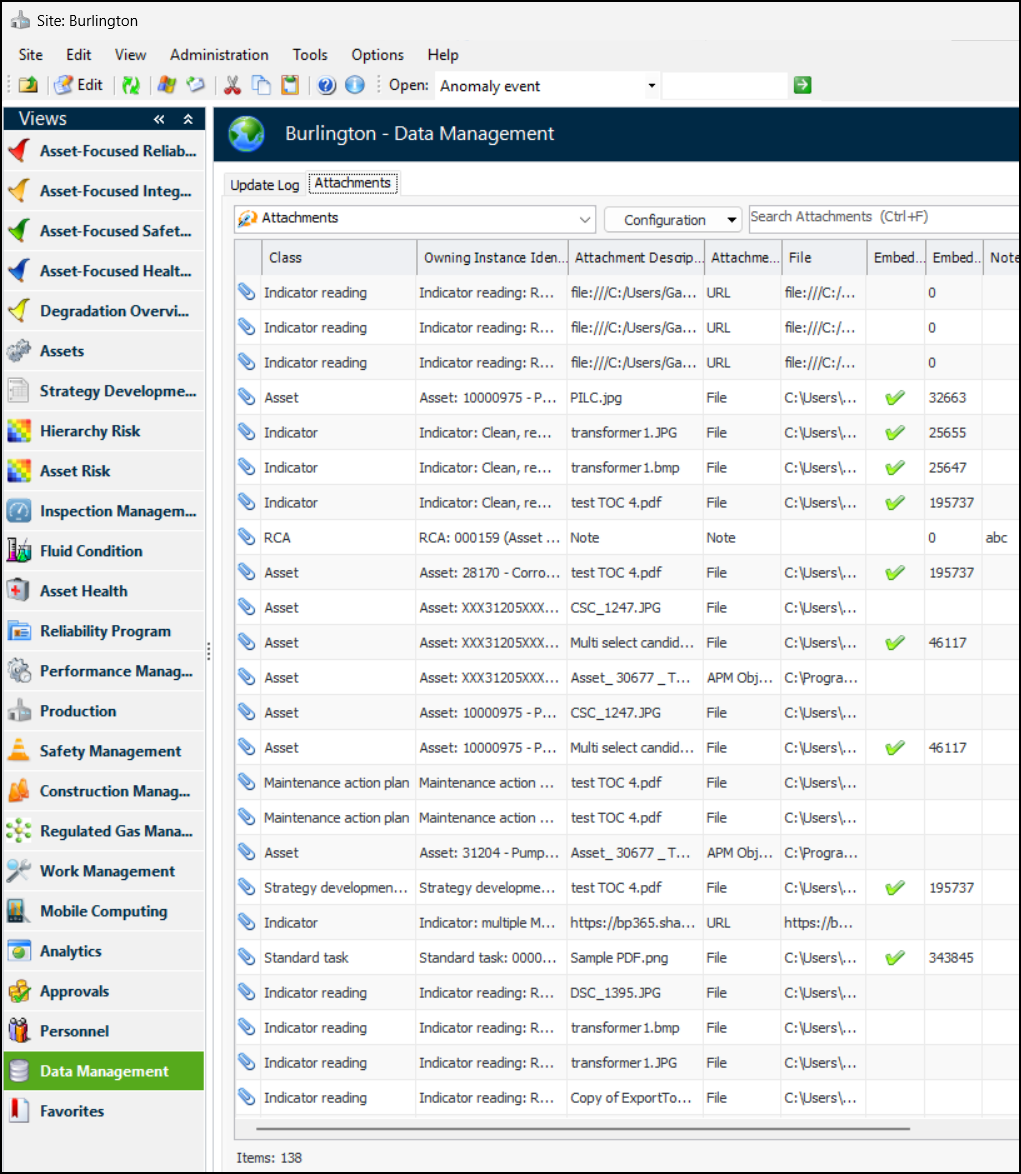
To view attachments for a site, select the Data Management view and the Attachments tab:
You can view attachments by class (default), by size, by class with total size, and by class in a chart.
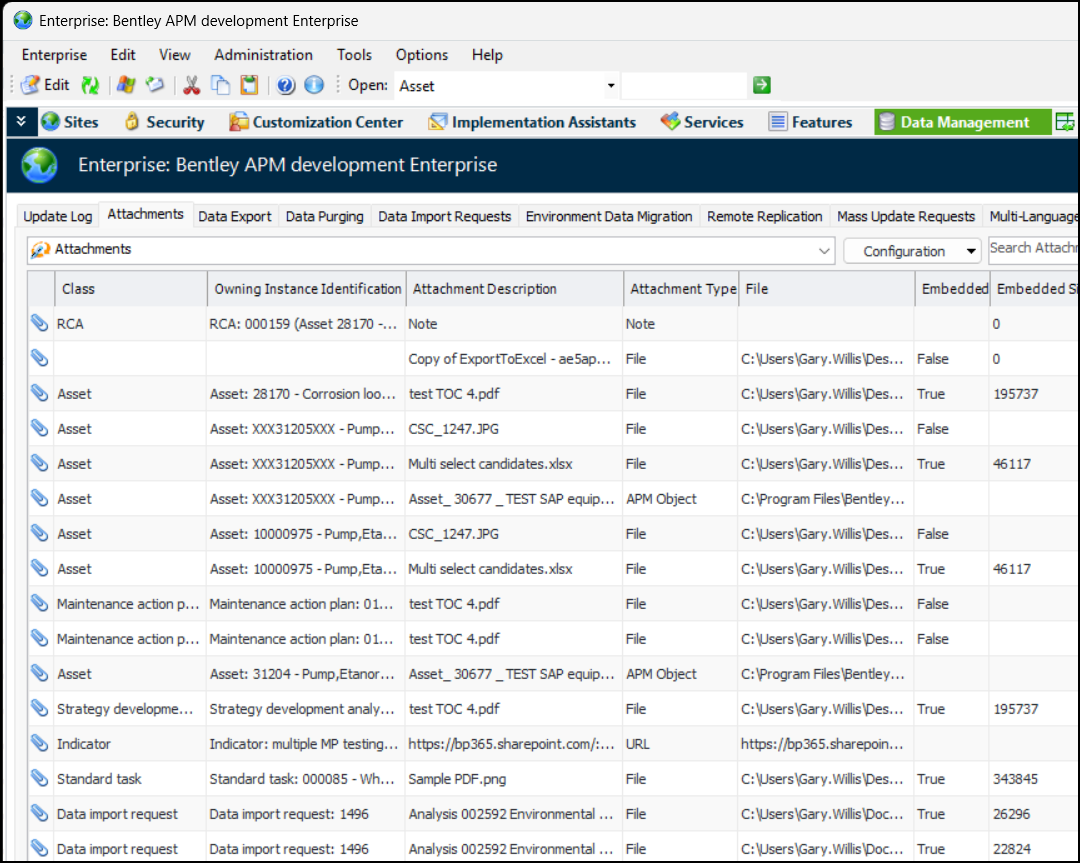
To view attachments for the enterprise:
1.
2.
Select the Data Management view and the Attachments tab. For example:
The attachments are listed according to the classes of the objects to which they are attached, along with their descriptions and types. If the attachment is embedded in the database, the size of the object is shown. You can open an embedded object by double-clicking its row.

Attachments Can Be Purged

APM administrators can set up purging rules to permanently remove large numbers of items that are no longer relevant from their APM databases. A purging rule identifies the type of object to be purged (for example, resource transactions or indicator readings) as well as the criteria used to select the instances to be purged. The Attachment class can now be included in purging rules.
For more information, see Introduction to Data Purging.

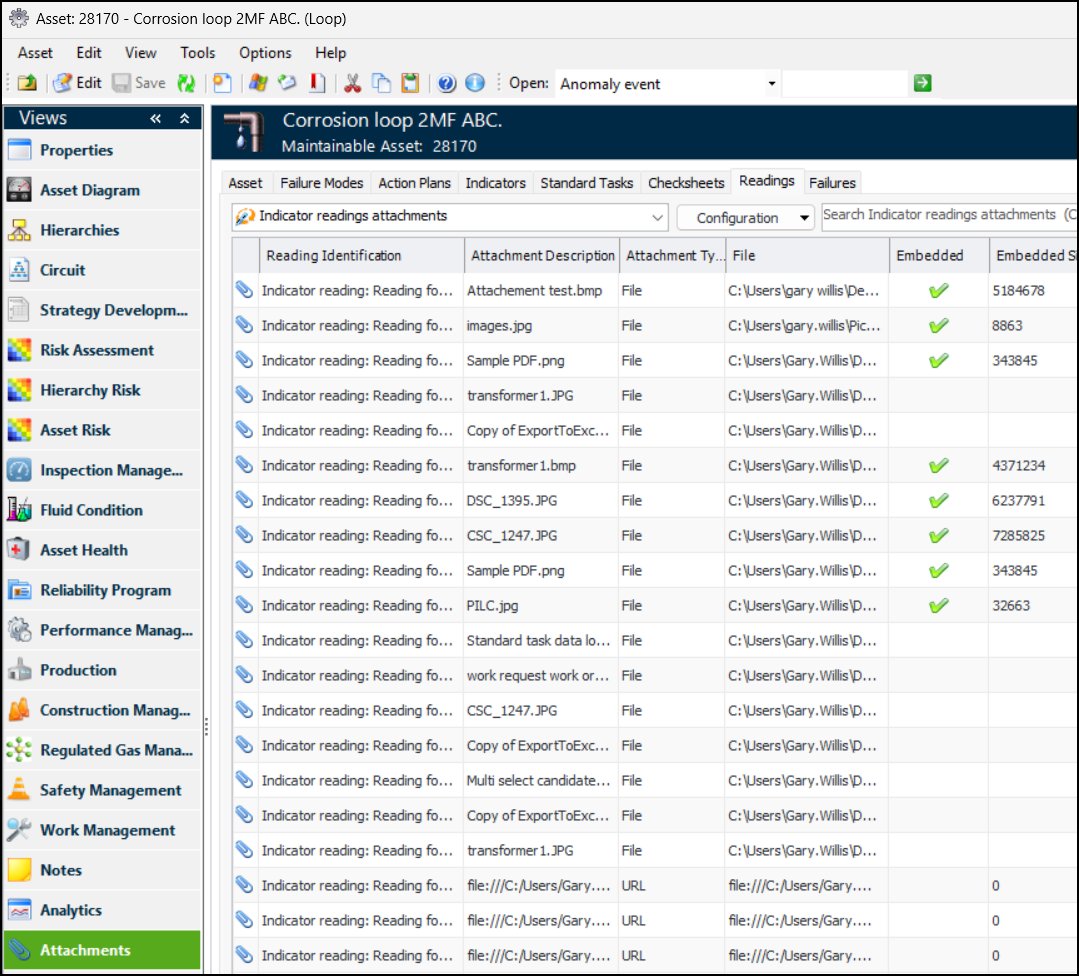
Attachments View in the Asset Window

This new view lets you see and add attachments to an asset. Tabs are available for the objects related to the asset: failure modes, action plans, indicators, standard tasks, checksheets, readings, and failures. Select a tab to see the objects’ attachments. This example shows the attachments for an asset’s indicator readings:

Maximum Size for Embedded Attachments

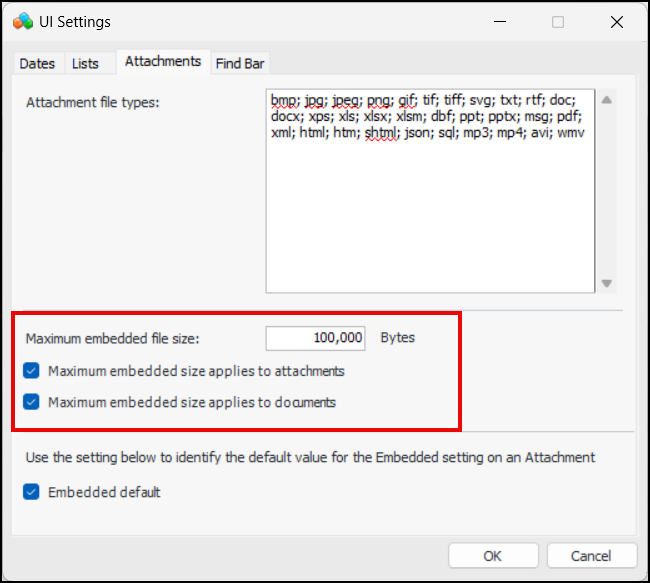
You can now set the maximum size limit for attachments that are embedded in the APM database. If the user attempts to attach a file larger than the maximum, the Embedded option is not available.
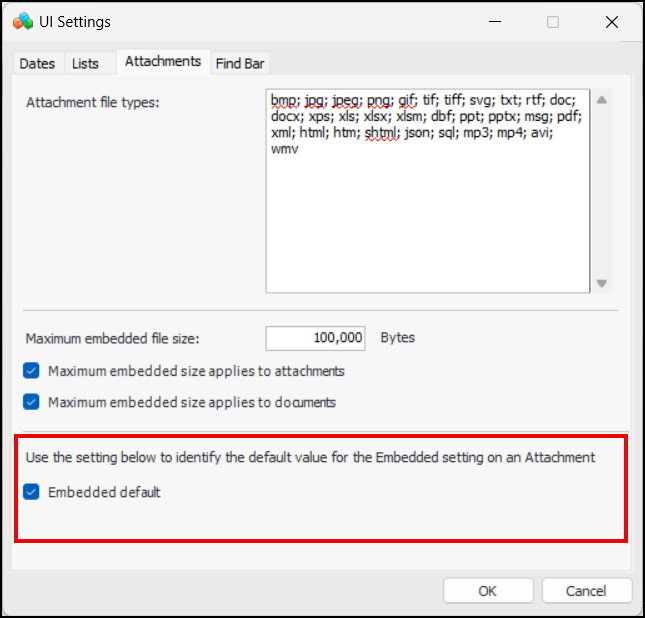
The maximum is set in bytes and applies to attachments and/or documents. You can set the options in UI Settings:
For more information, see Changing User Interface (UI) Settings.

Make Embedded Attachment the Default

You can identify the default value of the Embedded setting on attachments from UI Settings:
Wherever you add an attachment to an APM object, the Embedded option will be selected by default.

One Attachment Method for Photos and Documents

The purpose of this enhancement is to simplify the process of linking files to a limited number of APM objects: asset, indicator reading, measurement point reading, checksheet, inspection report, and RCA. On APM Remote, the classes are indicator reading and measurement point reading.
There are two ways that a file can be linked to an APM object: as an inspection photo or as an attachment. A new browse method allows all types of files to be selected at the same time. Files of type BMP, PNG, JPG, JPEG, and GIF are automatically added to the object as inspection photos and other supported types as attachments of type File.
The advanced Browse button is available on the new Files tab in the following locations:
Asset window, Properties view
Checksheet window, Readings view
Inspection Report window, Inspection Report view
Asset window, Properties view
RCA window, Definition view
For example:
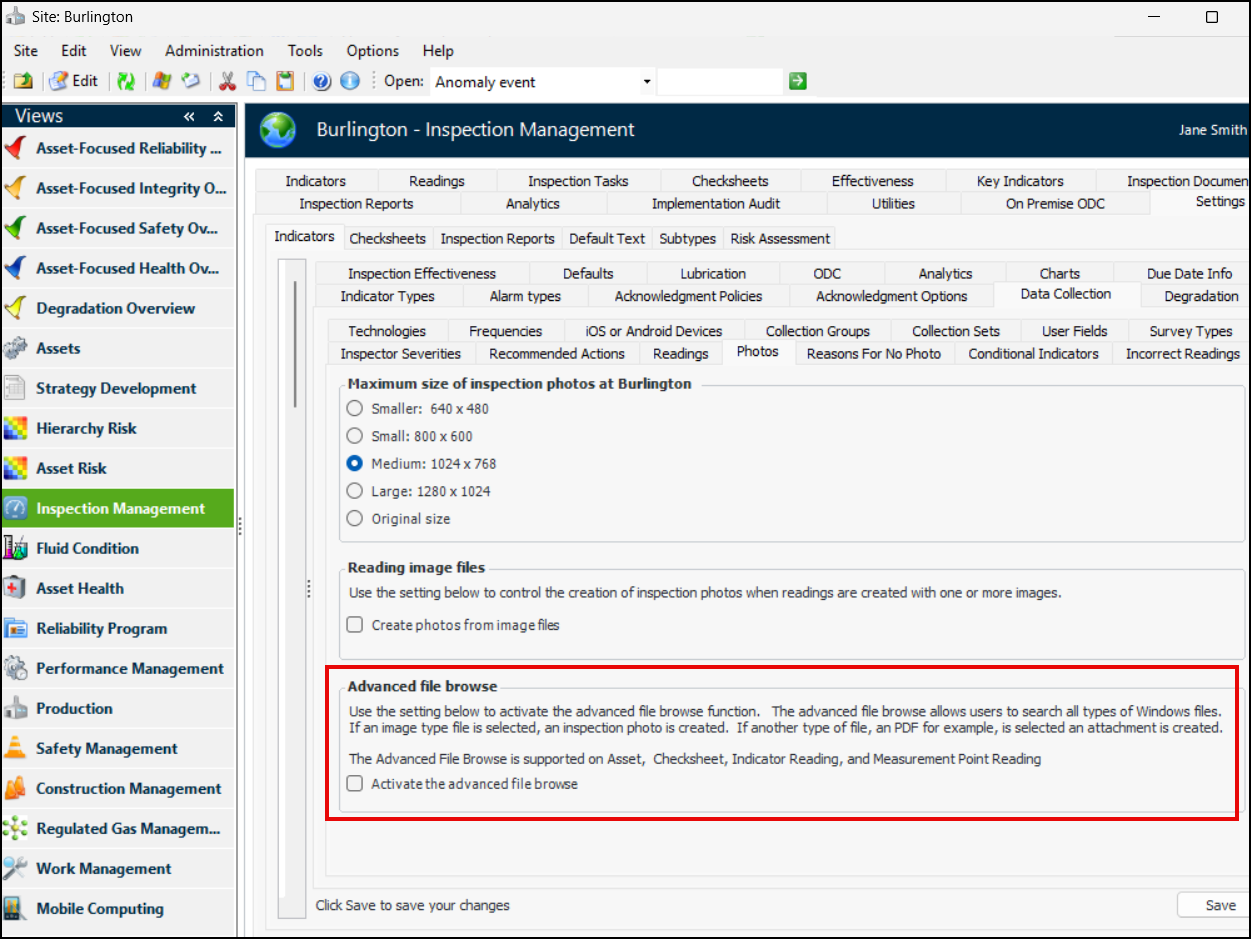
You can enable the advanced browse in indicator settings on the site.
1.
Select the Inspection Management view, Settings tab, Indicators tab, Data Collection tab, and Photos tab.
2.
Click Edit to modify the site settings. The Edit button is replaced by the Save button.
3.
Select Activate the advanced file browse.
4.
Click Save.

AWEIS – RFW Approvals

Administrators can now specify that approvers can revise certain properties on requests for work that are waiting for approval. For example, approvers might need to modify dates or work priorities.
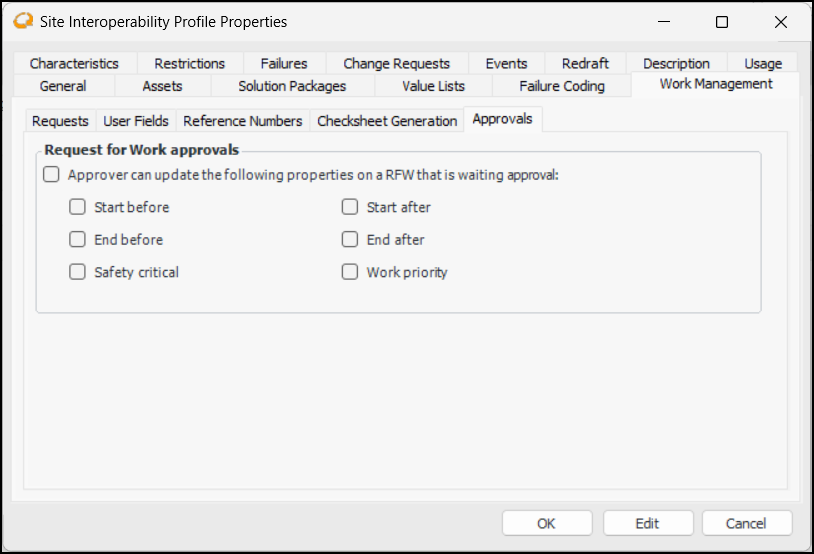
The settings are available in the site interoperability profile. In the Enterprise window, select the Integrations view, AssetWise Interoperability tab, Interoperability Profiles tab. Open the Site Interoperability Profile Properties window and click Edit.
Select the Work Management tab and the Approvals tab.
Select Approver can update the following properties on a RFW that is awaiting approval and select the properties that can be changed. Click OK to save and close the profile.

Construction Form Properties Based on Manufacturer Rules

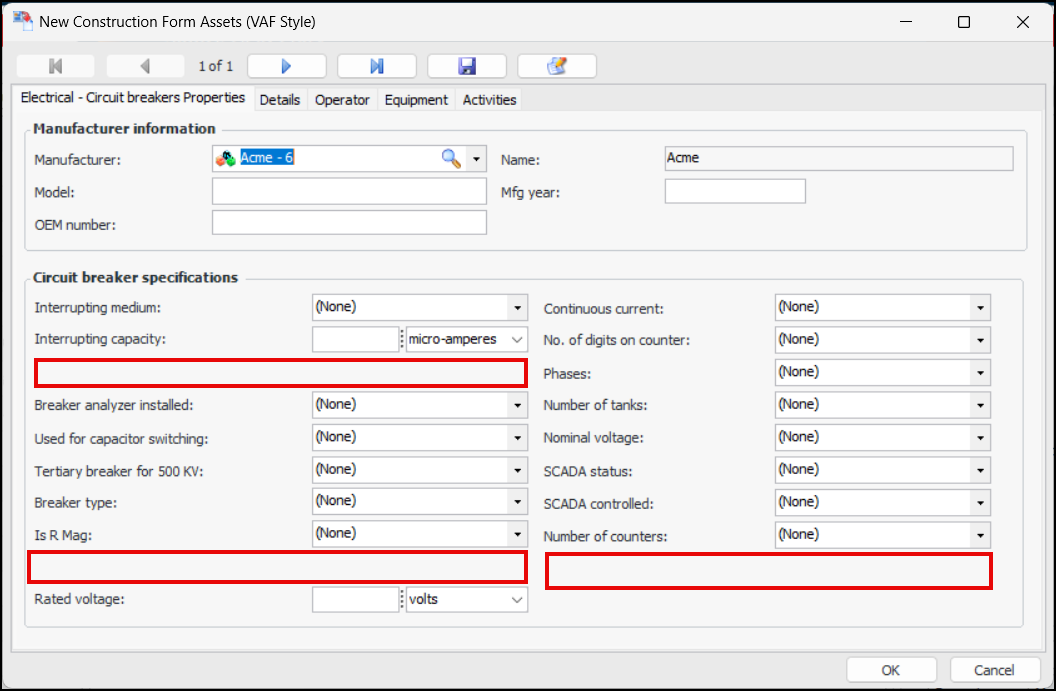
This enhancement makes it possible to remove unnecessary properties from construction forms, based on manufacturer rules, making them easier for users to complete. For example, in this form for a circuit breaker, Nameplate gas weight, Metal clad, and Number of gauges are invisible. They could also be shown as read-only (irrelevant visible).
This functionality is supported on these asset types and properties:
Each of the properties can be set to one of these values:
Note: Properties that are controlled by manufacturer options cannot be designated as “Mandatory” in the construction form template’s asset type properties. If they are irrelevant, they will fail the construction form validation process.
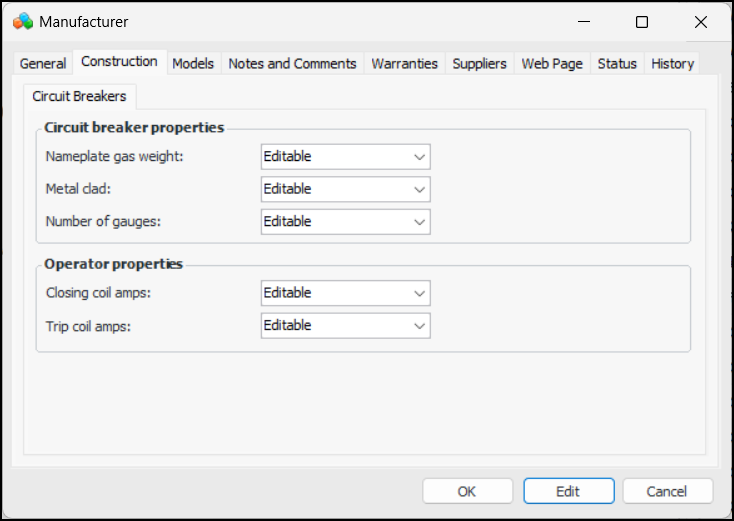
To implement this functionality, in the Site window, select the Construction Management view, Settings tab, Manufacturers tab. Open each of the manufacturers that you wish to update.
Select the Construction tab and click Edit.
Adjust the settings in the Circuit Breakers tab, as needed, and click OK.
For related information, see Setting up Manufacturer Rules for Construction Forms.
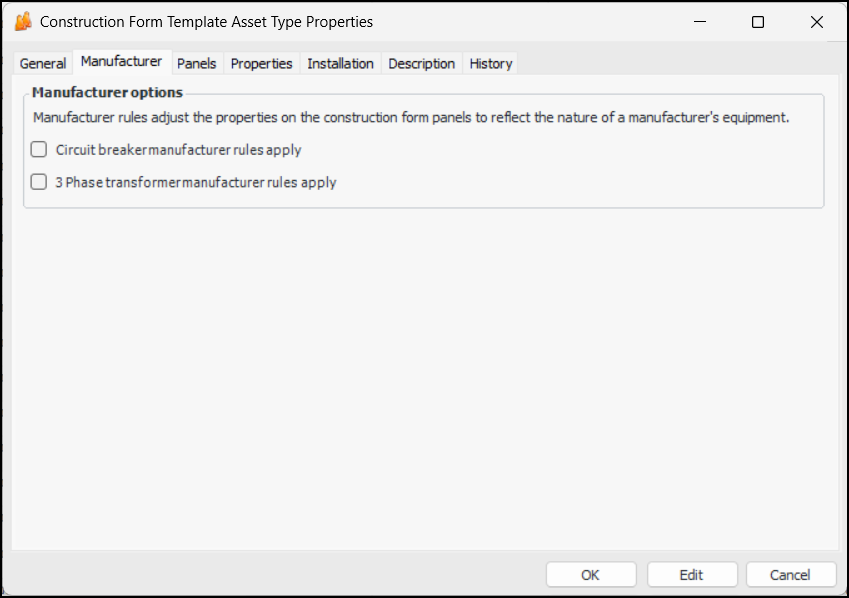
Update your construction form templates that contain circuit breaker and operator asset types as follows.
1.
2.
 
3.
On the Properties view, select the Asset Types tab. Open each of the affected asset types in turn.
4.
5.
6.
7.
For more information, see Setting up Construction Form Templates.

Data Loading

The following data loaders were added or updated in this release.

Standard Task Document Data Loader

This data loader imports documents and adds them to the specified standard tasks.
Required properties are:
Note: This data loader is available for technology preview. You must first enable feature 146 to use the functionality in APM. In the Enterprise window, select the Features view and the Enabled Features tab. Click Browse, select “Standard task document data loader” and click OK. If APM is running as a smart client, click Refresh Enabled Features on the server. Then restart the client to use the functionality.

Checksheet Document Data Loader

This data loader imports documents and adds them to the specified checksheets.
Required properties are:
Note: This data loader is available for technology preview. You must first enable feature 145 to use the functionality in APM. In the Enterprise window, select the Features view and the Enabled Features tab. Click Browse, select “Checksheet document data loader” and click OK. If APM is running as a smart client, click Refresh Enabled Features on the server. Then restart the client to use the functionality.

Strategy Development Analyses – Inspection Task

The following data loaders have been updated to include inspection task:
Required properties are:

Personnel – Employees

The string attribute Update Task Due Date Settings has been added to the Employees data loader. If entered, the value must be either 0 - False or 1 - True.

Data Management – Update Log

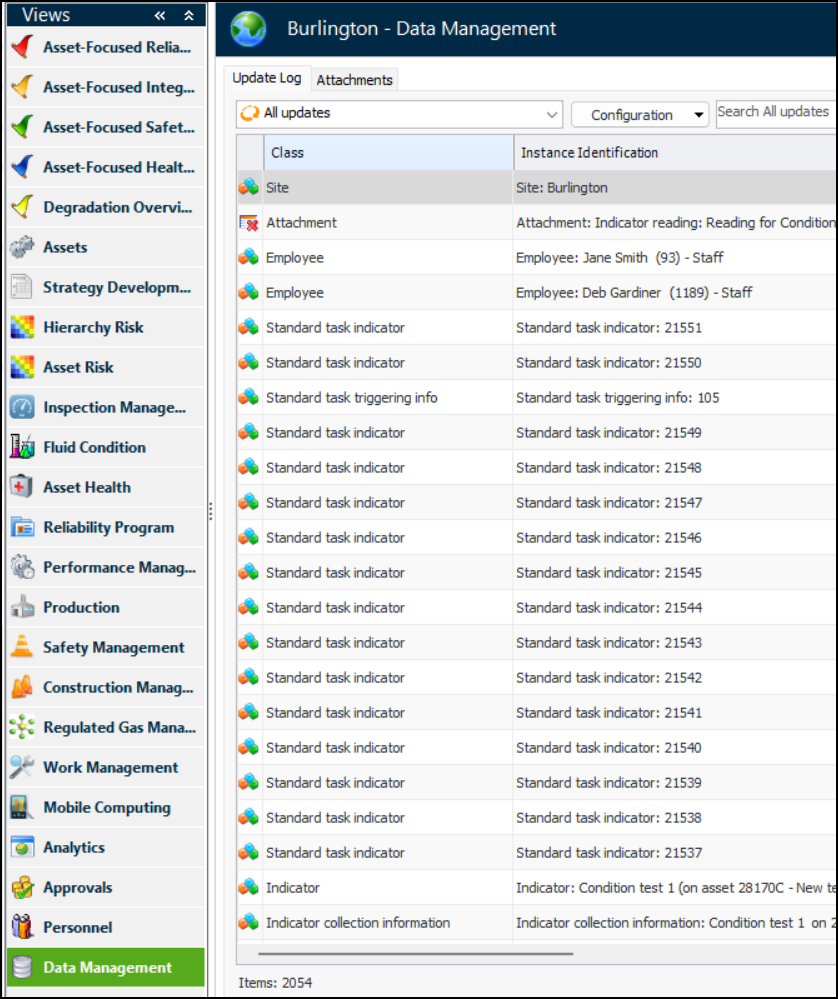
The new Data Management view in the Site window displays the Update Log tab, as well as the Attachments tab. The Update Log provides configurations that list:
For example:

Drag and Drop

Drag-and-drop functionality has been expanded in this release.

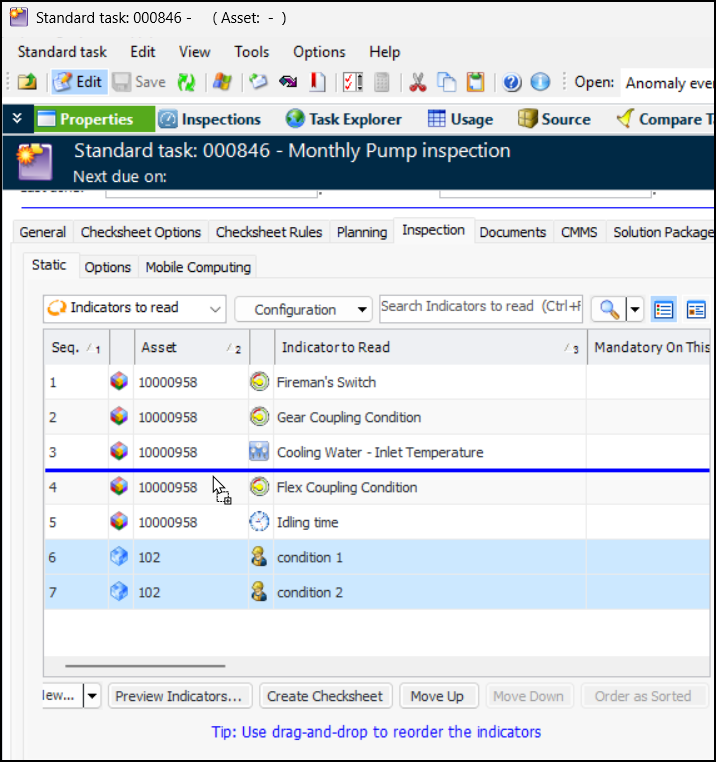
Use Drag and Drop to Reorder Indicators on a Standard Task

You can now select one or more indicators and drag them to another row in the table and drop them in the new location. A blue line appears when you are dragging to indicate the target location. For example:
When dragging a new indicator onto the task, you can place it in the desired location in the list of indicators; it is no longer placed at the end by default.

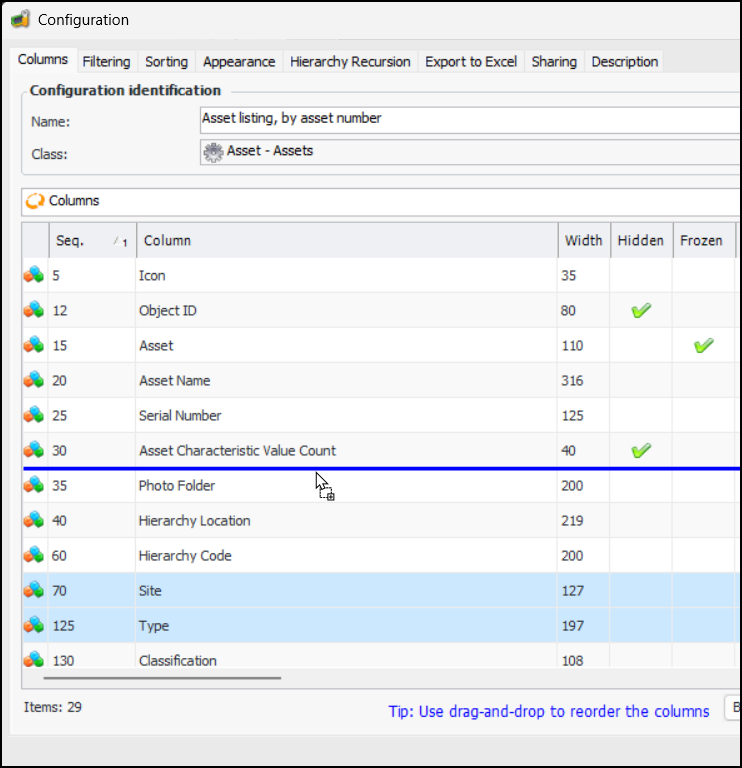
Drag and Drop Columns in a Configuration

Similarly, when you are modifying a table configuration, you can drag one or more rows in the list of columns and drop them in the target location:

Drag and Drop to Add an Indicator to an Asset

You can add an indicator to an asset by dragging an indicator template onto an asset in the Asset listing in the Site window.

Failure Tracking – Primary and Secondary Failures

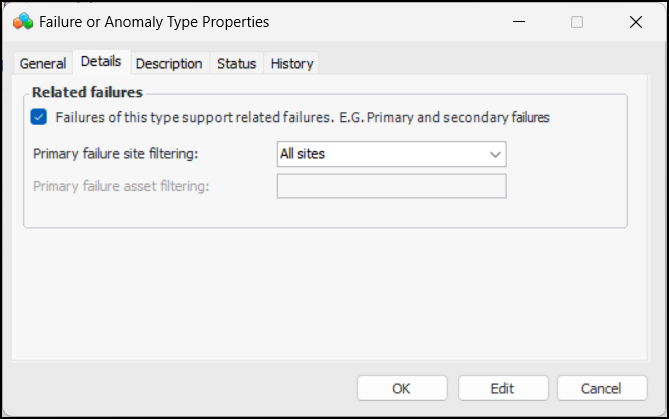
It is now possible to identify and link primary and secondary failures with the help of failure types. In the Site window, select the Performance Management view, Settings tab, Failure Events tab, Types tab. Open the Failure or Anomaly Type Properties window, Details tab. Click Edit. Specify that failures of this type support related failures:
The site filtering option determines the sites from which related failures can be selected. If you choose “This site only”, you can select an option for primary failure asset filtering:
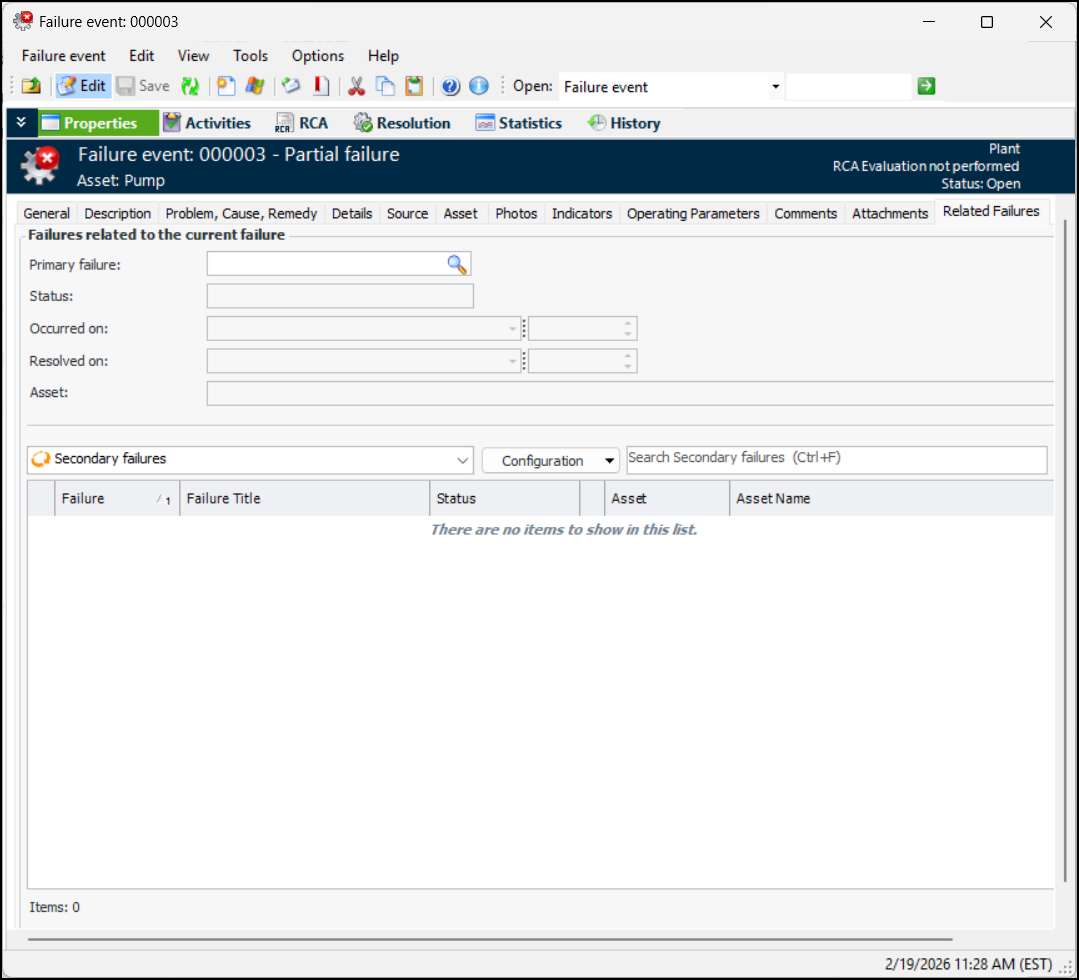
A failure event that supports related failures displays the Related Failures tab in the Failure Event window, Properties view:
Here, you can select the primary failure and view secondary failures.
 

Inspection Management

The following enhancements were introduced to indicators this release.

User-Defined Field Profiles

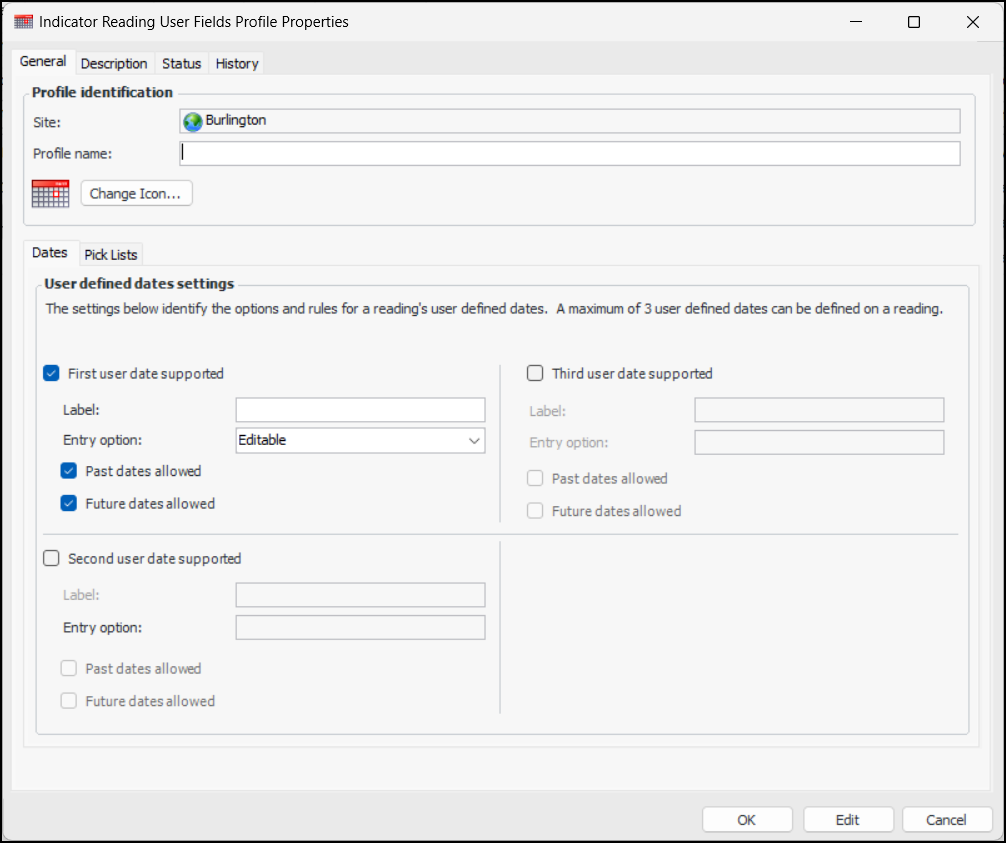
You can now create profiles of user-defined fields to assign to indicator states. The fields are then available on indicator and checksheet readings. A profile can contain three pick lists and three dates, each with labels and validation rules.
To create a profile:
1.
In the Site window, select the Inspection Management view, Settings tab.
2.
Select the Indicators tab, Data Collection tab, User Fields tab.
3.
Click New to open the Indicator Reading User Fields Profile Properties dialog.
4.
5.
On the Pick Lists tab, you can define up to three labels and specify the entry validation. The values that appear in these fields are “Maybe”, “Yes”, or “No”.
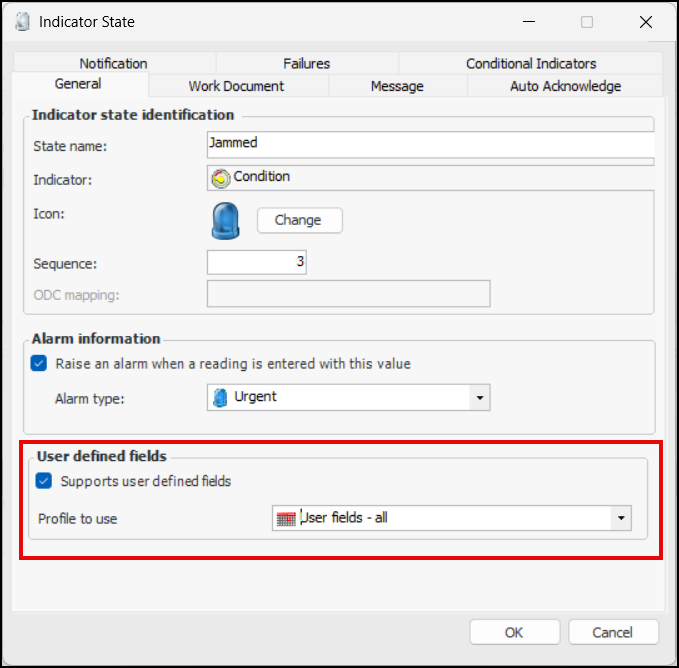
When adding a state to an indicator, you can now add the profile to use:
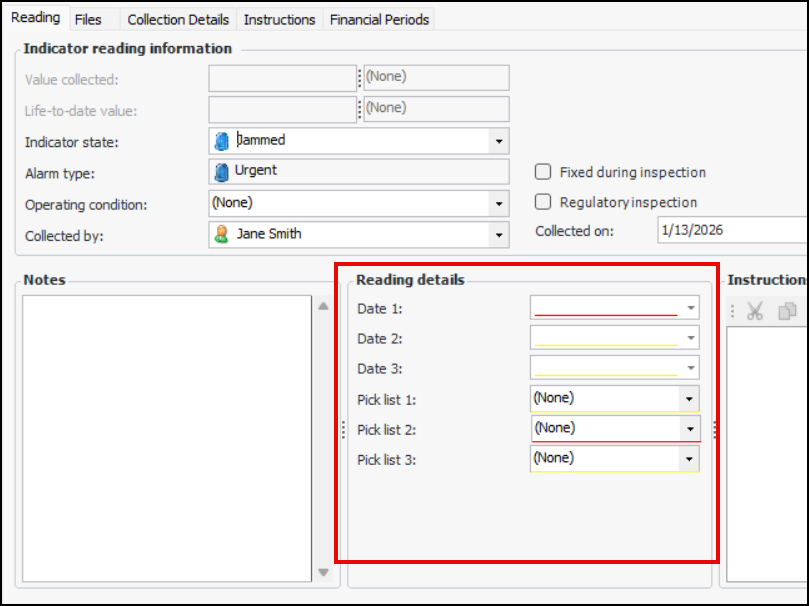
When completing an indicator reading, as soon as you select the indicator state, the Reading details area is added, showing the user-defined fields. For example:

Checksheet Status – Photos and Standard Documents

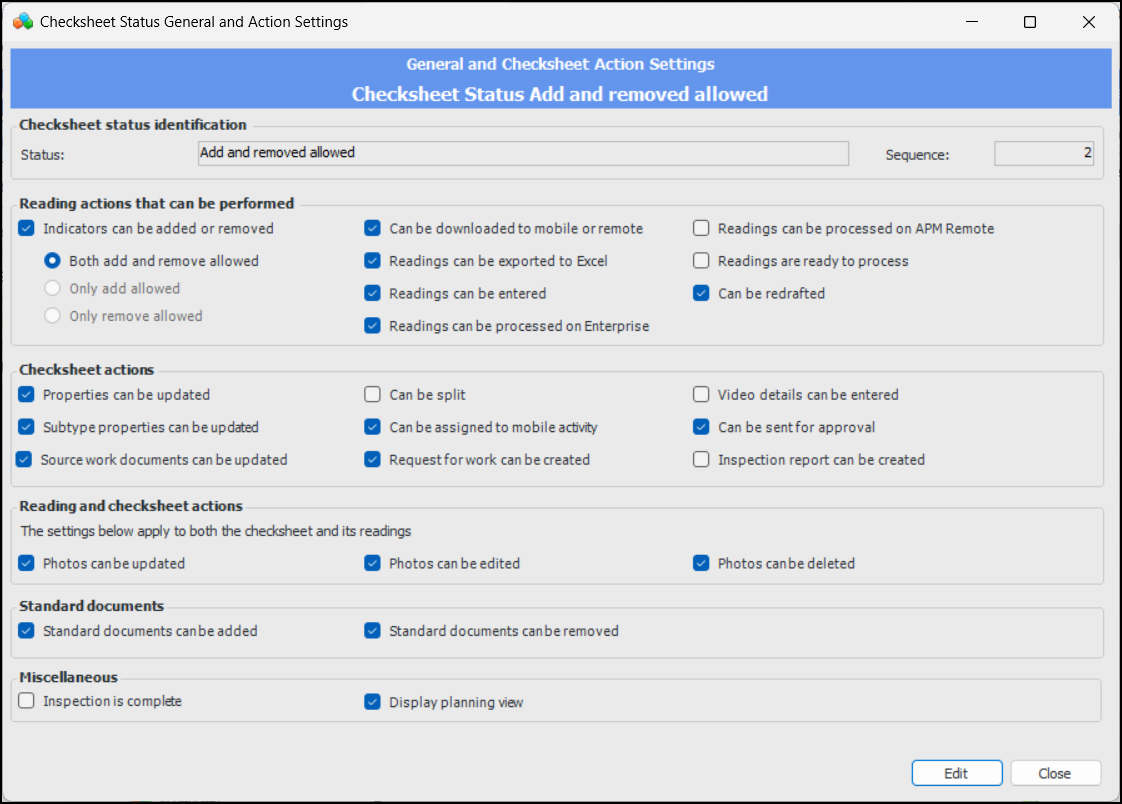
You can now use checksheet statuses to control how photos and standard documents can be used in checksheets and their indicator readings. The following settings have been added to the Checksheet Status Properties window:
These settings also apply on APM Remote, to photos and standard documents, as well as to the Take Photo button.
For more information, see Setting up Checksheet Statuses.

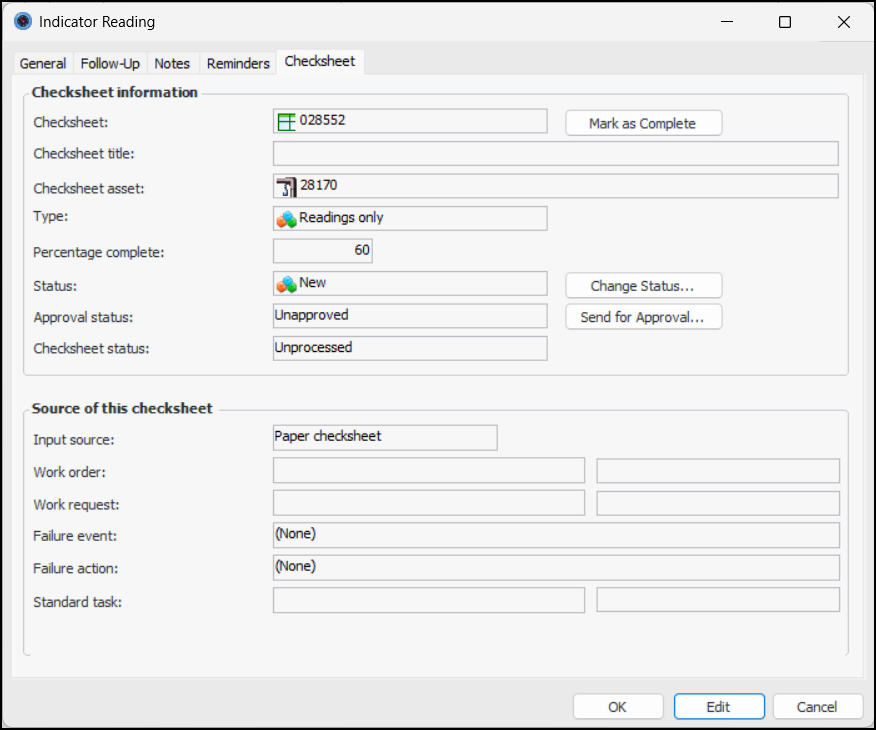
Checksheet Tab on Reading Window

When you open an Indicator Reading window from a checksheet, you will now have the option of selecting the Checksheet tab. For example:
The Checksheet tab provides a convenient location for sending the checksheet for approval, processing the checksheet, changing the checksheet status, and viewing information about the checksheet.
The Display Checksheet Info on Readings setting on checksheet type controls whether the tab appears on the Indicator Reading window.

Checksheet Statuses – Settings Review

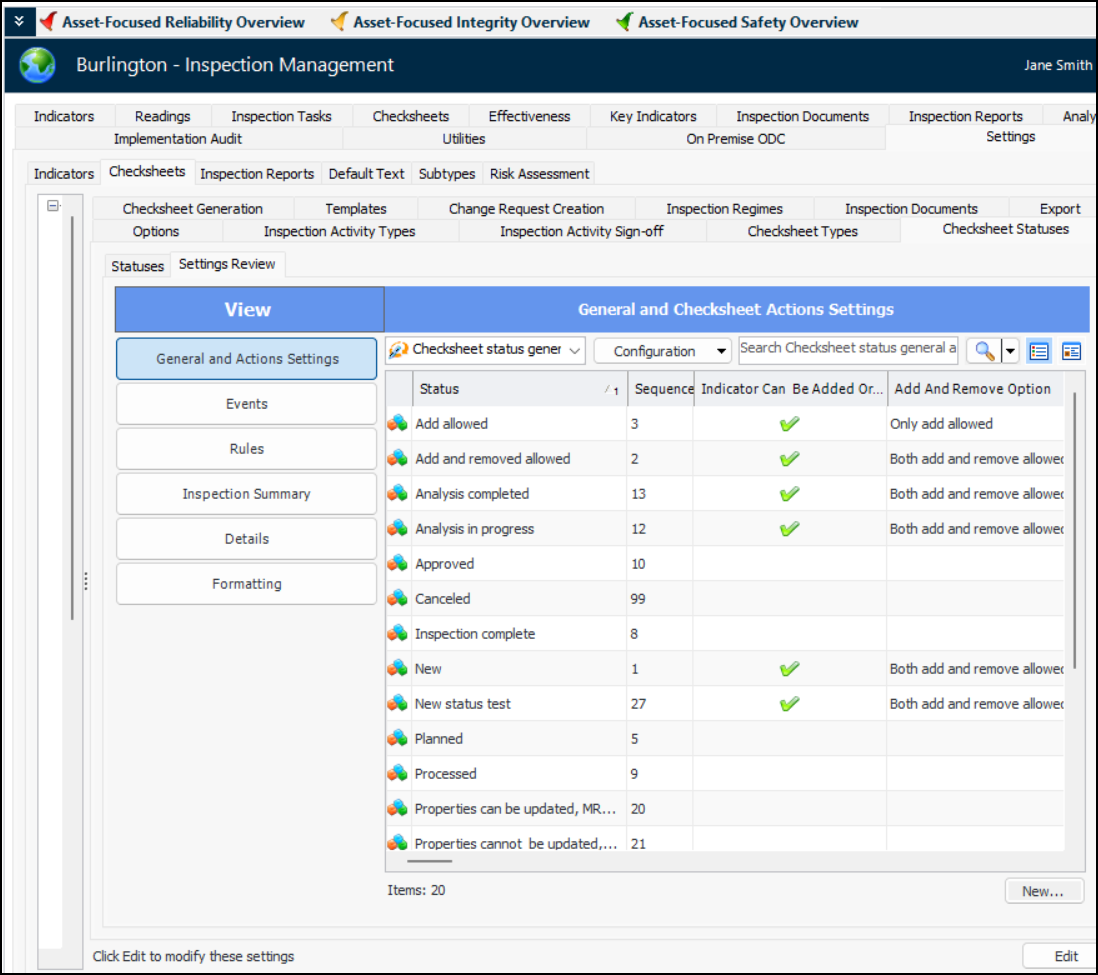
The new Settings Review tab provides an easy way to view, compare, and update settings for all checksheet statuses.
In the Site window, select the Inspection Management view, Settings tab, Checksheets tab, Checksheet Statuses tab, and Settings Review tab:
You can modify values in the table using in-line editing (press F2) or the Replace Column Data function.
Switch from view as Table to view as Form to view, update, and save an individual checksheet type and move on to the next using the navigation buttons.
Double-click an item in the table to open a dialog where you can edit the setting for that status. For example:

Mandatory Photograph or Attachment on Indicator Readings in Alarm

As of this release, you can make photos or attachments mandatory on indicator readings collected manually in an ad hoc fashion or on checksheets, using APM, APM Remote, or APM Mobile Inspections.
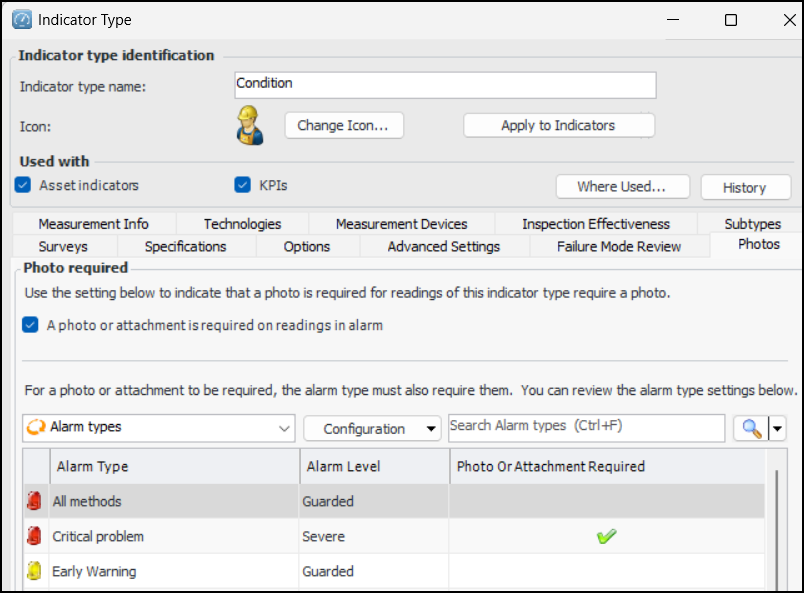
This functionality relies on the indicator type and alarm type. In the Indicator Type window, select the Photos tab. For example:
Select A photo or attachment is required on readings in alarm. Check that the appropriate alarm types in the table below also require a photo or attachment. You can double-click an alarm type to open its window and edit it.
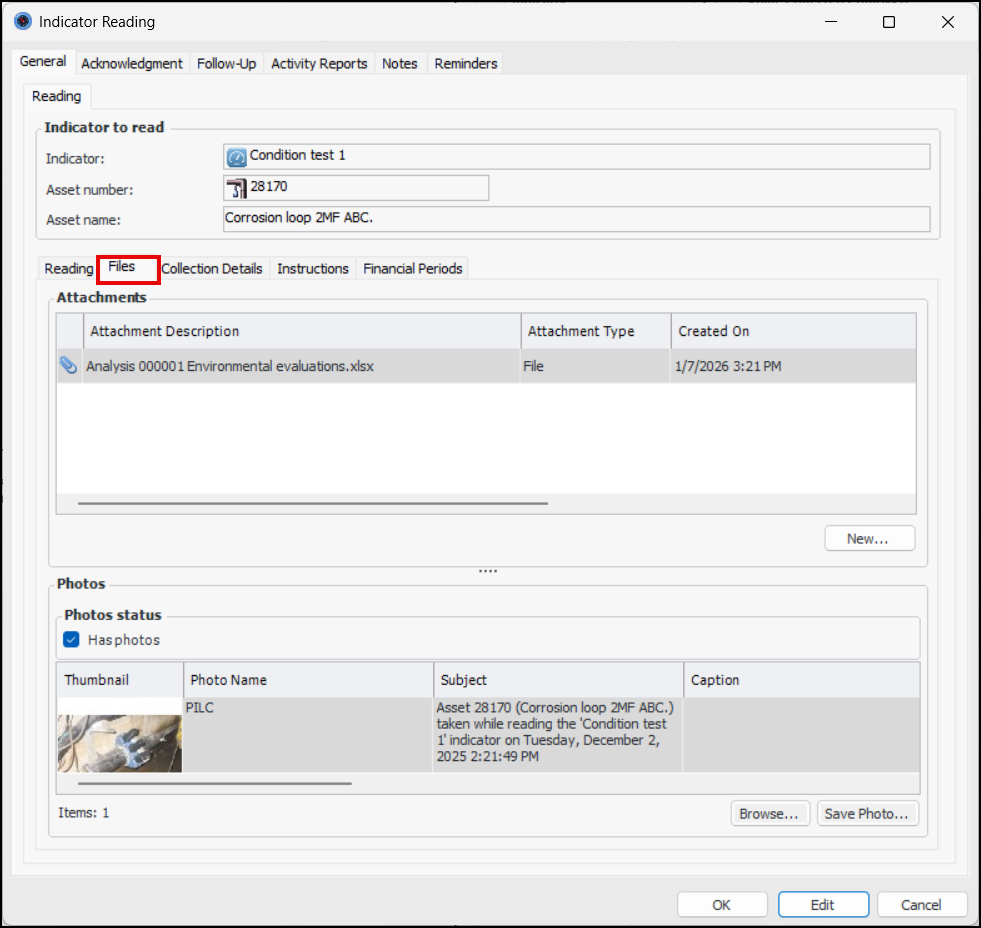
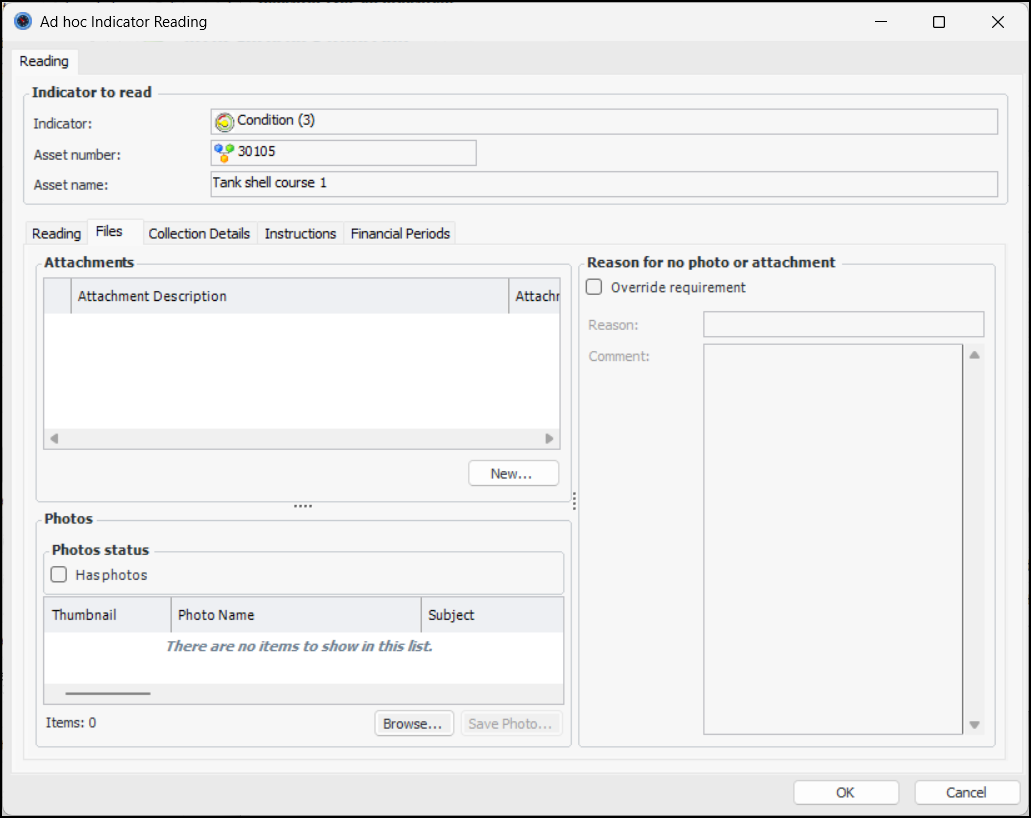
If you enter an alarm state on a reading for an indicator that uses the indicator type and attempt to save the reading, an error message appears stating that a photo or attachment is required. Select the Files tab if you wish to add an attachment or photo:
To add an attachment, click New below the Attachments table.
To add a photo, click Browse below the Photos area. The thumbnail is added to the Photos table, along with information about the photo. Has photos is selected.
It is also possible to override the requirement for a photograph or attachment. In the Reason for no photo or attachment area, select Override requirement. Select a reason from the list, for example, “Camera is broken”, and enter a comment, if appropriate.
You can set up reasons in indicator management settings. Select the Data Collection tab and the Reasons For No Photo tab. Click New to add a reason.
For related information, see:

Checksheet Planned Start Date for Frequent Inspections

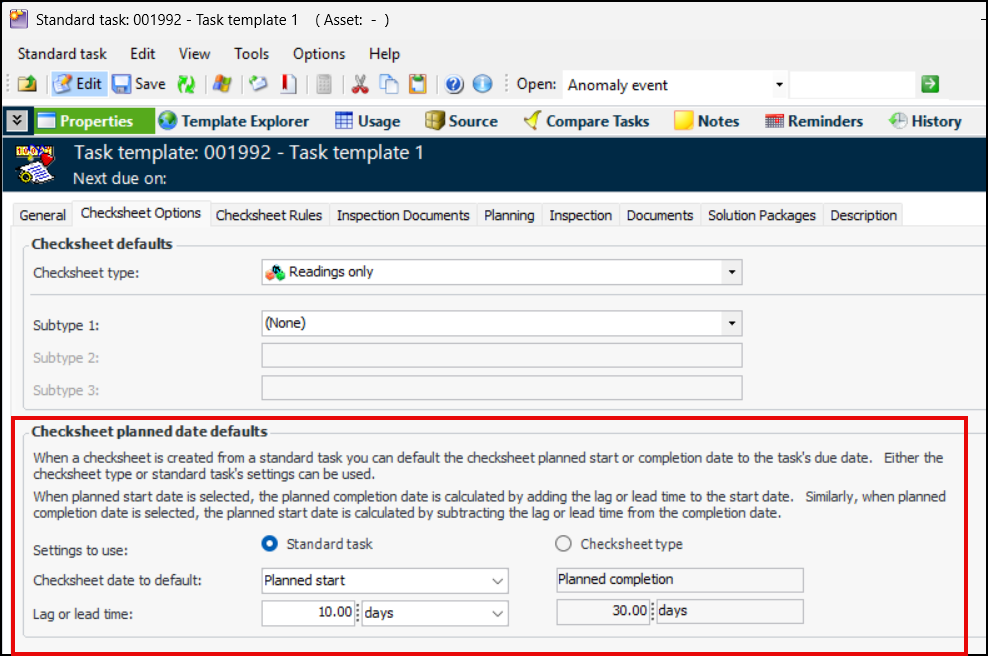
Traditionally, checksheet start date is defined as the planned completion date minus 30 days, considering task frequency and the execution time required for the inspection tasks. However, for more frequent inspections of one month or less, this can cause confusion. Now, when a checksheet is created from a standard task, you can default the checksheet planned start or completion date to the task’s due date. Either the checksheet type or standard task’s settings can be used.
When planned start date is selected, the planned completion date is calculated by adding the lag or lead time to the start date. Similarly, when planned completion date is selected, the planned start date is calculated by subtracting the lag or lead time from the completion date.
To set these options, open the Standard Task window, select the Properties view, Checksheet Options tab. Ensure that editing is enabled. Here’s an example of a standard task template:
The Standard Task data loader has been updated with these properties:

Degradation Indicators – Readings Prior to Reset Marked as Historical

Readings that predate the reset of an indicator’s degradation rate are automatically marked as “historical” by APM. This allows you to create tables of readings that occur after or before a piece of equipment is replaced, for example.
For related information, see Resetting an Indicator’s Degradation Rate.

Degradation Indicators – Indicator Design Degradation Rate

When a degradation reset is performed on an indicator, if the indicator does not have its own design rate, subsequent readings do not have an indicator design degradation rate. They have only an asset design rate, short term, and longer term rates. With this release, in this situation an indicator design degradation rate is generated based on the information entered on the reset.

Calculated Indicator Readings – Collected On Date

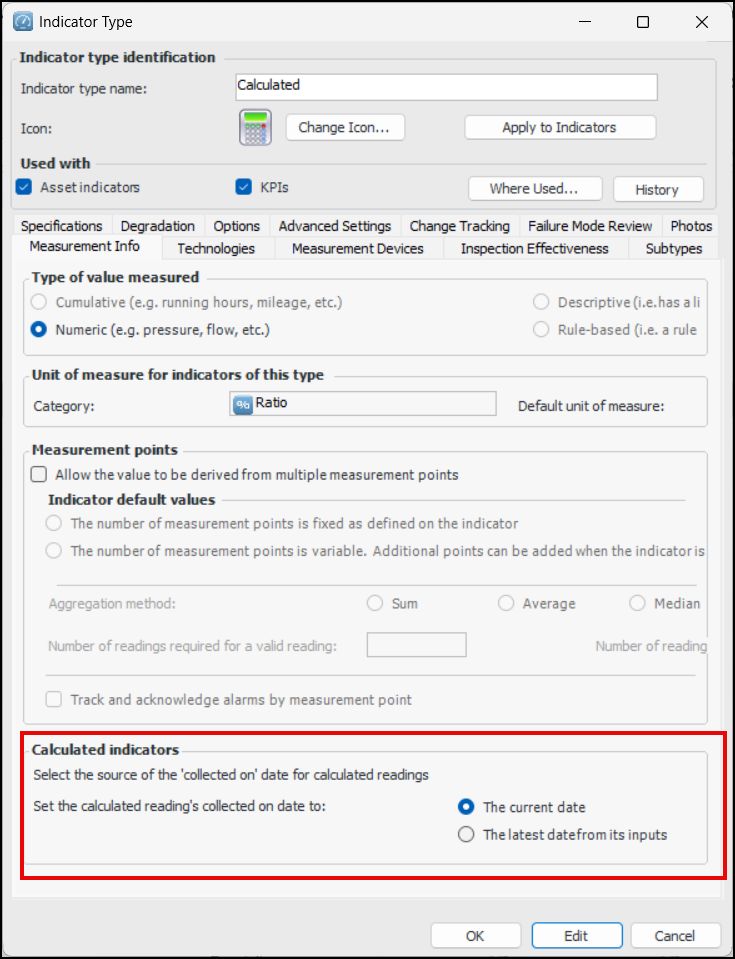
You can now use the indicator type to specify the collected-on date to assign to calculated readings. The date can be either the current date or latest date from the reading’s inputs.
To set this up, open the Indicator Type window, click Edit, and select the Measurement Info tab.
If the indicator type of the calculated indicator is set to use the latest collection date from the inputs as the collection date, the logic will look at all the dates returned by the inputs and select the latest one.

Package Manager

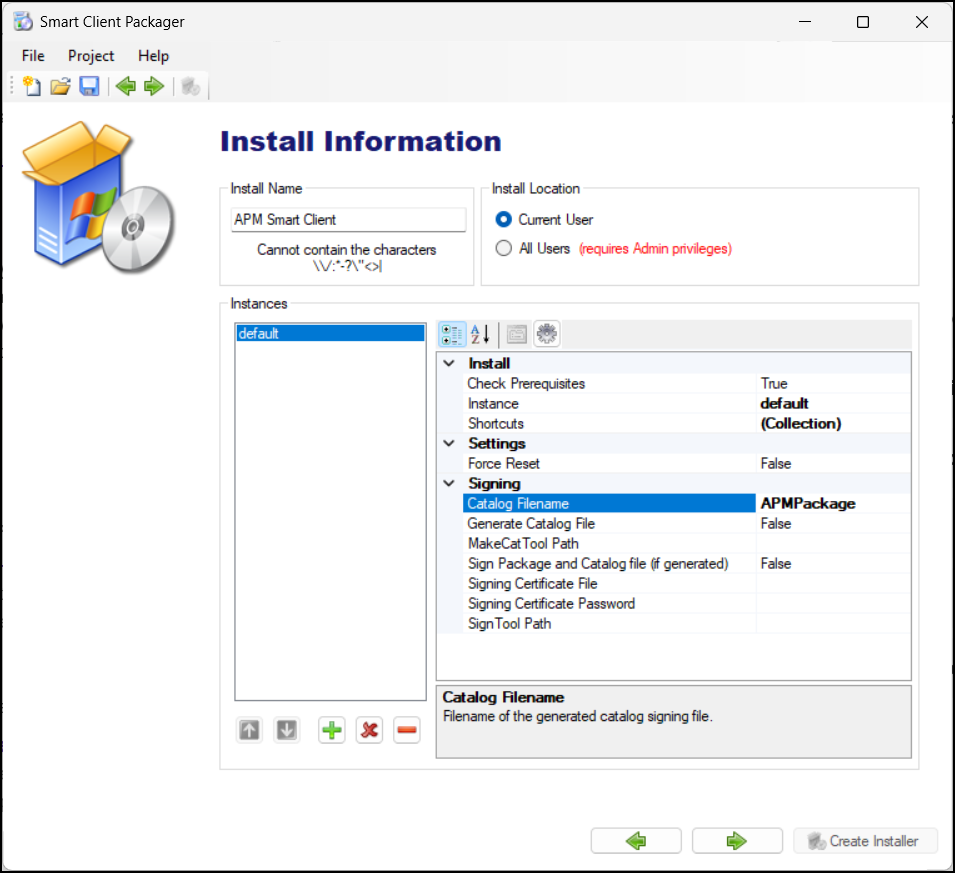
The APM package manager for Smart Client, Thick Client, and APM Remote has been enhanced to create a catalog signing file. For example:
You will need the MakeCat tool and the Sign Tool command executable from the Windows SDK.

Performance and Stability Enhancements

An upgrade to patched version of DevExpress improved security and performance.

Personnel – Employees Settings Review

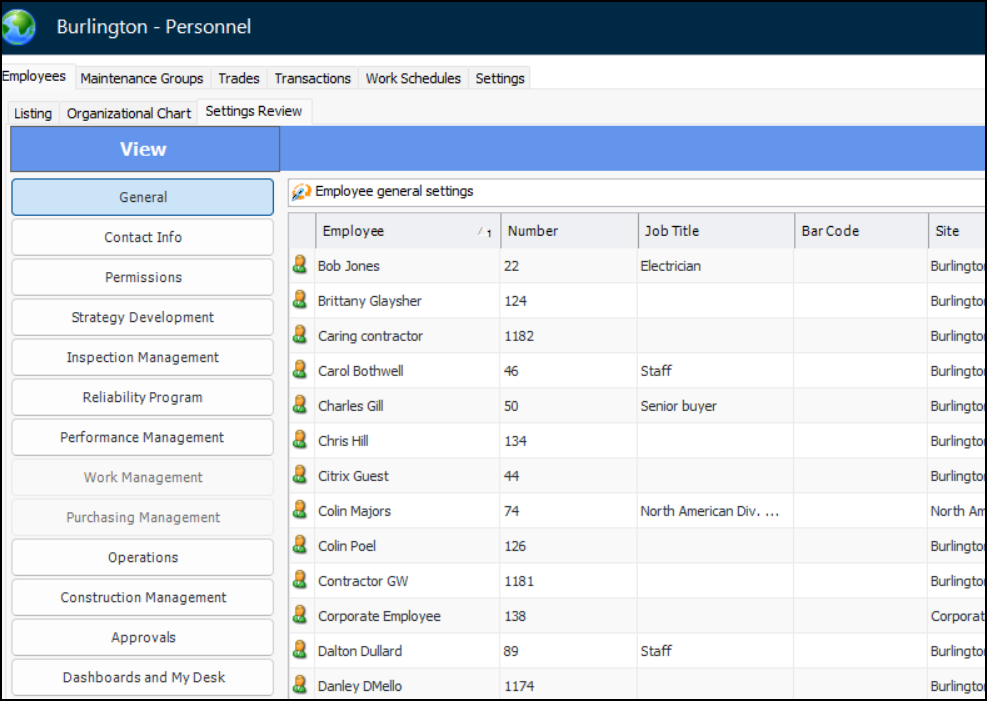
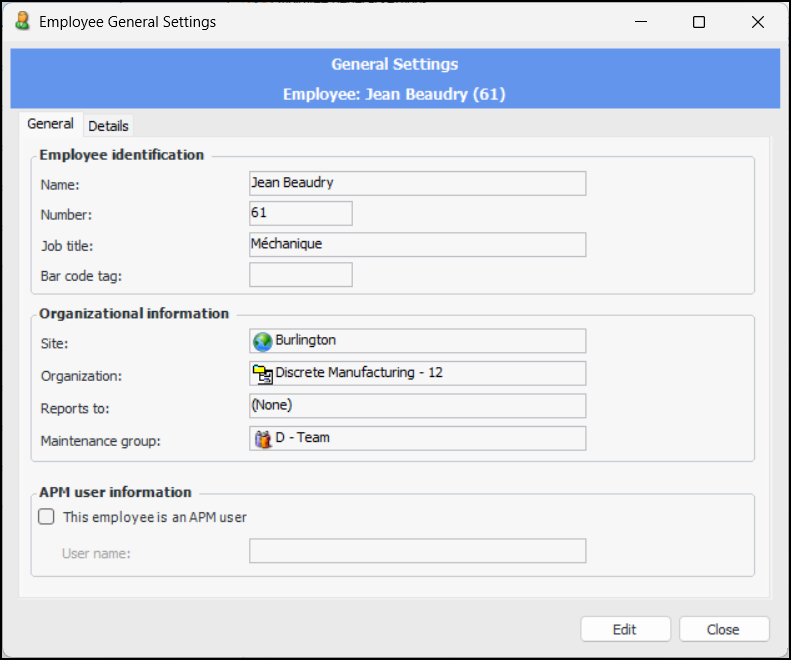
The new Settings Review tab provides an easy way to view, compare, and update settings for all employees.
In the Site window, select the Personnel view, Employees tab, and Settings Review tab:
You can modify values in the table using in-line editing (press F2) or the Replace Column Data function.
Switch from view as Table to view as Form to view, update, and save an individual employee record and move on to the next using the navigation buttons.
Double-click an item in the table to open a dialog where you can edit the setting for that record. For example:

Security Profiles – Security Setup Mode in Smart Clients

APM enables you to quickly and easily build security profiles by directly setting security levels on items within the user interface (UI), such as menu actions, views, and fields. You can do this by entering the Security Setup mode for a security profile. Click Setup Mode on the General tab of a security profile.
In the past, you had to launch the product using a thick-client as an APM administrator. As of this release, you can use Security Setup mode in a Smart or thick client without administrator privileges.
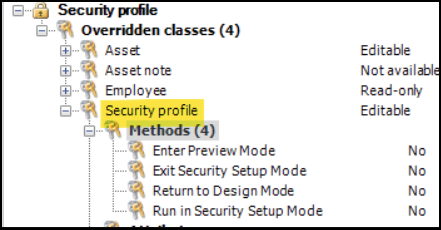
Note: If you wish to prevent access to this feature, you will need to add the following four methods to existing security profiles:

Standard Documents – Embedded Files

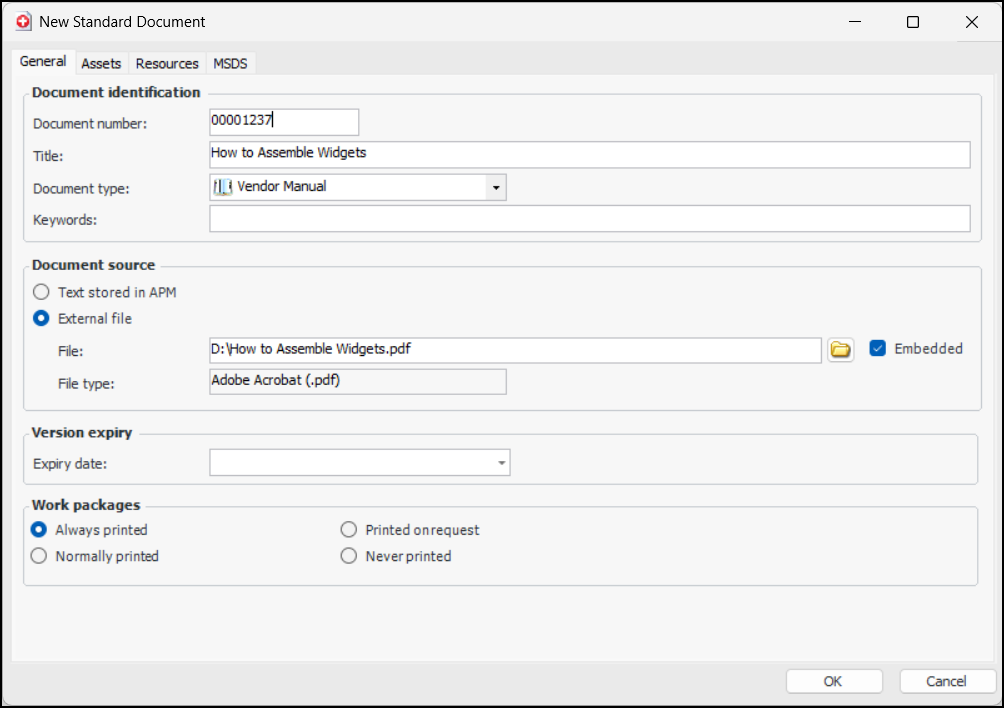
External files can now be added to standard documents and embedded in the APM database. For example:
The size of the external embedded file is limited by the file size maximum set in UI Settings. See Maximum Size for Embedded Attachments.
Embedded external files can be opened and printed from APM.

Standard Tasks

The following enhancements were made to standard tasks in this release.

Manage Which Users Can Update Standard Task Frequency and Due Dates

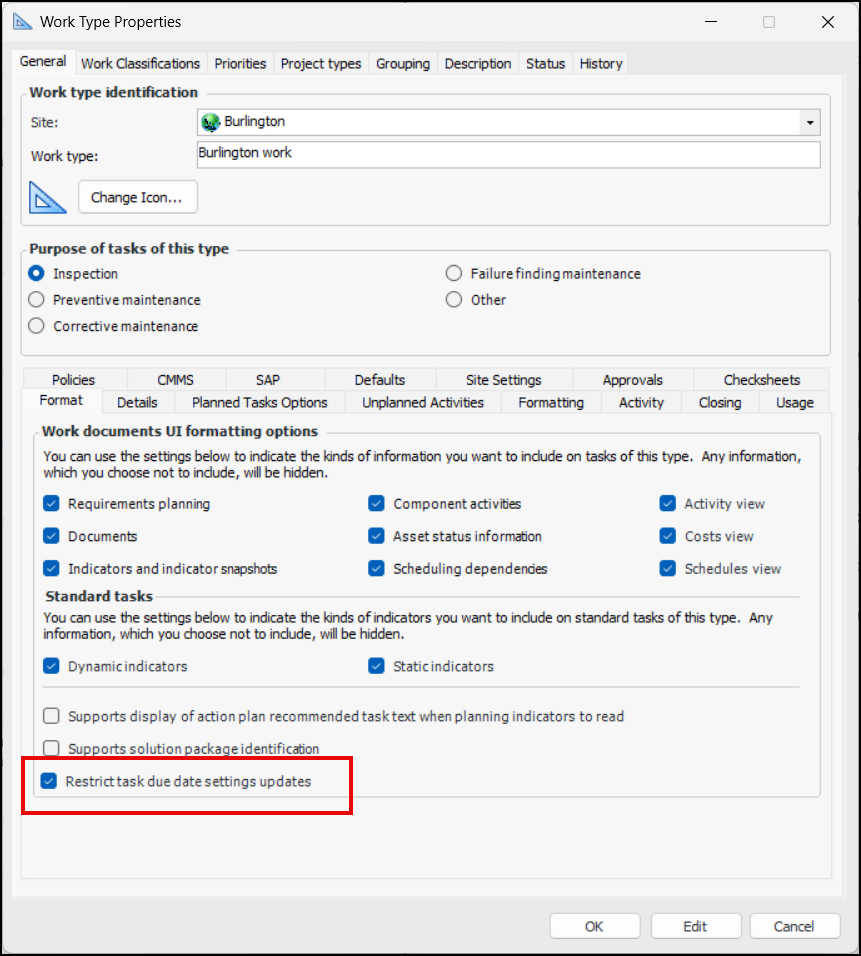
You can restrict the employees who can update the frequency and due date settings on standard tasks with the help of work types and employee roles. To set this up:
In the Site window, select the Work Management view, and Settings tab. Open the appropriate work type window and click Edit. On the General tab, Format tab, select Restrict task due date settings updates. For example:
Click OK to save the work type and close the window.
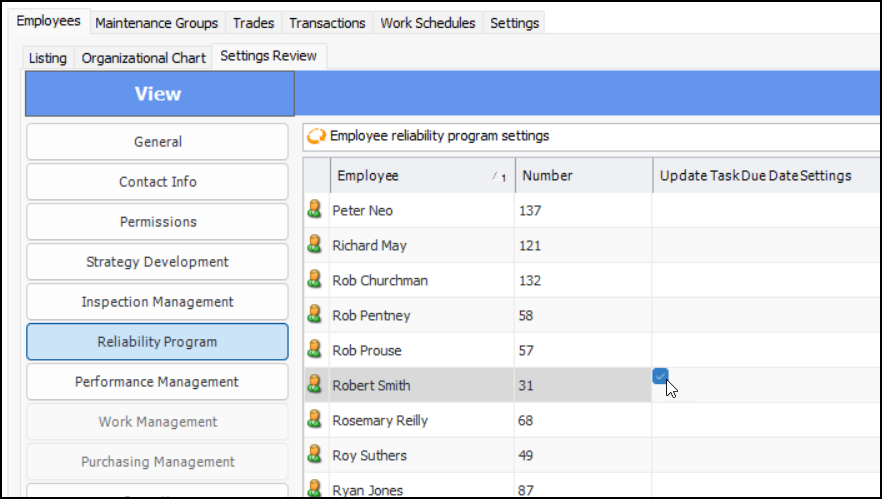
Next, set the “Can update task due date settings” option for the appropriate employees. The fastest way to do this is to select the Personnel view in the Site window, then the Employees tab and Settings Review tab. Select the Reliability Program view.
For each target employee in turn, select the row and then the Update Task Due Date Settings cell. Press F2 to display an option field. Select it:
Employees with this permission are authorized to update the frequency and due date settings on standard tasks where work type restrictions apply.
The same rules apply to task templates as apply to standard tasks. Frequency and due date settings on a task template can only be updated by authorized employees.
Note that any user creating a standard task can set the initial frequency and due date settings. Once the standard task is saved, the restrictions apply, even for the employee who originally created it.

Default Due Date

You can now have default due dates set on standard tasks based on their work types. The due date can be set to either the indicator’s due date or the task’s site-specific frequency settings.
Note: Access to due date settings on standard tasks are dependent on role settings on your employee record.
To set this up:
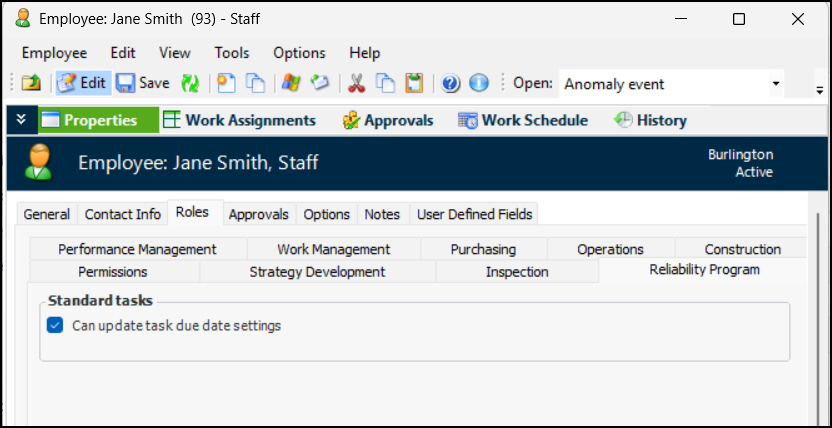
In the Site window, select the Personnel view, Employees tab, locate and open your Employee window. Ensure that editing is enabled. In the Properties view, select the Roles tab and the Reliability Program tab. Select Can update task due date settings.
Close the Employee window.
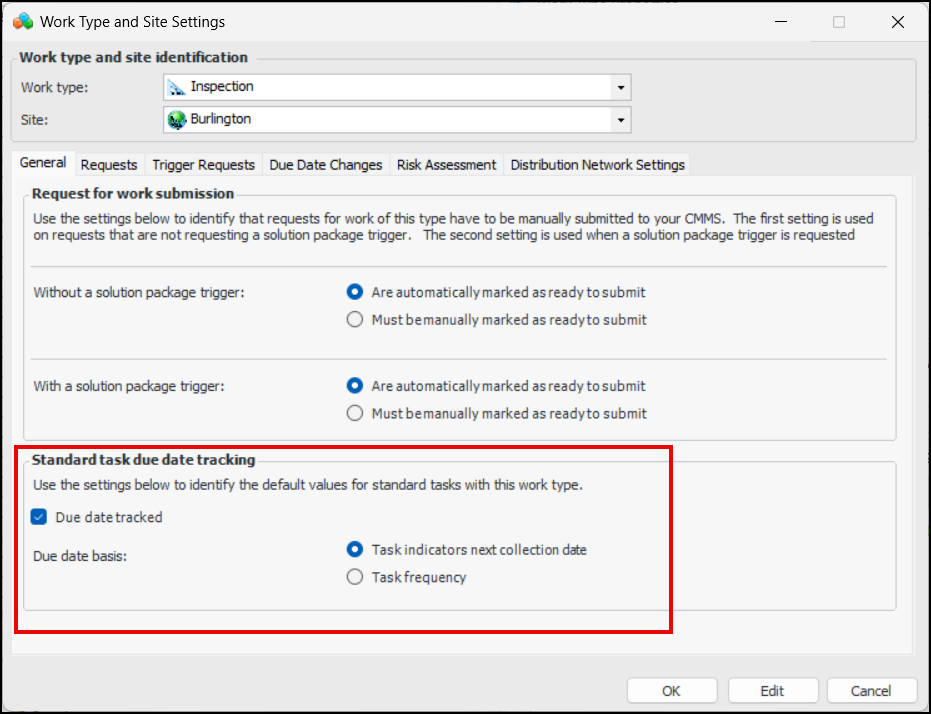
In the Site window, select the Reliability Program view, Settings tab, Reliability Program tab, Work Types tab. Open a Work Type window, select the Site Settings tab, and open the appropriate Work Type and Site Settings window. Ensure that editing is enabled. On the General tab, select Due date tracked. For example:
Select whether the indicator’s next collection date or the task frequency is used as the default due date on the standard task.
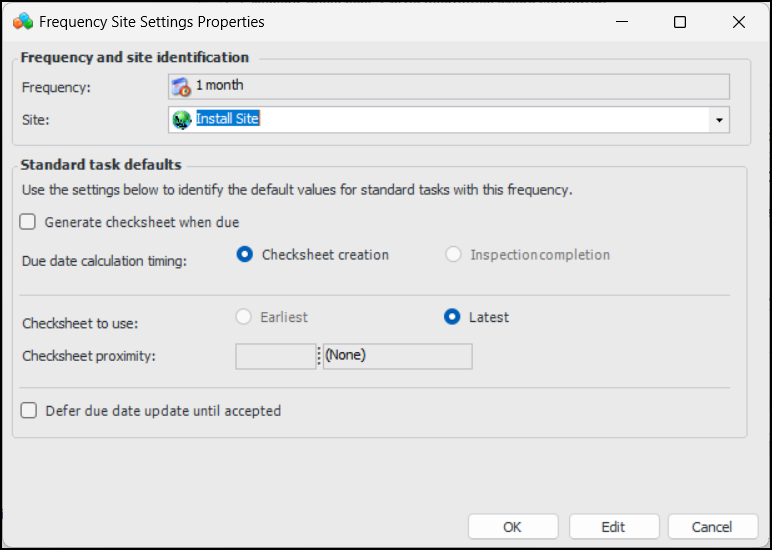
To set up a frequency’s site-specific settings, open the Frequency dialog and ensure that editing is enabled. On the General tab, click New at the bottom of the Frequency site settings table. The Frequency Site Settings Properties dialog appears:
Select the appropriate site.
Select Generate checksheet when due and choose due date calculation timing, the checksheet to use, and checksheet proximity.
Alternatively, you can defer the tasks’ due date update. In that case, the date is classified as “pending” and must be manually accepted.
Click OK to save the frequency site settings. Click OK to save the frequency.
Finally, in the standard task or template, select the Properties view, General tab. Ensure editing is enabled. On the Details tab, select a work type and a frequency.

Strategy Development – RCM2 Analysis

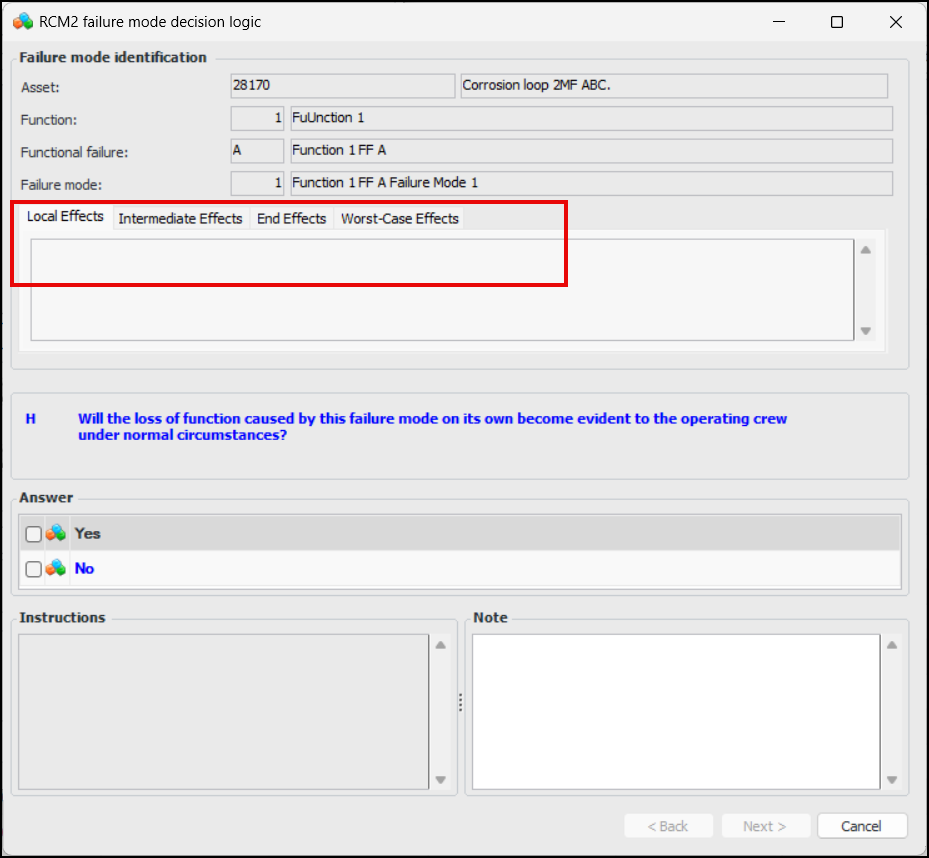
When extended failure effects are supported on failure modes, Local, Intermediate, End, and Worst-Case Effects tabs are displayed in the RCM2 Failure Mode Decision Logic wizard. For example:
For related information, see: