What’s New in APM 25.0.2

Among other enhancements, this release introduces photo folders for asset types and find bar sets. Several of the enhancements pertain when AssetWise Enterprise Interoperability (AWEIS) has been implemented to exchange APM data with an external CMMS. For example, when interop work documents with breakdown codes set to “True” are received in APM, failure events can be created.

Contents

Assets
AWEIS – Asset Change Requests
AWEIS – Failures from Breakdown Codes
AWEIS – Request for Work Link to Failure
AWEIS – Filtering Work Documents for Linking
AWEIS – Anomaly Risk Assessment
AWEIS – Checksheet and Work Request Linking
AWEIS – Interop Work Request Reference on Work Order
Charts – Format Style
Charts – Pareto Lines
Data Loading – Indicators and Templates
Find Bar Sets
Inspection Management
On-Premise Installs with Bentley CONNECT Users
Personnel – Employee Settings Review
Reports – Table of Contents
Site Settings
Standard Tasks
Strategy Development Analysis
Updated Objects

Assets

The following enhancements have been made to assets.

Photo Folder for Asset Types

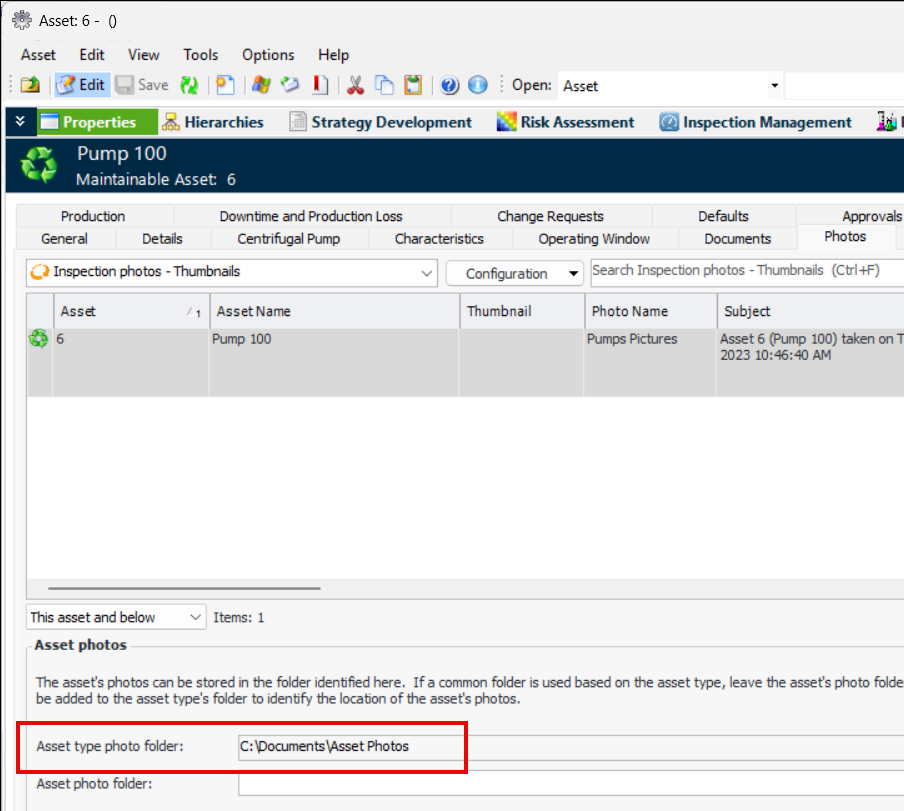
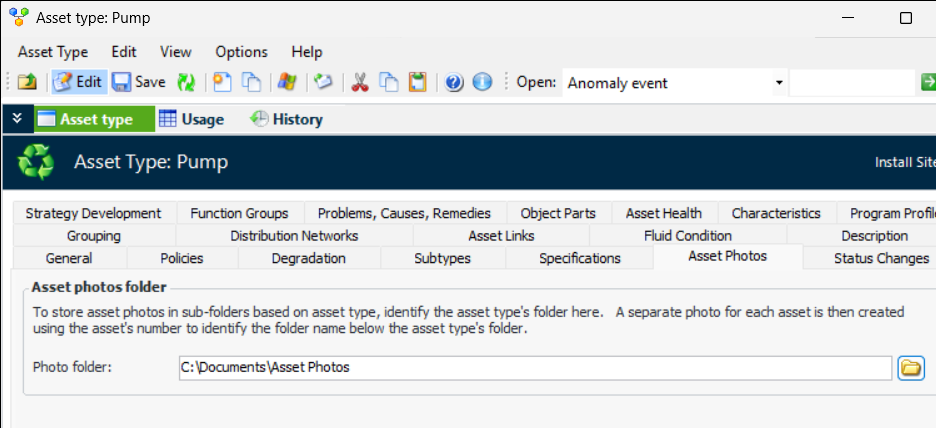
Photo folders can now be maintained at the level of asset types, with photos identified for their individual assets. For example, when adding or updating an asset type, select the Asset Photos tab and add a folder:
When adding a photo to an asset of that type, the asset type photo folder is displayed:
If you leave the Asset photo folder blank, the asset number will be added to the asset type’s folder to identify the location of the asset’s photos.
Alternatively, you can maintain a separate folder for the asset’s photos at a different location.
When you save a photo, you have the option of saving it to the asset type or the asset photo folder.

Asset Types – Settings Review

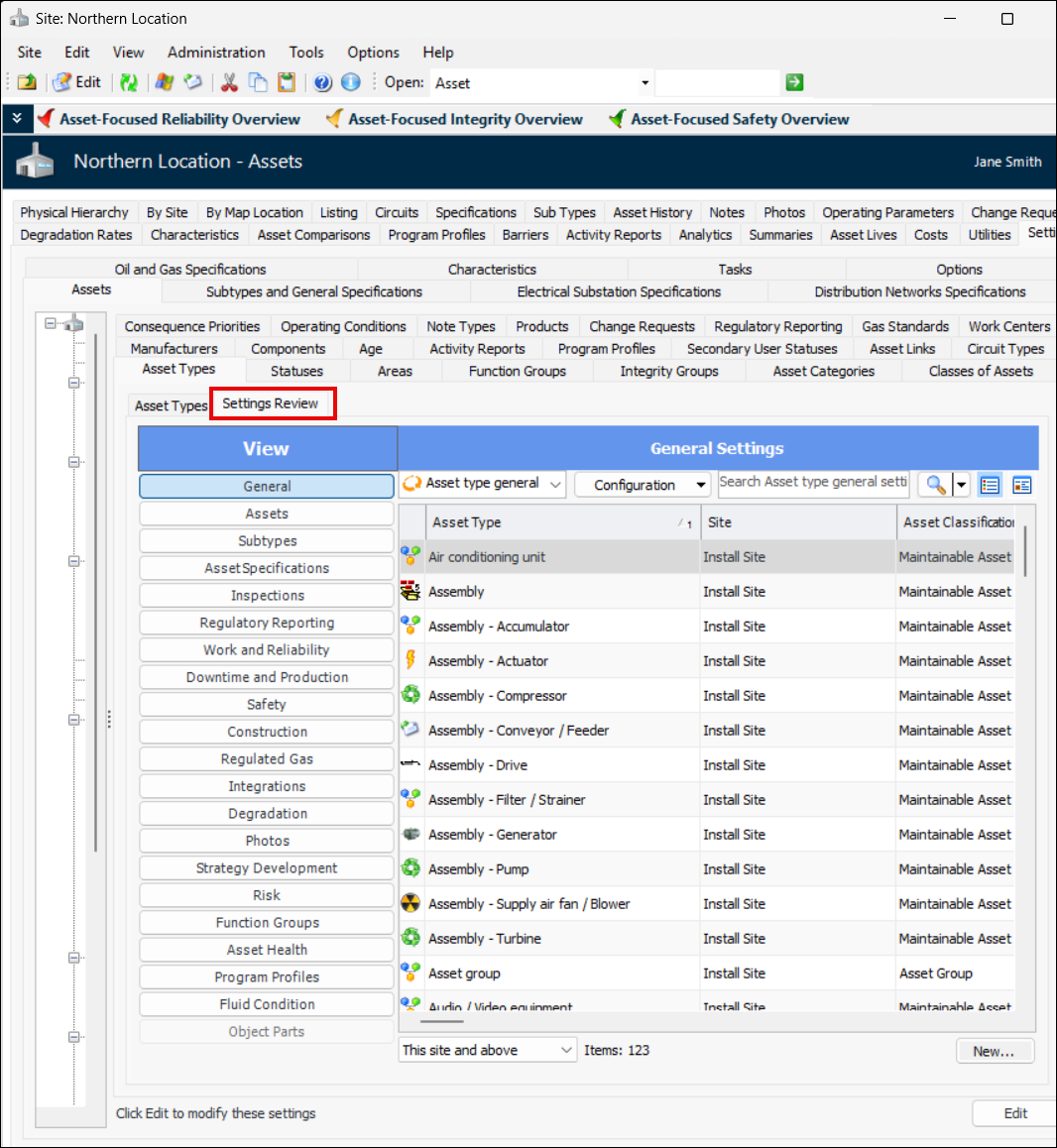
The new Settings Review tab makes it easier to review all of the asset types on one or more sites in one table. You can compare and update properties, ensuring that asset types are current with new functionality and consistent with each other.
In the Site window, select the Assets view, Settings tab, Asset Types tabs, and Settings Review tab:
Select a section on the View column to see information by topic:
You can modify values in the table using in-line editing (press F2) or the Replace Column Data function. For more information, see Applying Mass Updates.
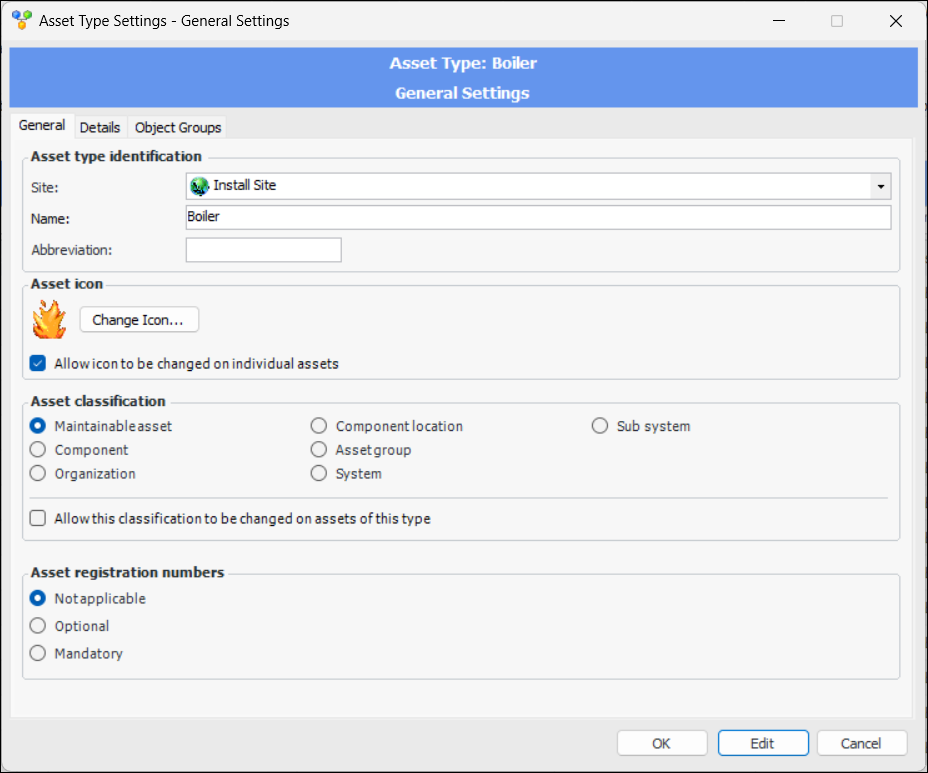
Double-click an item in the table to open a dialog where you can edit the setting for that analysis. For example:
Switch from view as Table to view as Form to view, update, and save an individual asset type and move on to the next using the navigation buttons.

AWEIS – Asset Change Requests

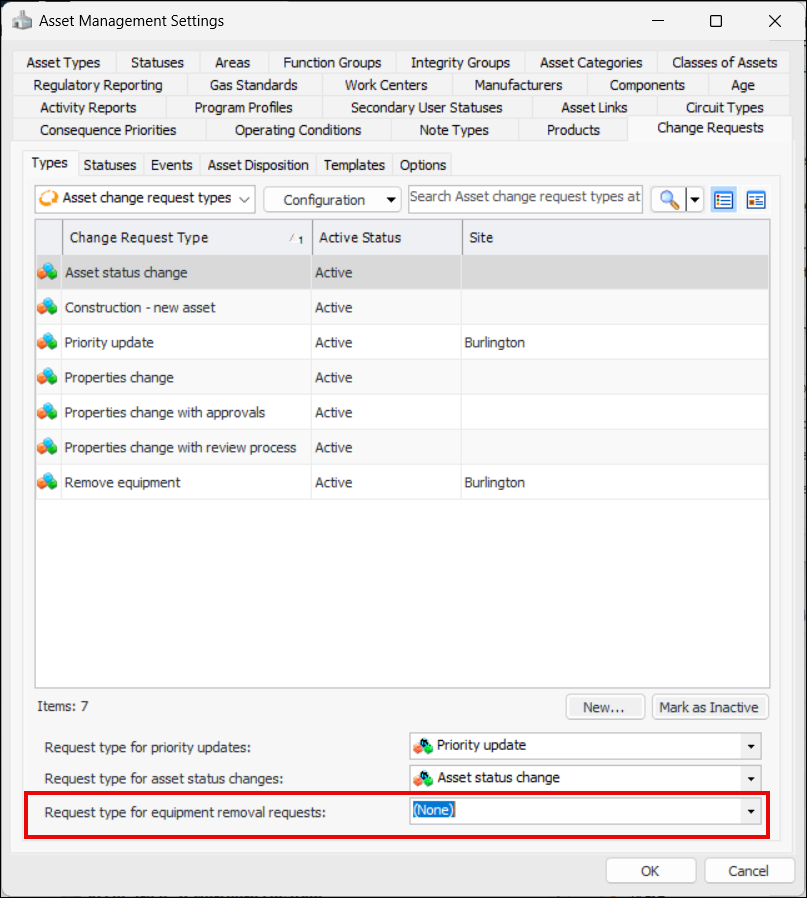
At the site level, you can now set the default type of asset change request to be used for equipment removal requests. In the Asset Management Settings window, select the Change Requests tab, Types tab.
At the bottom of the tab, select the default request type for equipment removal requests:
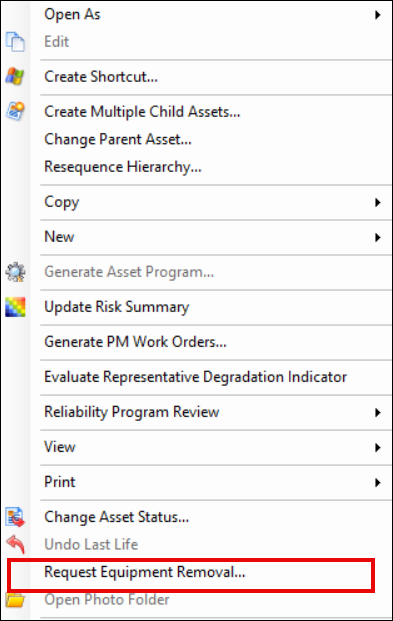
As long as the asset type supports remove equipment requests, you can right-click an asset in a list to select Request Equipment Removal:
The default request type is automatically selected in the Remove Equipment dialog.

AWEIS – Failures from Breakdown Codes

As of this release, failure events can be created in APM from interop work requests and work orders. When the interop document is received from the CMMS, if the breakdown code is “True”, a failure is created in APM.
Once the failure is created, it is managed in APM. If the breakdown code is subsequently changed in the CMMS, the failure must be manually updated in APM.
As before, failures are created to acknowledge alarms in APM. Now, however, when the resulting interop work orders or work requests are received from the CMMS, they are linked to the requests for work that were created from the acknowledgments. The failure’s reference is added to the interop work document for visibility.
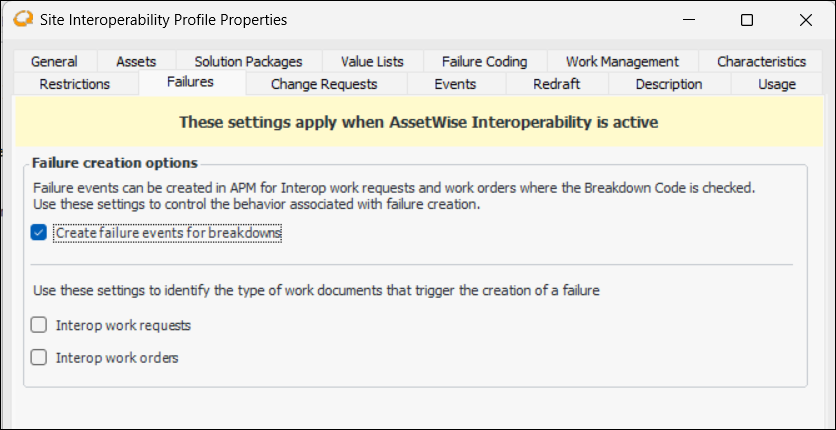
The following settings are available on the Site Interoperability Profile:
You can control whether failure events are created from breakdown codes, as well as whether they are created from interop work requests, interop work orders, or both.

AWEIS – Request for Work Link to Failure

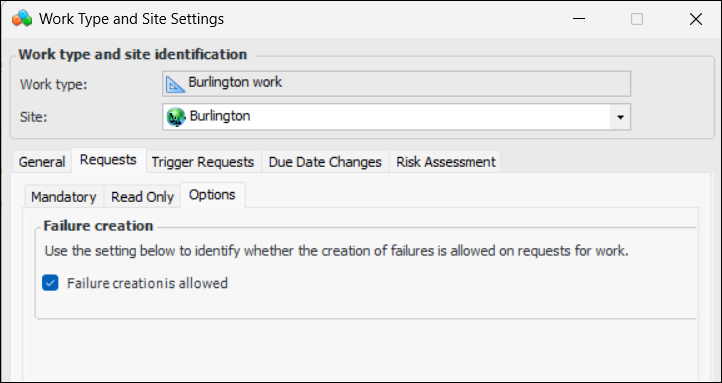
You can now create a failure or link to an existing failure from a request to work. First, ensure that the request for work’s work type supports failure creation:
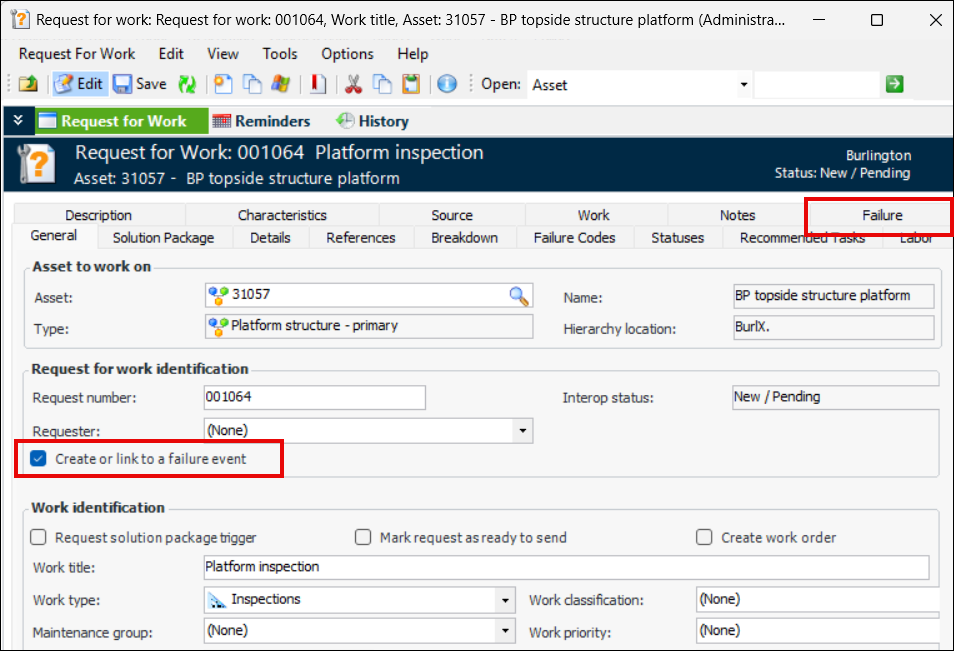
On the request for work, you can click Create or link to a failure event, just as you can on an indicator alarm acknowledgment. The Failure tab appears:
For related information, see Creating a Failure when Acknowledging an Alarm.
Note: Creating failures from a request for work is generally available functionality. However, you must first enable feature 143 to use the functionality in APM. In the Enterprise window, select the Features view and the Enabled Features tab. Click Browse, select “Create Failure from a Request for Work” and click OK. If APM is running as a smart client, click Refresh Enabled Features on the server. Then restart the client to use the functionality.

AWEIS – Filtering Work Documents for Linking

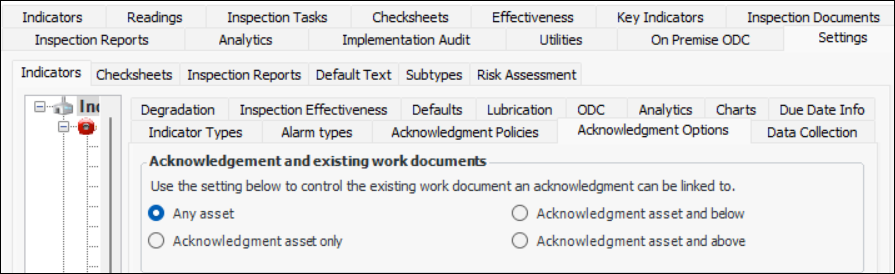
Browse dialogs now filter existing interop work documents according to site-level options when you wish to link documents to indicator alarm acknowledgments. To set the options, select the Site window, Inspection Management view, Settings tab, Indicators tab, Acknowledgment Options tab. At the bottom of the tab, click Edit to open the site to updates.
The options are:
When you are finished, click Save at the bottom of the tab.

AWEIS – Anomaly Risk Assessment

Anomaly risk assessment functionality enables users to assess the criticality of an asset’s problem when acknowledging indicator alarms or creating requests for work. If the assessment result warrants action, an anomaly event is sent to an external Anomaly Assessment and Tracking (AA&T) system, which tracks the event and communicates with the CMMS and APM. The following enhancements have been made in this release.

Links Between Anomaly and Failure Events

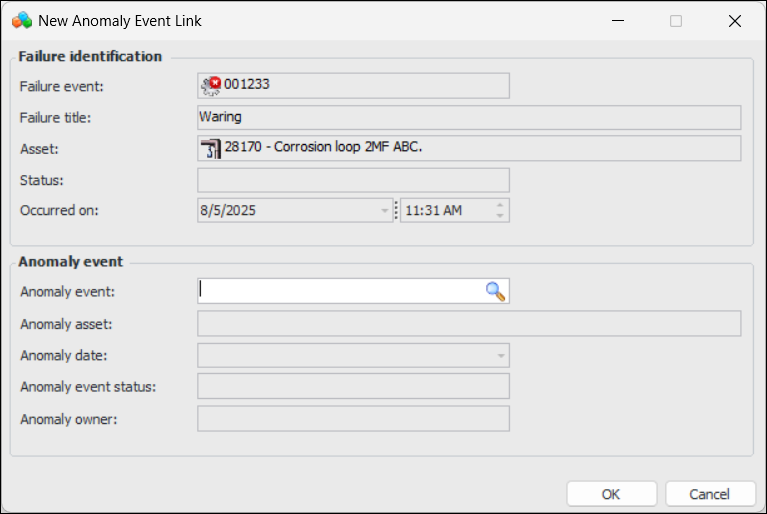
Links between anomaly and failure events are normally created in the alarm acknowledgment process. It is now possible to manually create links between failures and anomaly events. For example, open the failure, select the Anomaly Events view and tab, and click New Link to open the New Anomaly Event Link dialog:

Risk Matrix on Risk Assessment

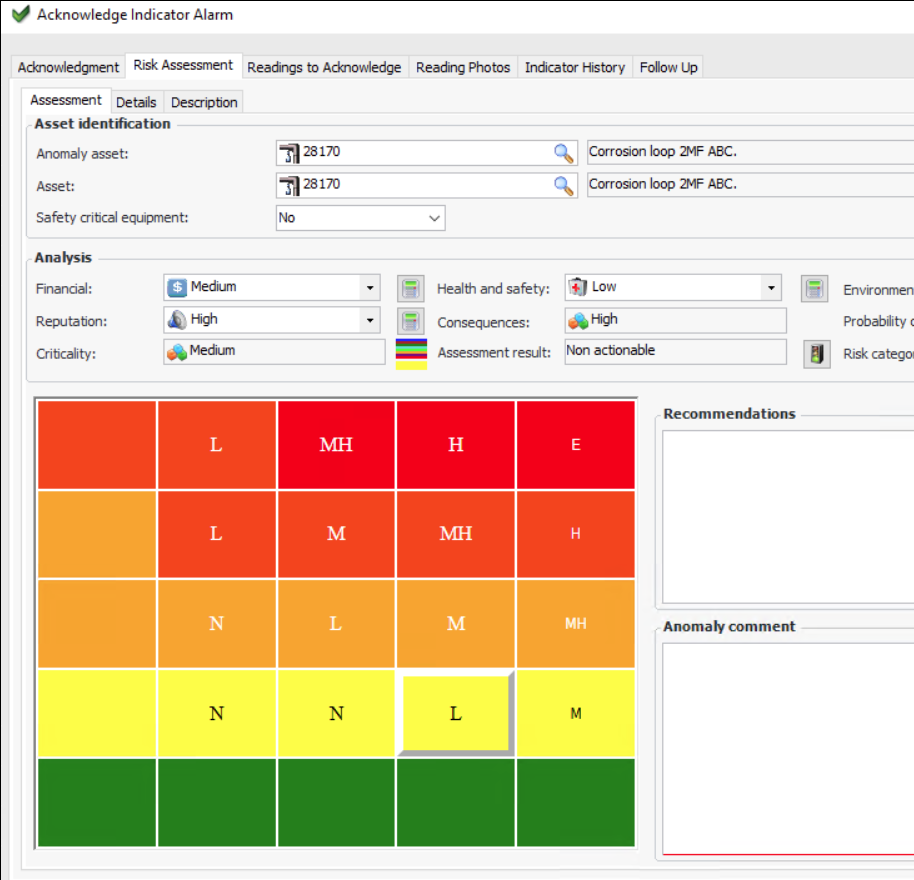
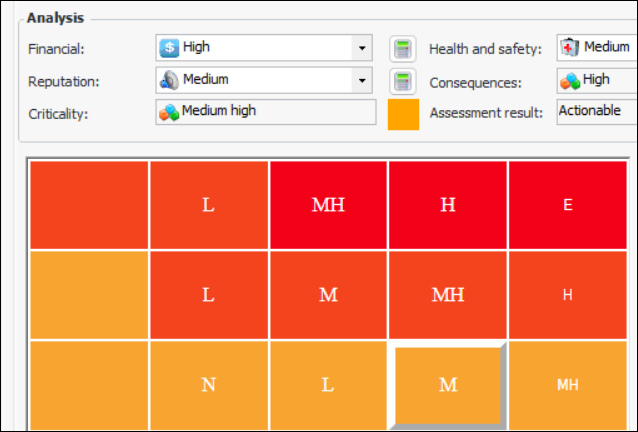
When assessing the risk for an anomaly, you can view the risk matrix. For example:

View Anomaly Event Tab in Failure Event Window

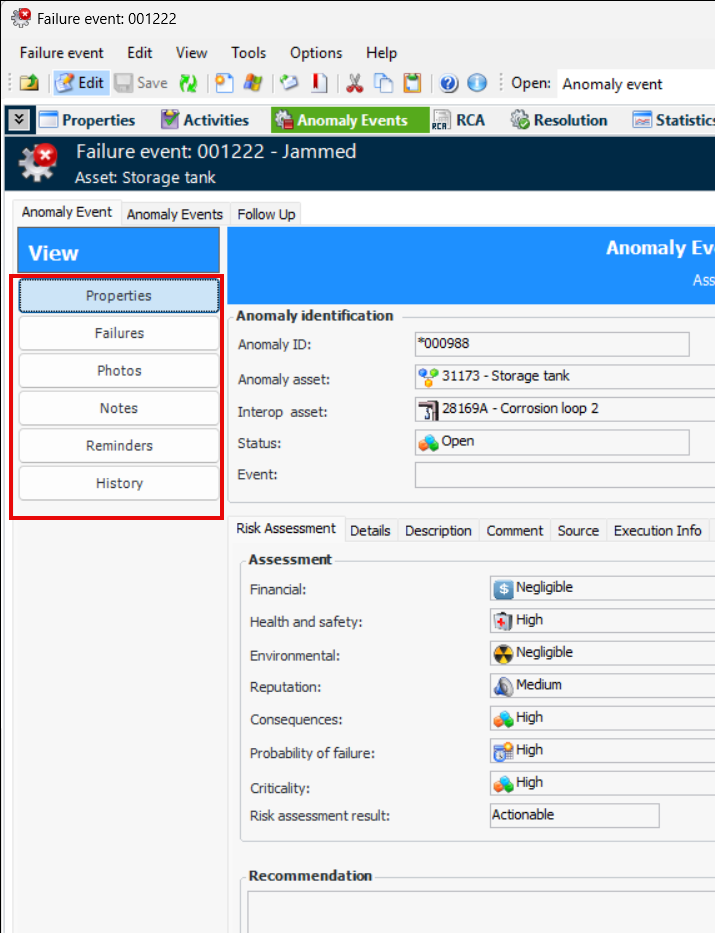
The Failure Event window, Anomaly Events view now displays the Anomaly Event tab, which displays various information about the anomaly event:

Associate a Color with a Criticality

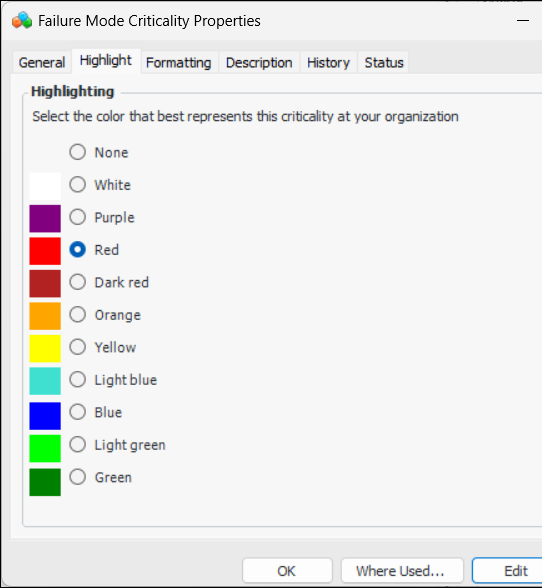
When setting up risk criticalities for your organization, you can now associate a color with each criticality value. In the Site window, select the Strategy Development view, Settings tab, Risk tab, Criticalities tab. Double-click a criticality in the list to open the Failure Mode Criticality Properties dialog. Click Edit to open the dialog for updating. Select the Highlight tab:
Select the appropriate color and click OK.
The color is displayed to the right of the Criticality value where it is displayed with the risk assessment, for example, in the alarm acknowledgment and the anomaly event. For example:

AWEIS – Checksheet and Work Request Linking

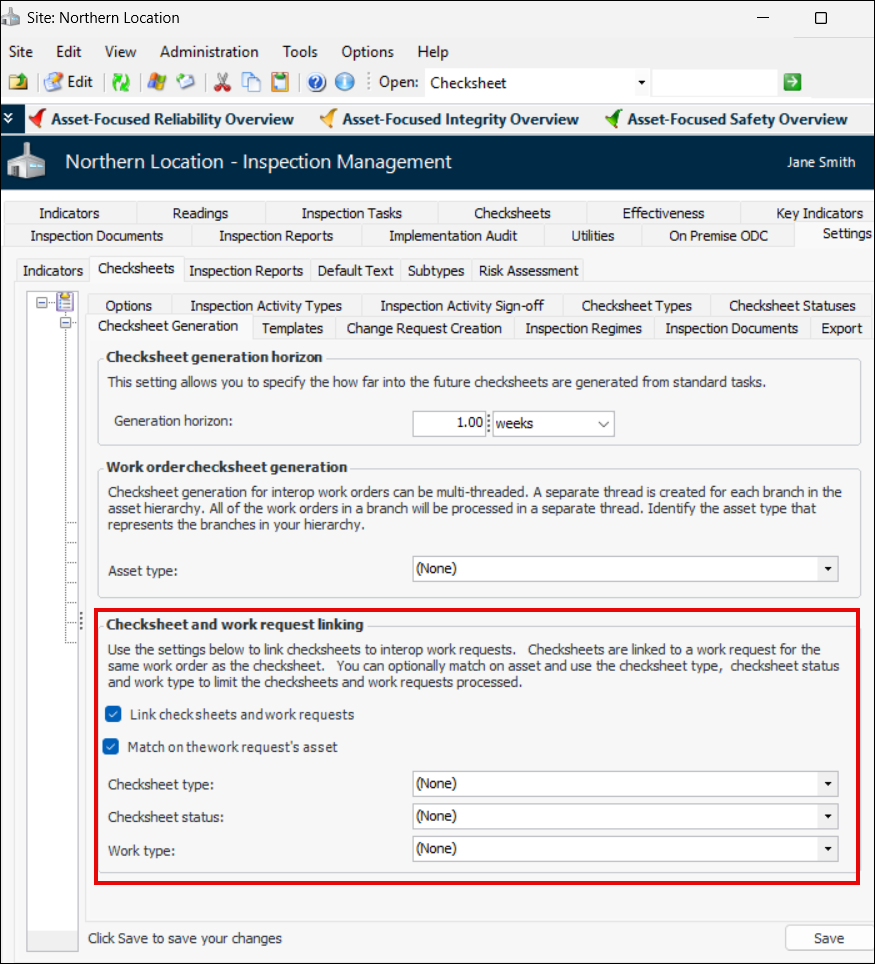
You can now link checksheets to interop work requests for the same interop work order as the checksheet. You can optionally match on asset and use the checksheet type, checksheet status, and work type to limit the checksheets and work requests processed.
These settings are on the Site window, Inspection Management view, Settings tab, Checksheets tab, Checksheet Generation tab. Click Edit at the bottom of the tab.
For more information, see Setting up Checksheet Generation Options.

AWEIS – Interop Work Request Reference on Work Order

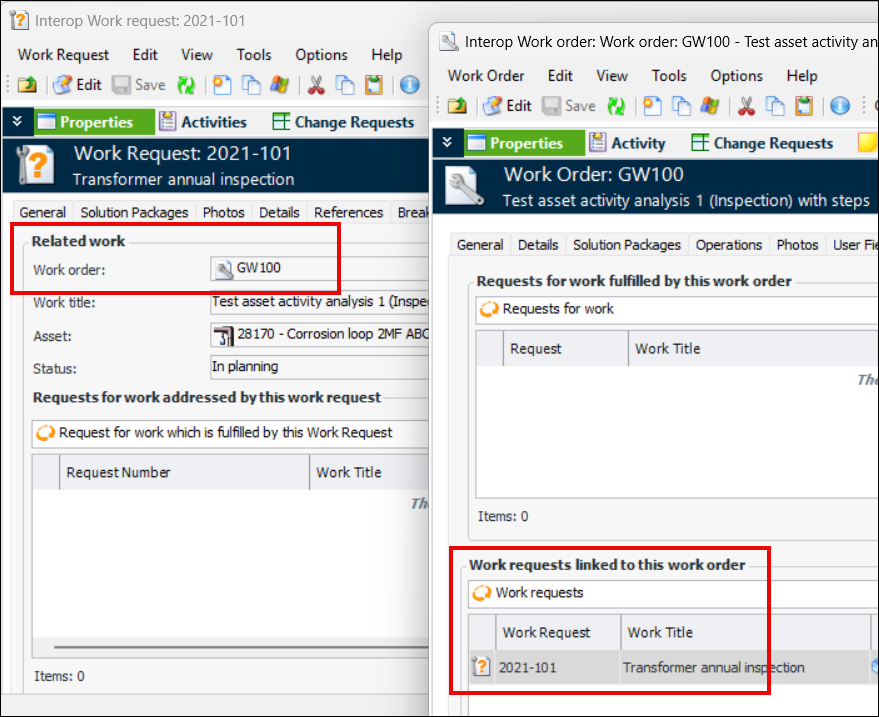
References are now included on interop work requests and interop work orders to their respective objects. For example:

Charts – Format Style

APM now uses DevExpress®.NET WinForms chart and gauge controls. This means that when defining legends, data labels, cross hairs, axes, and tool tips on charts you must use DevExpress text patterns. The Format Style text box is available so that you can enter text pattern strings. The following sections provide examples from graph data series.

Graph Data Series – Data Labels

This release provides more options for formatting data labels for charts.
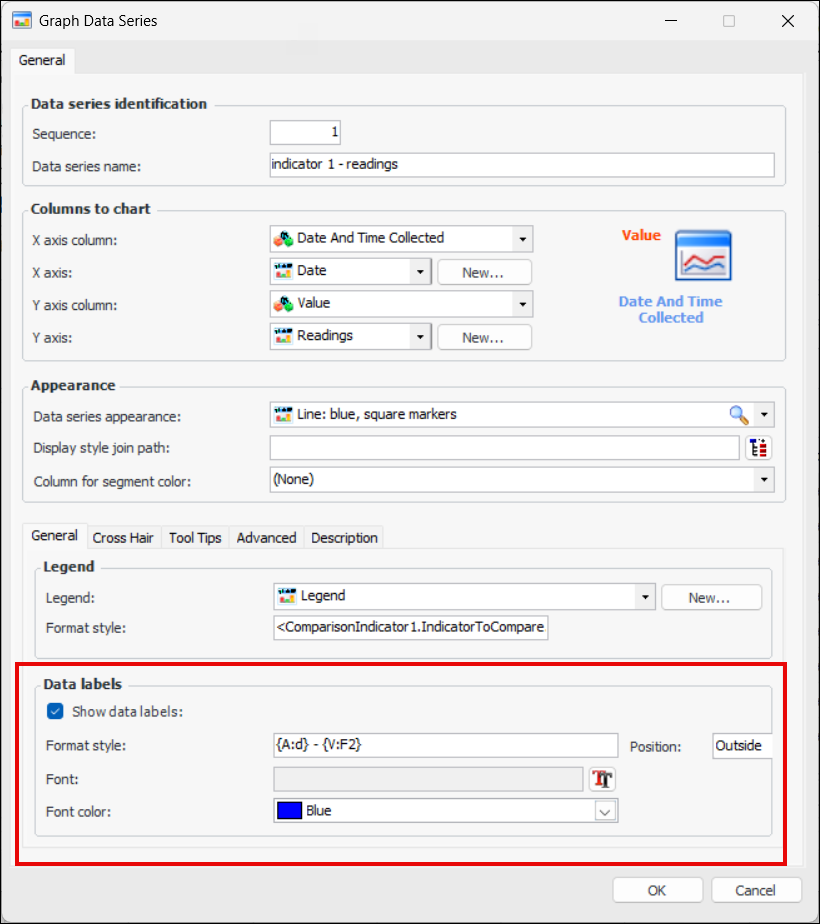
In this example, the Format style box contains the text pattern for the labels:
{A:d} - {V:F2}
where
{A:d} is the date
{V:F2} is the point value with two decimals
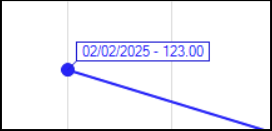
The result is
The position is “Outside”, but “Centered” is also supported.
Patterns can contain regular text and value placeholders in braces. To format numeric and date/time values, you can apply format specifiers. Use a colon to separate a placeholder and its format specifier.
Available placeholders are:
{A} series point argument
{V} series point value
Here are examples of format specifiers for dates and times:
For more information, see DevExpress Format Specifiers.
For general information, see Format Text Chart Elements.

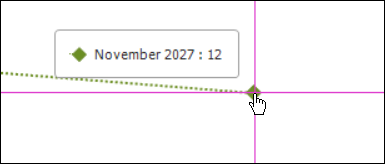
Graph Data Series – Cross Hair

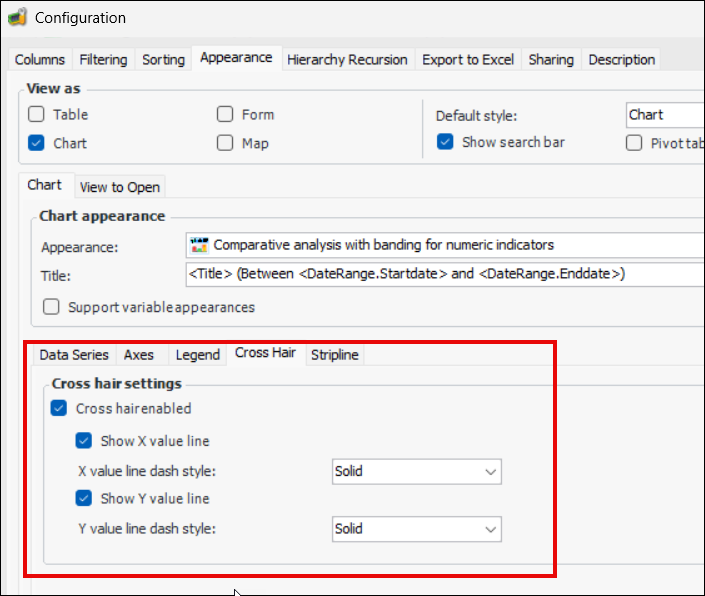
When the cross hair control is enabled for the chart, as shown below:
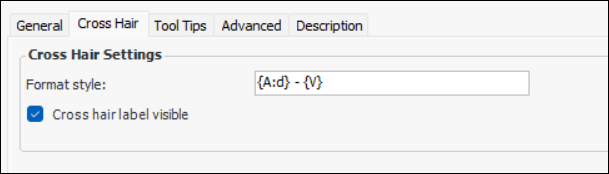
you can refine its use on individual data series. On the Cross Hair tab, control whether or not the cross hair label is visible and use the Format style text pattern to define the content of the label. For example:
The result is:

Graph Data Series – Tool Tips

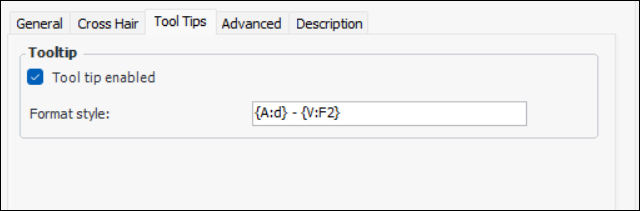
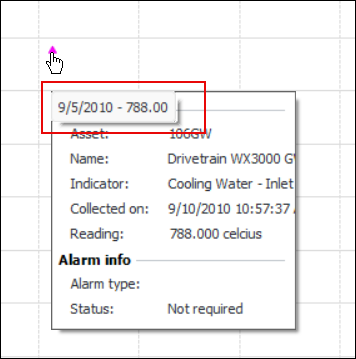
Tool tips continue to be supported on graph data series, although not for legends. You can now use the Format style text box to enter a DevExpress text pattern to define the content and formatting for the tool tip.
Tool tips are defined in the data series on the Tool Tips tab. For example:
The result is:

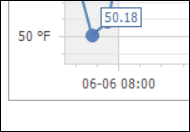
Axes

Here is an example of x and y axes that use the Format Style text box. The x axis format style is:
{A:dd-MM HH:mm}
The y axis format style is:
{V} °F
The result is these axes:
For more information about using text patterns with axes, see AxisLabel.TextPattern Property.

Charts – Pareto Lines

APM graph data series no longer support Pareto lines.

Data Loading – Indicators and Templates

The indicator alarm policy has been added to the indicators and indicator templates data loaders.
If the Alarm Policy attribute is not blank, it must have one of these values:
When the data loader is processed, values are added to, or updated in, the target indicators or templates.

Find Bar Sets

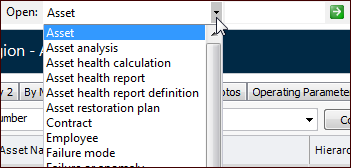
The Find bar offers quick access to a specific object when you know the object’s unique identifier (user key). Select the type of object from the Open list:
Enter the object’s user key, for example:
Click the arrow button. APM opens the object.
The list of objects (classes) can seem confusing, even irrelevant. As of this release, APM provides options that do not require customization for simplifying the experience of using the Find bar. You can:
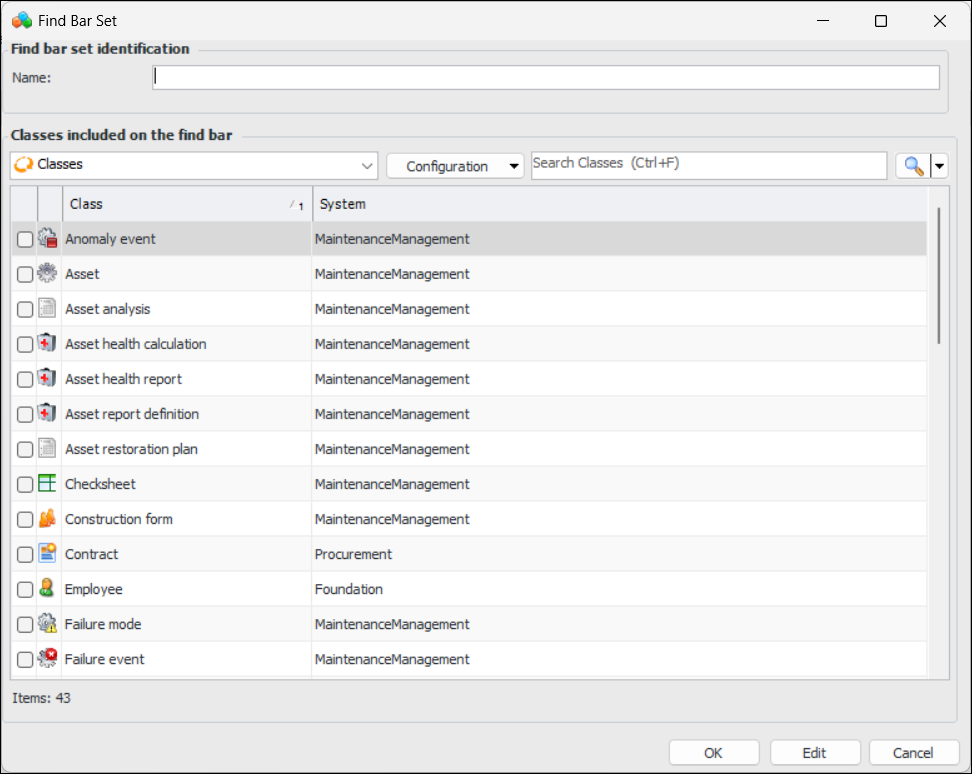
Find bar sets are created in the Enterprise window, Customization Center view, User Interface tab, Find Bar tab. Click New to open the Find Bar Set dialog:
Name the set, select the classes to include, and click OK.
At the bottom of the Find Bar tab, you can click Change to set the default find bar set for the enterprise.
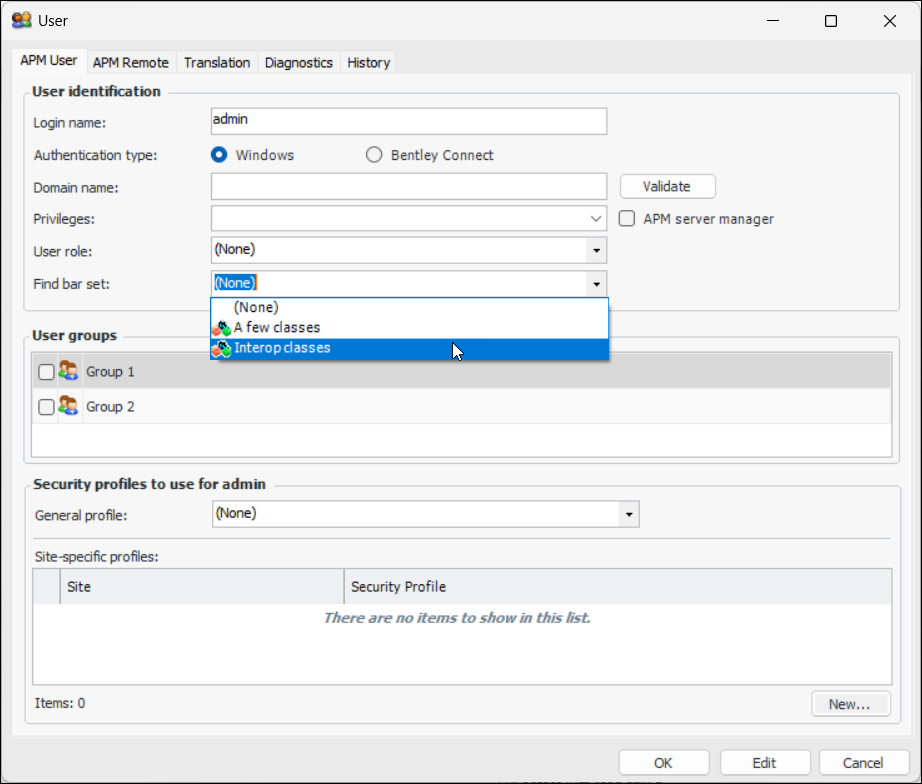
To assign a find bar set to a user, select the Security view, Users tab, and double-click the user to open the User dialog. Click Edit to open the dialog for editing. In the Find bar set list, select the appropriate set:
Click OK. The user will now have access only to those classes in the find bar.

Inspection Management

The following enhancements have been made to indicators.

Copying Variable Measurement Points

When an indicator template supports multiple measurement points that are variable, and one or more measurement points are predefined in the template, all of the measurement points are now copied to indicators created from the template.

Alarm Acknowledgment Policy can be Based on Indicator rather than Site

Traditionally, the alarm acknowledgment policy applies to all indicators at the site. This policy controls whether the alarm state of an indicator reflects the alarm state of its most recent reading or that of its most severe unacknowledged alarm.
Note: A subsequent higher-severity reading puts the indicator back in an alarm state and triggers the need for re-acknowledgment even though the work order or work request used to acknowledge the previous reading is still open.
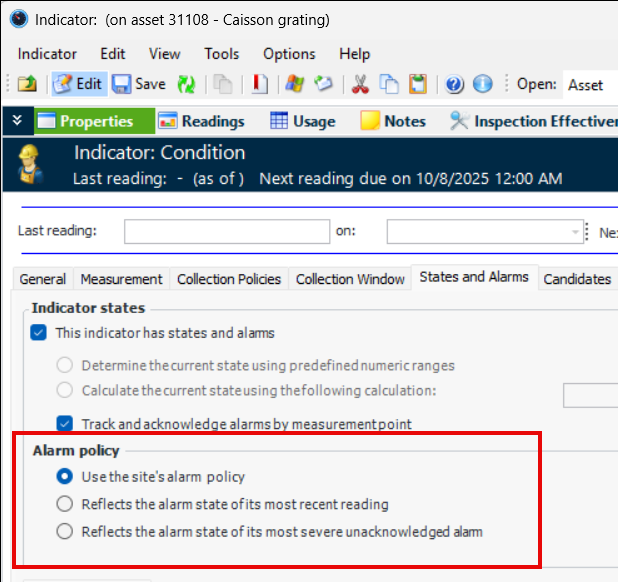
You now have the choice of setting the alarm acknowledgment policy on individual indicators. In the Indicator window, select the Properties view, States and Alarms tab. Make sure the indicator is open for editing. In the new Alarm policy area, the default selection is Use the site’s alarm policy:
You can choose to have the policy based on the individual indicator’s state. In effect, this means that all alarms for the indicator must be acknowledged.

Defer Processing of Uploaded Checksheets when Approval Required

Checksheets uploaded from mobile devices can have their processing deferred until they have been approved in APM. The deferral depends on the checksheet type, which has a new default checksheet status setting of “On upload”. For example:

Cumulative Indicator – Warning for Exceeding Daily Limit

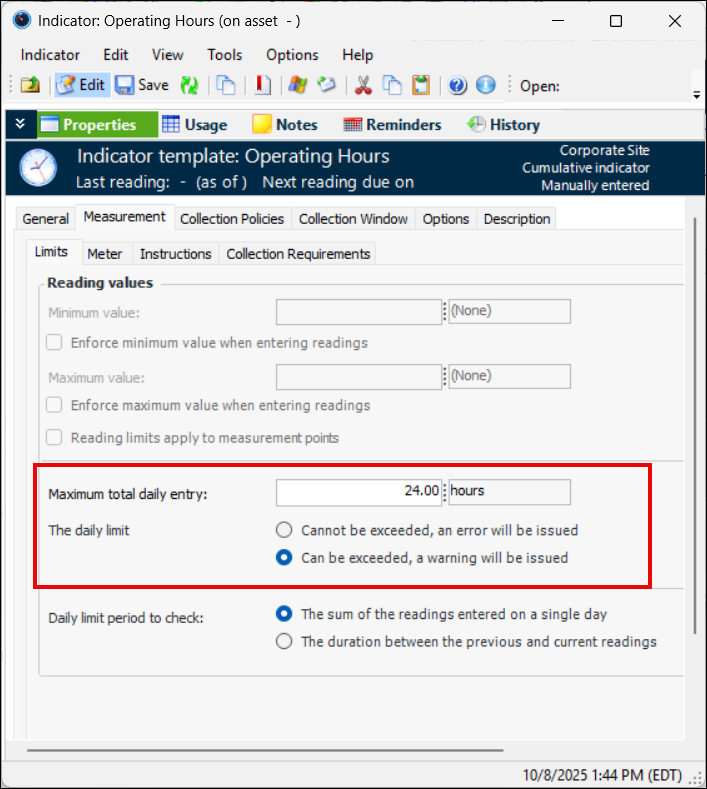
You now have the option of issuing a warning rather than an error when a reading exceeds the daily limit of a cumulative indicator. The new setting is in the indicator or template:
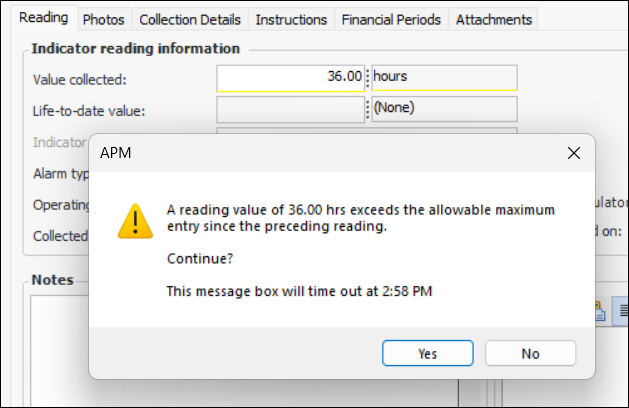
Here is an example of a warning:

Cumulative Indicator – Daily Limit Period to Check

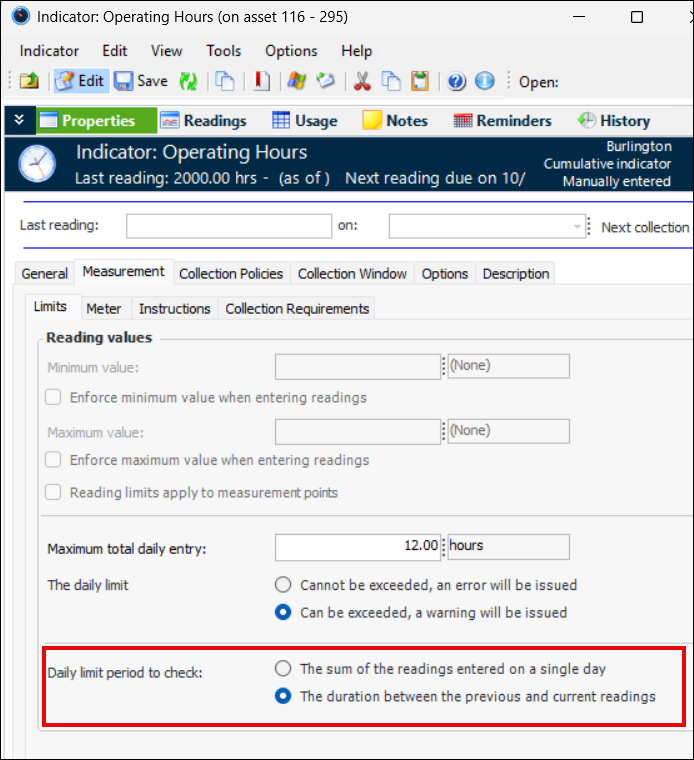
Previously, the daily limit period to check was restricted to the sum of the readings entered on a single day. All of the readings for a day were summed and if the total value of the readings exceeded the daily maximum, a message was issued.
Now, you can select the duration between the previous and current readings. For example, if the daily maximum is 12 hours and the previous reading was entered 72 hours ago, a message is issued if the value of the readings is more than 36 hours.
This option is set in the Indicator window, Properties view, Measurement tab, Limits tab. For example:

Default Checksheet Statuses Based on Checksheet Type

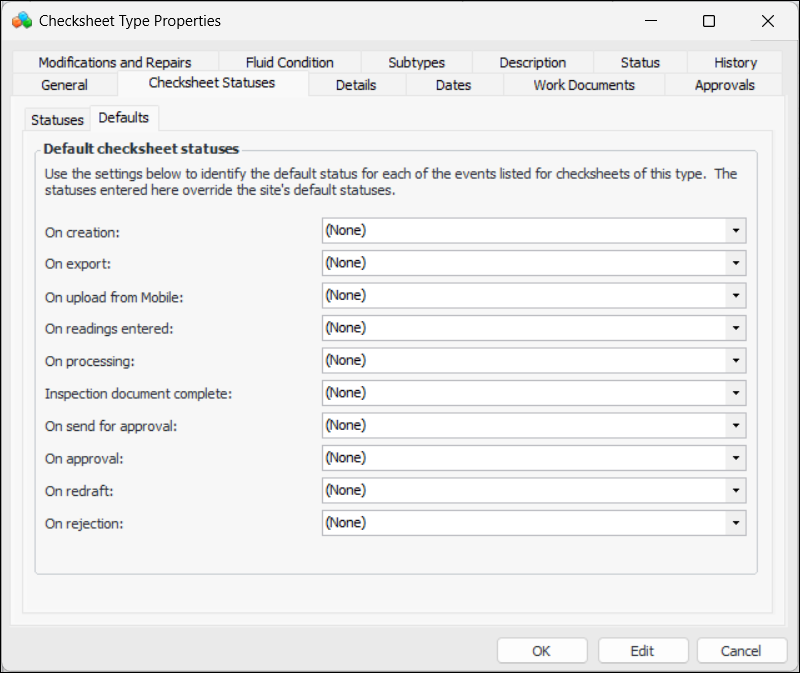
Default checksheet statuses are typically defined at the site level. You can now also define default statuses on checksheet types to accommodate processes based on the type of checksheet. When the checksheet type does not specify a status, the site status is applied to the checksheet.
To set up defaults on the checksheet type, select the Checksheet Statuses tab and the Defaults tab.
For each of the actions, select the appropriate status. Click OK.

Indicator Target Property Added to APM Remote

The indicator target property is now available on APM Remote. This means that charts of indicator readings and history have been updated to include the target line if the target property is set on the indicator.

Indicator Types Settings Review

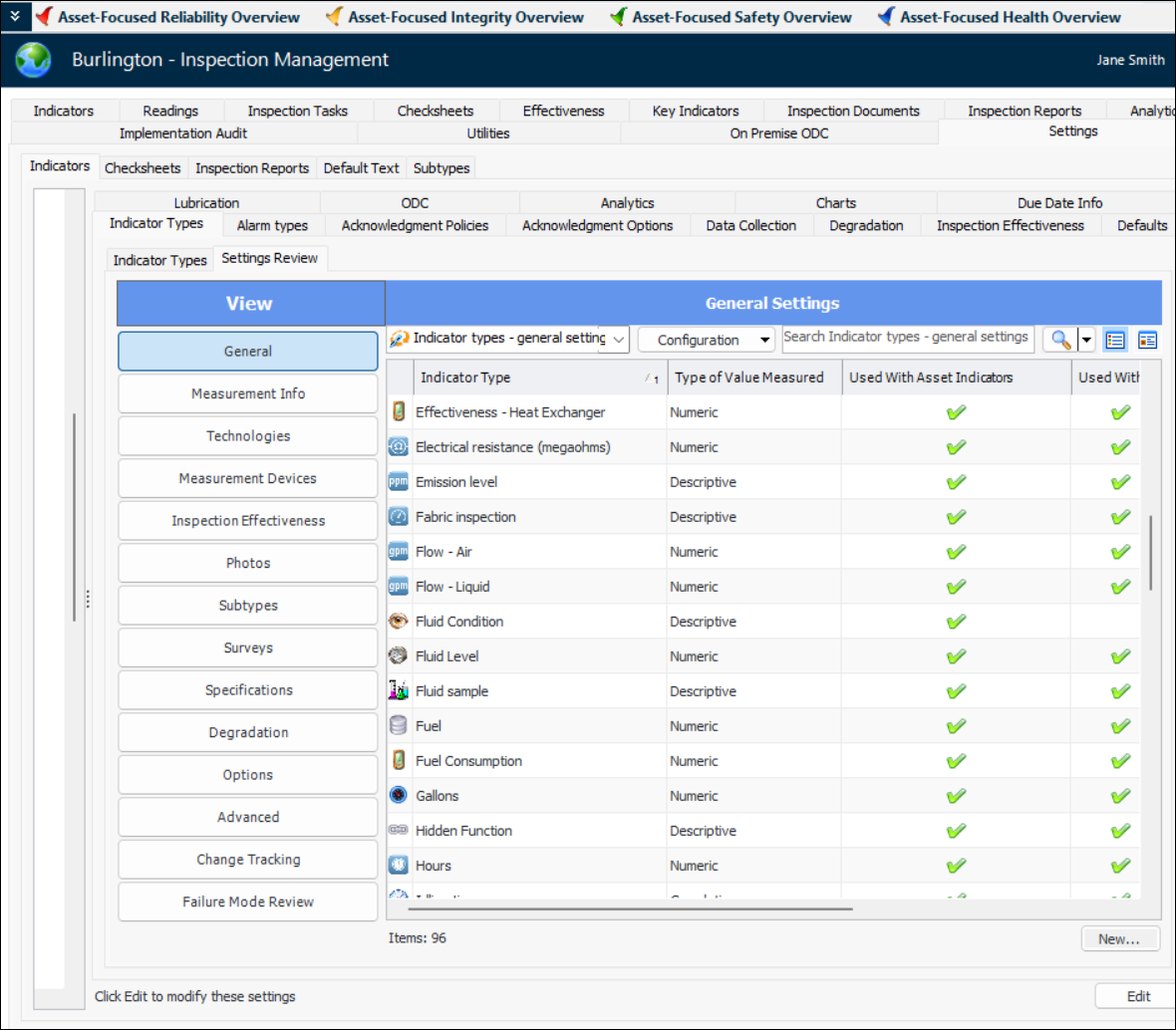
The new Settings Review tab provides an easy way to view, compare, and update settings for all indicator types. In the Site window, select the Inspection Management view, Settings tab, Indicators tab, Indicator Types tab, Settings Review tab:
Select a section on the View column to see information by topic.
You can modify values in the table using in-line editing (press F2) or the Replace Column Data function. For more information, see Applying Mass Updates.
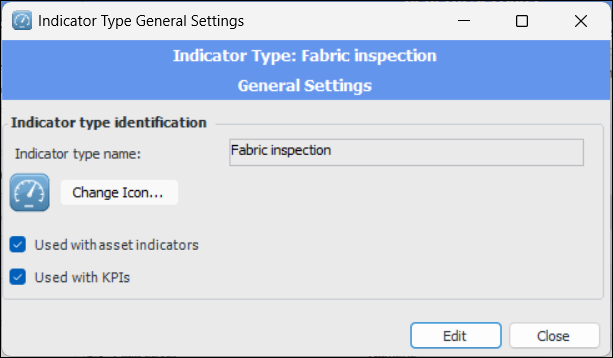
Double-click an indicator type in the table to open a dialog where you can update its settings. For example:
Switch from view as Table to view as Form to view, update, and save an individual indicator type and move on to the next using the navigation buttons.

On-Premise Installs with Bentley CONNECT Users

If you are setting up an on-premise installation of APM and wish to use a Smart client to add users who will log on to APM using Bentley CONNECT authentication, each user can receive a Bentley welcome email to encourage them to sign in. For instructions for setting this up, see “Setting up Email” in APM Installation Guide.

Personnel – Employee Settings Review

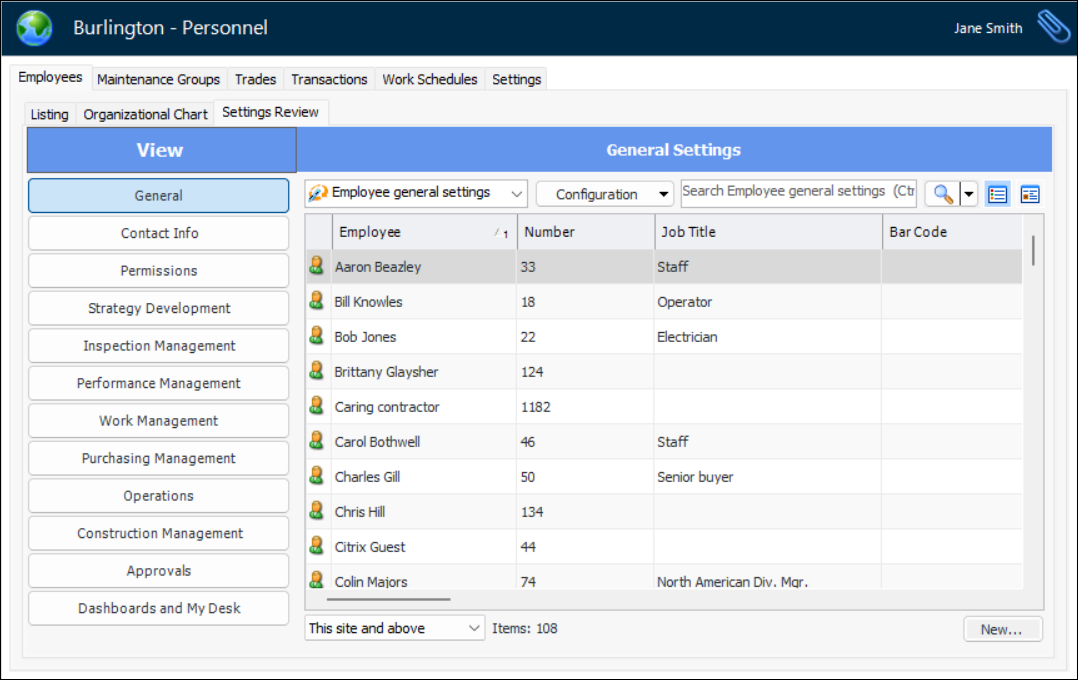
The new Settings Review tab in personnel settings provides an easy way to view, compare, and update settings for all employees. In the Site window, select the Personal view, Employees tab, and the Settings Review tab:
Select a section on the View column to see information by topic.
You can modify values in the table using in-line editing (press F2) or the Replace Column Data function. For more information, see Applying Mass Updates.
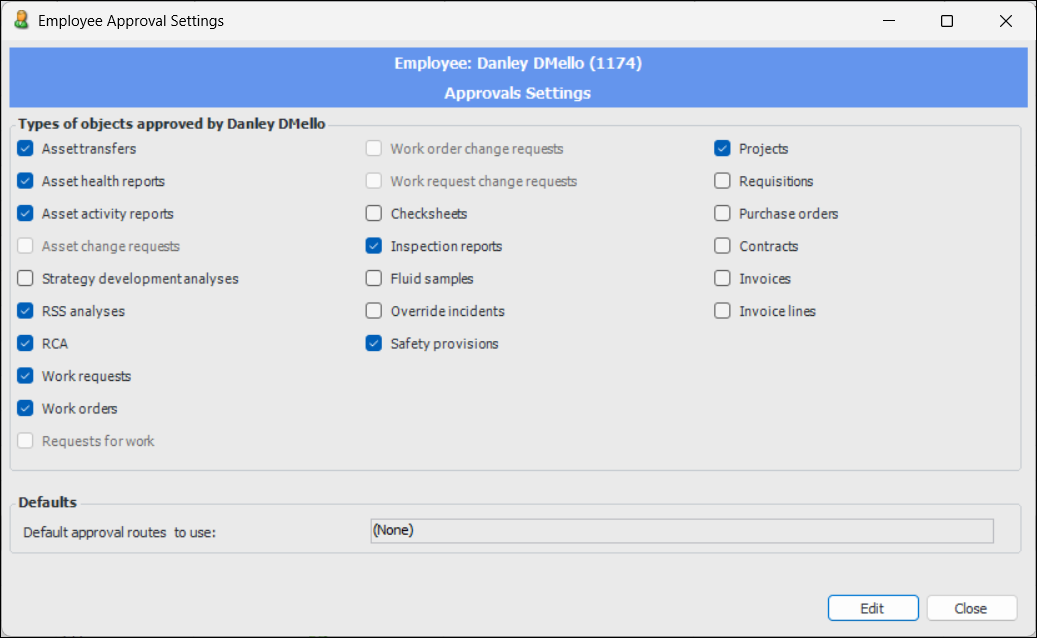
You can double-click an employee in the table to open a dialog to update settings. For example:
Switch from view as Table to view as Form to view, update, and save an individual employee and move on to the next using the navigation buttons.

Reports – Table of Contents

When building an inspection report or work order report with many tasks, you can now add a table of contents so that the viewer can more easily navigate the content and find the details they are looking for. This functionality is provided by a DevExpress® add-in that is fairly easy to use.
You can see examples of the table of contents in the Inspection report and the RBI Analysis report.

Site Settings

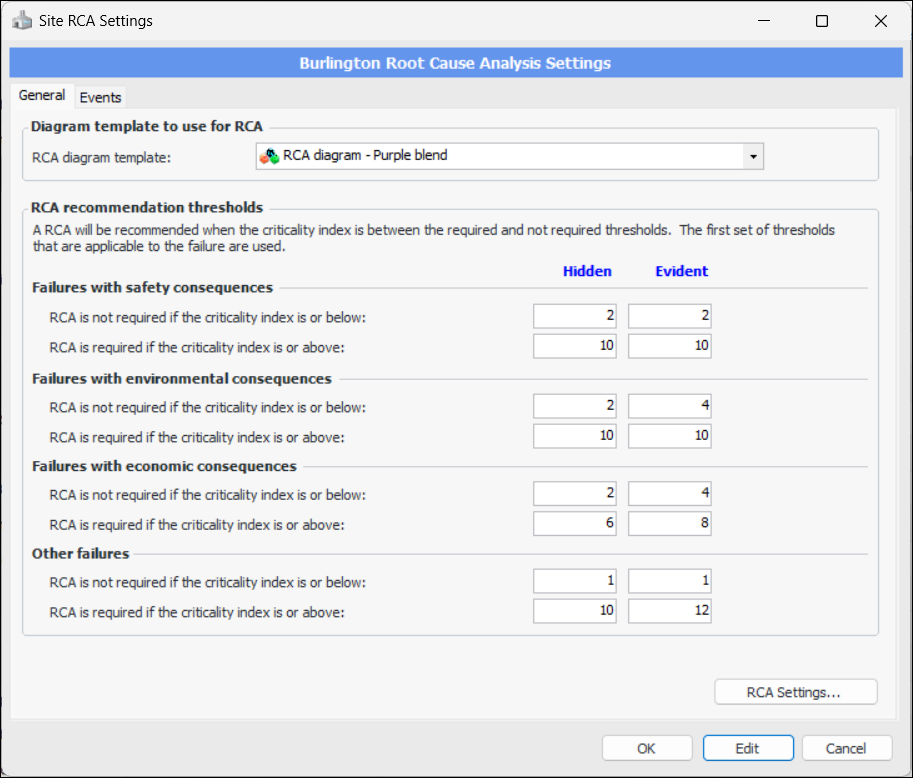
In the Enterprise window, Sites view, Site Settings tab, the configurations list has been reviewed and updated. A few new configurations have been added: Approvals and RCA. Some existing configurations have been split into multiple configurations, for example, Maintenance Settings was renamed Asset Settings, and Interop Work Settings and EAM Work Settings were added.
Dialogs have been created for each of the configurations. For example:

Standard Tasks

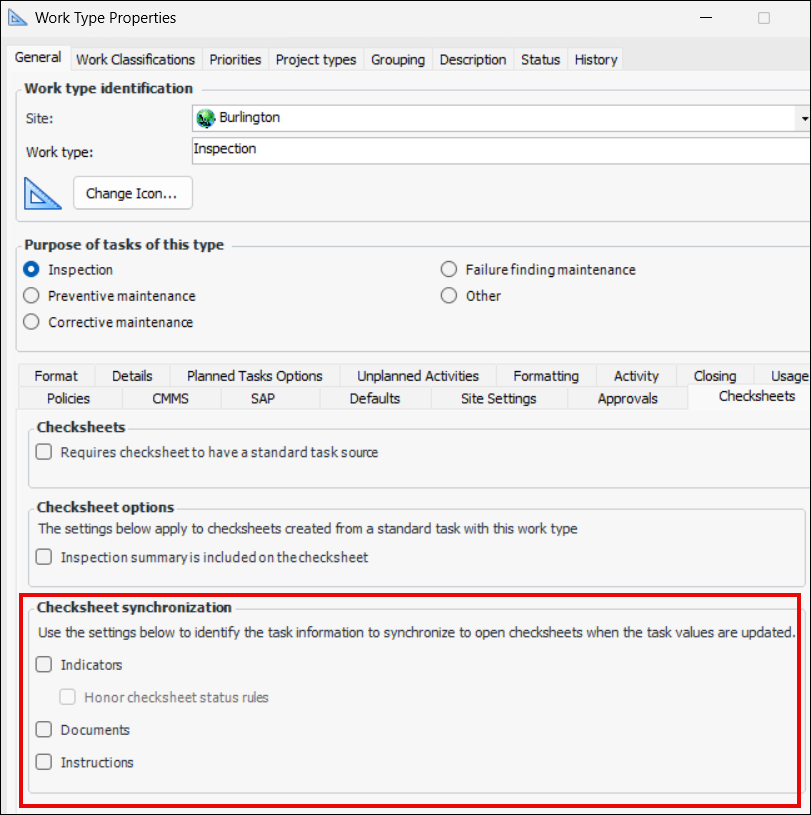
As of this release, you can have changes that were made to standard tasks take effect in open checksheets that have already been assigned. To implement this functionality, take advantage of three new checksheet synchronization settings on work type:
Use the settings to specify whether the following are synchronized:
Task and checksheet indicators. If Honor checksheet status rules is selected, APM first checks whether the status permits the checksheet to be updated with the indicator change

Strategy Development Analysis

The following enhancements were made to strategy development analyses.

Strategy Development Analysis Settings on Site

There are a large number of settings associated with strategy development analyses and failure modes. It can be a complex and difficult task to review numbers of current and historical analyses to ensure that their settings are up to date, especially as new settings are added when the product changes.
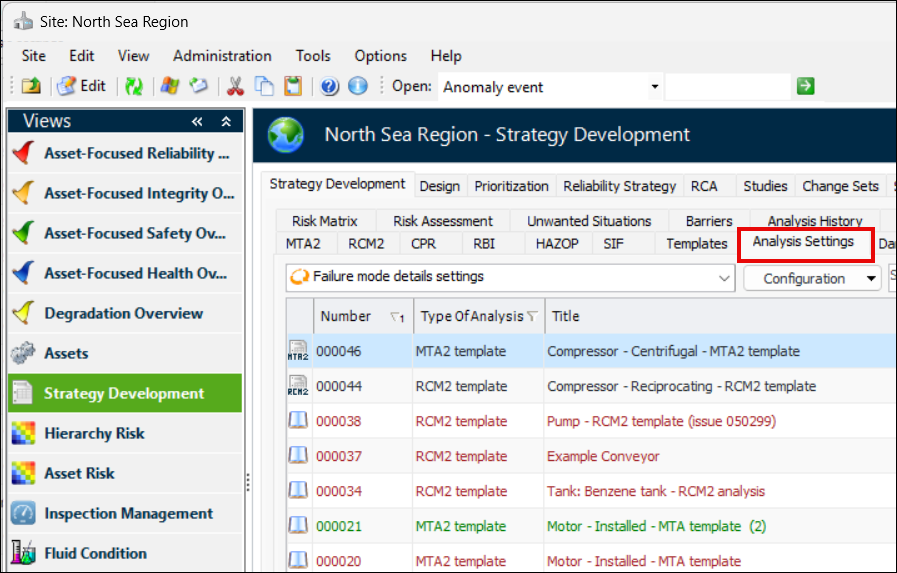
The new Analysis Settings tab in the Strategy Development view and tab in the Site window provides configurations that allow you to view, compare, and update settings on all of the analyses in the site.
The configurations are:
You can use the Replace Column Data function to update settings for groups of analyses or analysis types. For more information, see Applying Mass Updates.
Double-click an item in the table to open a dialog where you can edit the setting for that analysis.
Switch from view as Table to view as Form to update settings on one analysis and move to the next using the navigation buttons.

Copying Action Plan Properties to Inspection Tasks

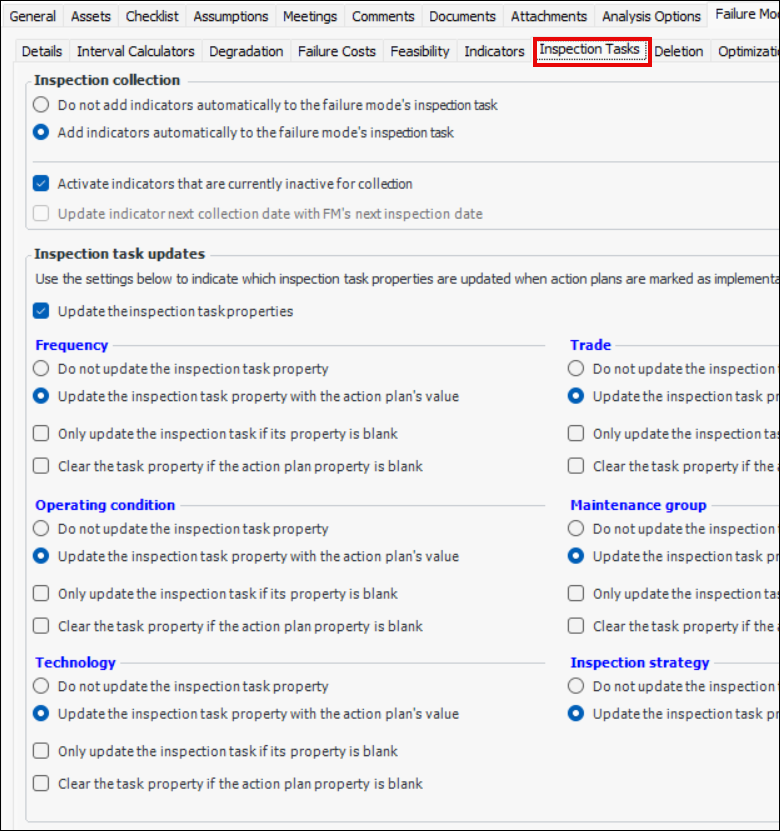
New failure mode settings on analyses give you more control over what search values (Operating Condition, Technology, Maintenance Group, Trade, Frequency, Inspection Strategy) are copied to inspection tasks when a maintenance action plan’s status changes to Implementation Complete.
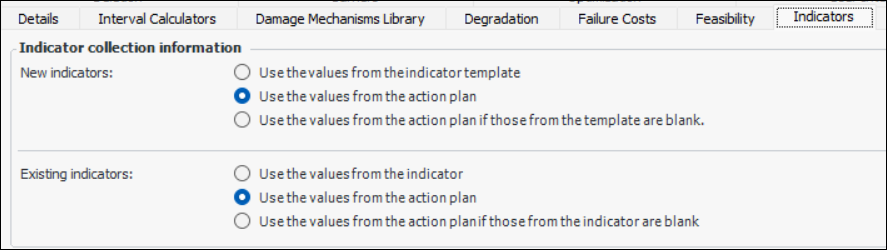
The settings are located in analysis types and individual strategy development analyses. In an analysis’ Properties view, select the Failure Mode Options tab and the new Inspection Tasks tab.
In this example, inspection task properties are updated with the action plan properties:
Note: We recommend changing your current analyses to use the new settings if you have set existing indicators to be updated from action plans using the Indicators tab:
Note: For frequency, if the inspection task is referenced by two or more maintenance action plans, the shortest frequency from the list is copied to the task.

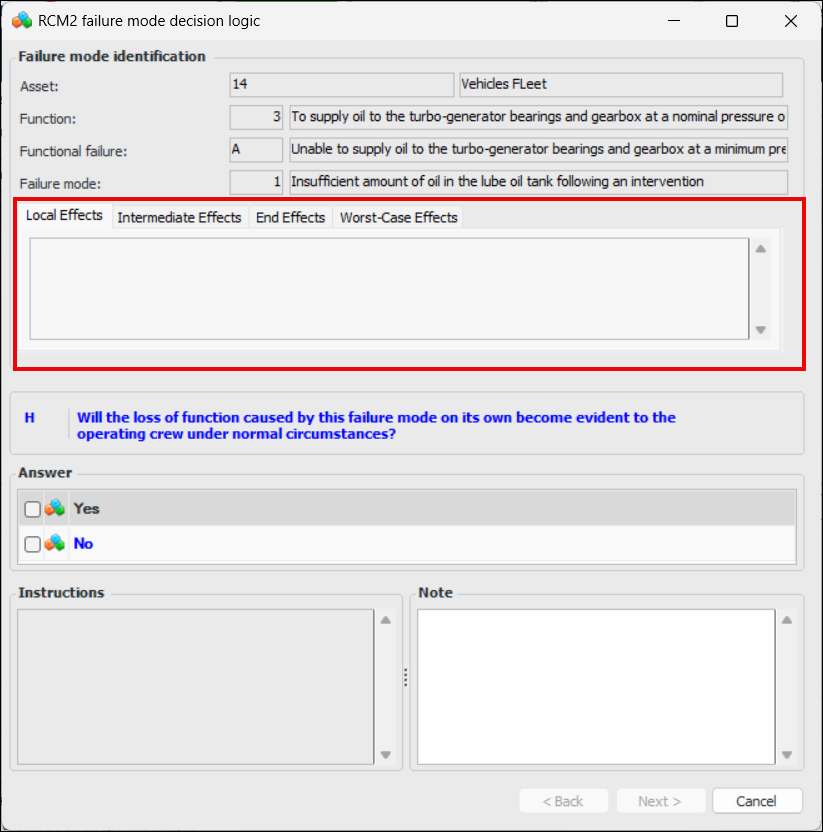
RCM2 Consequence Evaluation

When extended failure effects are supported for an analysis, the RCM2 Failure Mode Decision Logic questionnaire displays the appropriate tabs:

Root Cause Analysis (RCA) – Support for Asset Types

When creating a root cause analysis, you can now reference an asset type, rather than an asset. The asset type maintains a list of the RCAs that reference it.
When an RCA references an asset type and you are requesting failure mode analyses for root causes, you can select an analysis based on an asset type (MTA2 template, RCM2 template, SIF template, HAZOP template, or design FMECA).
Similarly, projects now support asset types, as well as assets.

Updated Objects

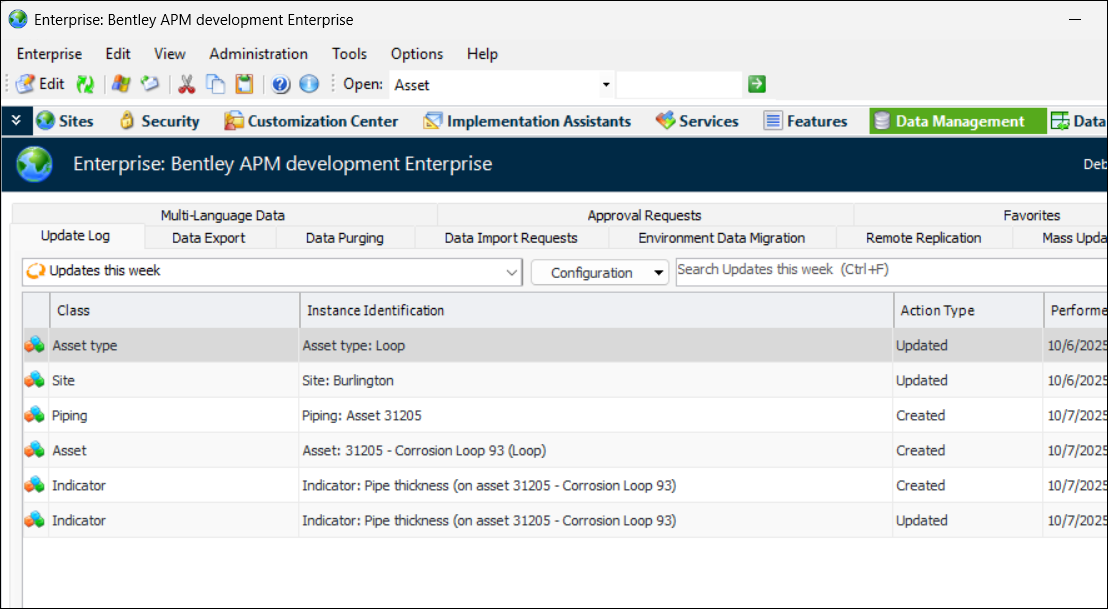
As of this release, you can view lists of the APM objects that you created, updated, or deleted in the last week.
In the Enterprise window, select the Data Management view and the Update Log tab. The “Updates this week” configuration lists the objects that you updated in the past week, for example:
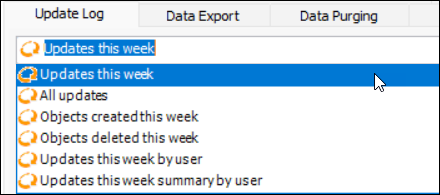
Several configurations are available, most of which show objects that you have created, deleted, or updated over the past week.
However, you can select “All updates” and then filter or sort the list by user, action, or date.
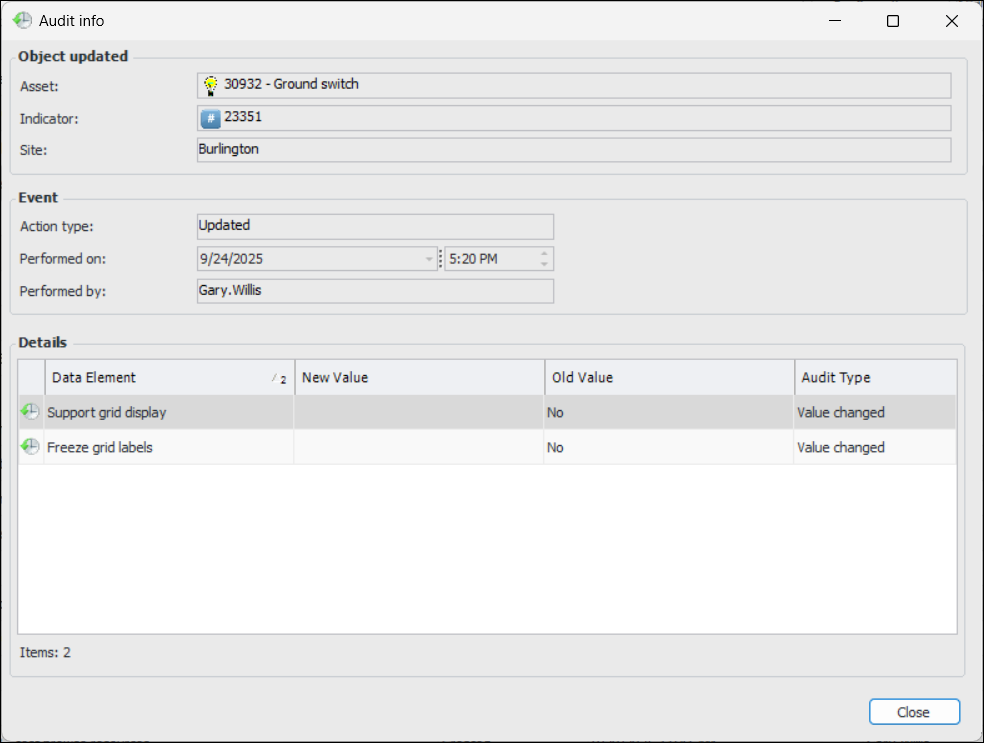
Double-click an item in a list to view its audit information. For example: