What’s New in APM 24.0.3

Among other enhancements, this release introduces asset comparisons, creating standard documents from within objects, and comments on equipment removal requests.

Contents

Asset Comparisons
AWEIS – Comments on Equipment Removal Requests
Construction Management
Inspection Management
Inspection Photos
Performance and Stability Enhancements
Standard Documents – Creating From Within Objects
Asset Comparisons

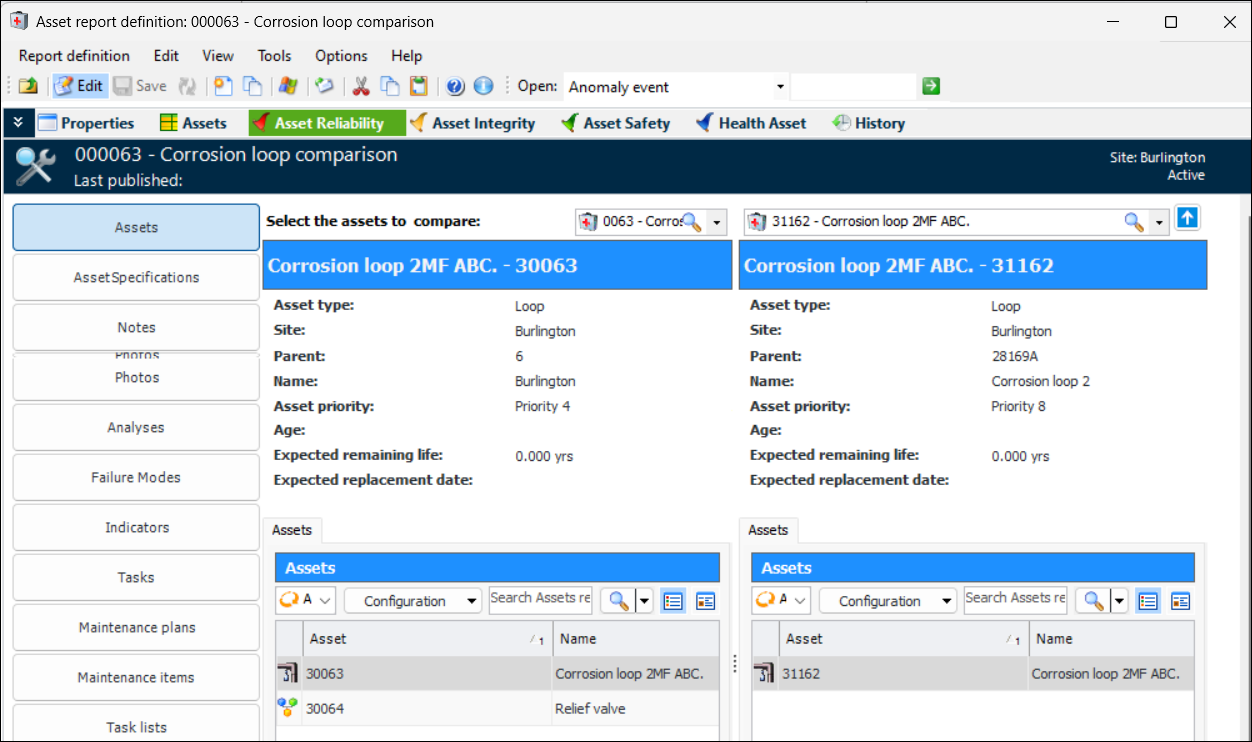
You can now compare assets using the data gathered in these asset-focused overviews:
Once you have selected two assets to compare, select one of the asset-focused overviews to see the assets side by side.
Note: Asset comparisons are a “generally available” product feature. You must first enable feature 136 to use the functionality in APM. In the Enterprise window, select the Features view and the Enabled Features tab. Click Browse, select “Asset comparison” and click OK. If APM is running as a smart client, click Refresh Enabled Features on the server. Then restart the client to use the functionality.
Setting up a comparison involves these steps:
In the Site window, select the Assets view and the Asset Comparisons tab
Click New to create the comparison report definition. You can either add assets manually or create a filter to select the assets you wish to compare
We recommend viewing comparisons on large monitors so that you can see the full width of the screen.
When viewing tables, you can switch to the Form view by clicking:
Navigation arrows at the bottom of the table allow you to move through the items.
The Asset Specifications view provides a full-screen option in the bottom right-hand corner. Click:
For more information, see Viewing Asset Comparisons.
For more information about asset-focused overviews, see Viewing Asset-Focused Overviews.

AWEIS – Comments on Equipment Removal Requests

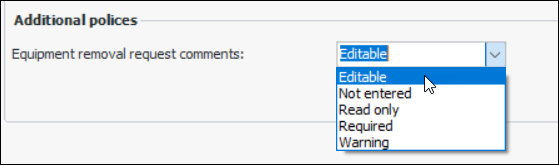
On asset change request types for equipment removal you can now specify whether comments are:
In the Asset Change Request Type Properties window, ensure that the type of change request is “Equipment removal”. Select the Policies tab and select the additional policy for equipment removal requests:
Be sure to update your equipment removal request characteristics and map set to include comments.
For more information, see Setting up Asset Change Request Types.

Construction Management

The following enhancements were made to construction forms.

Construction Form Panels for Reactors

The following panels are now available in APM:
The “air” panels have less information than the original panels. The “oil” panels were simply renamed; the information is the same.
If your construction form templates use the original Series reactor and Shunt reactor panels, you can update them as follows:
For more information, see Setting up Construction Form Templates.
Asset change request and asset specification panels have been updated to be consistent with the construction form panels.

Construction Form Panels for Station Battery

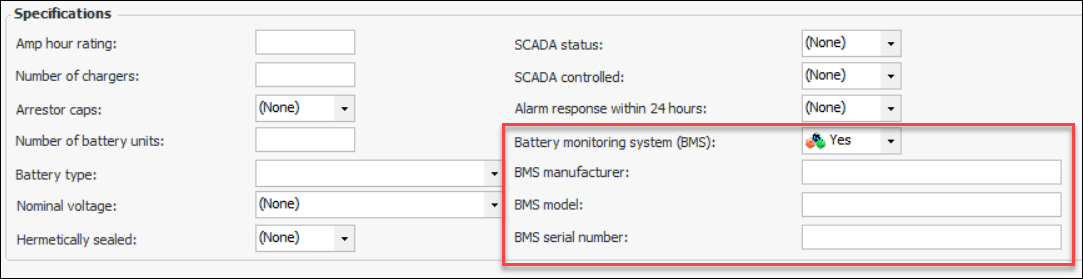
The following properties have been added to the Electrical - Station Battery asset type:
Construction forms, asset specification panels, and asset change requests have been updated. Here is an example of the Specifications section of the Electrical - Station batteries construction form:

Bushing Asset Type Supported on Construction Forms

The Electrical - Bushing asset type is now supported on construction forms. Bushings are child assets of these asset electrical types:
Assets of these types can have one to eleven bushings as child assets.
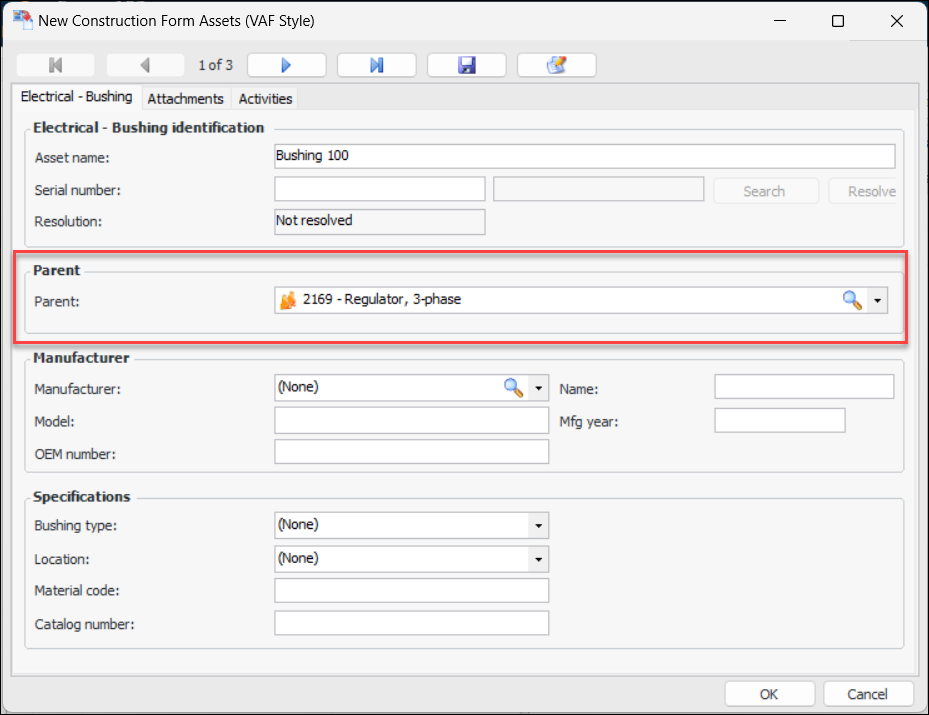
When creating a construction form, first add the parent asset. Then select the Bushing asset type and create as many child assets as needed. For each bushing asset, select its parent:
In the Specifications area, select the bushing type and location. (You can populate these value lists in the Assets view, Settings tab, Electrical Substation Specifications tab. See Adding Values for Asset Subtypes and Specifications.)
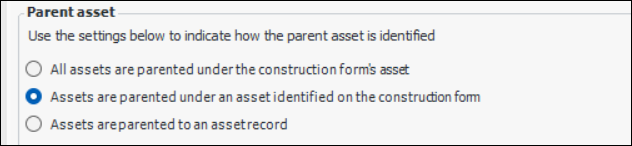
When adding the Bushing construction form template asset to a template, be sure to select Assets are parented under an asset identified in the construction form:
For more information, see:

Inspection Management

The following enhancements have been made to indicators.

Create a Template from an Indicator

You can now create an indicator template from an indicator that is not based on a template. In the Indicator window, click the Indicator menu, Create, and then Template From. In the confirmation window that appears, click Yes.
The Indicator template window opens, where you can finish creating the template. The original indicator’s General tab, Details tab shows that the indicator is based on the new template.
For more information, see Creating a Template from an Indicator.

Link Indicators to Indicator Templates

You can now link an indicator (that is not based on a template) to an indicator template. Note that when you link an indicator to a template, the template’s settings and information are not copied to the indicator. However, the indicator is added to the Usage view of the template. You can then update indicators either by using the Mass Indicator Update Wizard or by applying a mass update in the table configuration.
Open the Indicator window, select the Properties view, General tab, and Details tab. For example:
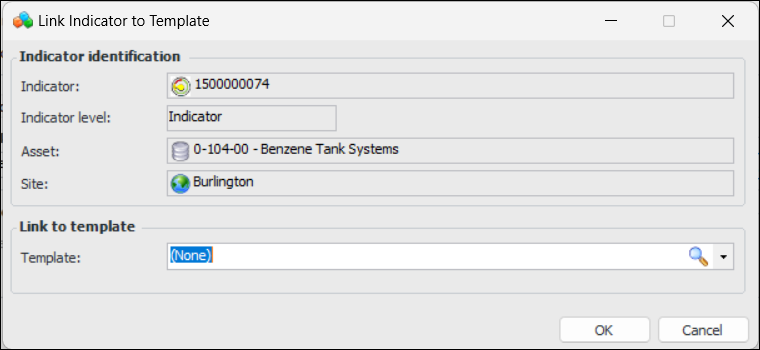
Click Link to Template. The Link Indicator to Template dialog appears, where you can select the template and click OK.
The template is added to the Template based on field:
Tip: Double-click the template to open its window. Select the Usage view to see a list of indicators based on or linked to the template.
For more information, see Linking an Indicator to a Template.

Create Checksheets from Standard Tasks without Indicators

You can now create a checksheet from a standard task that does not have indicators. The results of the inspection can be recorded in the checksheet’s Inspection Summary view.
You can create a checksheet from a task template that does not have indicator templates, as long as feature 83 (Ability to create a checksheet from a task template) is enabled.

Show Last and Next Reading Information

You can now have due date information shown consistently at the top of the Indicator and Standard Task windows. In the Indicator window, a bar appears under the banner showing the last reading value and date and the next collection due date. For example:
In the Standard Task window, the bar displays the next due and last done dates. For example:
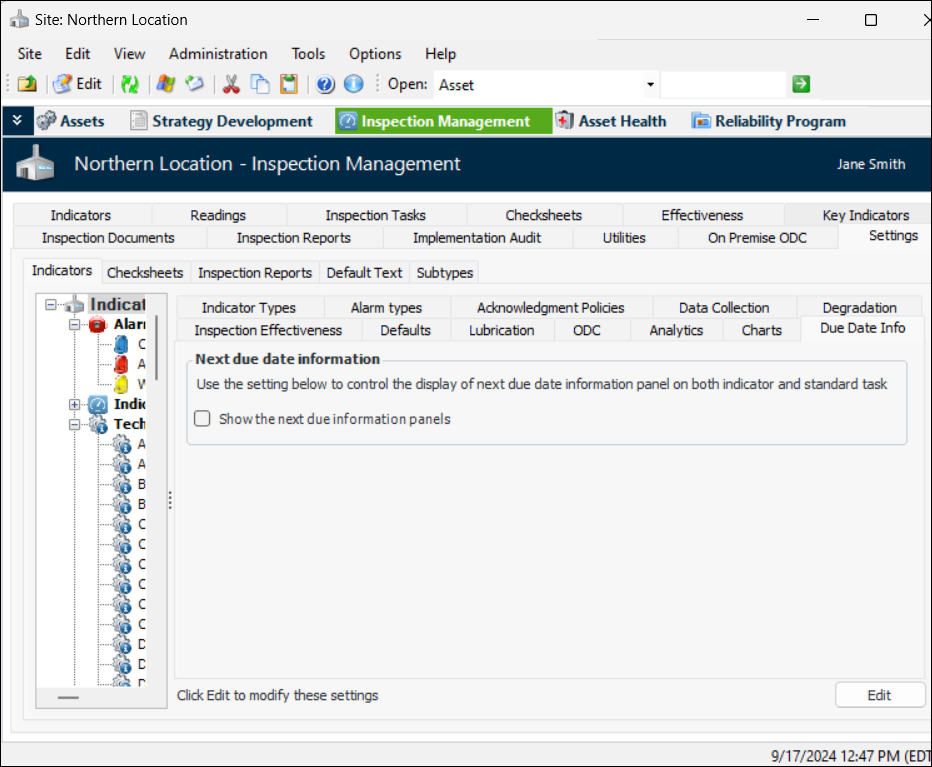
To display these bars, you must first select an option on the site. In the Inspection Management view, select the Settings tab, Indicators tab, and Due Date Info tab. Click Edit at the bottom of the window to change the site setting.
The Edit button changes to Save. Select Show the next due information panels and click Save to commit the change.
See Enabling Next Due Date Information.

Inspection Photos

The following enhancements have been made to inspection photographs.

Photo Properties Added to Objects

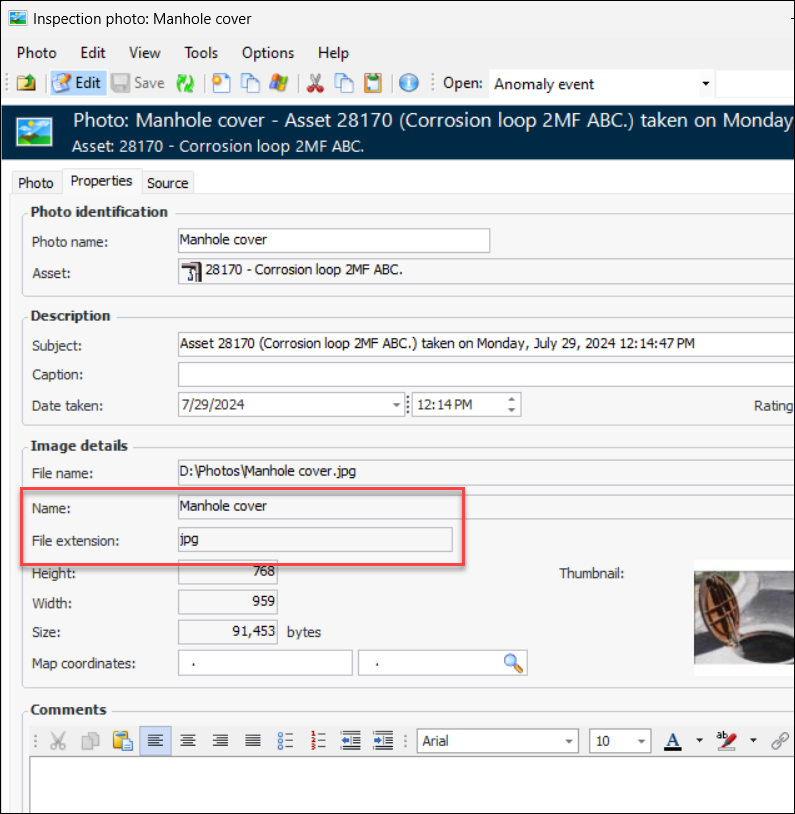
The properties of photos have been added to APM objects. For example, assets, indicator readings, and inspection reports now include the name of the file and the file extension in separate fields. For example:
When you upgrade an APM database, existing photos are updated to display the information.

Photo Table Configurations Include View-as-Form

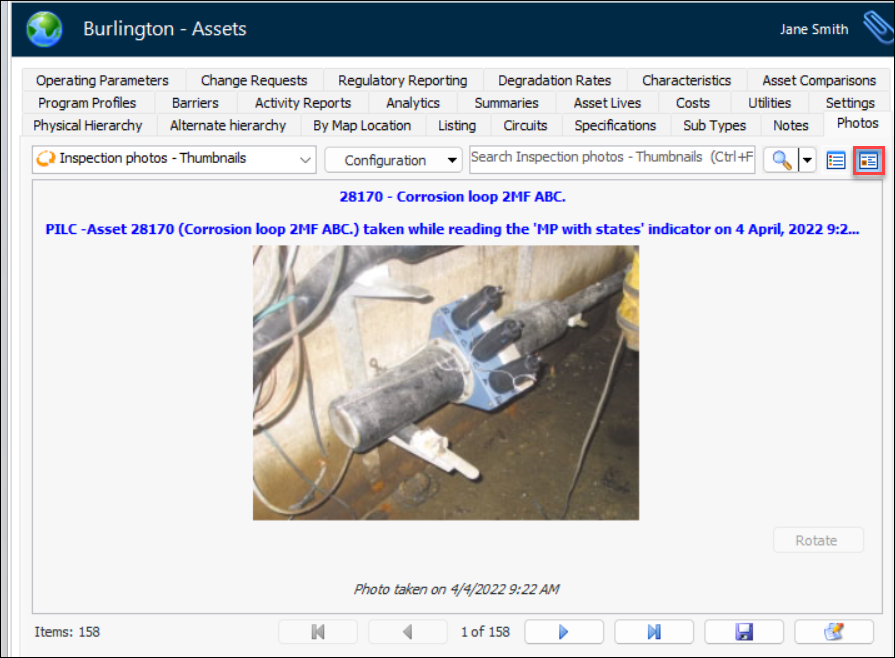
Anywhere in APM where you see a Photos tab, the table configurations now include the View-as-Form icon. For example:
Click to see individual photos in form view, where you can use the navigation buttons to move between photos.

Performance and Stability Enhancements

The following enhancements were made for this release:

Standard Documents – Creating From Within Objects

You can now create a standard document from within the following APM objects:
Assets – Properties view, Documents tab
Checksheets – Readings view, Documents tab
Standard tasks – Properties view, Documents tab
Safety provision versions – Properties view, Documents tab
Work order tasks – Properties view, Documents tab
Maintenance action plans – Details view, Documents tab
You can also browse for existing standard documents to link to work order tasks, standard tasks, assets, resources, safety provision versions, and strategy development analyses.
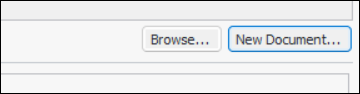
To create a standard document, open the object window, for example, an Asset window. Select the appropriate view and the Documents tab. In the case of an asset, click New Document at the bottom of the tab:
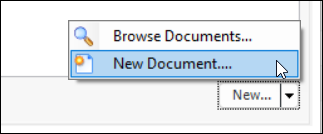
For the other objects, the Documents tab provides a New list:
Click Browse Documents to link an existing standard document to the object. Click New Document to create a standard document.
For more information, see Creating a Standard Document.