What’s New in APM 24.0.1

Among other enhancements, this release introduces the ability to customize criticality terminology for use in risk analysis and anomaly tracking.

Contents

Asset-Focused Overviews
AWEIS – Anomaly Risk Assessment
AWEIS – Anomaly and Strategy Development Risk Assessment
AWEIS – Checksheet Splitting
AWEIS – Restrict Work Priorities on Work Types
AWEIS – Synchronize Checksheets to Interop Work Orders
Data Loading – Asset Characteristics with Pivoted Values
Data Management – Audit Log of Deleted Objects
Implementation Assistants
Inspection Management
Mobile Computing
Site Management – Regions, Site Categories, and Site Groups
Standard Tasks
Strategy Development Analysis

Asset-Focused Overviews

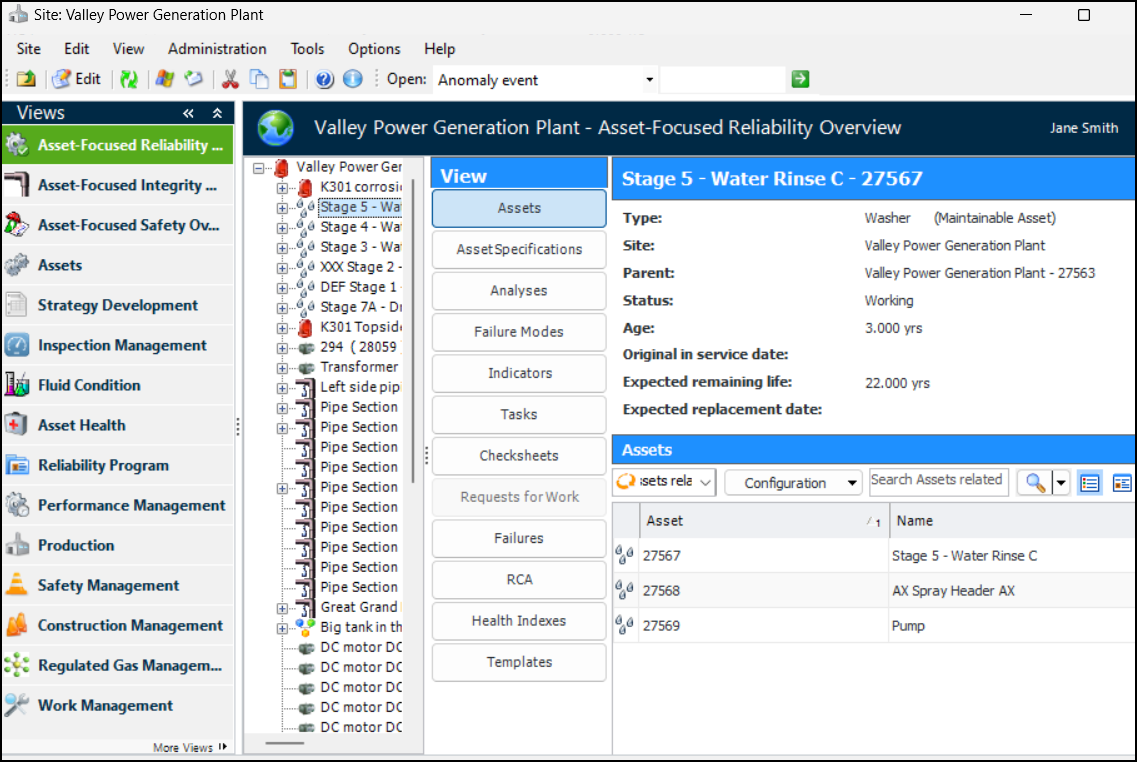
This release provides a preview of three new asset-focused overviews:
Reliability – For the reliability team interested in the reliability of pumps, motors, boilers, buildings, and so on
Integrity – For the integrity team interested in the integrity of piping systems, vessels, and heat exchangers
Safety – For the safety team interested in hazardous scenarios and safety instrumented functions
Note: The asset-focused overviews are available for technology preview in APM. You must first enable feature 132 to use the functionality. In the Enterprise window, select the Features view and the Enabled Features tab. Click Browse, select “Asset focused UX” and click OK. If APM is running as a smart client, click Refresh Enabled Features on the server. Then restart the client to use the functionality.
In the Site window, select one of the overview views to see the asset hierarchy in the first panel. Select an asset to see a variety of information about it. For example:
When you select another asset, the content changes accordingly. Select buttons in the View panel to see information like analyses, failure modes, and indicators.
The information shown reflects the focus, for example:
All views have some categories in common, for example, related assets, indicators, and requests for work. Each view has unique information, for example, the Safety overview shows safety provisions, override incidents, and protective devices.
Employee permission groups have been updated to include asset-focused overviews. See Setting up Employee Permission Groups.

AWEIS – Anomaly Risk Assessment

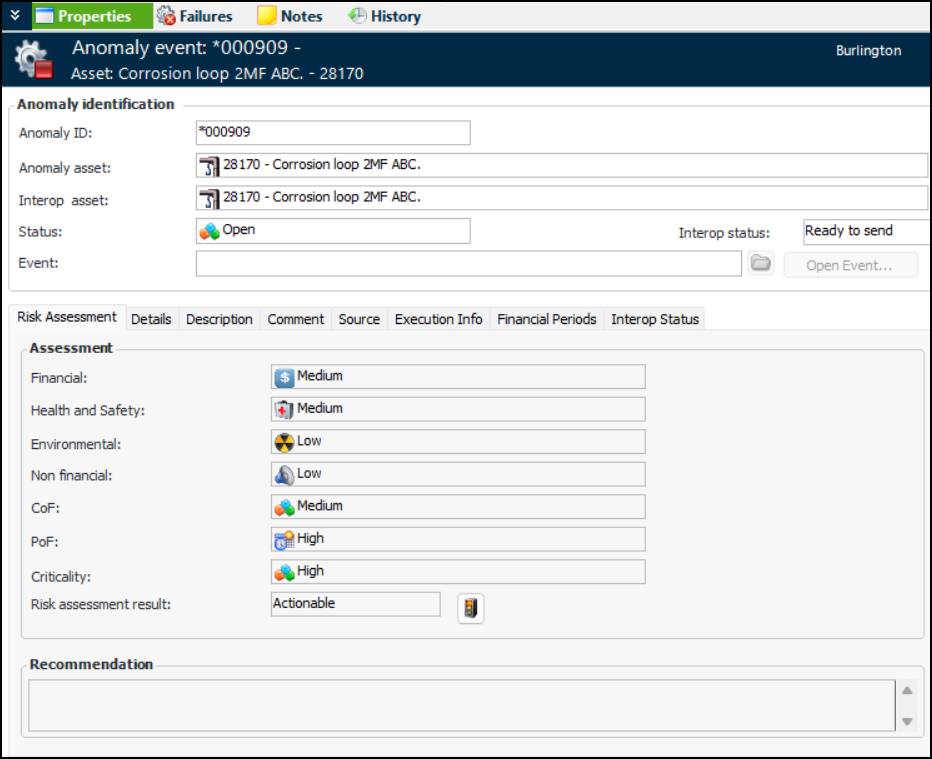
With this release, you can resubmit rejected anomaly events and override risk assessment results.

Resubmitting Anomaly Events

When an anomaly event sent from APM is rejected by the system of record (the anomaly assessment and tracking system), you can reopen and revise the event and resubmit it. When you update the risk assessment, APM recalculates the criticality and determines if the event is actionable. You can then submit the anomaly event to the system of record.
For more information, see Working with Anomaly Events.

Overriding Risk Assessment Results

1.
2.
Click Edit to open the event for updates. For example:
3.

AWEIS – Anomaly and Strategy Development Risk Assessment

This enhancement provides greater flexibility for both anomaly and analysis risk assessment.

Custom Criticality Terminology

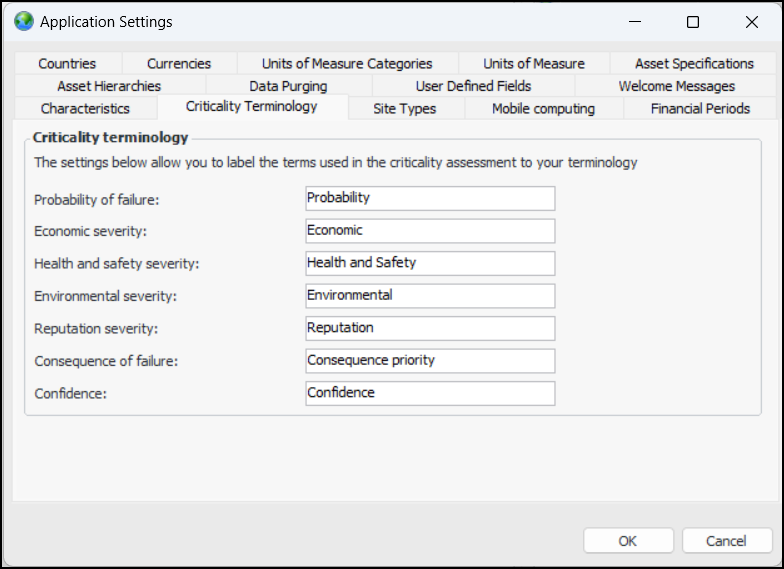
You can now customize the labels shown in anomaly events, risk assessments, asset risk summaries, and analysis reports. For example, everywhere that “Economic” currently appears, you could have “Financial” displayed instead. The labels and their default values are:
From the Enterprise window, click the Administration menu and then Application Settings. In the Application Settings dialog, select the Criticality Terminology tab:
For more information, see Customizing Criticality Terminology.
Note: After upgrading to v 24.0.1, if you run APM in two or more languages other than English, you will need to enable multi-language data and translate the labels from the default English. For more information, see Setting up Multi-Language Data.

AWEIS – Checksheet Splitting

Checksheet splitting was introduced in APM 24.0.0. You can split a checksheet into two or more checksheets and move indicator readings from one checksheet to another.

Checksheet Status

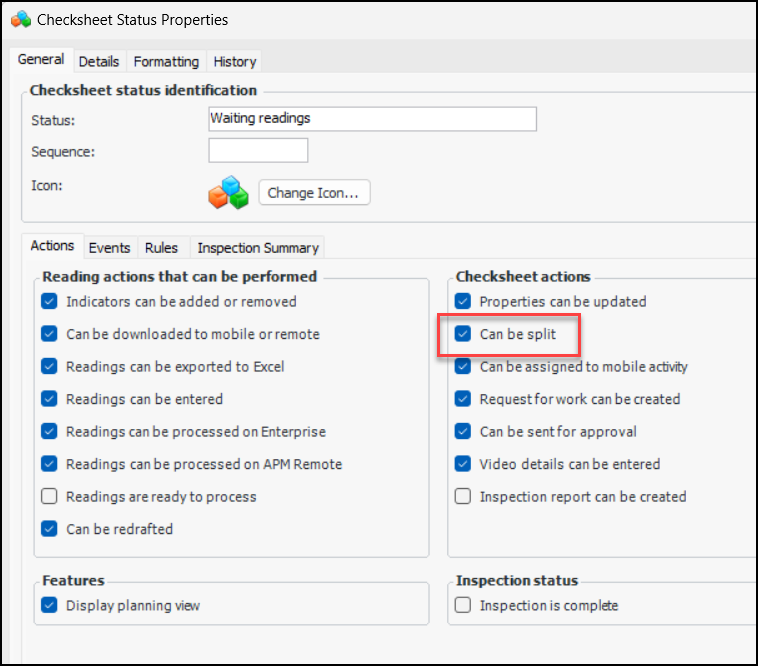
Control which checksheets support splitting using checksheet type and, now, checksheet status. Ensure that Can be split is selected on checksheet statuses:
Note: Checksheet splitting is a “generally available” product feature. You must first enable feature 118 to use the functionality in APM. In the Enterprise window, select the Features view and the Enabled Features tab. Click Browse, select “Checksheet splitting” and click OK. If APM is running as a smart client, click Refresh Enabled Features on the server. Then restart the client to use the functionality.

Checksheet Documents

Document links are now copied from the original checksheet to the new split checksheet.

AWEIS – Restrict Work Priorities on Work Types

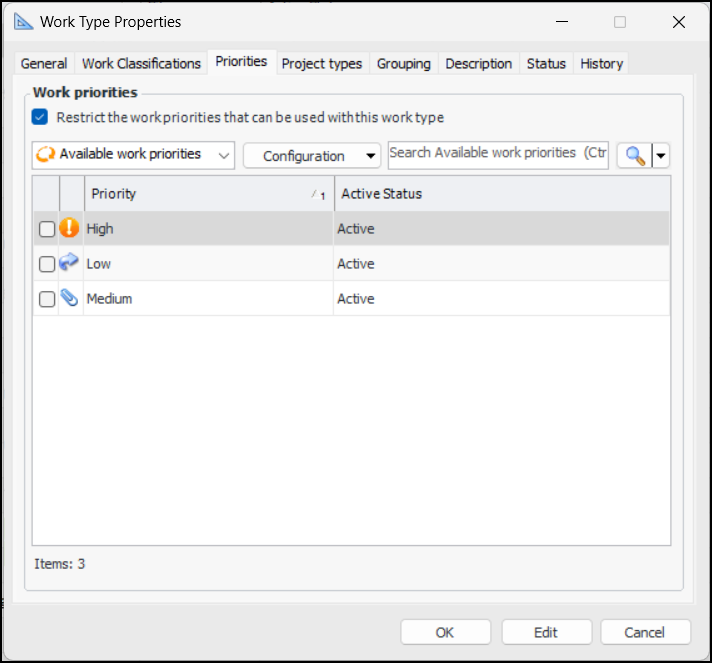
As of this release, you can restrict the work priorities available for use with a work type. In the Work Type window, the new Priorities tab is available when AWEIS is active and feature 131 is enabled:
Select the priorities to be used with the work type and click OK.
The work priorities that are available for selection are filtered on assets, standard tasks, checksheets, and requests for work.
Note: Once you select a work type and valid priority on a standard task, for example, APM cannot prevent you from replacing the priority for one that is not supported by the work type.
Note: The restricted work priorities feature is generally available in APM. You must first enable feature 131 to use the functionality. In the Enterprise window, select the Features view and the Enabled Features tab. Click Browse, select “Provide the ability to limit the priorities that can be used by a work type” and click OK. If APM is running as a smart client, click Refresh Enabled Features on the server. Then restart the client to use the functionality.
For related information, see **Setting up Work Types.

AWEIS – Synchronize Checksheets to Interop Work Orders

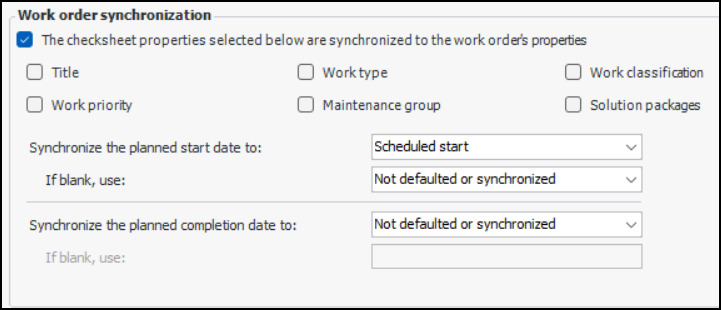
When an interop work order’s properties change, you can have checksheets that are linked to the work order updated with those changes. Properties that can be synchronized are:
This functionality is controlled by the checksheet type’s synchronization settings. In the Checksheet Type window, select the Work Documents tab:
You can also set defaults for the planned start and completion dates. For example, default the planned start date to the “End before” date.
Note: Work order synchronization is a “generally available” product feature. You must first enable feature 82 to use the functionality in APM. In the Enterprise window, select the Features view and the Enabled Features tab. Click Browse, select “Allow Interop Work Order and Interop Work Request to be manually set on a checksheet” and click OK. If APM is running as a smart client, click Refresh Enabled Features on the server. Then restart the client to use the functionality.
For more information, see Setting up Checksheet Types.

Data Loading – Asset Characteristics with Pivoted Values

The traditional asset characteristics data loader requires several rows of a spreadsheet for each asset; each row identifies only one asset, one class, one characteristic, and one value. This release introduces a new data loader that allows you to import up to 50 characteristics per asset on one row of the spreadsheet. Each row also references a data load set, which maps a characteristic class to characteristics and specifies the column order. If you have more than 50 characteristics to load, you can run the data loader multiple times with the extra columns entered in the subsequent loads.
Note: This data loader is a “generally available” product feature. You must first enable feature 120 to use the functionality in APM. In the Enterprise window, select the Customization Center view and the Enabled Features tab. Click Browse, select “Asset characteristics pivoted data loader”, and click OK. If APM is running as a smart client, click Refresh Enabled Features on the server. Then restart the client to use the functionality.
For information about setting up data load sets and using the data loader, see Importing Asset Characteristics using Pivoted Values.

Data Management – Audit Log of Deleted Objects

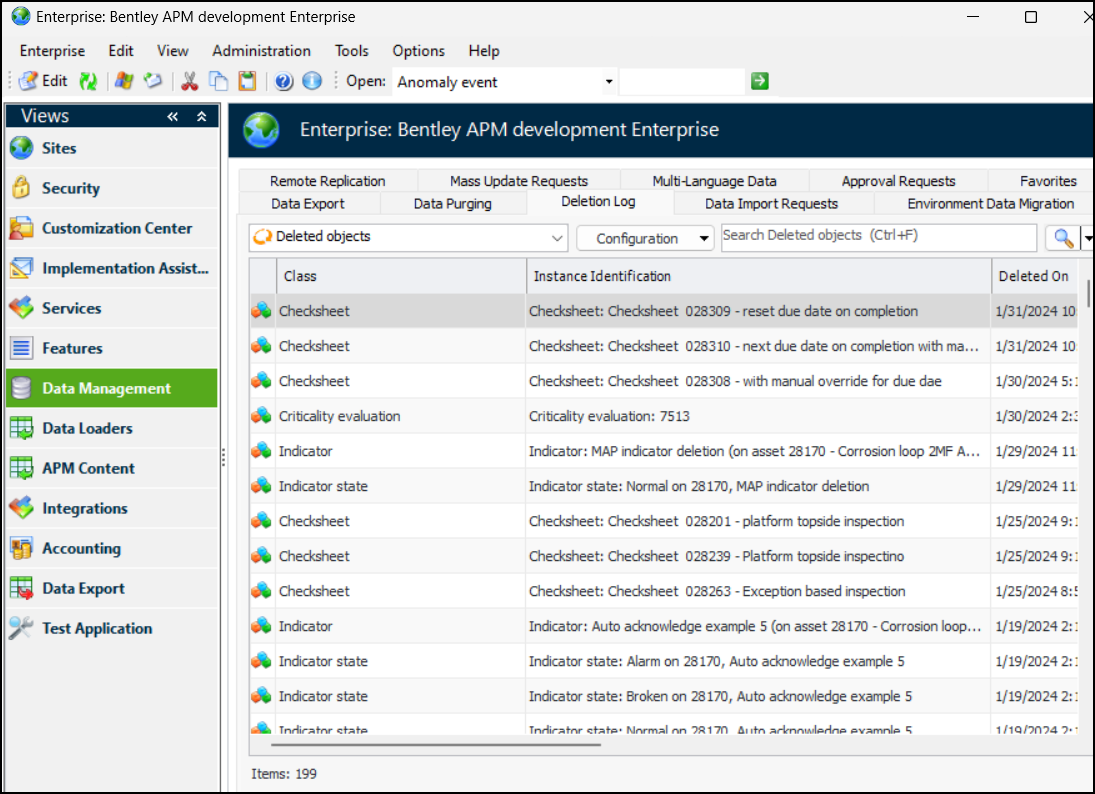
APM now maintains an audit log of deleted objects, including main objects (assets, indicators, standard tasks, checksheets, indicator readings, and so on), EAM objects (such as work orders, work order tasks, suppliers, and purchase orders), subordinate objects (standard task indicators, work order task requirements, PO lines, and so on), and value lists.
To view this log, open the Enterprise window, select the Data Management view and the Deletion Log tab. For example:
Each record includes the delete object’s:
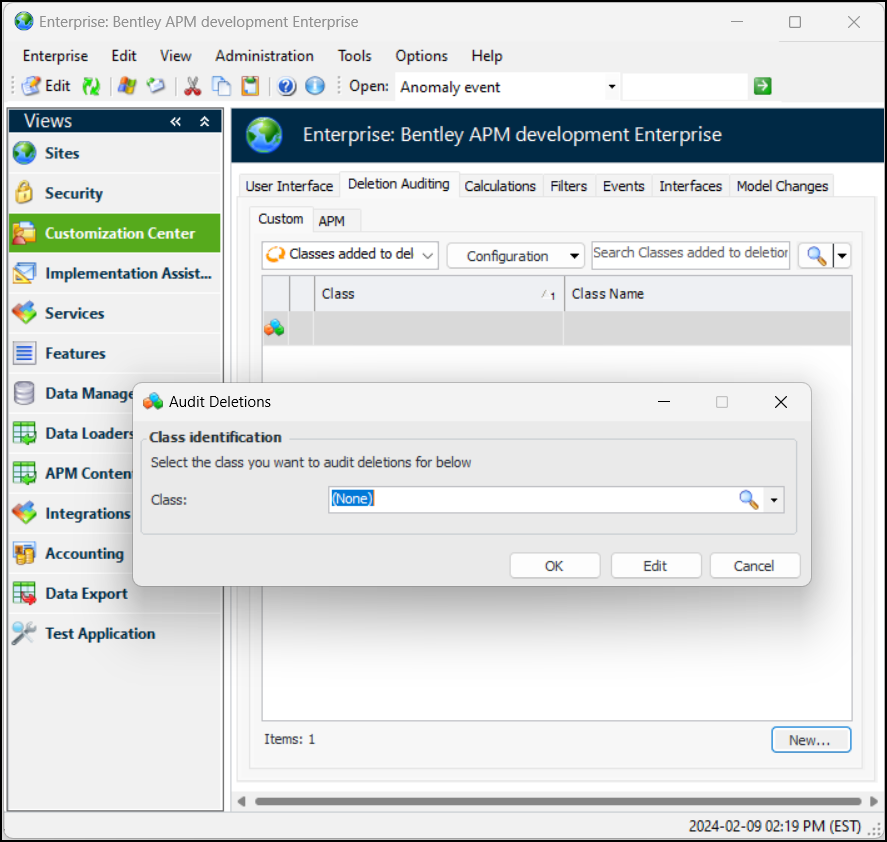
You can add classes to deletion auditing. On the Enterprise window, select the Customization Center view and the Deletion Auditing tab. On the Custom tab, click New. The Audit Deletions dialog appears:
Select or browse for the class. The list of available options for selection shows classes that do not currently support deletion auditing. Click OK. The class is added to the Custom tab.
For more information, see List of Updated Objects.

Implementation Assistants

Several new assistants are available in the Enterprise window, Implementation Assistants view. The following assistants for oil and gas asset specifications are now available:
See Using the Implementation Assistants.

Inspection Management

The following enhancements were made to checksheets and indicator readings.

Checksheet Status History

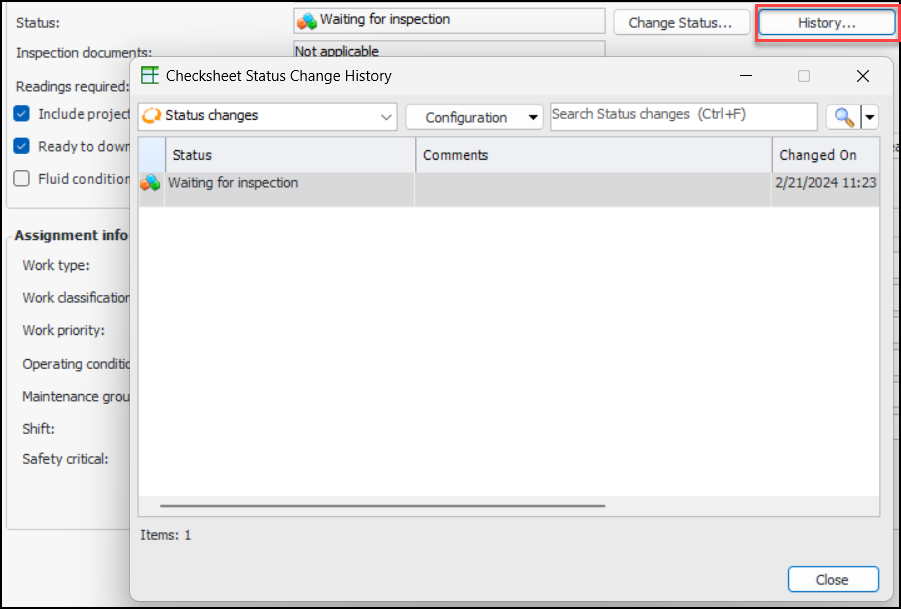
You can view a checksheet’s status change history by opening the Checksheet window, selecting the Properties view and General tab. Click History to open the Checksheet Status Change History dialog.
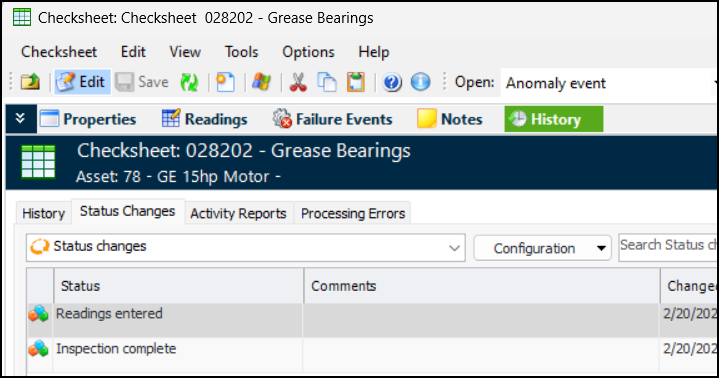
The Checksheet window’s History view now contains the Status Changes tab:
The tab shows the new status, comments, date of the change, and the user who made the change.
For related information, see Creating Checksheets.

Generate Checksheet Report Options

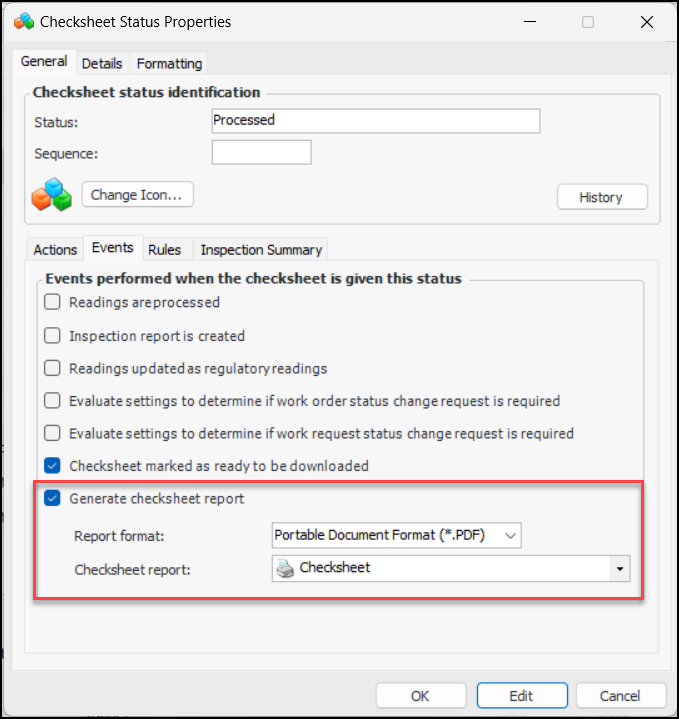
You can have a checksheet report generated automatically when the checksheet status changes. The report file is saved to the Checksheet window, History view, History tab, By Event tab.
To set up this functionality, open the appropriate checksheet status window and enable editing. Select the General tab, Events tab and select options. For example:
For more information, see Setting up Checksheet Statuses.

Export to Excel Supports HTML Text on Workbook Header

When customizing a checksheet configuration for export, you can now include HTML attributes in the header. For example, you can browse for attributes such as inspection summary, analysis, and recommendations. Note that only text is copied; formatting and images are not.

Indicator Instructions and Photo Size

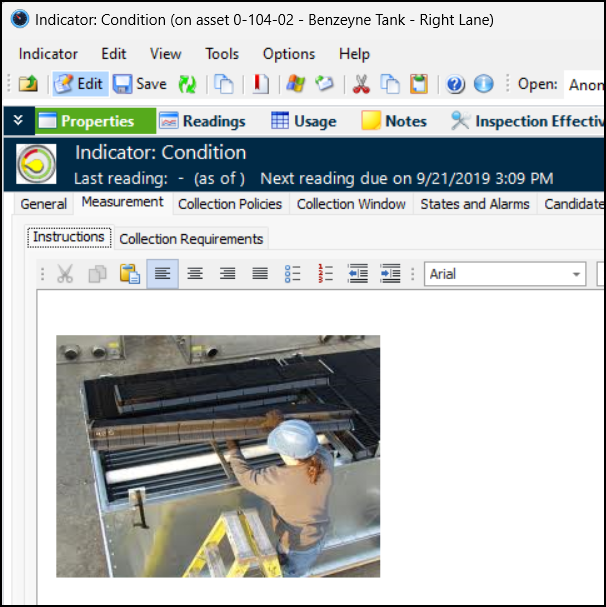
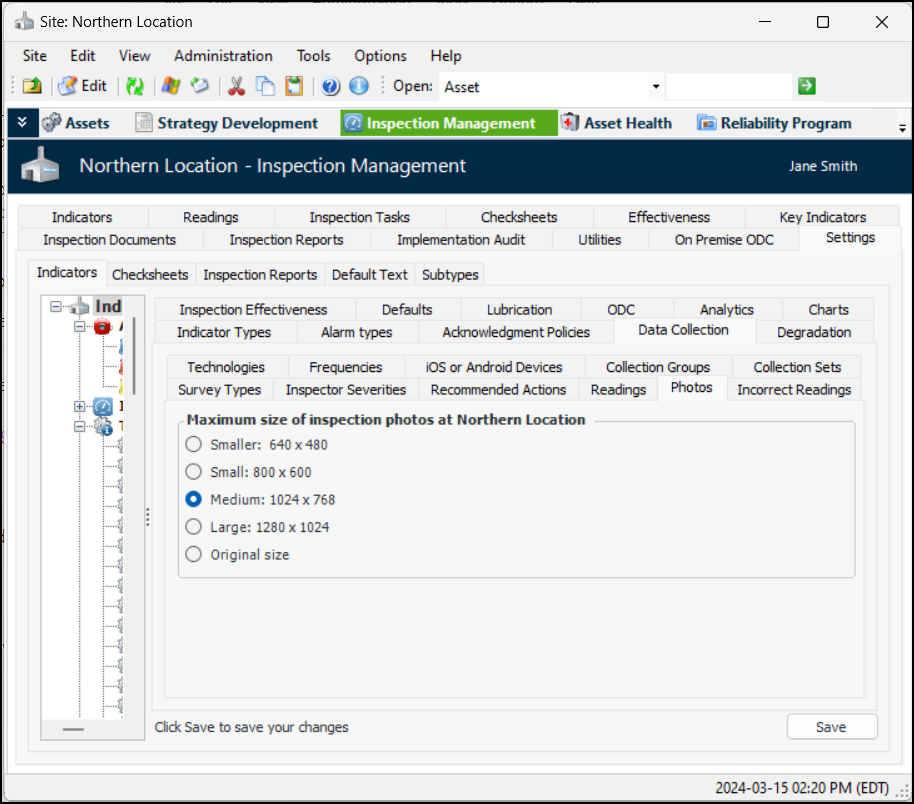
When you paste or drag-and-drop a photograph onto the Instructions tab of an indicator, the dimensions of the image are controlled by the Maximum size setting in Indicator settings.
To view these settings, select the Inspection Management view and then the Settings, Indicators, Data Collection, and Photos tabs:
See Setting the Inspection Photograph Maximum Size.

Mobile Computing

You can now download previously rejected and closed activities to mobile devices.

Reopening Closed Checksheet Activities

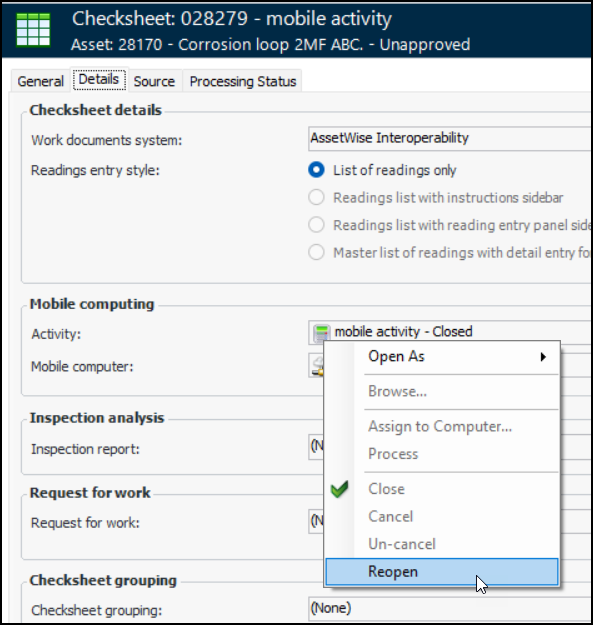
You can now download a previously closed checksheet activity to the mobile device for rework. For example, when a checksheet with readings has been uploaded to enterprise, sent for approval, and rejected by the approver, its status changes to “Closed”. You can change its status back to “Assigned” so that it can be downloaded to the mobile device to be revised.
Note: You must have upgraded to version 2.6.1 of APM Mobile Inspections, as well as APM 24.0.1, to use this functionality.
Open the mobile activity’s checksheet and select the Properties view, Details tab. Right-click the activity and click Reopen:
For more information, see Closing and Reopening Mobile Computing Activities.

Site Management – Regions, Site Categories, and Site Groups

You can now define regions, site categories, and site groups at the enterprise level and assign them to sites. These values are handy when setting up KPIs, charts, dashboards, configurations, and more.
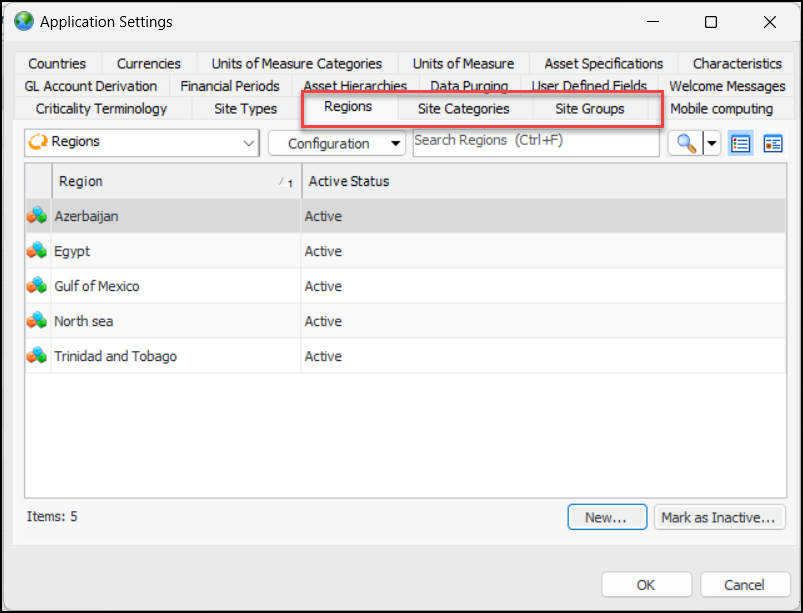
In the Enterprise window, click the Administration menu and then Application Settings. In the Application Settings window, select the Regions, Site Categories, and Site Groups tabs to add these objects:
For more information, see Setting up Regions, Site Categories, and Site Groups.
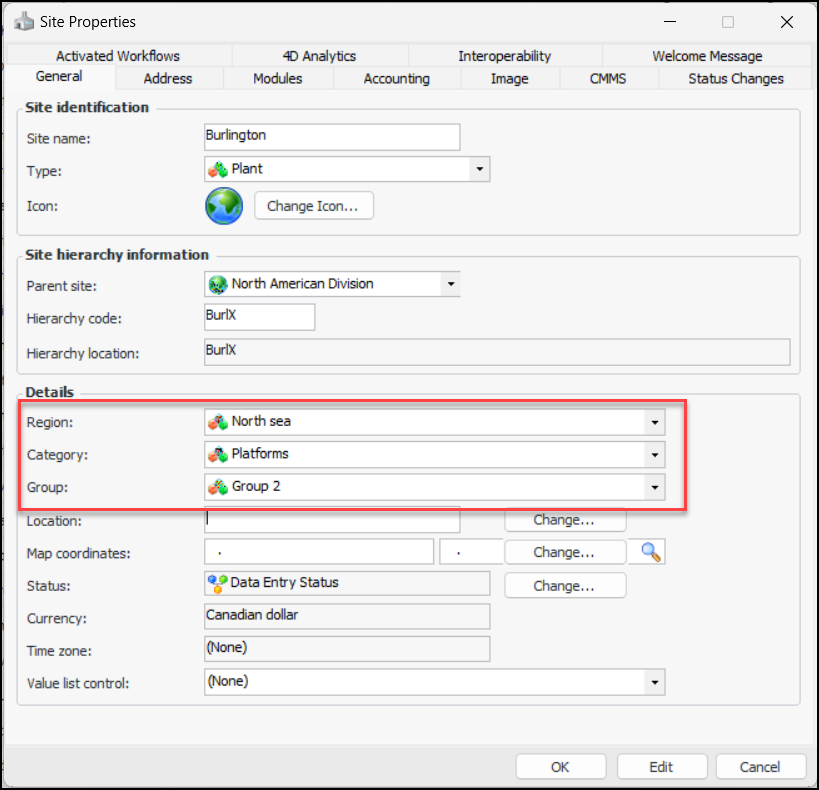
Open a Site window, click the Site menu and then Properties. In the Site Properties dialog, General tab, you can associate the site with a region, category, and group:
For more information, see Setting up a Site Hierarchy.

Standard Tasks

The following enhancements were made to standard tasks for this release.

One Checksheet Limit

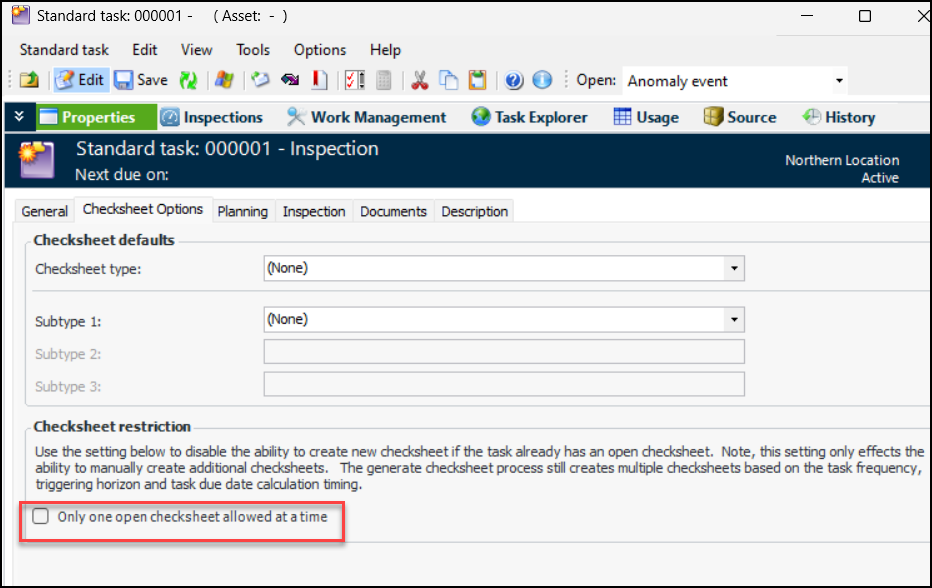
You can now set a checksheet option on standard tasks and templates to limit the task to having one open checksheet at a time. This restriction applies to the manual creation of additional checksheets, not to checksheet generation, split checksheets, or checksheets created from a standard job.
In the Site window, select the Reliability Program view, Program tab. Open the standard task or task template and select the Checksheet Options tab:
Select Only one open checksheet allowed at a time and close the task.
When a user browses for a standard task to associate with a new checksheet, tasks that have this limitation and one open checksheet will not be available for selection.
For related information, see Creating a Standard Task from Scratch.

Standard Task Due Date Calculation

When the earliest checksheet is used as the basis for the next due date, the Last done on date (shown in the Standard Task window, Inspections view, Inspection Status tab) is now set to the processed date of the earliest checksheet when the next due date is calculated.

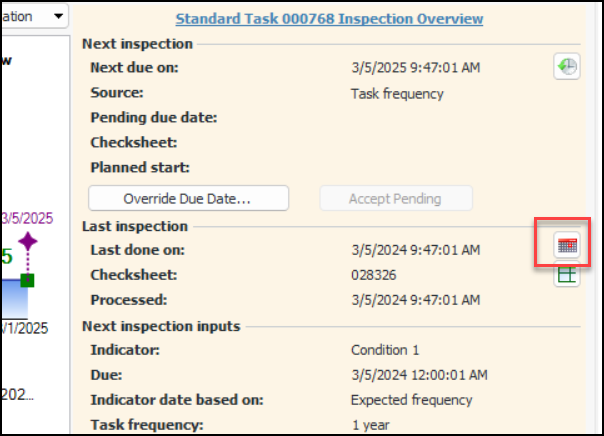
Override Last-Done-On Date

If the standard task’s due date is tracked, you can now override the last-done-on date. Manually entering the last-done-on date can be handy when creating a task that originated outside APM or to correct data.
The Override button or icon is available in the Standard Task window, Inspections view, Overview tab and Inspection Status tab. Here’s an example of the Overview tab:
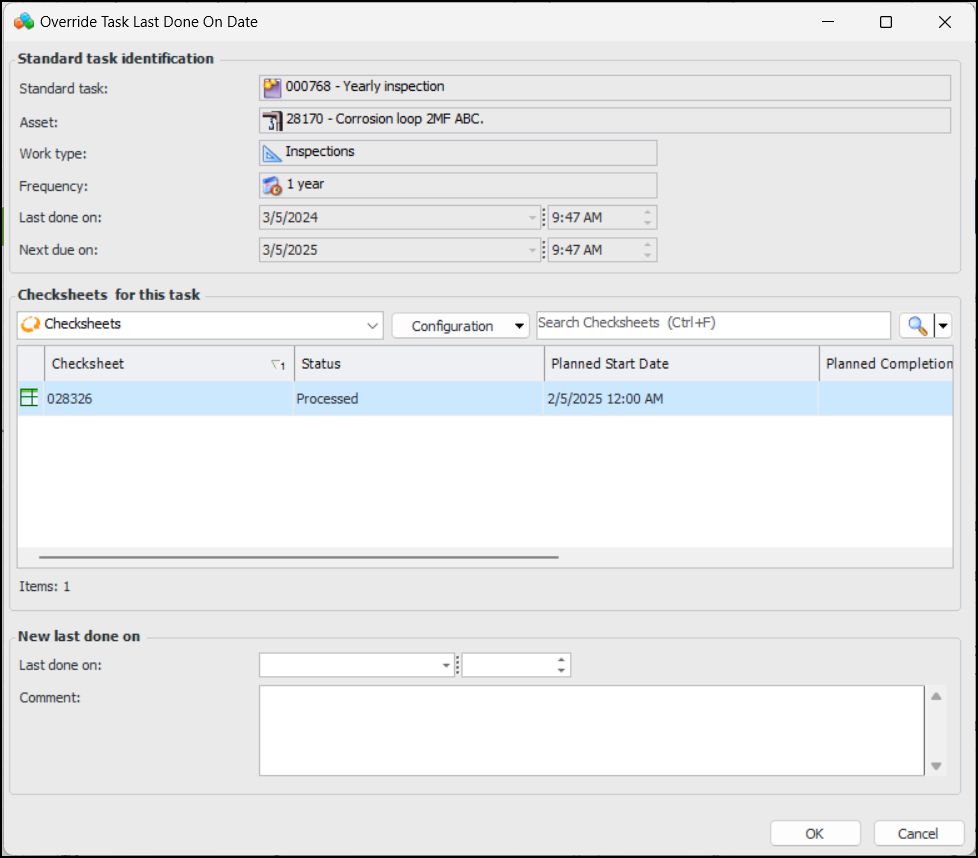
The Override Task Last Done On Date dialog shows information about the task and its checksheets, as well as an area where you can change the last-done-on date and enter comments:
When the last-done-on date changes, the next-due-on date might be recalculated. For example, if the due date calculation is based on the task’s frequency, the next due date will be changed to the new last-done-on date plus the frequency.
You can select two or more standard tasks in a table, right-click and click Dates and then Override Last Done on Date. The Override Task Last Done On Date dialog displays information about the first task. The new last-done-on date and comments that you enter will be applied to all of the selected tasks. Each task’s next-due-on date will be recalculated appropriately.
For related information, see Working with Standard Task Due Dates.

Strategy Development Analysis

The following enhancement was made to strategy development analysis.

Degradation Rate Selection on Failure Modes
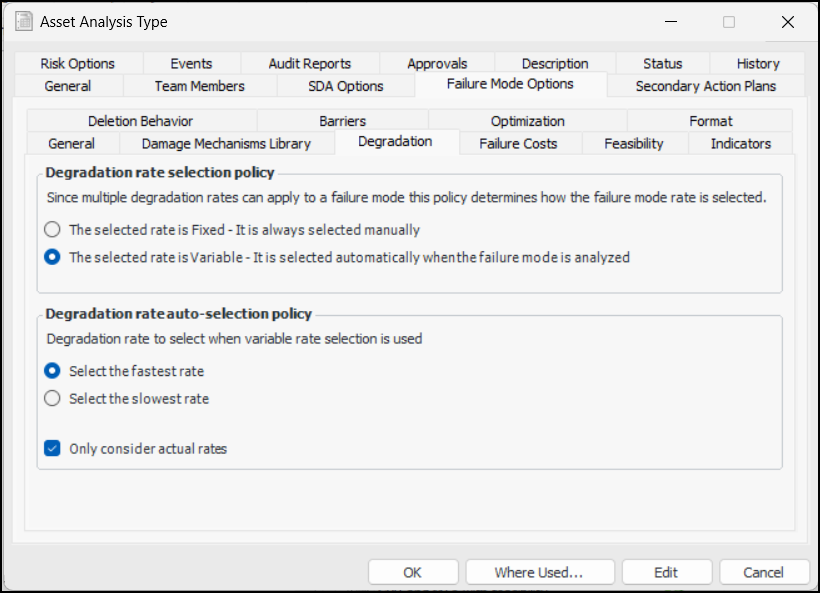
When setting up analysis types or defining properties on RBI, MTA2, and RCM2 analyses, you can now choose one of two degradation rate selection policies:
Fixed – The degradation rate is only selected manually
Variable – The degradation rate is selected automatically when the failure mode is analyzed
When Variable is selected, chose whether the fastest or slowest rate is used. You can also specify that only actual rates are considered, which means that design rates are not included.
In the Analysis Type window or the Strategy Development window, Properties view, you will find these options on the Failure Mode Options tab, Degradation tab:
For more information, see Setting Failure Mode Options for Analysis Types.