What’s New in APM 24.0.0

Among other enhancements, this release introduces version numbering that better aligns AssetWise Reliability (APM) with other Bentley products.

Contents

Asset Management
AWEIS – Standard Task Due Date Calculation
AWEIS – Checksheet Splitting
AWEIS – Solution Package Template
AWEIS – Work Order and Checksheet Status
Data Loaders
Environment Migration Wizard
Fluid Condition
Implementation Assistants
Inspection Management
Performance and Stability Enhancements
Release Numbering Change
Strategy Development Analysis

Asset Management

The following enhancements were made to asset management.

Circuit Breaker Specifications

The Fluid Type property has been added to the circuit breaker specifications panel in APM and APM Remote.

Amp Hour Rating

The data type of Amp Hour Rating has been changed from a string to a decimal number in electrical substation asset specifications. The following panels have been updated:
These changes were made in APM and APM Remote.

Subsystem and Specification Settings

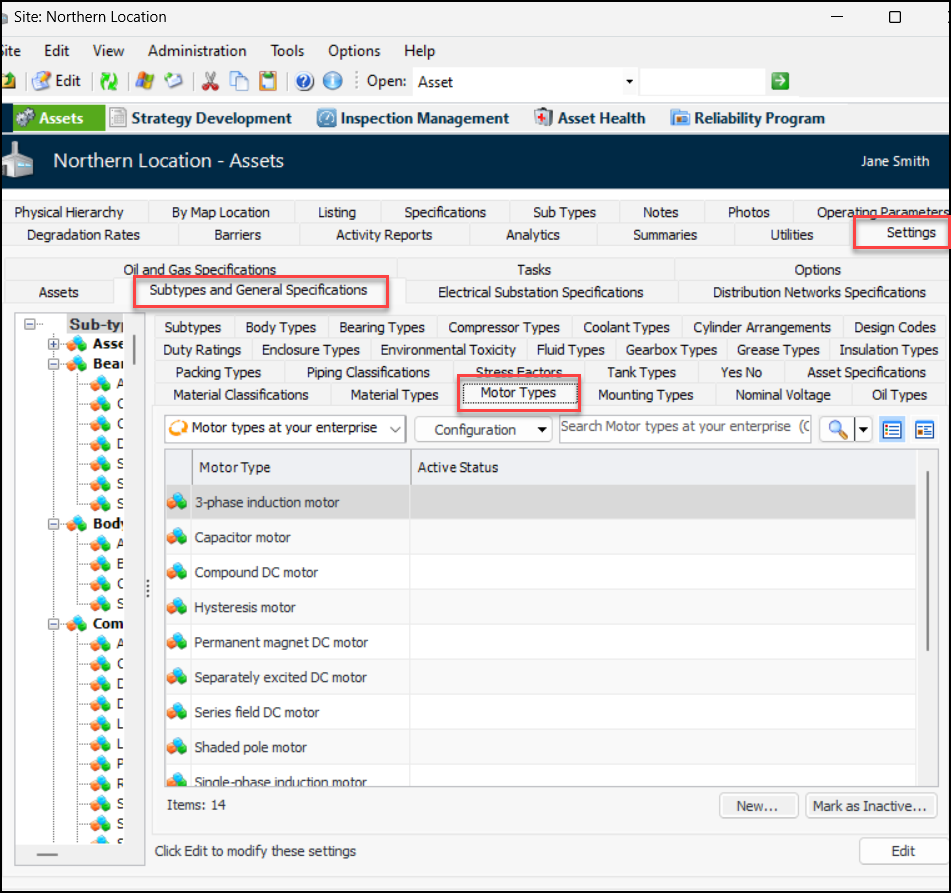
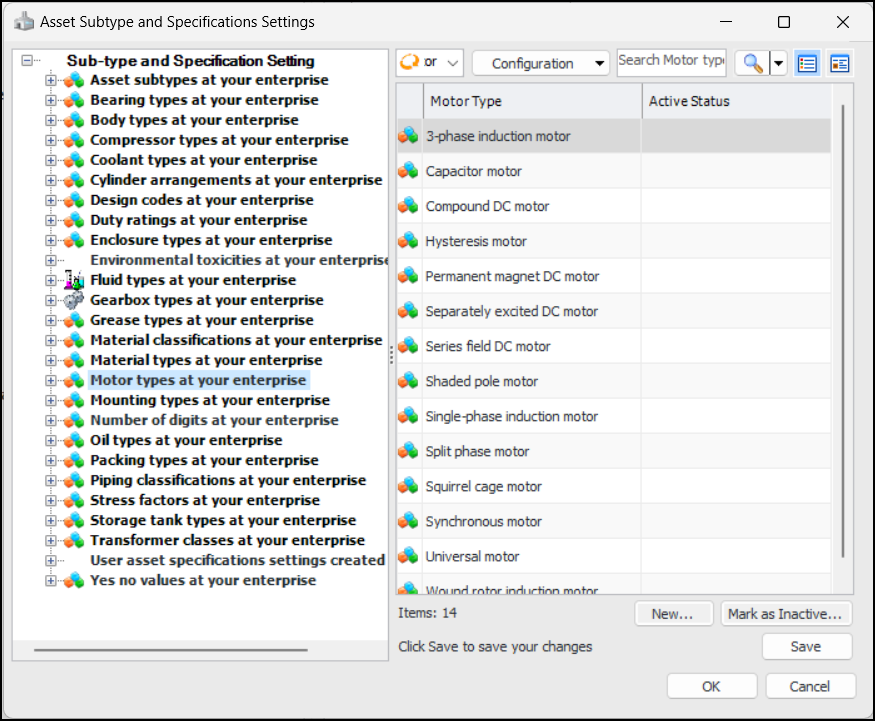
Asset administration dialogs and settings tabs have been reorganized so that value lists are easier to find. For example, to add a new motor type, you no longer need to select the Motors tab and then the Motor Types tab. Instead, the Motor Types tab is visible under the Subtypes and General Specifications tab:
Tip: Select a node in the explorer tree to display the contents of a specific tab.
Explorer trees have been added to Asset Settings dialogs so that you can locate a value list by selecting a node in the tree. For example:
The explorer tree was added to setting dialogs for:

AWEIS – Standard Task Due Date Calculation

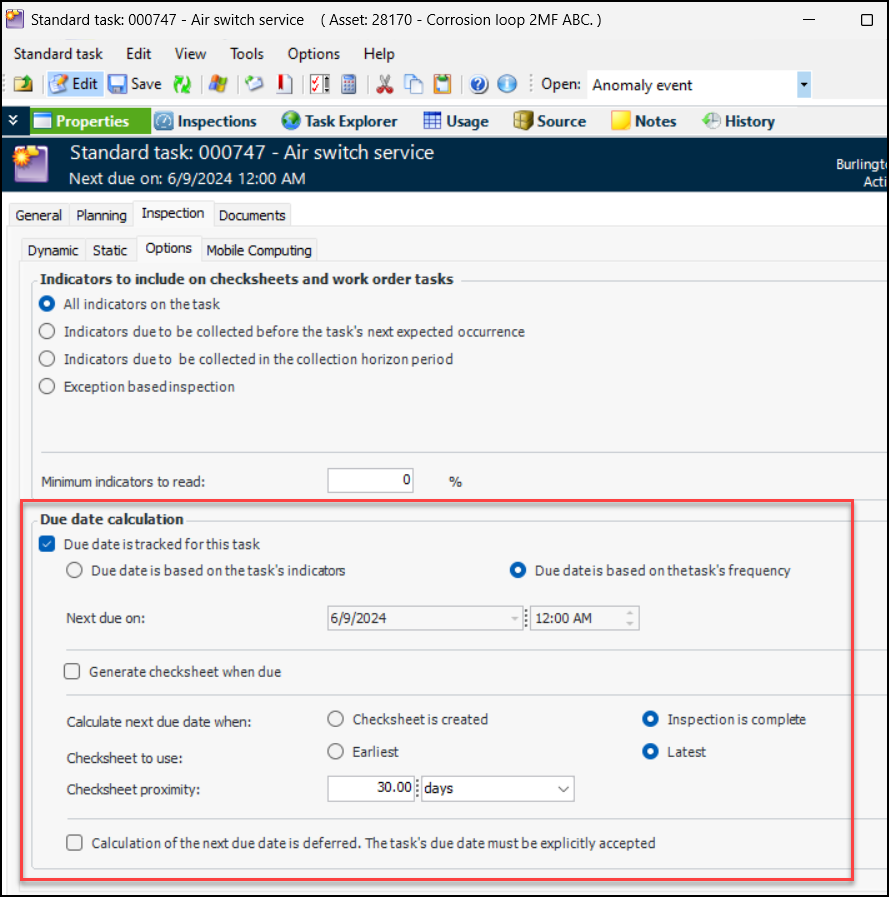
As of this release, you can defer calculating the next due date on a standard task until all of its open checksheets are complete. When inspection is complete, the standard task due date is calculated based on the task’s frequency setting.
Note: Variable due date calculations is a “generally available” product feature. You must first enable feature 117 to use the functionality in APM. In the Enterprise window, select the Features view and the Enabled Features tab. Click Browse, select “Ability to define standard task due date calculation until inspection is complete” and click OK. If APM is running as a smart client, click Refresh Enabled Features on the server. Then restart the client to use the functionality.
To set up due date calculation options, open the Standard Task window, Properties view, Inspection tab, Options tab. For example:
This functionality can also be set up on task templates and then copied to standard tasks created from the template.
For more information, see Setting Inspection Options for a Standard Task.

Standard Task Due Date Defaulted to its Checksheet Planned Date

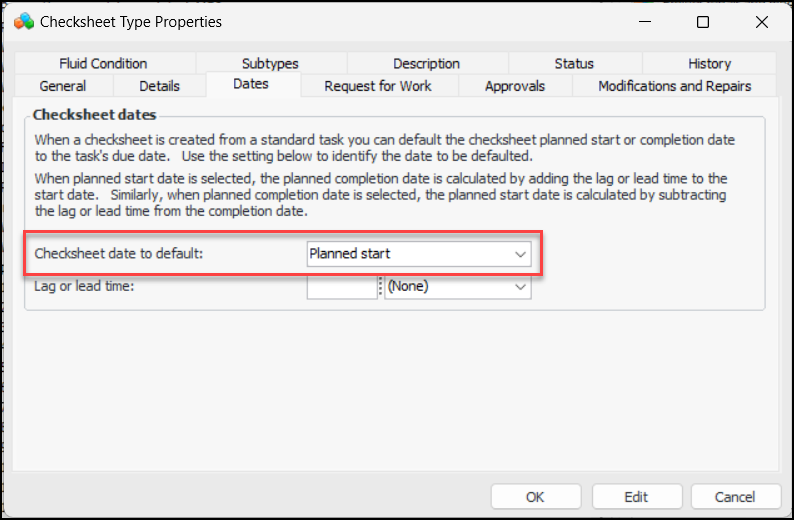
When setting up a checksheet type, you can specify that the standard task’s due date be the default planned start or completion date on checksheets created from the standard task. For example:
To calculate the other planned date, enter the lag or lead time. For example, if “Planned start” is selected and the lag time is 30 days, the planned completion date is set to 30 days after the planned start.
See Setting up Checksheet Types.

AWEIS – Checksheet Splitting

You can now split a checksheet into two or more checksheets and move indicator readings from one checksheet to another. This is handy, for example, when two or more inspectors are assigned to complete inspection tasks within the available time.
Note: Checksheet splitting is a “generally available” product feature. You must first enable feature 118 to use the functionality in APM. In the Enterprise window, select the Features view and the Enabled Features tab. Click Browse, select “Checksheet splitting” and click OK. If APM is running as a smart client, click Refresh Enabled Features on the server. Then restart the client to use the functionality.
The checksheet type determines whether checksheet splitting is supported.
When the standard task’s due date calculation is based on checksheet completion, the due date is updated when the last checksheet is completed. The due date is based on the checksheet completion date and standard task frequency.
There are a few ways to move readings between checksheets in a grouping.
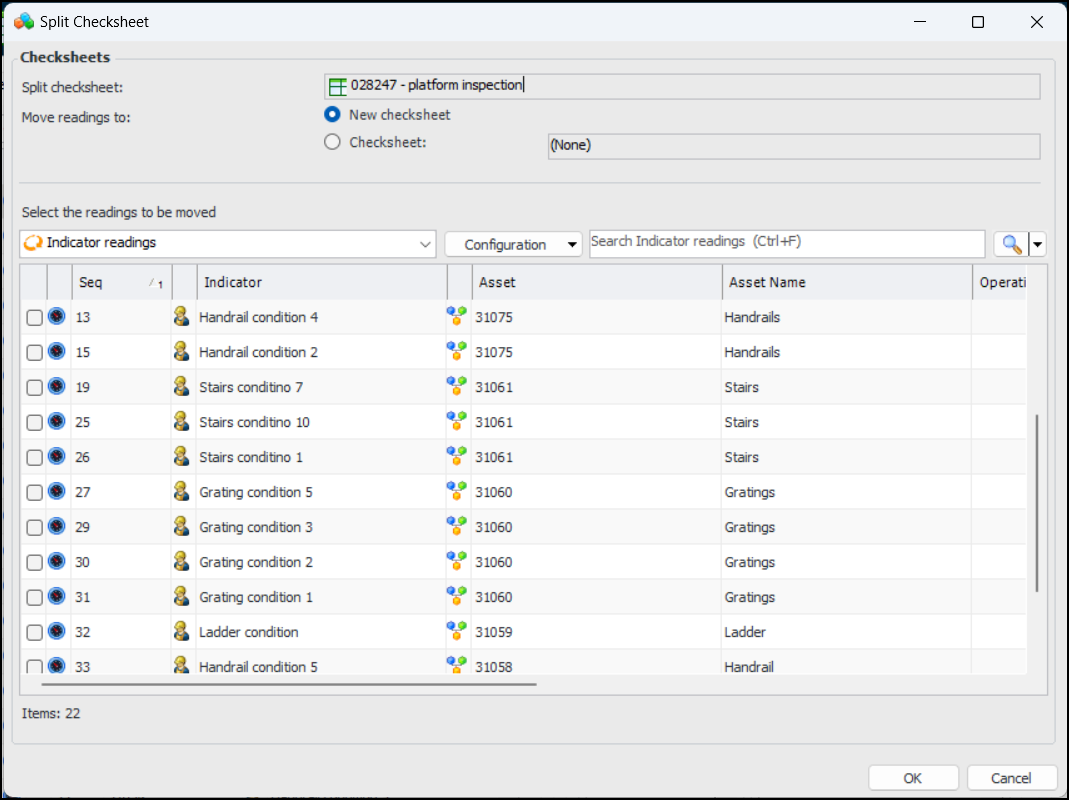
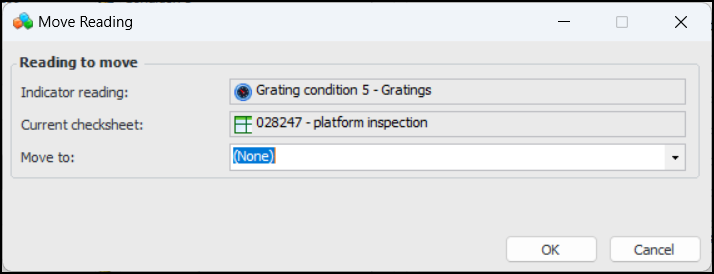
In a Checksheet window, click the Tools menu and then Split. The Split Checksheet dialog appears:
You can create a checksheet or move readings to an existing checksheet. Select the indicators to move and click OK.
The Move to list shows only checksheets in the same checksheet grouping.
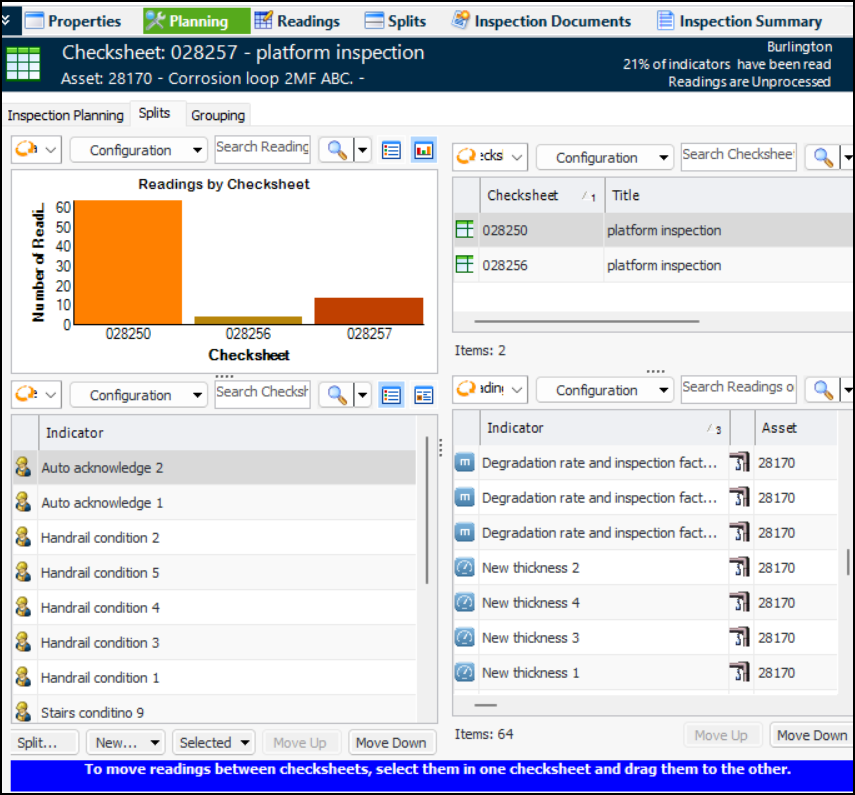
In the Checksheet window, select the Planning view and the Splits tab.
Drag and drop one or more indicator readings from one checksheet to another in the grouping.
When a checksheet has been split, the two (or more) resulting checksheets are numbered individually, but they are also identified by their common checksheet grouping. You can view checksheet groups in the Site window, Inspection Management view, Checksheets tab, Splits tab.
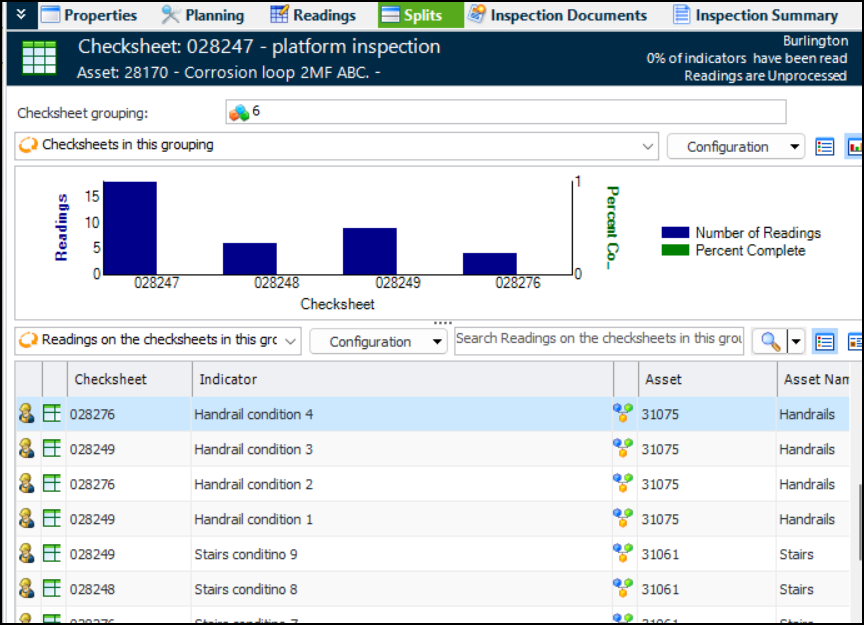
You can also view the checksheet grouping in the Checksheet window, Splits view:
The view shows the grouping number, a chart showing number of readings and percent complete, and a table of the readings on the checksheets in the grouping. You can also select configurations showing readings removed from the checksheet or readings by checksheet.
See Splitting Checksheets.

AWEIS – Solution Package Template

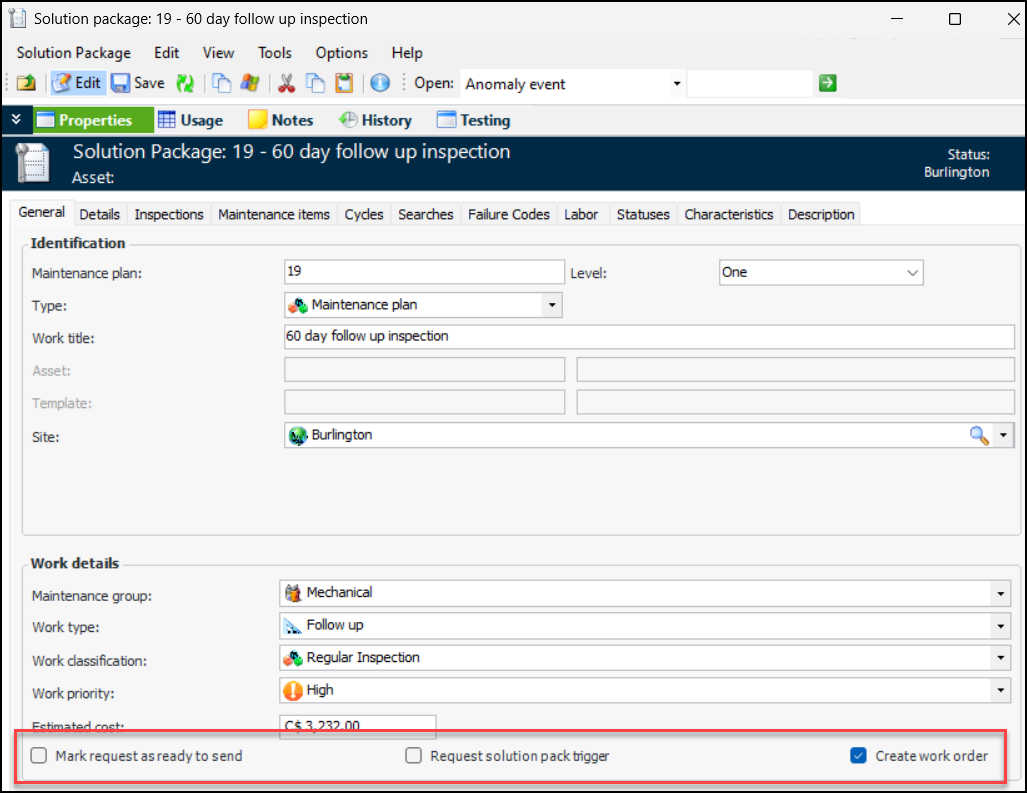
The following options have been added to the solution package template:
For example:
These options make it possible for requests for work to be created automatically based on indicator state settings.

AWEIS – Work Order and Checksheet Status

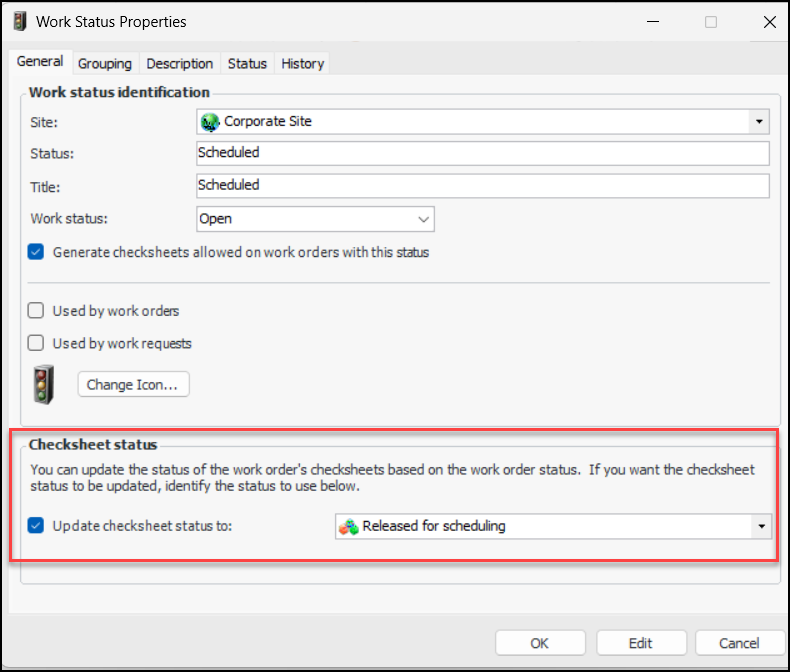
When an interop work order’s status changes, it is now possible to update its checksheet’s status at the same time. For example, if the work order status changes “Scheduled”, the checksheet status changes to “Released for scheduling”.
Options on the work status control this functionality. You can enable the option and select the checksheet status:
Note: This work status feature is available for technology preview. You must first enable feature 127 to use the functionality in APM. In the Enterprise window, select the Features view and the Enabled Features tab. Click Browse, select “Update checksheet status when work status is updated” and click OK. If APM is running as a smart client, click Refresh Enabled Features on the server. Then restart the client to use the functionality.

Data Loaders

The following data loader was added in this release.

Standard Task Solution Packages Data Loader

This new data loader populates the solution package information on standard tasks.
Note: Standard task solution packages data loader is available for technology preview. You must first enable feature 122 to use the functionality in APM. In the Enterprise window, select the Features view and the Enabled Features tab. Click Browse, select “Standard task solution package data loader” and click OK. If APM is running as a smart client, click Refresh Enabled Features on the server. Then restart the client to use the functionality.
The following properties on the specified standard task are updated by the Standard Task Solution Package data loader:
Site, asset number, standard task number, and at least one of the solution package levels are required. The data loader does not populate task templates.
AWEIS must be active on the site. The active site interoperability profile must define the solution package levels.
When the data loader is processed, the values are copied to the referenced standard task.
The data loader is available in the Enterprise window, Data Loaders view, Reliability Program tab.

Environment Migration Wizard

APM customizers and implementers use the Environment Migration Wizard to selectively copy customizations and data between environments, for example, from Development to QA or from QA to Production.
The Migrate Data transport has been updated to include new packages for Asset oil and gas specifications and Fluid management settings. The following data migration packages have been updated:
For more information, see APM Environment Migration Guide.

Fluid Condition

The nominal voltage property has been added to electrical substation asset specifications. The property is available in the fluid condition asset interface class.

Implementation Assistants

Five new assistants are available in the Enterprise window, Implementation Assistants view:
See Using the Implementation Assistants.

Inspection Management

The following enhancements were made to checksheets and indicator readings.

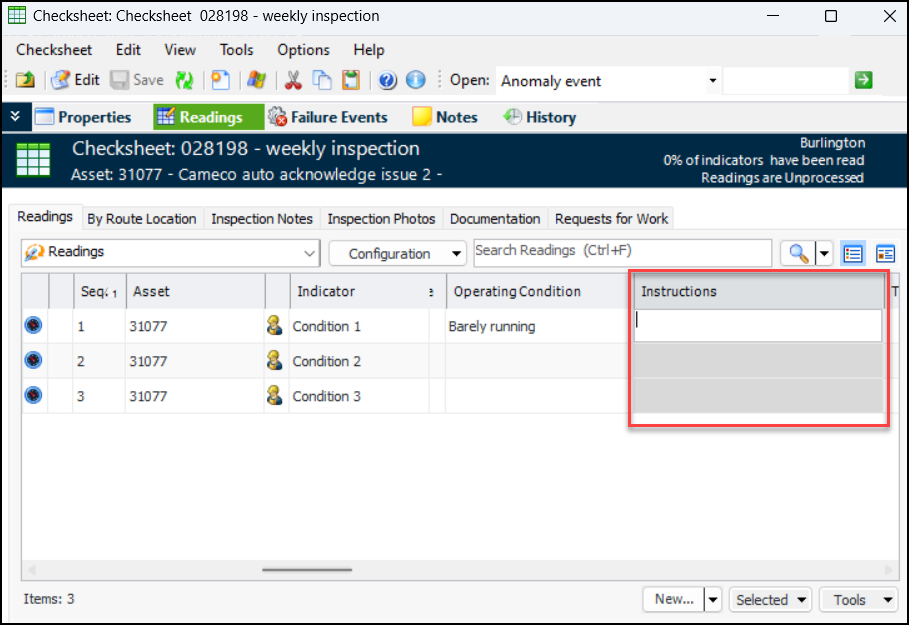
Checksheet Task Description

If the checksheet status allows properties to be updated, you can now revise instructions on checksheets. For example:

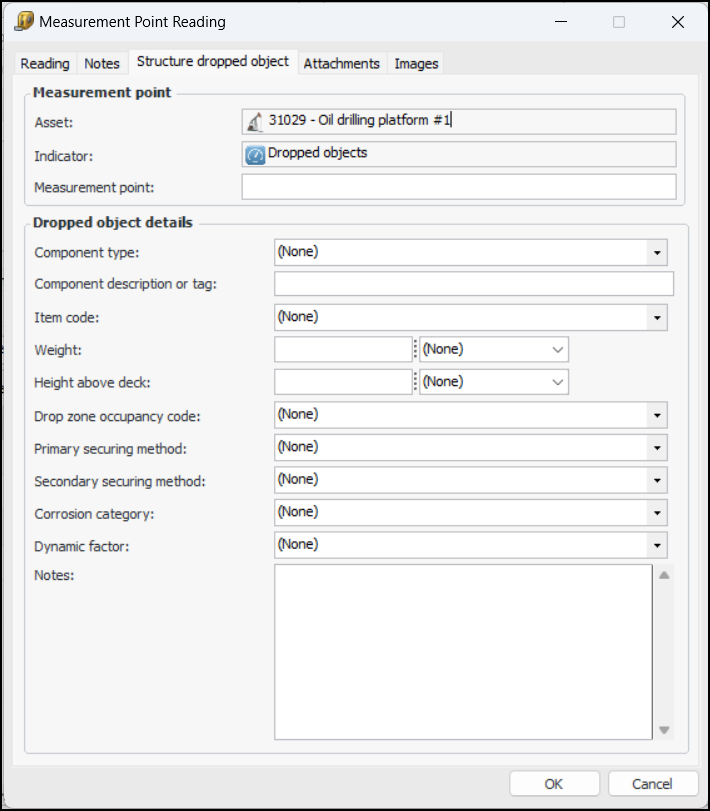
Structure Dropped Object Subtype

The new Structure Dropped Object indicator subtype provides value lists, properties, and panels for measurement point readings. When an indicator supports measurement points and the Structure Dropped Object subtype, its Measurement Point Reading windows display the Structure Dropped Object tab:
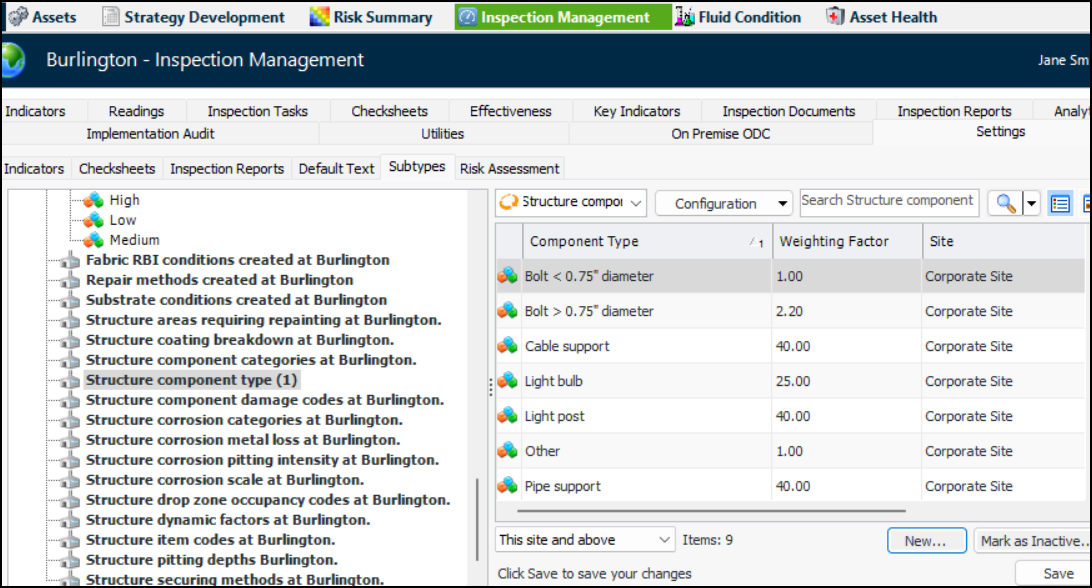
To populate the value lists, open the Site window and select the Inspection Management view and Settings tab. On the Subtypes tab, scroll down and select one of the following nodes:
For example:
You can add, delete, and mark properties as inactive.

Assign Checksheets to a Mobile Device

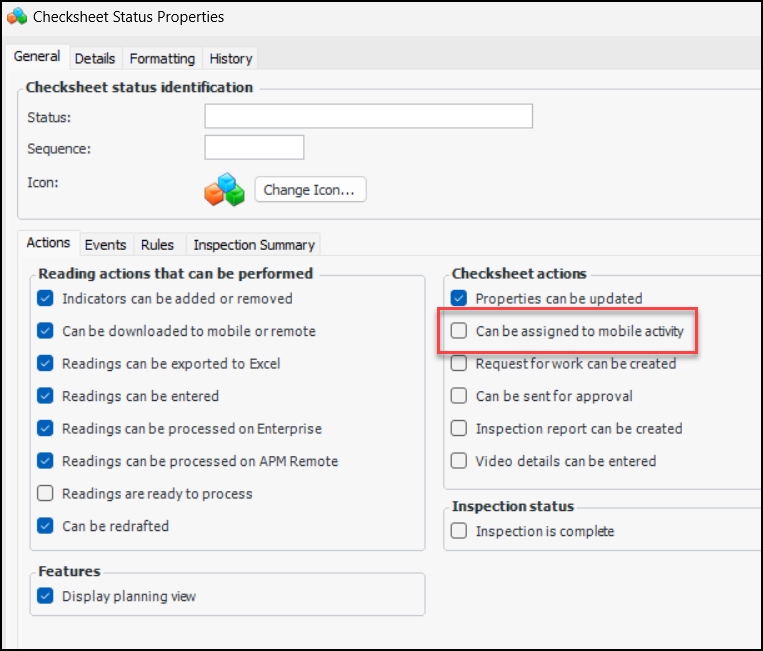
Previously, checksheets were assigned to mobile devices through their sources, for example, standard tasks. You can now assign a checksheet created from scratch to a mobile device. A new option – Can be assigned to mobile activity – on checksheet status enables this functionality:
See Assigning Checksheets to a Mobile Device.

Performance and Stability Enhancements

The following improvements were made for this release:

Release Numbering Change

As of this version, APM release numbering is now year-based. Version 7.23.24.10 (released in October 2023) was the last to use the old numbering scheme. As of January 2024, release numbering follows this pattern:
AA – Year
BB – 00
CC – Quarter
DDDD – Build number
This version has been designated 24.0.0 to mark the beginning of the change.

Strategy Development Analysis

The following enhancements were made to strategy development analysis.

Inspection Factor Matrix’s 4th Dimension: Integrity Group

For RBI confidence evaluations, you can now extend the 3-dimensional inspection factor matrix to a fourth dimension: asset integrity group. Confidence evaluations can use integrity group, degradation type, criticality, and confidence factor to determine the Inspection Factor, Inspection Strategy, and Inspection Interval for failure modes.
Integrity group is identified on asset types, providing an easy mechanism to group similar assets. For example, integrity groups can be created for piping systems, vessels, and heat exchangers.
Note: 4D inspection factor matrices are a “generally available” product feature. You must first enable feature 123 to use the functionality in APM. In the Enterprise window, select the Features view and the Enabled Features tab. Click Browse, select “Inspection factor lookup based on integrity group, degradation, criticality, and confidence factor” and click OK. If APM is running as a smart client, click Refresh Enabled Features on the server. Then restart the client to use the functionality.
Setting up a 4D matrix involves these steps:
Define asset integrity groups. In the Site window, select the Assets view, Settings, Assets, and Integrity Groups tabs to add groups
See Setting up Asset Integrity Groups
See **Setting up Asset Types
Update analysis types to use the matrix. In the Asset Analysis Type window, enable editing and select the Risk Options and Inspection Factors tabs. Select the option for 4D matrix
See Setting Risk Analysis Options for Analysis Types
Generate inspection factors. In the Site window, select the Strategy Development view, Settings, Confidence, Inspection Factors, and 4D Inspection Factor Matrix tabs. Click Generate
See Setting up Inspection Factors
Tip: You can use the Administration Assistant for “RBI: Confidence analysis” to perform the steps described above. In the Enterprise window, select the Implementation Assistants view. Double-click RBI: Confidence analysis in the list.

Detailed Economic Effects Evaluation
For the Reduced throughput percentage, the data type has changed from a whole number to a decimal number. The calculation for reduced throughput cost has been updated accordingly. FMEA data loaders have also been updated.
When you upgrade to APM 24.0.0, the Upgrade Wizard makes the change to evaluations in your database.