Viewing Information About a Work Request

You can view the details, status, sources, and history of work requests. Work requests can be viewed from the Work Management view, Work Requests tab.
Work requests can have the following statuses:
New: The request has been created but has not been turned into a work order yet
Work order created: A work order has been created for this work request
Work completed: The work order that was created for this work request has been completed
Canceled: The work request was canceled
Closed: The work request was manually marked as “Closed”
If your organization uses approvals, a work request can also have an approval status:
Approved: All approvers have approved the work request
Approval not required: This work request does not need to be sent for approval
Approval rejected: The work request has been rejected by an approver
Unapproved: The work request has not yet been sent for approval
Waiting for approval: The work request has been sent for approval but is not yet approved

To View Work Request Information

1.
From the Site window, select the Work Management view, Work Requests tab. By default, this tab shows all of the open work requests only.
Tip: You can view open work requests by their geographical location by selecting the Map of open work requests configuration. For more information about viewing objects by map location, see Viewing Map Information.
2.
Find the request that you want to view in the table. If the request is not listed, it might be completed or canceled. To search closed work requests, select Completed Work Requests from the work requests configuration list.
Tip: To quickly find the request you are looking for, you can filter and sort the list of requests on any tab. Select a column, and press F7 (to filter), F8 (to sort ascending), or F9 (to sort descending). For more information on filtering and sorting, see Table Configurations.
3.
The status of this work request is displayed in two locations:
The Work request identification area on the General tab displays the general status
4.
Select the Source tab to view requestor information, follow-up work, and alarm acknowledgments for the work request.
5.
Select the Comments tab to report and view comments relating to the work request.
6.
Select the Activity view to view Work Order, Failures, Activity Reports and CMMS information related to this work request, on their respective tabs.
7.
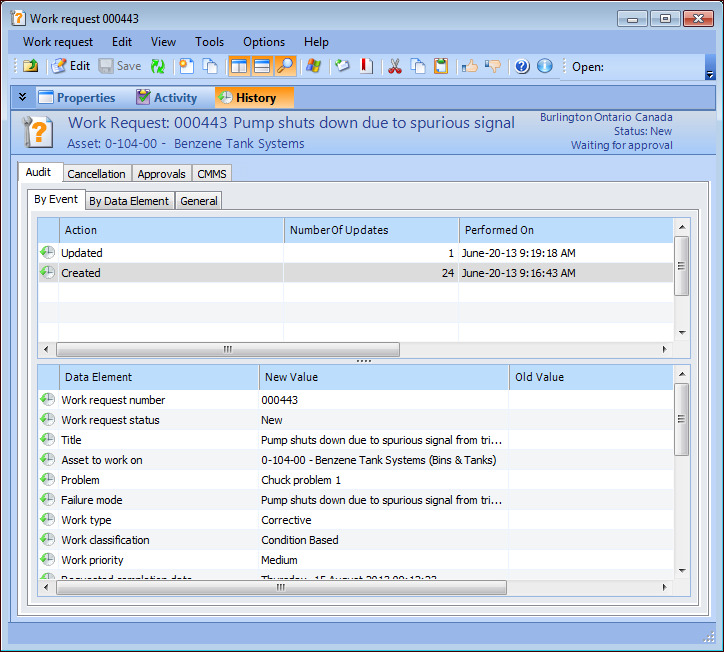
Select the History view, to view audit, approvals, and CMMS information where appropriate.
This tab displays the actions performed on the work request. Select an action to view the data elements affected by it in the lower table, as well as their new and old values. You can also double-click any action in the list to view the Audit Info dialog, where audit details are displayed.
8.
If the Work Order tab is available, select it to view information about the work order created from the work request.
9.
Select the Approvals tab to view detailed approval information about the approval request.
10.
Select the Activity Reports tab to view asset activity reports in which this work request is included.