|
Viewing Information About a Work Order
You can view the details, status, sources, and history of work orders. Work orders can be viewed from the Work Management view, Work Orders tab, then the Work Orders tab.
• New: The work order has been created manually from a work request or an indicator acknowledgment.
• In planning: A requirement was added to a work order or work order task.
• Sent for approval: The work order has been sent for approval and it is not yet approved.
• Planned: The work order is approved. If approvals are not required, the user can manually mark the work order as “planned”. Individual work order tasks can also be marked as “planned”.
• Scheduled: The work order is scheduled.
• Work Started: The first indicator reading is entered or a labor or service transaction is charged to a work order task. A work order retains this status if at least one of its tasks remains open and is not completed.
• Completed: The user marks the work order task as being completed on the Report Activity dialog. When all of the work order’s tasks are closed, the work order also has this status.
• Closed: The user marks the work order task as being closed on the Close Task dialog. When all of the work orders’s tasks are closed, the work order also has this status.
• Canceled: The user marks the work order as canceled from the Cancel Task dialog. When all the work order tasks have been canceled, the work order also has this status.
• Rejected: The work order has been sent for approval and then rejected (not approved).
• Unapproved: The work and purchases have not been sent for approval. Approval is required.
• Waiting to be approved: The work order has been sent for approval, and approval is pending.
• Approval not required: The work order does not require approval.
• Work approval not required, waiting for purchases to be approved: The work order does not require approval, but is waiting for its purchase requirements to be approved.
• Work approved, purchases are unapproved: The work order has been approved, but it is waiting for its purchase requirements to be sent for approval.
• Work approved, waiting for purchases to be approved: The work order has been approved, but it is waiting for its purchase requirements to be approved.
• Approved: The work order and purchases are approved.
• Work approved, purchases rejected: The work order has been approved, but its purchase requirements were not approved.
• Rejected: The work order approval was denied.To View Work Order Information
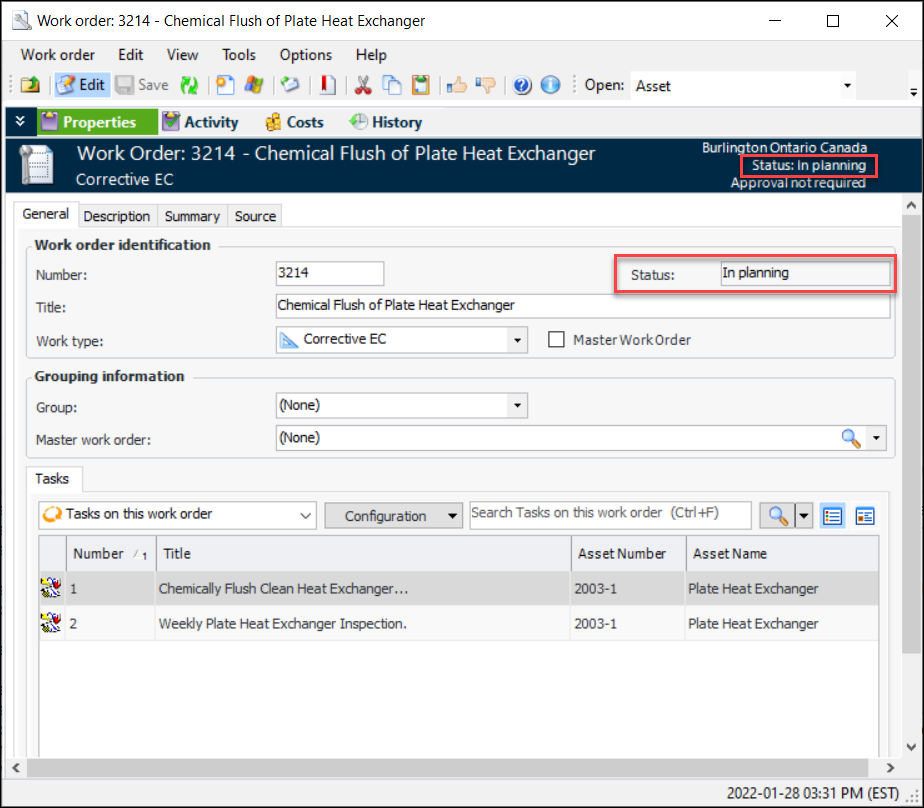
2. From the Properties view, General tab, you can view work order identification and grouping information, and work order tasks for the work order.
• In the Work order identification area on the General tab.
3. Select the Description tab to view or record a description for the work order.
4. Select the Summary tab to view task summary, estimated duration, and start and completion date information about the work order.
5. Select the Source tab to view source and reliability program information about the work order.
6. Select the Activity view to view detailed information about the work order’s tasks, including indicator readings, failures, and comments.
7. Select the Costs view to view planned and actual costs summaries, detailed costs by type, cost transactions by date or task, and detailed task costs.
8. Select the History view to view work order approval status, printing history, and asset activity reports in which this work order is included.