Working with Mobile Computers in APM

When an employee installs an APM mobile app on a device and logs on for the first time, a mobile computer record is automatically created in the APM database. The computer name is set to the employee number and name, for example, “93 - Jane Smith”. The device type is automatically set to “iOS or Android Device”. Any activities assigned to the employee’s maintenance group or warehouse are downloaded to the device.
In APM, you can create and assign activities to maintenance groups or warehouses, view and adjust mobile computer properties, review synchronization history, and view and process upload transactions.
This topic explains how to open a mobile device in APM to adjust its properties and review the current or historical activities assigned to the device.

To Work with a Mobile Computer in APM

1.
Select the site’s Mobile Computing view and the Mobile Devices tab.
2.
3.
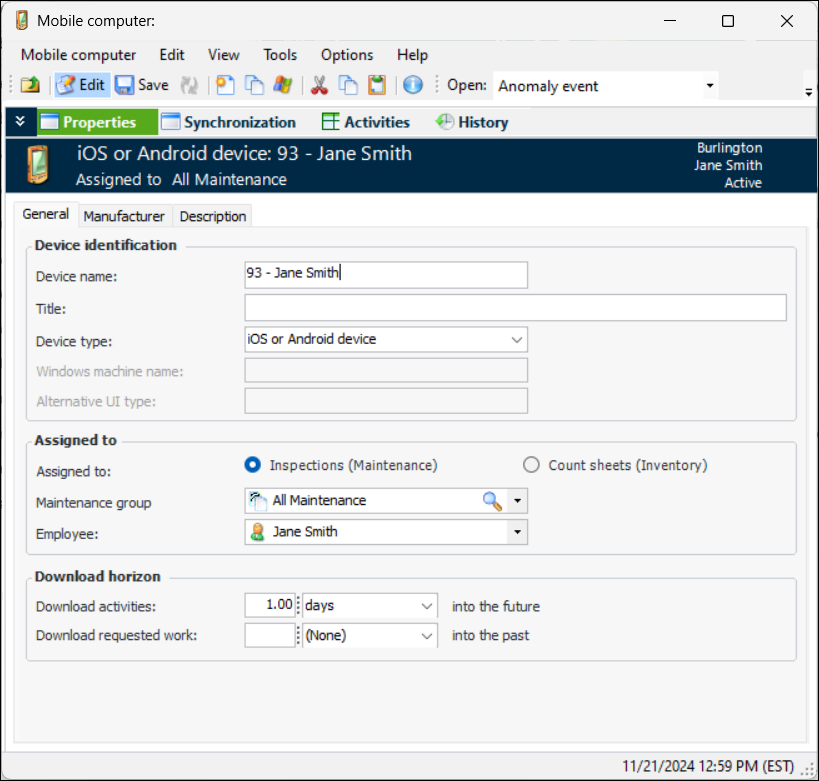
Here is an example of a device assigned to maintenance:
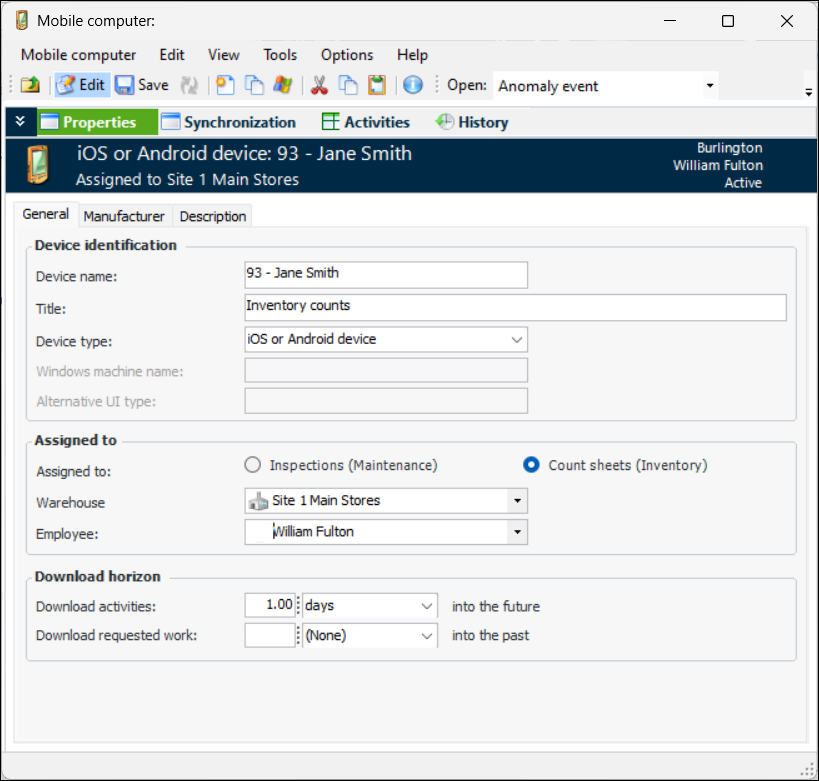
Here is an example of a device assigned to inventory:
4.
Review the settings for the device on the Properties view, General tab.
5.
For example, suppose that this option is set to two days. If the mobile computer is available for downloads on May 1, all activities that are dated May 2 or May 3 will be downloaded. The activity date is based on the work order’s planned start date.
6.
Select the Manufacturer and Description tabs to add more information about the device.
7.
On the Synchronization view, the Synchronization History tab lists the upload and download events that have occurred for the device. This information is useful if errors occur in the synchronization process. You can click Clear History to delete this information.
8.
On the Synchronization view, Upload Transactions tab, you can review a list of the transactions that have been uploaded from the device. You can click Process All to incorporate the data from these transactions into the APM database. See Manually Processing Uploaded Activities.
9.
On the Activities view, you can review the current and historical activities assigned to the computer. You can also assign activities to the computer. See Assigning Activities to a Mobile Device.
10.
The History view, By Event tab lists the actions that have been performed on the device, for example, “Created”, “Marked as inactive”, and “Marked as active”, the user who made the changes, and the relevant dates of those changes.
11.