Viewing Map Information

You can display many different types of APM objects on a geographical map. For example, you can view all indicator readings, work requests, or assets in a physical geographical area.
In order to use the map feature, the APM client must have internet access and Microsoft Internet Explorer® version 9 or greater installed.
An APM object must include latitude and longitude coordinates to appear on a map configuration. For work requests, work order tasks, and indicators, APM automatically populates the latitude and longitude from the object’s asset to work on. These values can be changed if necessary. Note that the absence of map coordinates on an object simply means that the object will not be displayed on a mapped configuration.
Note: The top number of assets to display in a mapped configuration is defined in the Settings Editor, under the User Interface, Maps, Maximum Items to Display option, (default 1000). The larger the maximum value, the longer it may take for a map to display. Also, APM determines the top assets based on the sorting order of the configuration.
When creating objects that use map coordinates, you can enter the coordinates manually or you can point to a specific location on a map and have APM determine the coordinates. For more information about how to have APM determine the map coordinates for an object, see Setting Map Coordinates.
By default, APM uses the first icon in the configuration as its default icon for the map. If you want to use a different icon, you must position the icon as the first icon in the configuration.
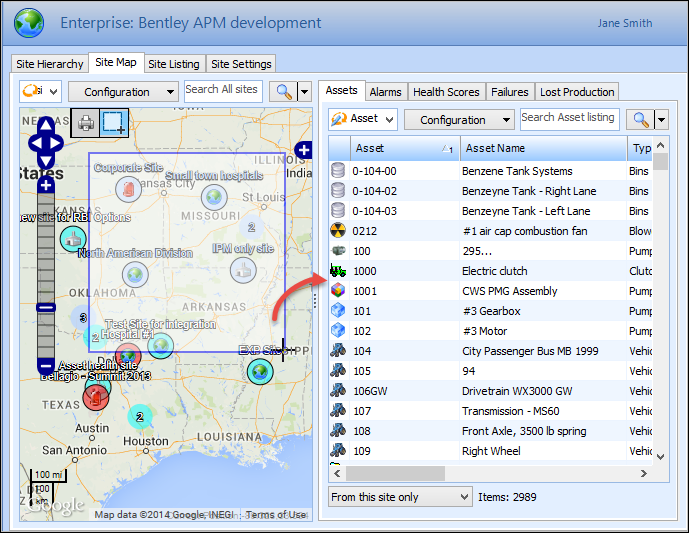
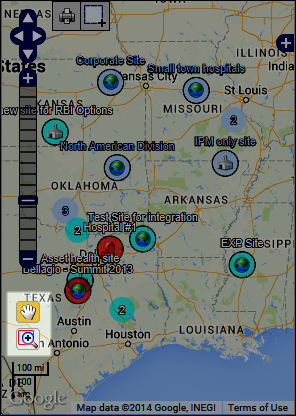
Below is an example of an APM map configuration of assets in an site:
This topic describes how to use the following features of an APM map:

Select Locations Mode Icon

When the Select Locations Mode Icon is selected, (), create a bounding box by dragging over an area of the map and details of all objects selected within that bounding area are displayed in the table to the right. For example:
Note: In the example above, you can also include or exclude additional objects from the selection by choosing different hierarchy options: From this site only, From this site and above, or From this site and below.
Alternatively, when the Select Locations Icon is not active, (), the Pan and Zoom icons appear toward the bottom left side of the map, as highlighted below:
When the Pan icon () is selected, you can drag the map to move the viewing window.
Tip: You can achieve similar results by selecting the navigational arrows below:
When the Zoom icon () is selected, you can drag over an area of the map to increase the magnification.
Tip: You can also double-click on any area of the map to zoom in, or use the slider bar below to zoom in or out:

Viewing Base Map and Overlay Layers

For informational purposes, you can view the base map and overlay layers that are used in a map configuration. For maps with multiple overlays, you can clear a check box for an overlay and it is temporarily removed from the map view. Note that clearing the check box only affects what is displayed on the map: actual objects in the configuration are not affected.
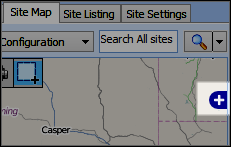
You can toggle overlay layers on a map by clicking the plus sign located at the right edge of the map:
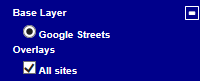
The object expands to display the base map layer and all overlay layers for the map. For example:
For maps with multiple overlays, you can clear a check box for an overlay and it is temporarily removed from the map view. Note that clearing the check box only affects what is displayed on the map: actual objects are not affected.

Identifying Map Objects

Map objects (assets, sites, indicator readings, etc.) can be displayed in different ways, depending on your configuration’s map layer settings.
If an object is in an alarm state and the Flash, by alternating with option is selected in the base map’s appearance marker settings, the marker’s icon alternates between its APM representative icon and an alternate icon, such as its alarm state icon, for example:
Note: By default, the marker uses the color defined in its appearance settings unless it is in an alarm state, in which case the marker color is displayed as per the alarm type’s background color.

Single Objects

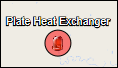
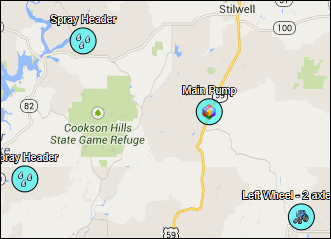
Each individual APM object identified on a map is represented by a circular marker, and its representative icon is displayed in the middle of the marker. For example:
Note: Marker labels and an outline are displayed if they have been selected in the base map appearance settings.
Tip: For more information about setting marker options, see Defining Base Map Options.
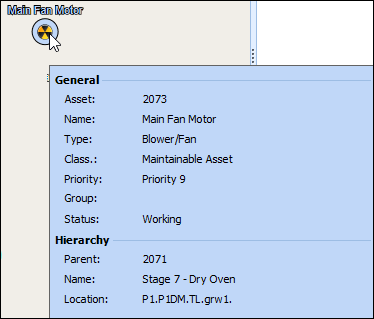
When you hover the mouse pointer over a marker, its details are displayed, for example:

Clustered Objects

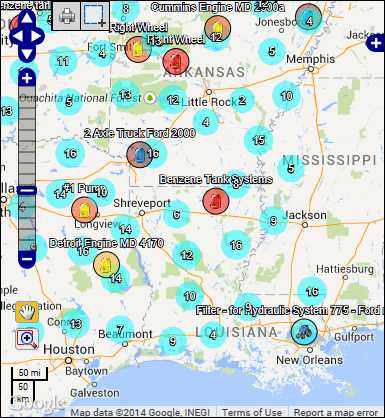
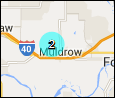
Clustered objects are objects that are grouped together on a map. For example, you might have two assets in the same physical location on the map. The cluster is represented by a circular marker, denoted by the quantity of objects within that same location. Below is an example of a clustered object:
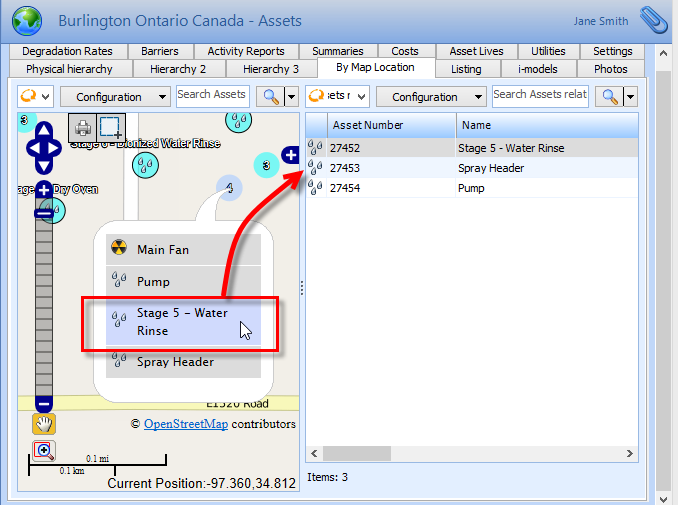
Tip: You can use the Select Locations Mode Icon and drag over a cluster object on the map to view all object details in the table adjacent to the map, otherwise, you can right-click a clustered item and a popup appears displaying the names of each of the objects in the cluster. Then you can select objects individually to have its details displayed in the table adjacent to the map, for example:
Note: Marker labels are displayed for clustered objects when the cluster refers to the same object, otherwise the clustered object simply displays a count of the objects in the cluster.
If the marker label column is numeric, the aggregate value for the clustered object is appended to the marker label.
Tip: For more information about setting marker options, see Defining Base Map Options.

Printing a Map

APM maps can be printed. When the Print icon () is selected, the system invokes the Microsoft Internet Explorer® Print Preview dialog. On this dialog, you can adjust print settings such as page orientation and sizing, before printing the map to your default printer.