Setting up and Viewing Linked Assets

You can set up links between assets beyond the relationships provided by physical hierarchies. For example, in the case of distribution network assets, links could be established between a transformer and its network switch, network junction, and ground switch. The advantages of links include:
Note: Support for asset links is a “generally available” product feature. You must first enable feature 76 to use the functionality in APM. In the Enterprise window, select the Features view and the Enabled Features tab. Click Browse, select “Support for asset links” and click OK. If APM is running as a smart client, click Refresh Enabled Features on the server. Then restart the client to use the functionality.
This topic explains:

To Set Up Asset Links

1.
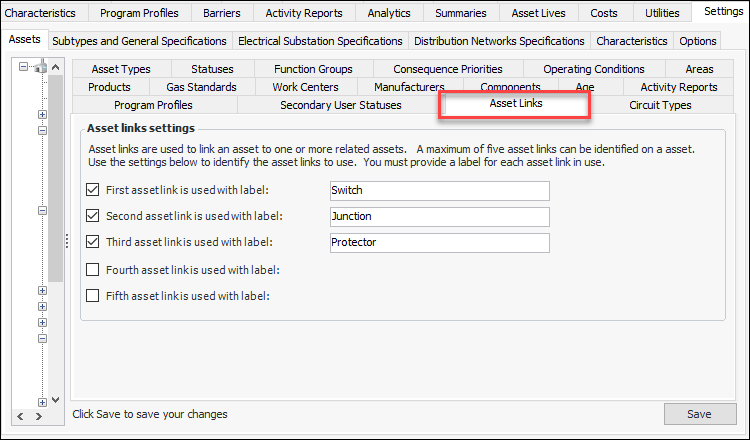
In the Site window, select the Assets view, Settings tab, and Asset Links tab.
2.
Click Edit and define labels for as many as five asset links. For example:
When you click Save, the links become available on asset types and assets.
3.
4.
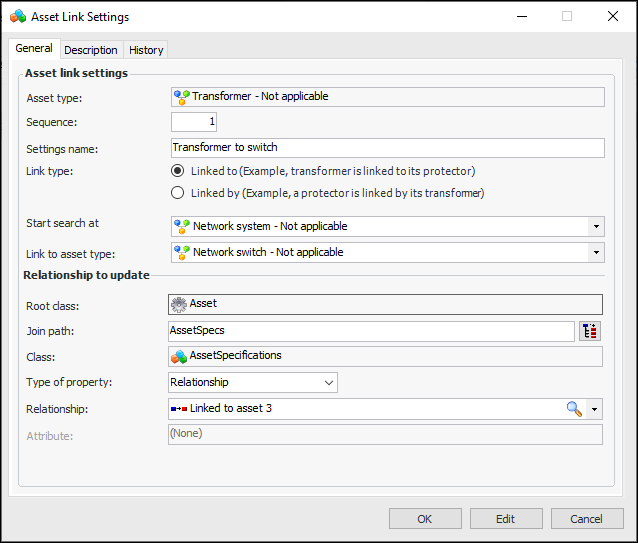
Enable linking and click New. The Asset Link Settings window appears. Here is a completed example:
p
In this example, the Start search at asset type defines the point where logic starts applying asset links. When the logic that sets the asset links executes, it starts with the first asset with this type in the hierarchy, traversing up from the current asset.
The relationship between the root class and the AssetSpecifications class can be to one of five possible links. Here it is to “Linked to asset 3”.
You can create any number of link settings, but a maximum of five can be active.

Viewing Linked Assets

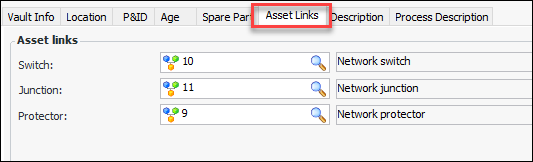
When links are set up between asset types, the Asset window for a “linked from” asset displays the Asset Links tab on the General tab. Here is an example of a transformer:
For network distribution assets, the first three linked assets are also displayed on the Vault Info tab.
You can refresh the links in the Asset window by clicking the Tools menu and Update Asset Links. You can also update all assets of a specific asset type. Right-click the asset type in a list and click Update Asset Links. This is handy when you introduce or update link settings and then wish to apply them to existing assets.