|
Viewing Asset Comparisons
Note: Asset comparisons are a “generally available” product feature. You must first enable feature 136 to use the functionality in APM. In the Enterprise window, select the Features view and the Enabled Features tab. Click Browse, select “Asset comparison” and click OK. If APM is running as a smart client, click Refresh Enabled Features on the server. Then restart the client to use the functionality.To Set up a Comparison
1.
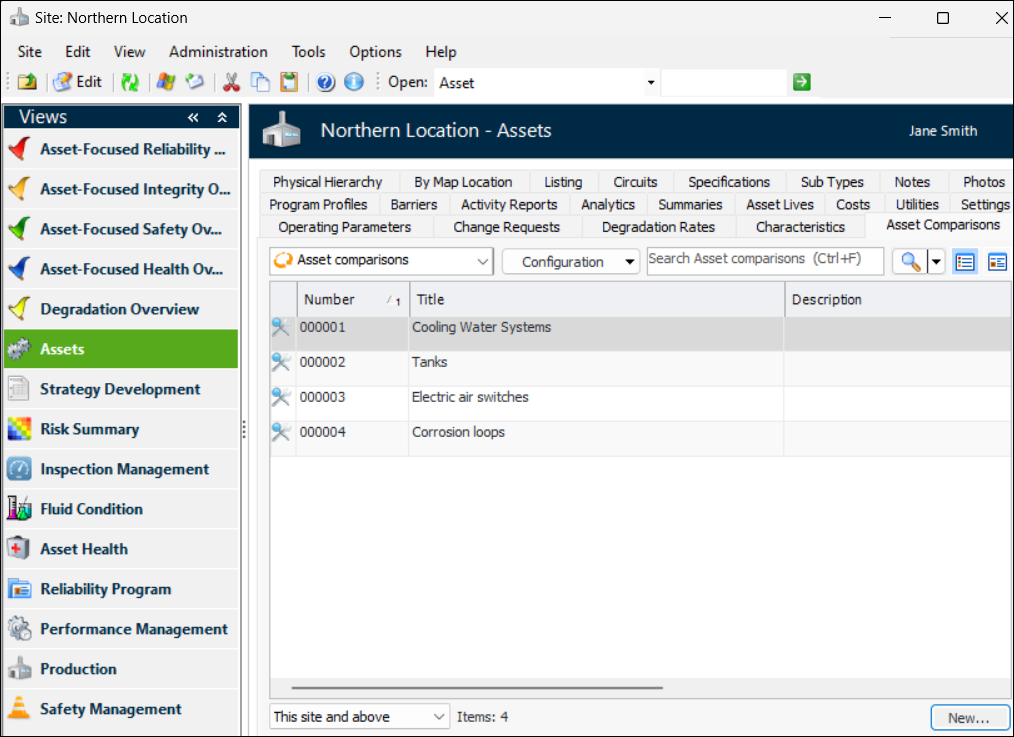
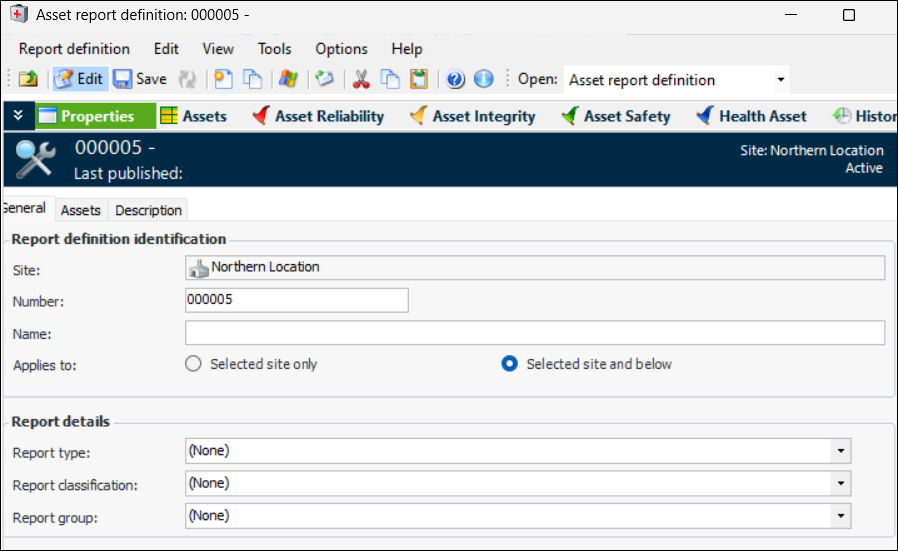
2. Click New. The Asset Report Definition window appears.
3. On the General tab, enter a name for the comparison.
4. Select the Assets tab.To Add Assets Manually
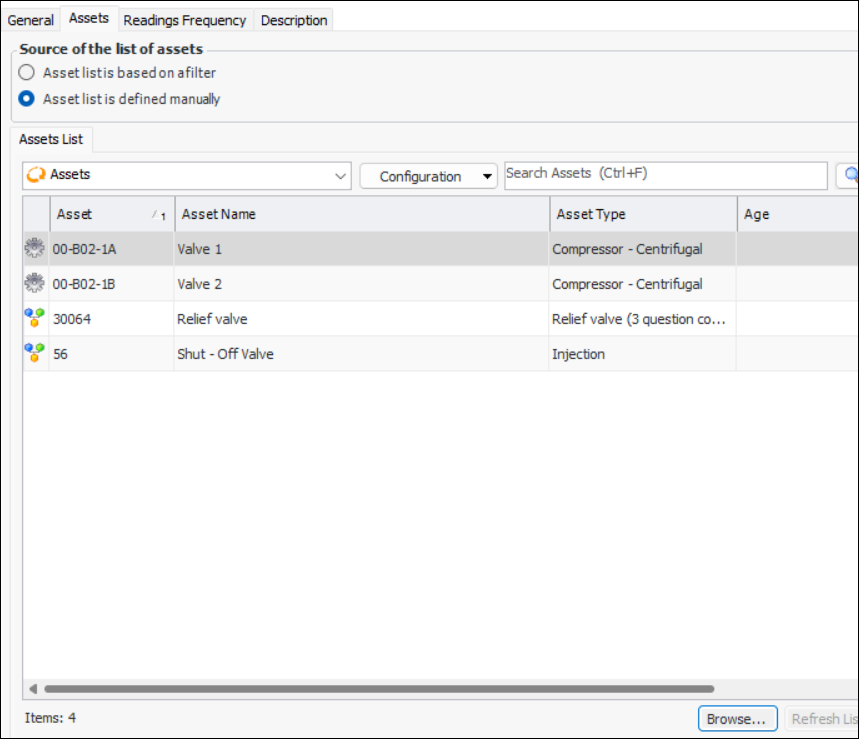
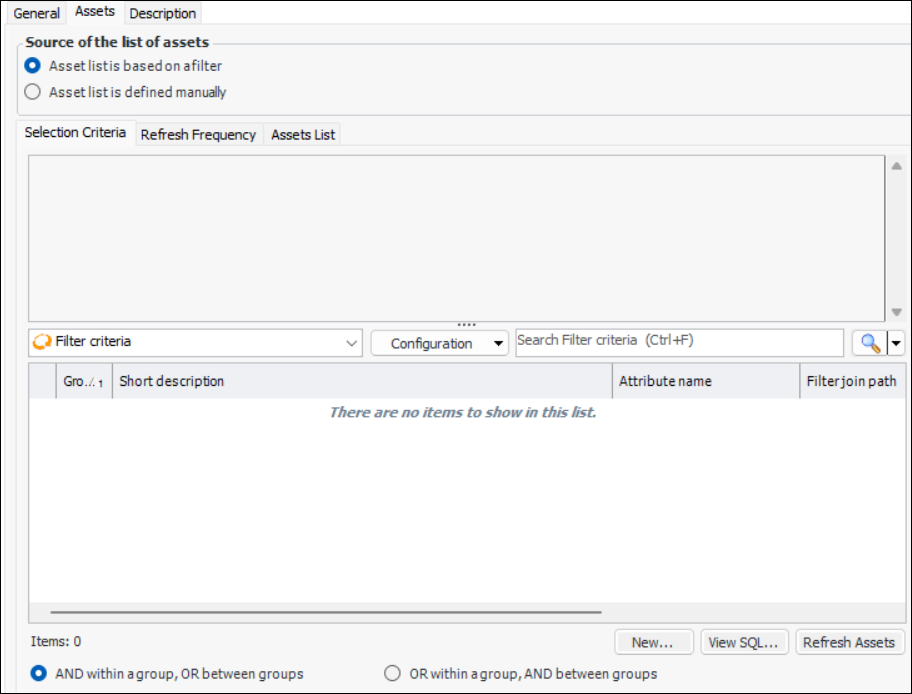
1. To add assets manually, select Asset list is defined manually.
2. Click Browse to select the assets to include in the comparison and click OK. The assets are added to the Assets List tab. For example:The assets are also listed in the Assets view.To Add Assets Based on a Filter
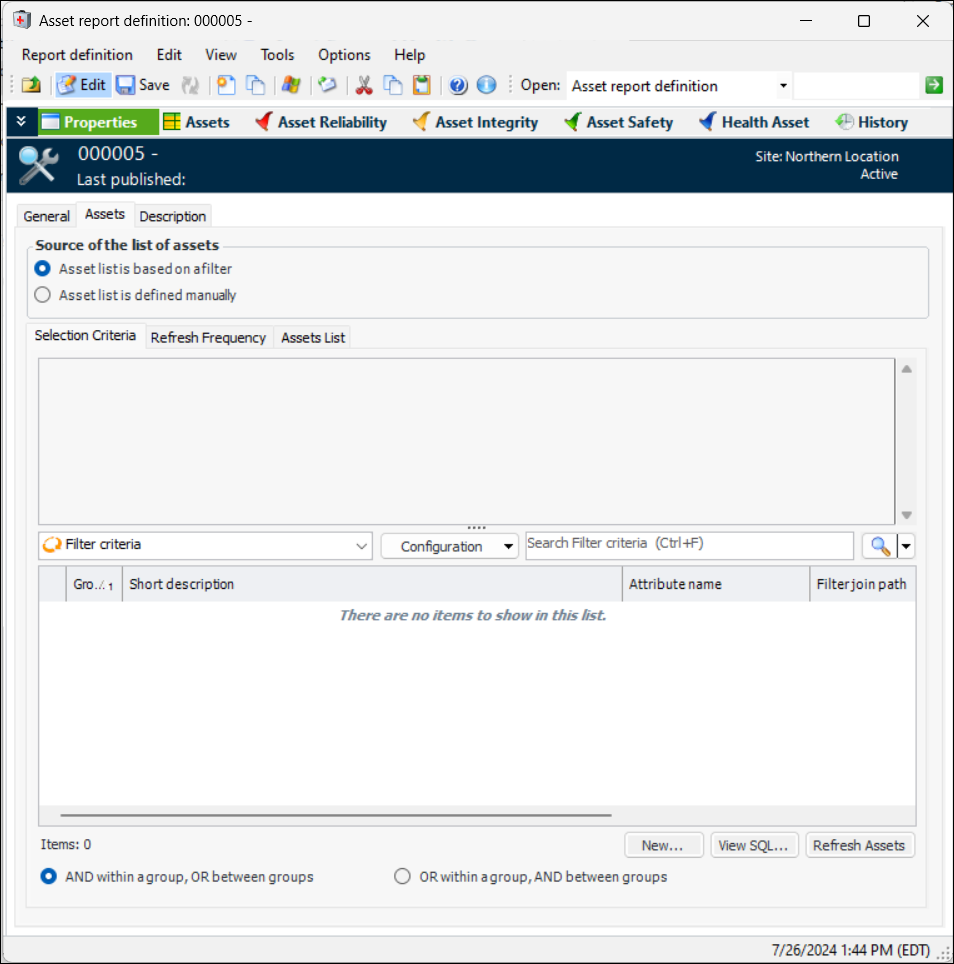
1. Select Asset list is based on a filter.
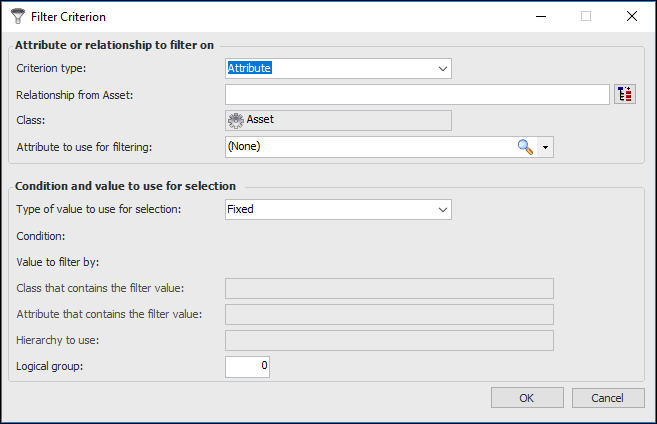
2. Click New to open the Filter Criterion dialog.
• Attribute – The objects will be filtered using the value of an attribute owned by either the base class or a related class. For example, when filtering assets, you can use the Asset class’s Classification attribute. Most filter criteria are based on an attribute.
• Relationship – The objects will be filtered using the value of a relationship from the base class to another selected class. For example, when filtering assets, you can use the Asset class’ relationship to the Asset Type class.
• For example, to filter a list of tasks based on the asset, you would select the Work Order Task class’ Asset to work on relationship. Or, you could select a relationship from the Work Order Task class to the Maintenance Group class. You could then use the Maintenance Group Name attribute to filter the group of tasks.To select a join path, click. Expand the hierarchy until you see the class that you want, select it, and click OK. The Class box displays the class you selected.
For example, if you are filtering a group of work order tasks, you might select the Task status attribute. You can then select one of the task statuses (for example, Planned) as the value to filter on.
•
•
• Fixed: Select this option to filter a group of items based on a specific value that you enter.For example, if you are filtering a group of assets to list only maintainable assets, you would select the Asset class’s Classification attribute, and set Maintainable as the fixed value.
• Variable: Select this option to filter a group of objects using a relative value. The value used in the filter is only determined at the time the filter is used by looking up the current value of the selected attribute or relationship. You can use any attribute or relationship that can be reached through a join path starting from the Site class. A specific value cannot be selected.For example, to select work requests created by the employee currently logged in, you would base the filter on the Created by attribute, and select Enterprise.CurrentEmployee.EmployeeName as the variable value. The requests will then be filtered based on the name of the employee who is currently using the filter.
For criteria based on a relationship, you must select a relationship to the same class as was selected in the Relationship from box.To select a join path, click. Expand the hierarchy until you see the class that you want, select it, and click OK. The Class box displays the class you selected.
The list contains attributes that are owned directly by the specified class. However, it only includes attributes that are of the same type as the attribute identified in the Attribute to use for filtering box. For example, if the attribute to filter by is a string, then only string attributes appear in this list. Similarly, if the attribute to filter by is a date, then only date attributes are available.
4. Click OK to close the Filter Criterion dialog. The criterion is added to the Filter Criteria table. You can repeat the steps above to add criteria.
5. Click Refresh Assets. Select the Assets List tab to see the results of the filter. You can also view the list in the Assets view.Note that you can select the Refresh Frequency tab to have the list refreshed automatically based on a recurrence pattern.To Work With the Comparison
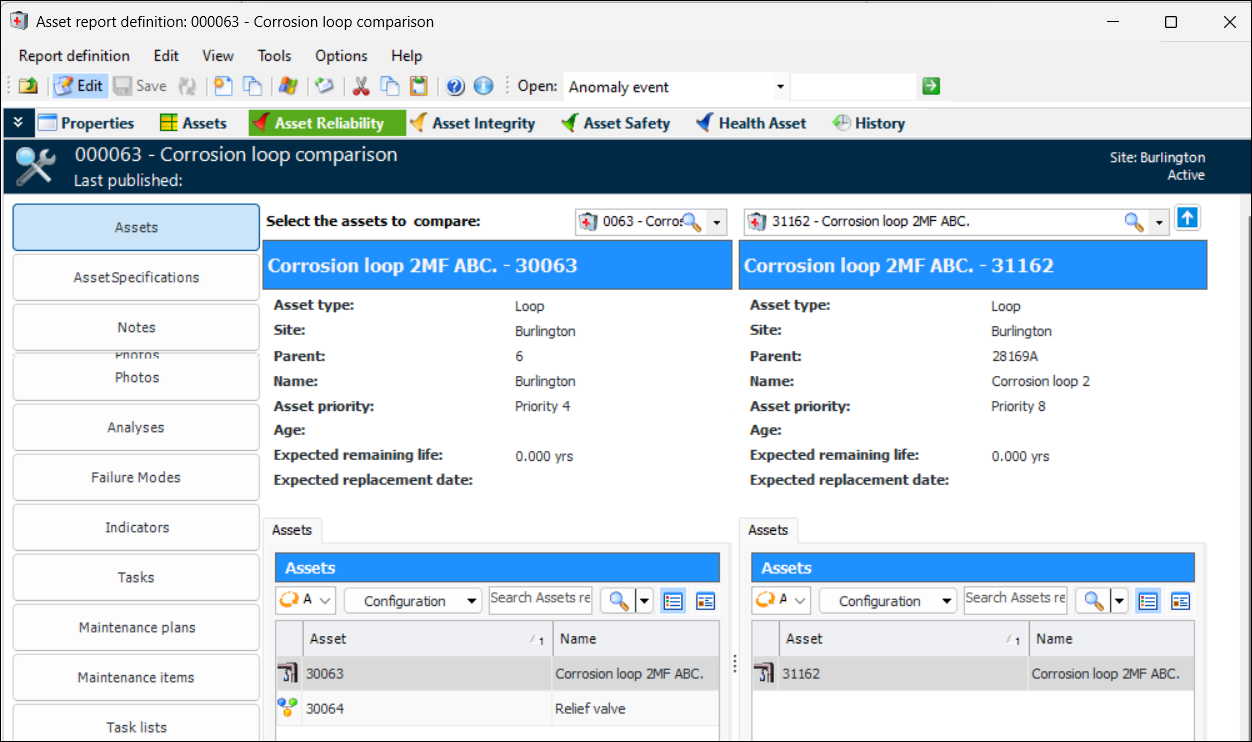
We recommend viewing comparisons on large monitors so that you can see the full width of the screen.The Asset Specifications view provides a full-screen option in the bottom right-hand corner. Click: