|
Viewing Asset-Focused Overviews
Tip: APM also provides summaries of risk evaluation data shown by asset and asset hierarchy. For more information, see Viewing Asset Risk Summaries.The Five Overviews
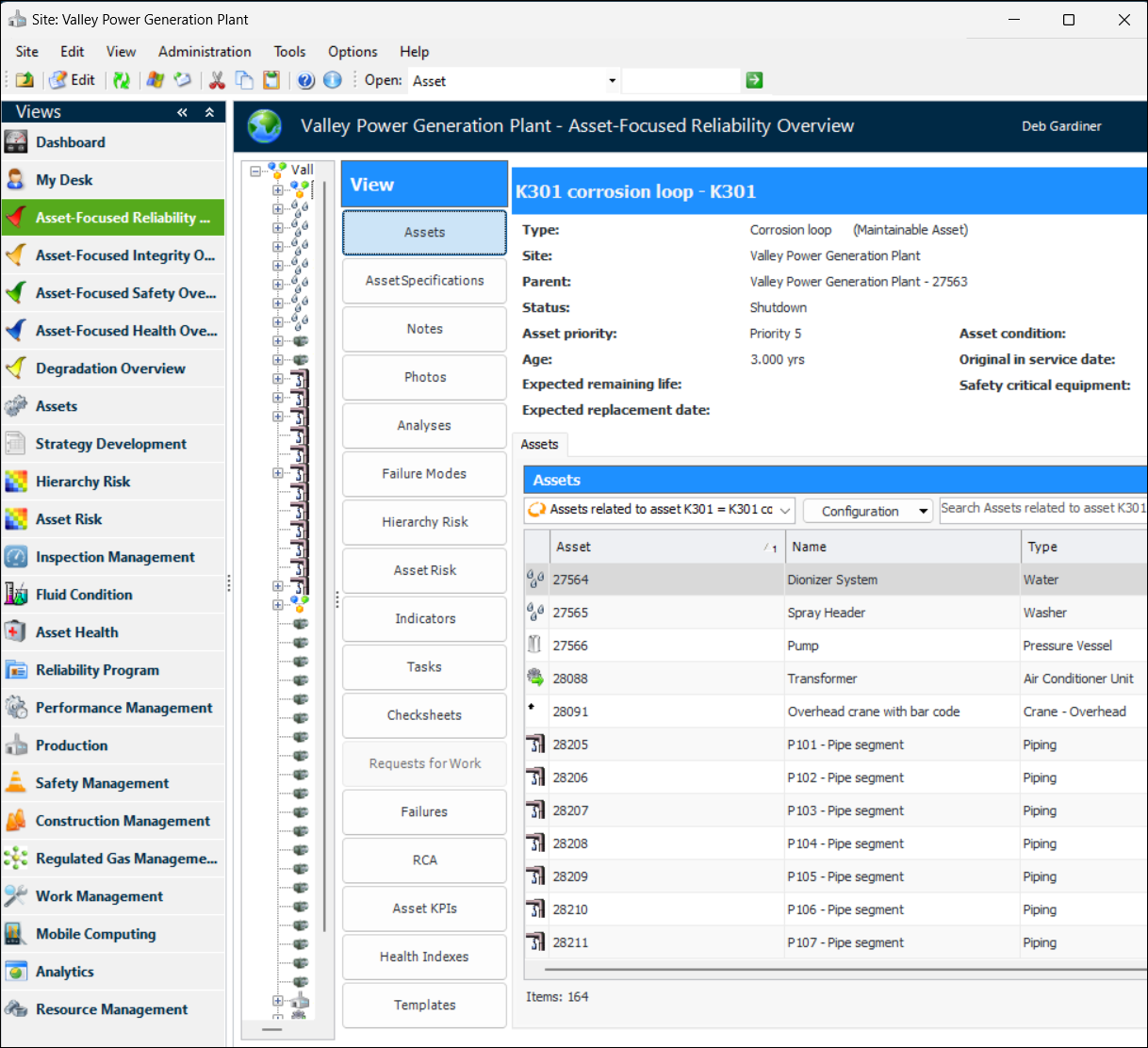
• Reliability – For the team interested in the reliability of pumps, motors, boilers, buildings, and so on. The view includes data from reliability analyses: MTA2, RCM2, and CPR
• Integrity – For the team interested in the integrity of equipment pressure containment in, for example, piping systems, vessels, and heat exchangers. The view includes data from integrity analyses: RBI
• Safety – For the team interested in hazardous scenarios and safety instrumented functions. The view includes data from safety analyses: SIF and HAZOP
• Health – For the team focused on condition monitoring for assets that are failing and/or due for replacement. The information in the view includes indicators, readings, health indexes, and asset KPIsNote: Asset KPIs are calculated indicators with the setting Include in Asset Health KPI list enabled.
• Degradation – For the team interested in establishing and tracking assets’ degradation over time. The view lists degradation indicators and their assets and shows readings, degradation rate analysis, and a degradation dashboardNote: The asset-focused and degradation overviews are generally available features in APM. You must first enable features 132 and 133 to use the functionality. In the Enterprise window, select the Features view and the Enabled Features tab. Click Browse, select “Asset focused UX” and “Introduce a new Degradation view to site and asset” and click OK. If APM is running as a smart client, click Refresh Enabled Features on the server. Then restart the client to use the functionality.Select buttons in the View panel to see information like analyses, failure modes, and indicators.Adding New Objects
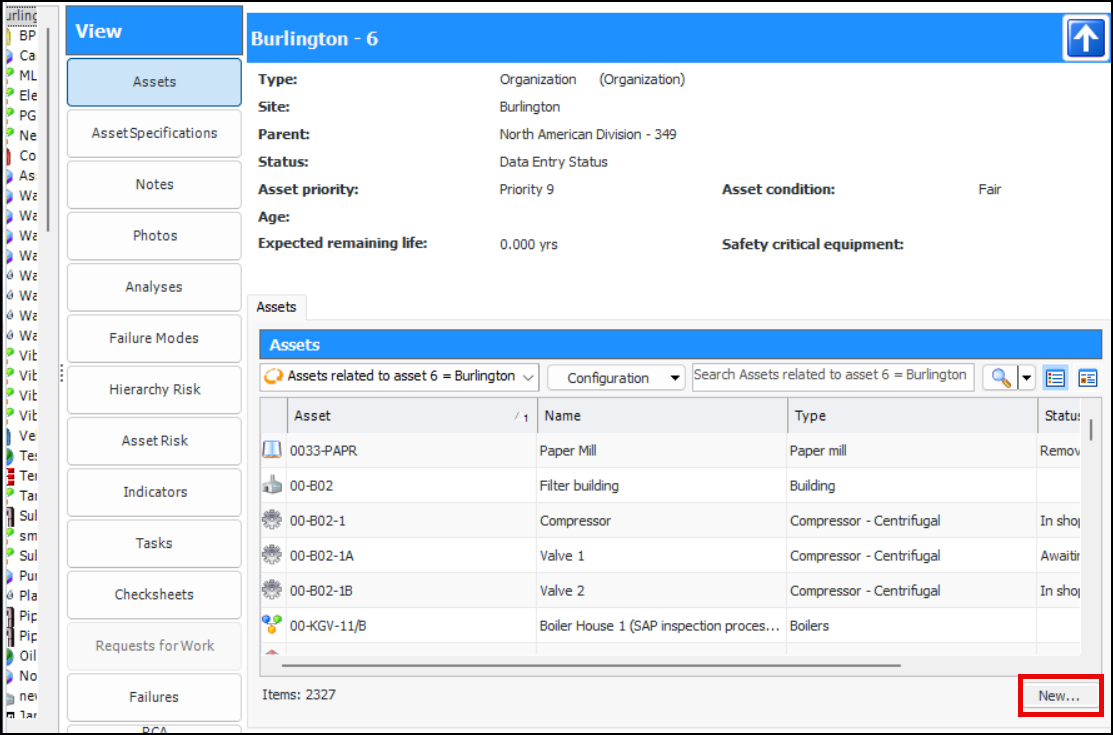
You can add a new object from several of the views in an overview. Look for the New button in lower right corner:Hierarchy Risk
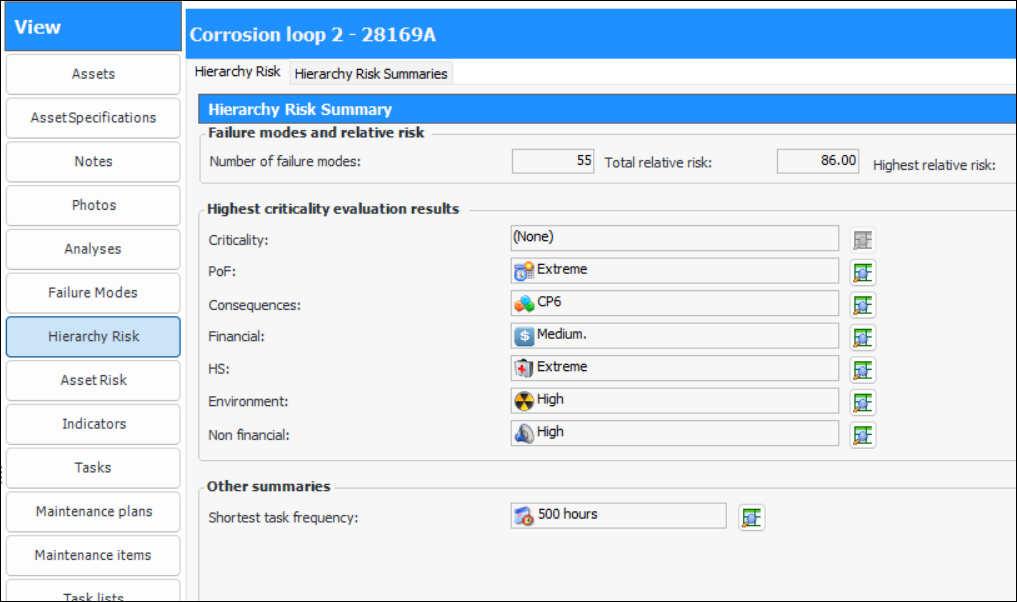
Select the Hierarchy Risk button to see a summary of the risk information for the selected asst and its descendants. For example:The Failure modes and relative risk area displays:
• Number of failure modes – Sum of the failure modes on the asset and descendants
• Total relative risk – Sum of the total relative risk scores on the risk summaries of the asset and its descendants
• Highest relative risk – Highest relative risk of the summarized assetsThe Highest criticality evaluation results area displays the highest values from the asset’s and its descendants’ analyses. You can click a drill-down icon () to open a window listing the failure modes that have that value.
The Other summaries area displays the shortest task frequency on the summarized assets.Select the Hierarchy Risk Summaries tab to see a table that lists the selected asset and its related assets, as well as their risk summary values.Note: Asset hierarchy risk summaries are “generally available” product features. You must first enable features 121 and 137 to use the functionality in APM. In the Enterprise window, select the Features view and the Enabled Features tab. Click Browse, select “Asset risk summaries” and “Asset hierarchy risk summaries”, and click OK. If APM is running as a smart client, click Refresh Enabled Features on the server. Then restart the client to use the functionality.