
Viewing Asset Activity Report Section Details

You can view information about an asset activity report’s section such as the asset and status information, section details, notes, published editions and activity reports that the section was included on, as well as its attachments.
You can also drill down to view details of a report section’s activities, if the section was defined to automatically include details. Different tabs appear depending on the type of activity. For more information about setting up asset activity report sections, see Setting up Asset Activity Report Section Types.
This topic explains how to view details of an asset activity report section.

To View Asset Activity Report Section Details
1.
2.
Select the Report view and then the Sections tab. This tab lists all sections in the report.
Tip: Sections that have been published appear in blue, bold text.
3.
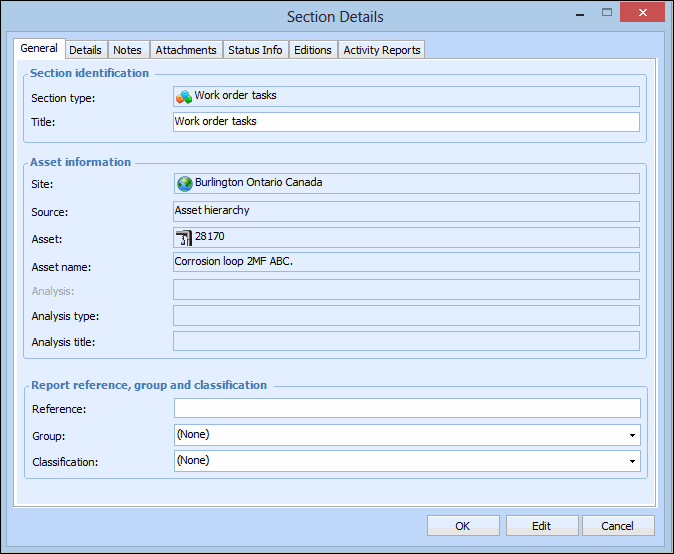
Right-click an asset activity report section from the list and select Details. The Section Details dialog appears. For example,
4.
On the General tab, you can view the section identification, asset information, and report reference, group, and classification for the section.
5.
On the Details tab, you can view the sequence of the section within the report, the section author, and the asset source and recursion.
6.
On the Notes tab, you can view any notes that have been entered for the section.
7.
On the Attachments tab, you can view attachments to the report section.
8.
On the Status Info tab, you can view creation, published, and completed dates and users responsible for these dates.
9.
On the Editions tab, you can view a list of published editions for the section.
10.
On the Activity Reports tab, you can view a list of report sections in which this section is included.
11.
When you are finished, click OK to close the Section Details dialog.
12.
13.
14.