Viewing Information as a Table, Form, Chart, or Map

In APM, you can view objects such as assets, indicator readings, work order tasks, or failure modes in a table, chart, form, or map. Often, you can switch between viewing options by clicking an icon:
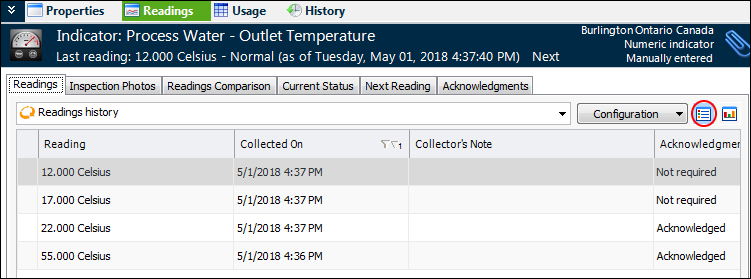
Here is a example of the Indicator window, Readings view and tab, showing readings in a table:

Viewing Table Configurations

A table configuration controls what information is listed in a table and how it is displayed. A table configuration is a combination of columns, filtering criteria, sorting criteria, and format choices that display specific data, such as all RCM2 analyses with a status of “New”.
Every table in the system includes one or more table configurations. Each configuration can display different data. You can define table configurations to show the data you want to see.
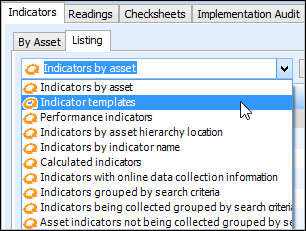
The configuration list above the table displays the current configuration. To display another configuration, select it from the list. For example:
 
For more information, see Table Configurations.

Viewing Forms

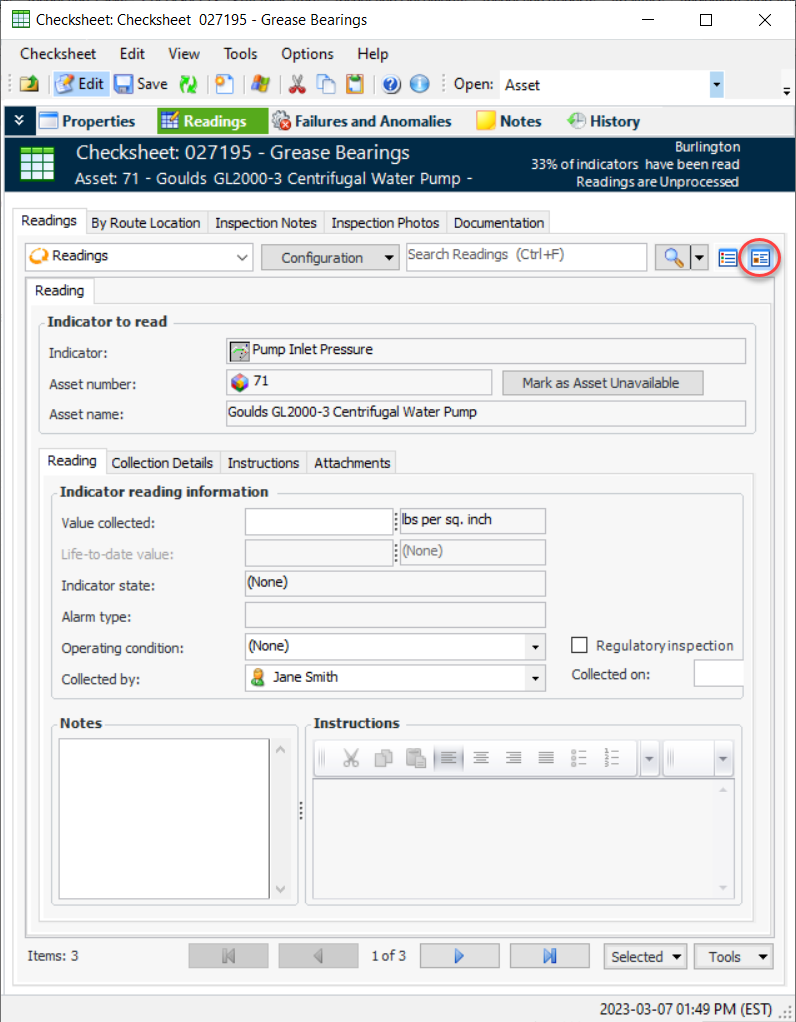
You can work with individual objects using the form view. For example, use the form view to add information to a checksheet:
 
Use the navigation buttons to move between indicators.

View as Chart

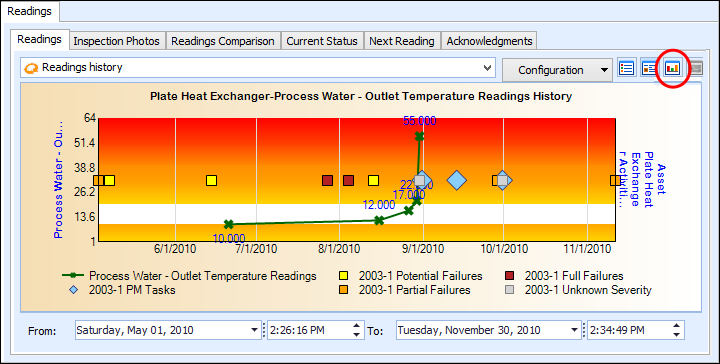
View data such as indicator readings in chart form. For example:
You can double-click a node on the chart to open the reading.

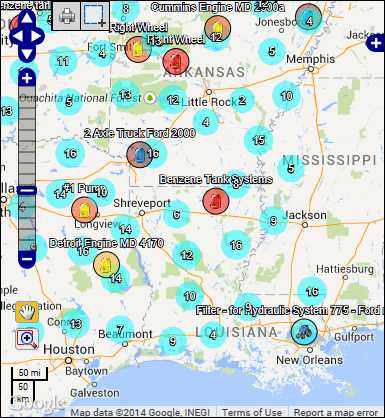
View as Map

Some configurations can be viewed in a geographical map format. For example, you can show all assets in a defined radius.