Defining View as Chart Appearance Properties

You can present table configuration data as a graph or chart, including supporting variable appearances and defining the data series, axes, legends and striplines.
This topic describes how to define the appearance of a table configuration when viewed as a chart.

To Define View as Chart Appearance Properties
1.
2.
Click Configuration and then Open. The Configuration dialog appears, open to the Columns tab.
3.
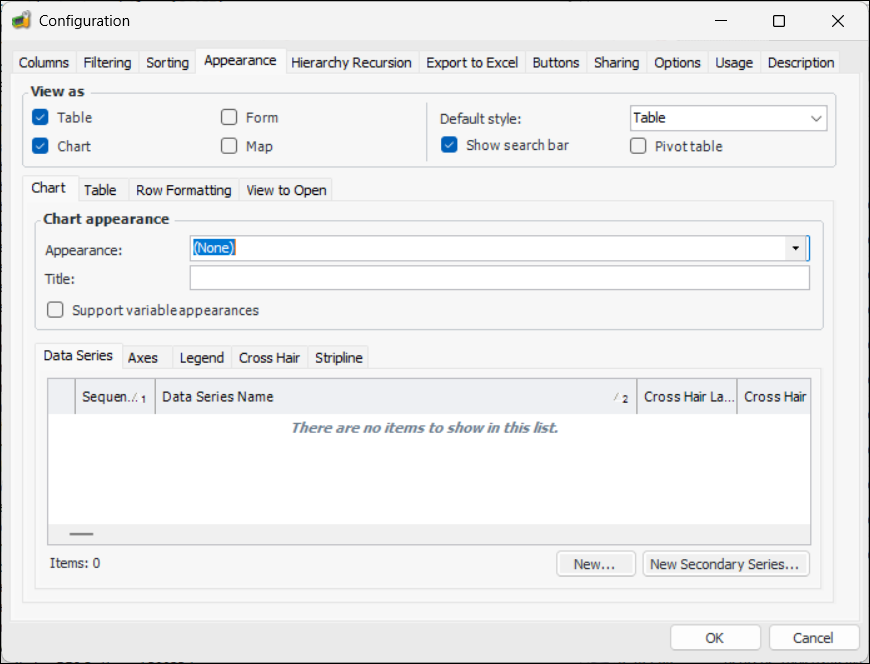
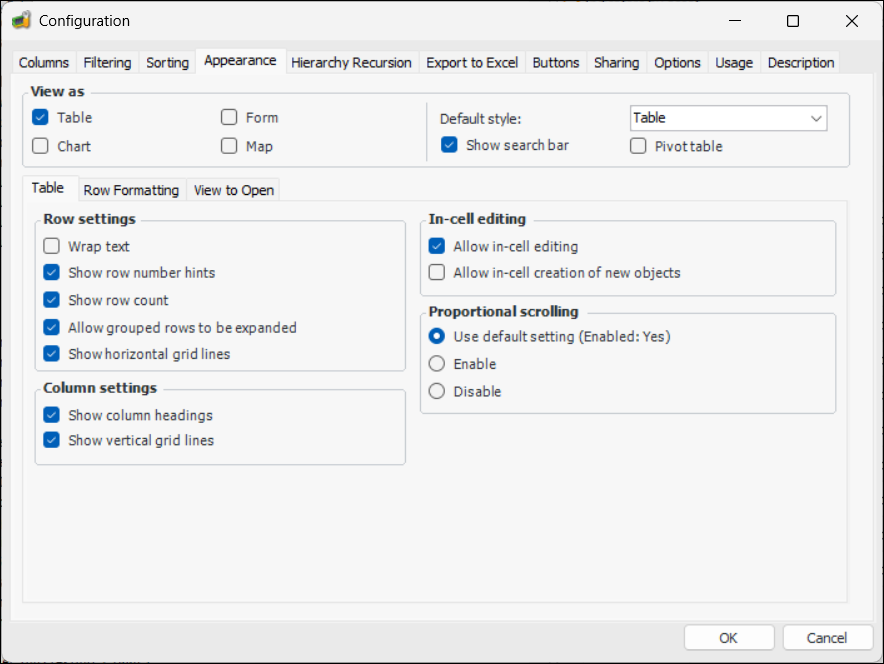
Select the Appearance tab. For example:
4.
In the View As area, select the appropriate options:
5.
In the View as area, select Chart. The chart tab appears.
6.
Select the Chart tab and enter the following settings:
7.
Select Support Variable Appearances to define multiple graph appearances for a chart. For more information, see Defining Variable Graph Appearances for a Chart.
8.
Select the Data Series tab to define custom data series for the chart. For more information, see Defining Custom Data Series for a Chart and Defining a Secondary Data Series for a Chart.
9.
Select the Axes tab to define X and Y axes and their properties. For more information, see Defining an Axis for a Chart.
10.
Select the Legend tab to define a legend for the chart. For more information, see Creating a Legend for a Chart.
11.
Select the Cross Hair tab to define cross hair settings for the chart. For more information, see Creating Cross Hair Settings for a Chart.
12.
Select the Stripline tab to define the stripline properties for the chart. For more information, see Defining a Stripline for a Chart.
13.
Click OK to save the formatting options.