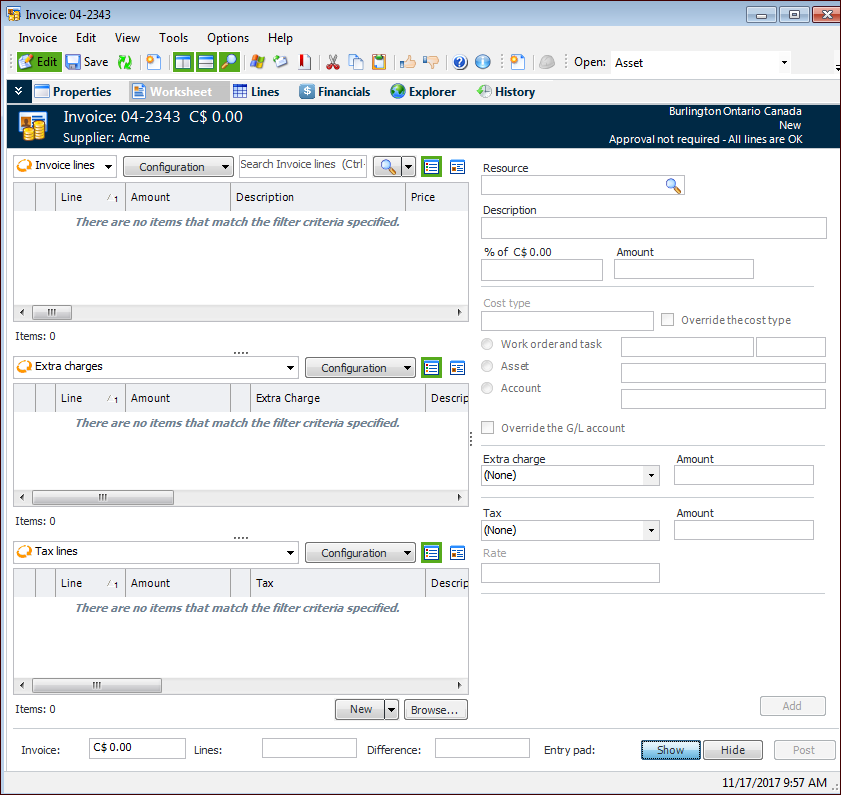
Using the Invoice Lines Entry Pad

You can use the Entry Pad to quickly add invoice lines for miscellaneous expenses, extra charges, and taxes.
For miscellaneous expense lines that are not associated with a purchase order, you can quickly enter:
For extra charge and tax lines, you can specify the type of charge or tax, the amount, and, in the case of a tax, the rate.
Extra charges and taxes are distributed between all miscellaneous expense lines in the invoice. For example, suppose that you enter one miscellaneous expense line for $100. Then you add a second miscellaneous expense line for $100, as well as an extra charge for $50 freight. The extra charge is distributed evenly ($25) to each of the miscellaneous expense lines.
Tip: The Entry Pad is displayed by default if the appropriate format preference is selected on the Options tab, Workflow tab of your employee record.
After you add a line using the Entry Pad, you can edit its details, if necessary. For information about using the Invoice Line dialog to create or modify lines, see:
This topic explains how to display the Entry Pad, enter a miscellaneous expense, extra charge, and/or tax line, and add the lines to the invoice.

To Display the Entry Pad

1.
From the Site window, select the Invoicing view, Invoices tab, then the Invoices tab. By default, this tab lists all invoices by supplier.
2.
3.
4.
If the Entry Pad is not displayed, click Show at the bottom of the tab.

To Enter a Miscellaneous Expense Line

1.
The resource that is being invoiced on this line. You can click Browse to select a resource. Or, if the invoice is for a non-catalog item, enter the description of the item in the Description box.
2.
3.
You might be able to override the cost type. If necessary, select Override the cost type and select the new cost type.
Note: If the invoice line references a non-catalog resource, you can only select a cost type for miscellaneous expenses.
4.
To enter a an extra charge, select the type of charge from the Extra charge list. Then enter the amount of the extra charge.
5.

To Add the Lines to the Invoice

1.
2.