Using Drag-and-Drop

In certain places in APM, you can use your mouse to select objects and drag and drop them on to another object.
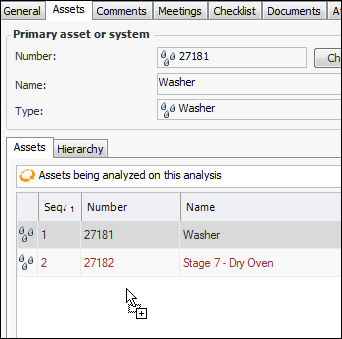
Where drag-and-drop is allowed, the cursor displays the icon for the object being dropped.
Where drag-and-drop is not allowed, the cursor changes to a circle with a slash.
You can drag and drop items from one table (list) to another table. You can also drag-and-drop an item in a tree to move it to another node.
For example, when performing a Maintenance Task Analysis you can quickly add assets to be analyzed by dragging them from the site’s Assets view, Listing tab and dropping them onto the list of assets in the analysis.
The dropped asset’s descendants are also added. Components and failure modes are not copied to the analysis.
The following APM objects support drag-and-drop:
On the Asset Questionnaire view, a failure consequence can be dropped onto the Asset Scores list.
An indicator can be dropped onto a list of action plan indicators. For example, in the Failure Mode window, Facilitation view, Action Plans tab, an indicator can be dragged onto the Indicators list.
Note: KPIs cannot be added. Indicators cannot be added to templates.
A work order, work order task, or schedule entry can be dropped onto a list of schedule entries. For example, in the Schedule window, Worksheet view, Task Backlog tab, you can drag work order tasks from the backlog onto the Work order tasks included on this schedule list (at the bottom of the tab).
A resource demand can be dropped onto a list of PO lines. For example, you can drag demands from the site’s Purchase Orders view, Purchase Demands tab onto the Purchase Order window, Properties view, General tab.
Note: This is not allowed on a blanket order or blanket order release.
An asset can be dropped onto a list of Strategy Development Analysis assets.
Note: Assets cannot be added to a template. Components cannot be added to analyses.