Using the Quick Search Bar

Using the quick search bar, you can quickly filter a list of items based on a text string contained in one or more columns in a configuration. For example, in a list of assets you could search for the word “pump” in the Asset Name and Type columns.
Here is an example of the quick search bar for assets:
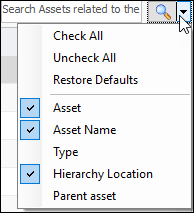
You can select which columns you want to search using the search list. Quick search looks in columns that contain text strings. This means, for example, that you cannot search columns that contain dates, currency amounts, or value lists.
Tip: To search for text that includes a double quote, you must precede the quotation mark with a slash (\). For example, to search for the exact phrase “General” Electrical, enter the following text verbatim: \“General\” Electrical.

To Use the Quick Search Bar

1.
2.
Note: Quick search matches records that contain the exact string entered in the search bar. You cannot use “And” or “Or” in search terms.
3.
By default, columns containing string values from the table’s main class are checked. Columns that use join paths are displayed but not selected by default, in most cases. For example:
 
4.
Select or clear the columns that you want to search. To select all of the columns, click Check All. To select or clear multiple columns, press Ctrl as you click the column names.
5.
Note: The next time that you click during the same session, only the checked columns will be searched.
6.
7.