
Using Logical Operators in Calculations

A function is a series of VB.NET or C# statements that return a value. You can use functions to create a calculation for a calculated indicator or asset health calculation that includes logical operators such as IF, AND, OR, and so on. For example, you could do this if you want a calculation that includes an IF THEN statement.
Note: To create a calculation using a function, you should be familiar with VB.NET or C# scripting.
For example:

VB.NET

If A > B Then
return A
Else
return B
End if

C#

if (A > B)
{
return A;
]
else
[
return B;
}
 
Where A and B are the argument names.

A function returns a value by assigning a value to the function’s name in one or more statements of the procedure. The return data type of a function is always a Variant. Calculation Inputs and Argument Names

In order for a function to work, the calculation input names defined for the calculation must match the arguments named in the function. Therefore, in this example you must also define calculation inputs named “A” and “B”. This is similar to entering a regular calculation expression.
When you define a calculation without functions, the system processes the calculation by wrapping your expression in a function statement. For example, if your calculation is A / B, the system processes it as:
A/B
 
When you create a calculation by defining your own function, the system behaves similarly: in the first line of the statement the system inserts your calculation input names as arguments for the function. This means that you can leave the arguments for the function blank. However, for your own record-keeping, you will probably want to enter the argument names anyway.
Note: Your calculation input names must match the names of the arguments used in the function.
This topic explains in general terms how to add a function to your calculation variable. For examples of how you can use functions in indicators, see the following topics:
For a list of logical operators and statements, see Operators for Calculated Indicators.

To Add a Function to a Calculated Calculation
1.
2.
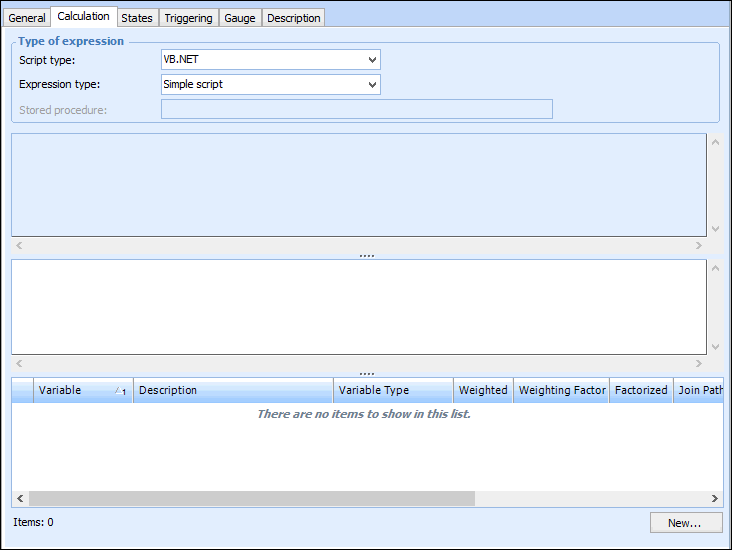
Select the Calculation tab.
3.
Tip: To work on your function in a larger re-sizeable window, click Full Window.
Note: The box at the top of the full window is a read-only section that shows the generated constants that you can use in your calculation string. Constants are generated for each of the calculations and for the possible values of any inputs that are based on an enumerated attribute.
4.
Click New to define the variables for the calculation using the argument names defined in your function. You can create four types of calculation variables: Calculation, filter, global variable, or join path.
For detailed instructions, see the following topics:
5.