|
Upgrading Sites to the Enterprise Asset Management Module
•
• Updates all employees, setting the notify by email options (on the Email tab) from Null to False
• Updates all standard tasks, setting the Used by troubleshooters and Used when a work order is generated to repair a failed serialized unit options from Null to False
• You must log on to APM with the administrator privilege to upgrade sites. For more information, see Logging on as an Administrator.To Activate the EAM Module on Sites
3. Select the Sites view. On the Site Hierarchy tab, right-click the site and click Site Properties. The Properties window appears.
4.
5. Select Enterprise asset management.
6. Click OK.
7.To Upgrade One or All Sites
4.
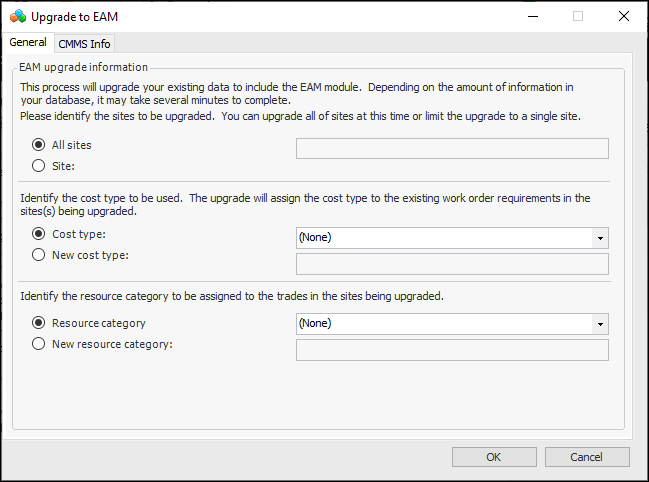
5. Select All sites or specify the site that you wish to upgrade. Only sites on which the module is activated are available in the list.
6. Select a cost type from the list or click New cost type and enter a name for the cost type. This cost type will be applied to existing work order requirements on the site.
7. Select a resource category from the list or click New resource category and enter a name for the category. The resource category will be assigned to the trades in the site.
8. Click OK. A progress dialog appears, followed by an information message.
9. Click OK.To Remove CMMS Information From Sites
4. Select the Sites view and the Site Hierarchy tab. Right-click the site and click Site Properties. The Properties window appears.
5.
6. Click Work management integration to disable the option.
7. Click OK.
8.
9.
10. Select All sites or specify the site you wish to remove CMMS information from.
11. Select a cost type from the list or click New cost type and enter a name for the cost type. This cost type will be applied to existing work order requirements on the site.
12. Select a resource category from the list or click New resource category and enter a name for the category. The resource category will be assigned to the trades in the site.
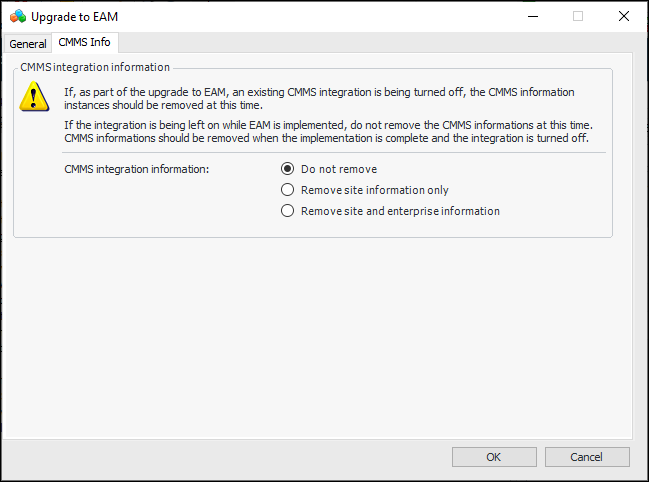
13. Select the CMMS Info tab.
14. If you selected All sites on the General tab, you can remove CMMS information from the enterprise as well as from all sites. Otherwise, select Remove site information only.
15. Click OK. A progress dialog appears, followed by an information message.
16. Click OK. When you open the site, you will see that the CMMS Info tabs have been removed from views and windows.