|
Updating Next Inspection Dates
For information about changing an indicator’s collection date, see Indicator Collection Dates: Calculations, Windows, and Compliance Tracking.To Add Standard Tasks to an Inspection Report
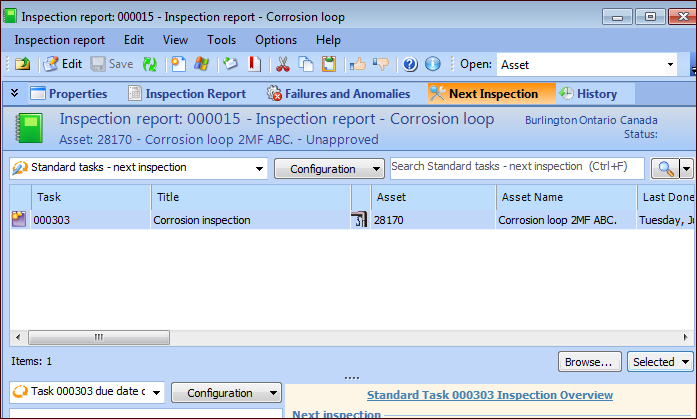
1. In the Inspection Report window, select the Next Inspection view. For example:
2. Click Browse. The Browse Standard Tasks dialog appears, showing all of the standard tasks for the asset. You can broaden the list to include standard tasks for assets above or below the current asset.
4. Select a task and click OK to add it to the report.To Override the Next Due Date on a Standard Task
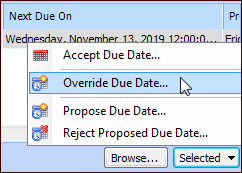
2. Tip: You can also click Override Due Date in the right-hand panel.
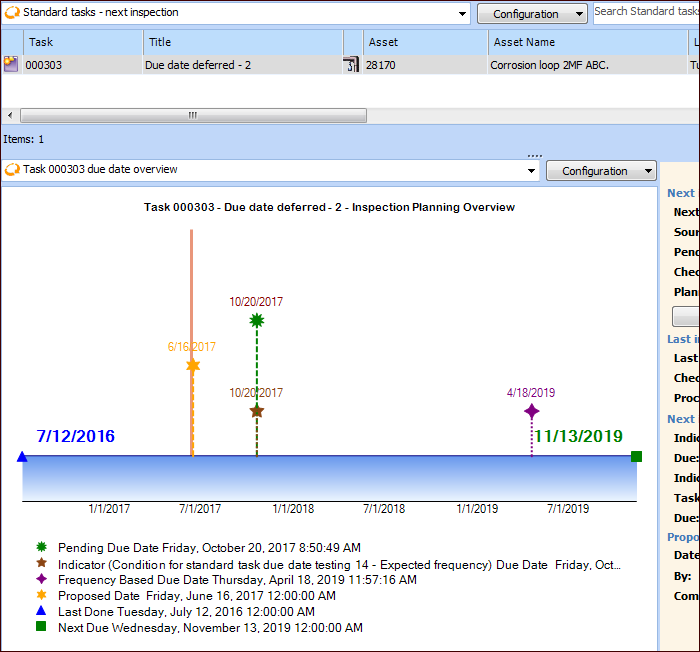
4. Click OK. The due date overview chart and information panel are updated accordingly.To Propose a Due Date
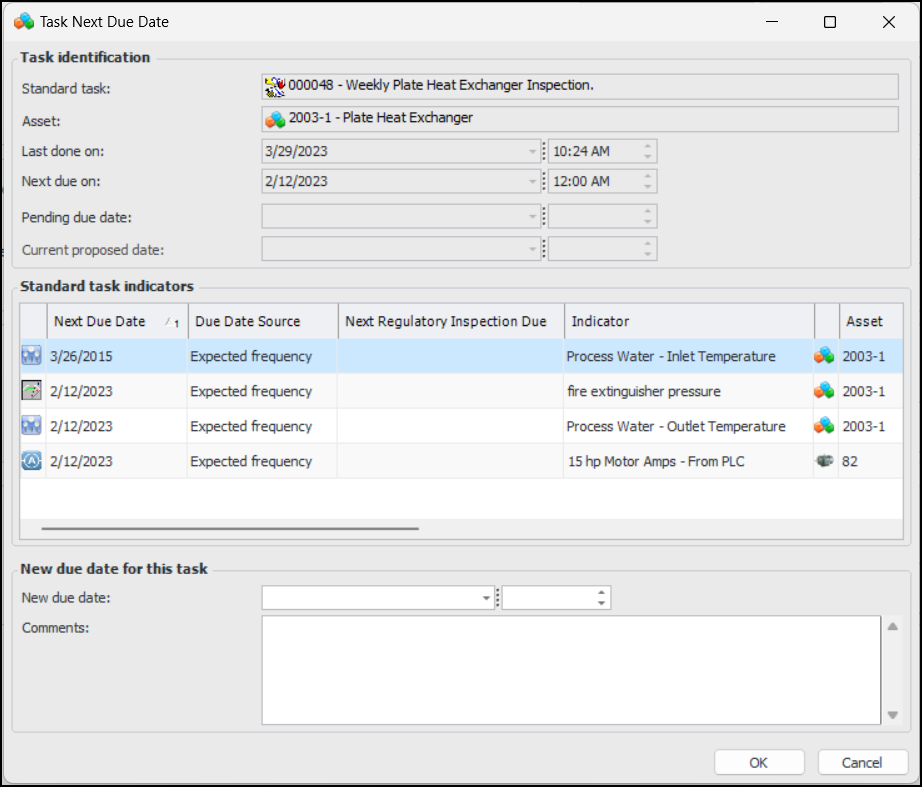
1. In the Next Inspection view, select the standard task in the top table, click the Selected list, and click Propose Due Date. The Propose Task Next Due Date dialog displays information about the standard task, including its indicators and their collection information.
3. Click OK. The due date overview chart and information panel are updated accordingly.Tip: Users can click Accept to implement the new date or Reject to clear the proposed date information.