Troubleshooting Derived GL Accounts

If your organization uses account numbers that are derived from segments, APM tries to verify the derived number before completing a transaction. To verify the number, APM tries to match the account number created from the segments to a whole account number. This means that all account numbers that can be derived by the system must also exist in APM as whole account numbers.
The settings that determine how account numbers are derived are entered at the enterprise level. To correct account problems, you will need to know how maintenance cost accounts and offset accounts are derived for your organization. For more information on these settings, see **Setting up GL Account Derivation Rules.
Account segments and whole account numbers are also entered at the enterprise level. See **Setting up GL Accounts.
The following sections provide more details on solving account derivation problems.

Contents

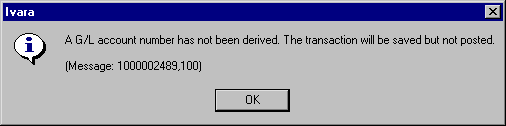
“A GL account number has not been derived. The transaction will be saved but not posted”
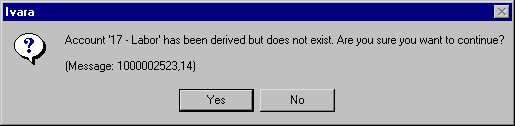
“Account [derived account number] has been derived but does not exist. Are you sure you want to continue?”
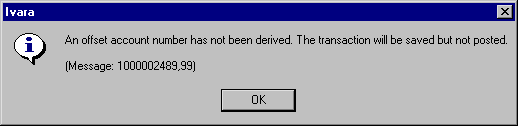
“An offset account number has not been derived. The transaction will be saved but not posted”
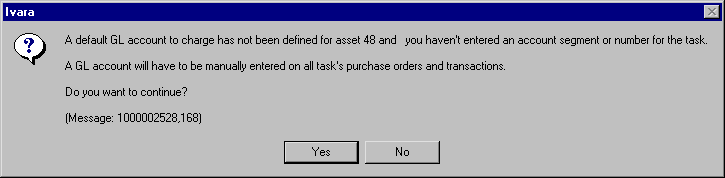
“A default GL account to charge has not been defined for asset [asset number]”
Locating Account Segments Used in Transactions

“A GL account number has not been derived. The transaction will be saved but not posted”

When you post a transaction, if the derived charging account number cannot be matched to a valid whole account, you will be warned that the transaction can be saved but not posted. The transaction can then only be posted if the account segments are corrected, a valid whole account number is created for the derived account, or if the account number is entered manually (overridden).
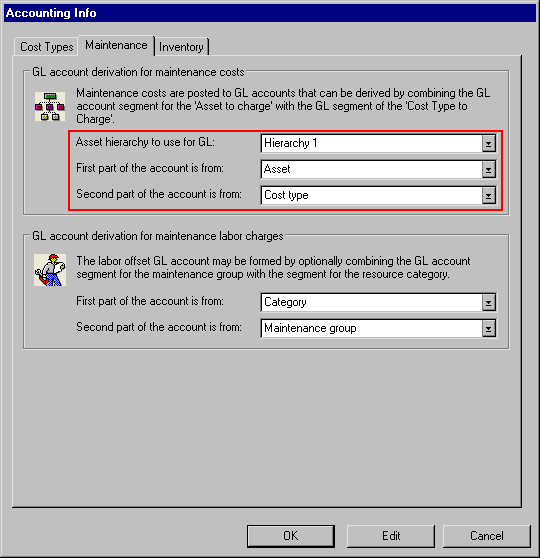
Derived maintenance cost accounts are built from the asset’s GL account segment and the cost type’s GL account. The order of these segments are determined by your enterprise accounting settings.
In the example above, the asset’s segment is first and the cost type’s segment is second. This means that accounts would be derived as [asset segment]+[cost type segment].
To correct an account derivation problem:
1.
2.
Select the Accounting Info tab.
3.
If the Account box is blank, APM was not able to verify the derived account number. To fix this problem, you can:
Click Override the account and enter a valid whole account number.
To perform either of the last two options, you will need to know the account segments being used in the asset and cost type. See:
Asset Account Segment
Cost Type Account Segment for Materials, Tools, and Services
Cost Type Account Segment for Labor (Timecards)
4.

“Account [derived account number] has been derived but does not exist. Are you sure you want to continue?”

You may see this message when creating a resource demand (for example, a labor demand on a work order), or when creating a new transaction (for example, a warehouse issue).
The transaction can only be posted if:
The steps for these options are the same as in “A GL account number has not been derived. The transaction will be saved but not posted”.

“An offset account number has not been derived. The transaction will be saved but not posted”

When you post a transaction, if the derived offset account number cannot be matched to a valid whole account, you will be warned that the transaction can be saved but not posted. The transaction can then only be posted if the account segments are corrected, or if a valid whole account number is created for the derived offset account.
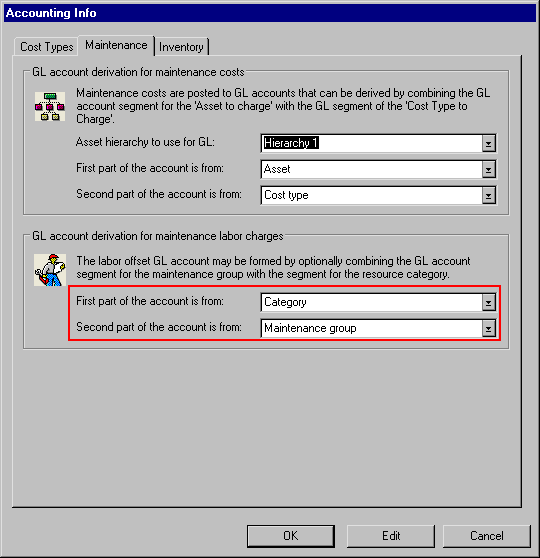
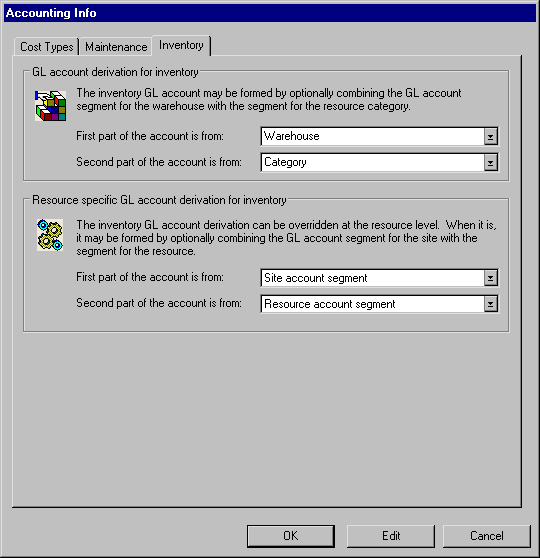
How the offset account is derived depends on the type of transaction, and the offset account derivation settings for your organization.
For timecards, the system uses the GL account derivation for maintenance labor charges settings:
For inventory transactions, the system uses the settings on the Inventory tab:
To correct an offset account derivation problem:
1.
2.
Select the Accounting Info tab.
3.
If the Offset account box is blank, APM was not able to verify the derived offset account number. To fix this problem, you can:
To perform either of these options, you will need to know the account segments being used to derive the offset account. See the appropriate section below:
Labor offset account segments:
Inventory offset account segments:

“A default GL account to charge has not been defined for asset [asset number]”

When a work order task is charged to an asset for which a default GL account segment is not entered, and that does not have an ancestor asset with a default GL account segment, APM issues a warning when the work order task is saved. If users choose to continue, they will need to enter the GL account number manually on each transaction.
Note: If the site has a default GL account segment, the system uses that segment when deriving the GL account number for the work order transactions.
To correct this problem, do one of the following:
Click Yes to continue, and enter the account numbers manually for each work order transaction.
 

Locating Account Segments Used in Transactions

The following sections describe how to find the account segments being used to derive an account number in a transaction. Depending on the type of transaction and account type being derived (charging or offset), you may need to look up one or more of the following account segments:
Maintenance charging account segments:
Labor offset account segments:
Inventory offset account segments:

Asset Account Segment

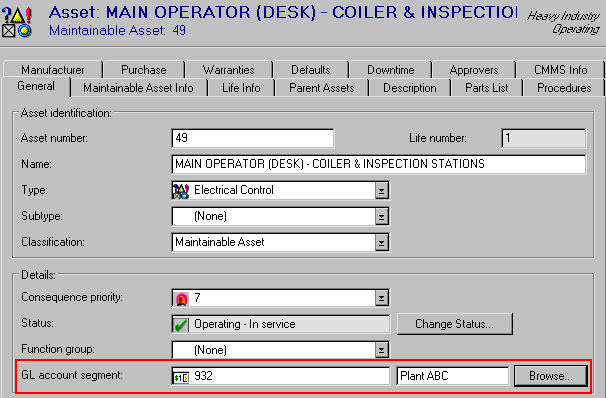
The asset’s segment is set on the asset being charged (Properties view, General tab). However, if that asset does not have a segment, the system looks up the asset hierarchy for a parent asset with an account segment.
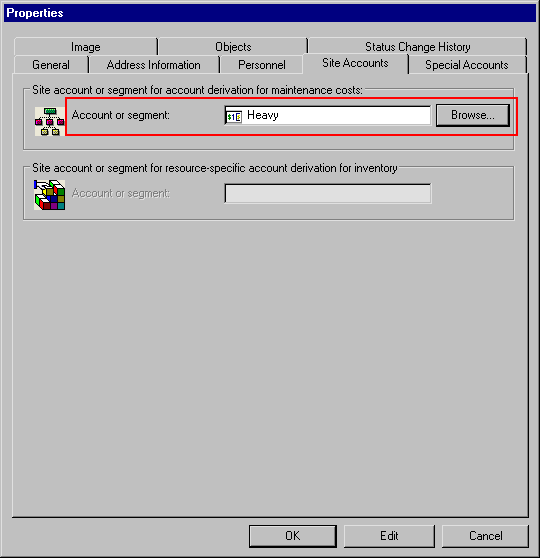
If none of the ancestor assets have an segment, the site’s segment is used (site Properties dialog, Site Accounts tab).

Cost Type Account Segment for Materials, Tools, and Services

For material, tool, or service resource transactions, the cost type used for account derivation is the cost type associated with the resource category on the resource. To find the cost type segment:
1.
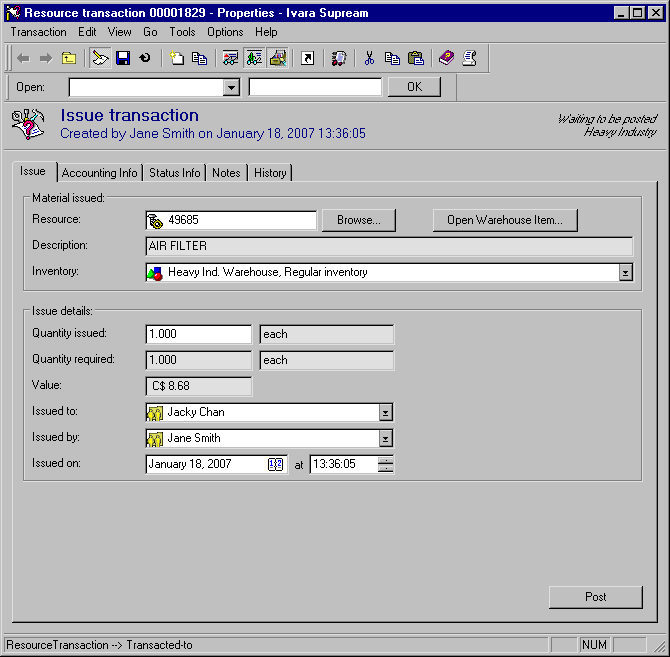
Double-click the icon in the Resource box. The Resource window appears.
2.
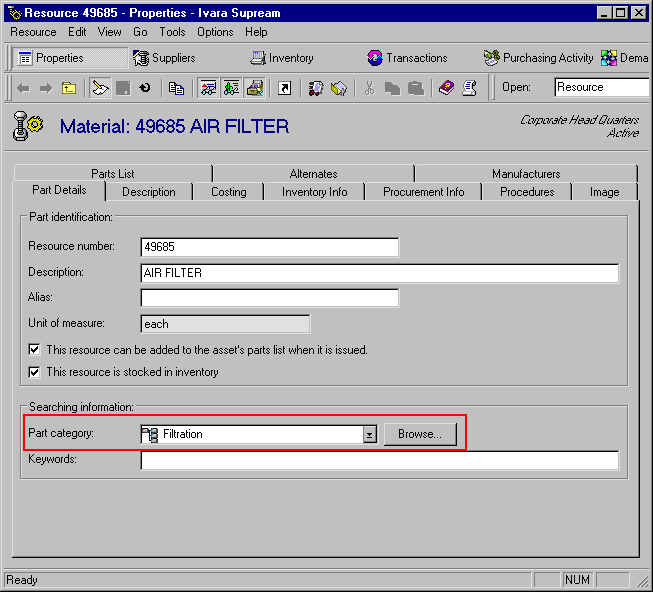
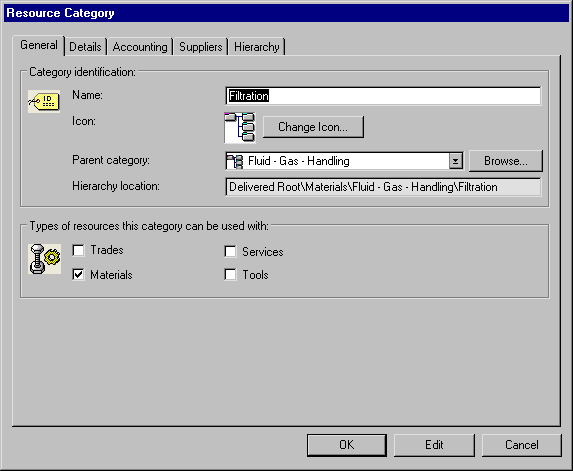
Double-click the icon in the Part category box. The Resource Category dialog appears.
3.
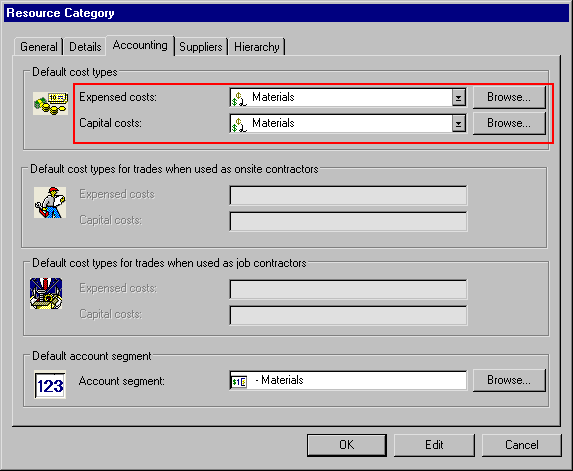
Select the Accounting tab.
4.
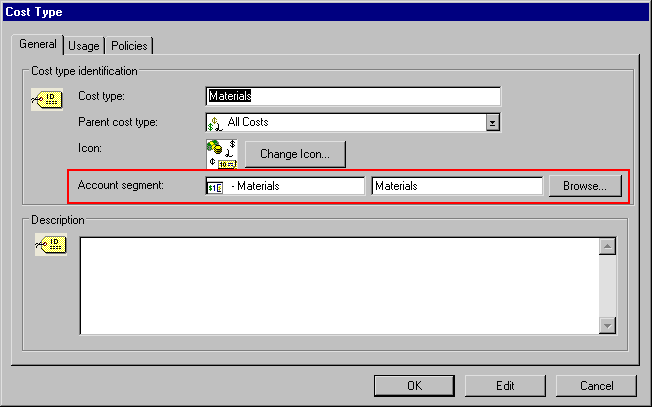
This tab shows the default cost types for the resource category. If the transaction is an expensed cost, double-click the cost type icon in the Expensed costs box. If the transaction is a capital cost, double-click the cost type icon in the Capital costs box. The Cost Type dialog appears.
The account segment shown on the General tab is the segment being used in the derivation.

Cost Type Account Segment for Labor (Timecards)

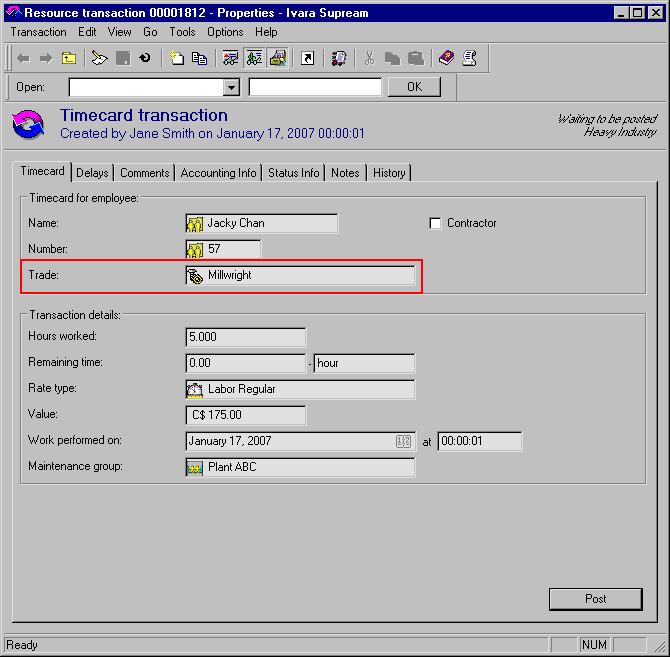
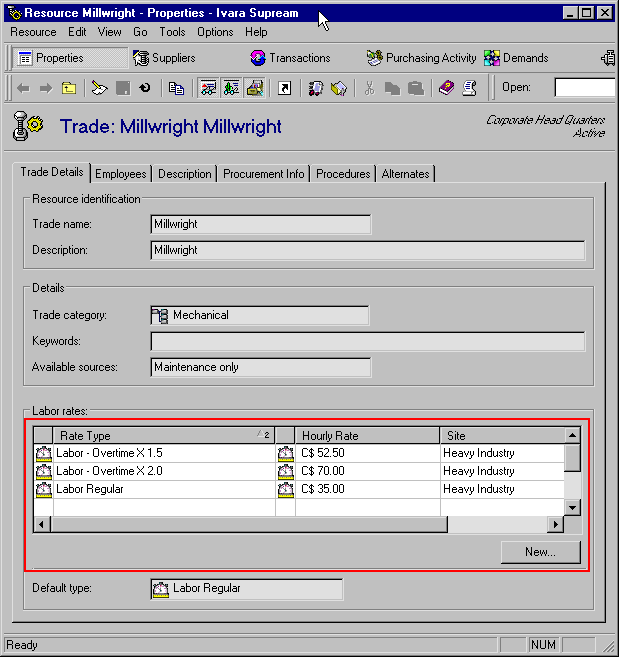
The cost type used for account derivation on timecards is the cost type associated with the labor rate type on the timecard. To find the cost type segment:
1.
Double-click the icon in the Trade box. The Trade window appears.
2.
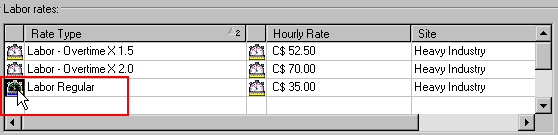
The Labor Rate Type dialog appears.
3.
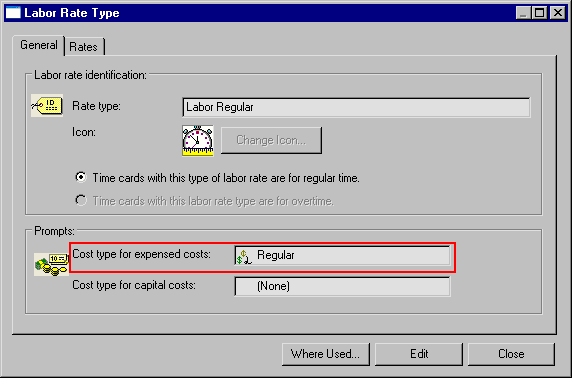
The General tab shows the default cost types for the labor rate type. If the transaction is an expensed cost, double-click the cost type icon in the Expensed costs box. If the transaction is a capital cost, double-click the cost type icon in the Capital costs box. The Cost Type dialog appears.
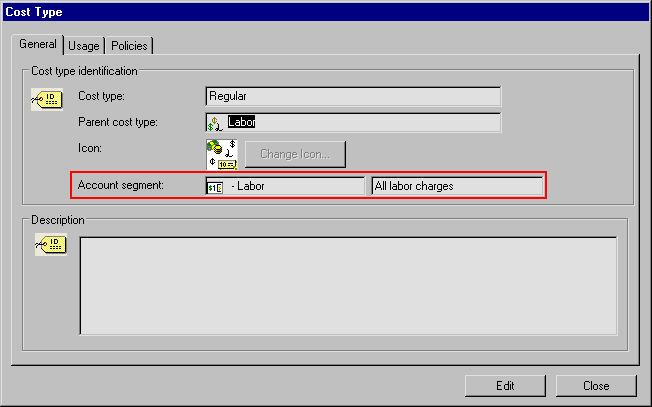
The account segment shown on the General tab is the segment being used in the derivation.

Maintenance Group Account Segment

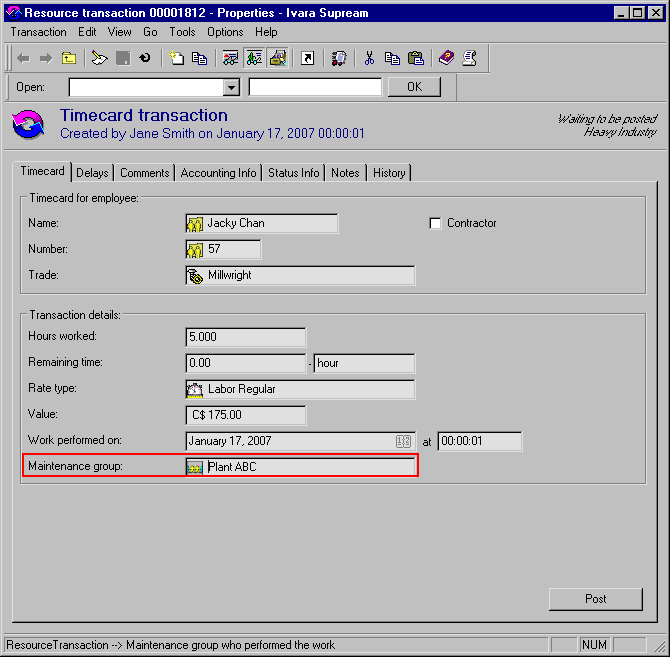
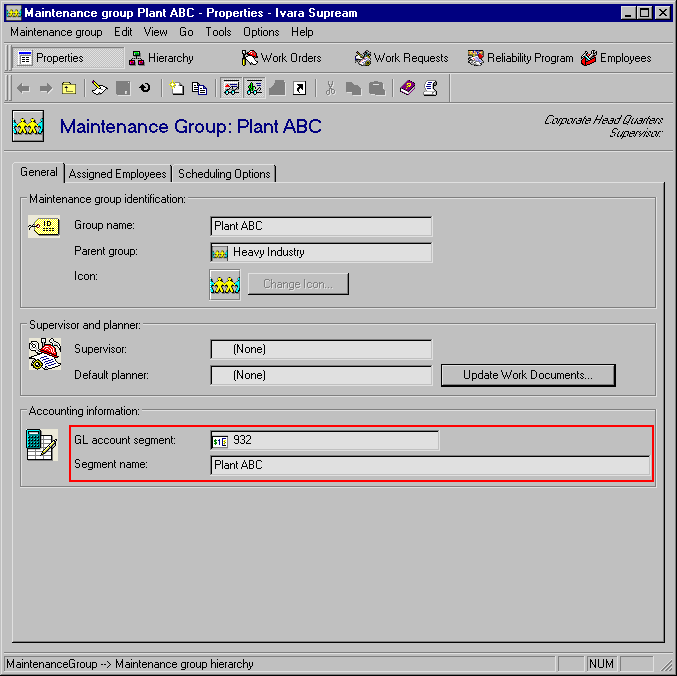
The derivation for labor offset accounts may use the account segment for the maintenance group. To see the maintenance group segment:
1.
2.
On the Timecard tab, double-click the icon in the Maintenance group box.
The Maintenance Group window appears.
3.

Trade Resource Category Segment

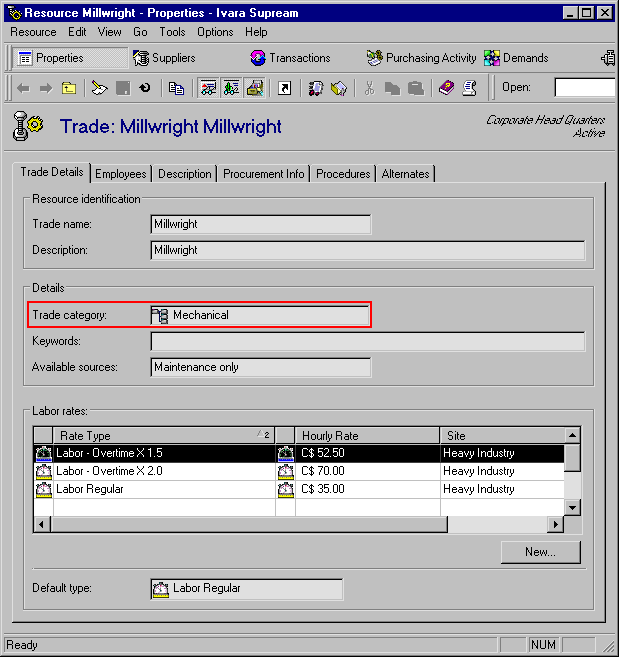
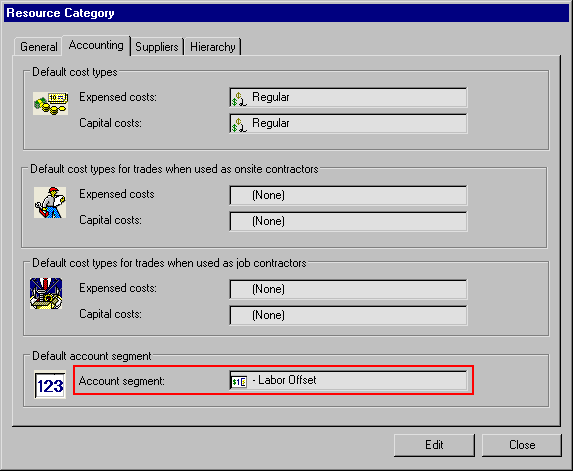
The account segment used for labor offset account derivation on timecards is associated with the trade’s resource category. To find the category segment:
1.
Double-click the icon in the Trade box. The Trade window appears.
2.
Double-click the icon in the Trade category box. The Resource Category dialog appears.
3.
Select the Accounting tab. The segment used in the offset account is shown in the Default account segment box.

Warehouse Account Segment (for Inventory Offset Accounts)

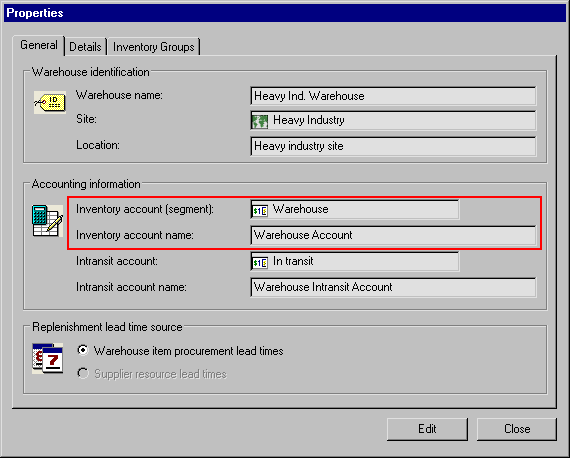
If your inventory offset accounts use the account segment for the warehouse, you can view this segment in the warehouse’s Properties dialog.
1.
2.
From the Warehouse menu, select Properties. The Properties dialog appears.
The account segment used in the derivation is in the Inventory account (segment) box.

Resource Category Segment (for Inventory Offset Accounts)

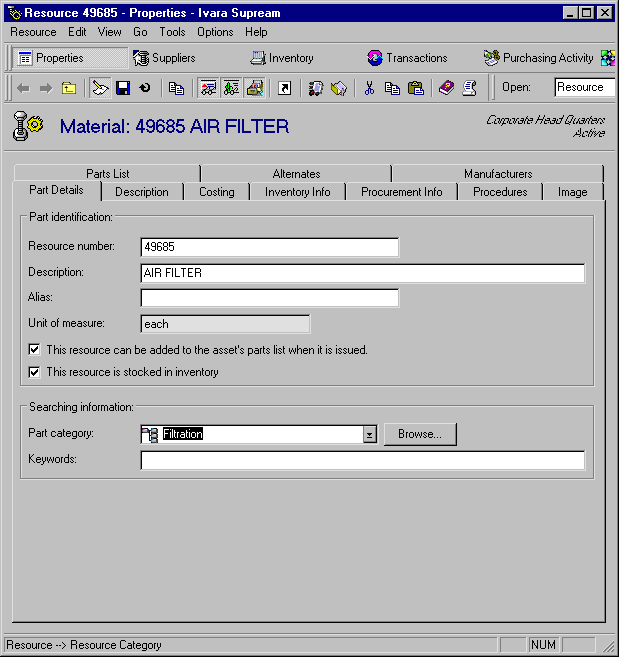
If your inventory offset accounts use the account segment for the resource category, you can view this segment by opening the resource used in the transaction.
1.
Double-click the icon in the Resource box. The Resource window appears.
2.
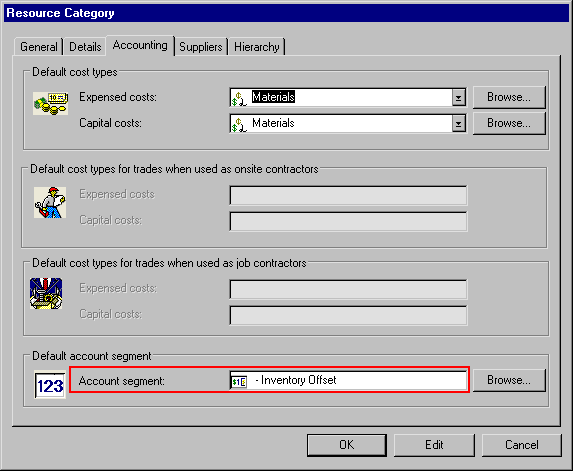
Double-click the icon in the Part category box. The Resource Category dialog appears.
3.
Select the Accounting tab. The segment used for the offset account is in the Account segment box:

Site Inventory Offset Account Segment (for Resource-Specific Offset Accounts)

If your organization allows overrides to derived offset accounts on individual resources, this segment may be used in the resource’s offset account. To view this account segment:
1.
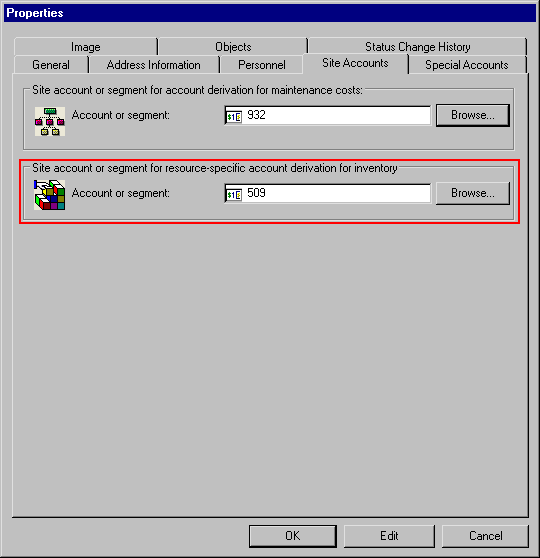
From the site, click the Site menu and the Properties. The Properties dialog appears.
2.
Select the Site Accounts tab. The account segment used in the offset account derivation is in the Site account or segment for resource-specific account derivation for inventory box.

Resource Account Segment (for Resource-Specific Offset Accounts)

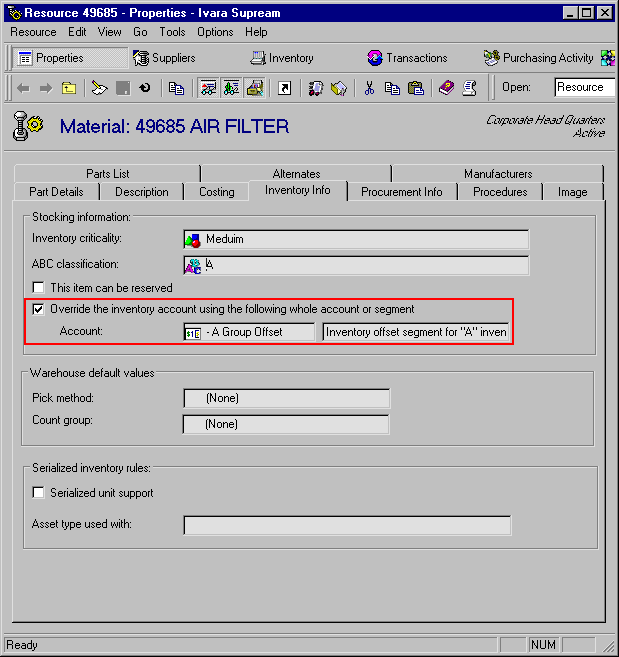
If your organization allows overrides to derived offset accounts on individual resources, this segment may be used in the resource’s offset account. To view this account segment:
1.
Double-click the icon in the Resource box. The Resource window appears.
2.
Select the Inventory Info tab. If the resource has an account override, the segment being used in the derivation is shown in the Account box.