
|
Viewing Follow-up Work Requests Created from Troubleshooter Timecards
If you selected the additional work is required option when entering a troubleshooting timecard, the system will have created a new work request for the follow-up work. The title of the work request will be the text entered in the Description box on the timecard. These work requests can be planned, approved, and turned into work orders, the same as other work requests.
•
• in the troubleshooter timecard transaction. You can view these transactions on the site’s Purchasing view, Transactions tab.To View Follow-up Work Requests from Troubleshooter Work Orders
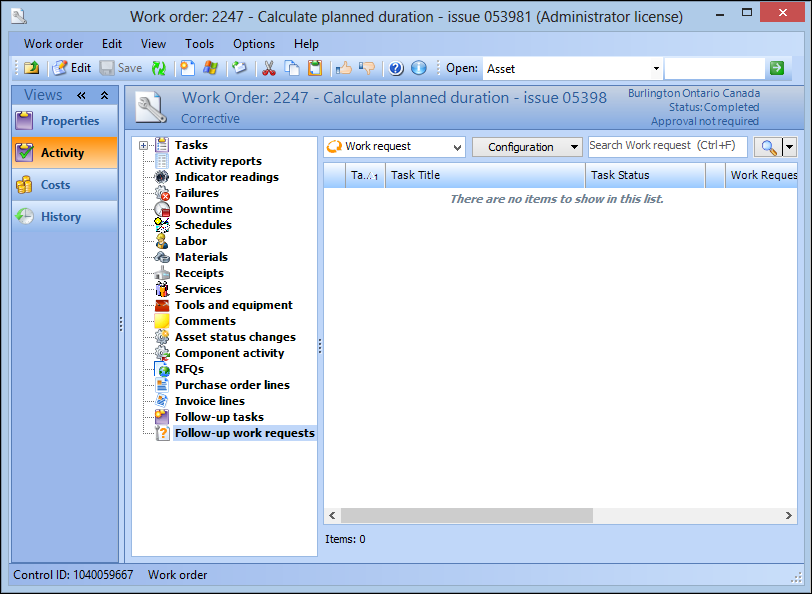
1. From the Site window, select the Work Management view, Work Orders tab, and then the Work Orders tab. By default, this tab lists open work orders for the site.
2. Select Historical work orders from the configuration list to list all of the closed and canceled work orders.Tip: Troubleshooter work orders use the same title as the troubleshooter standard task that was selected when the timecard was entered. See Creating a Standard Task for Troubleshooters.
5. Select the Activity view, then Follow-up work requests. If a follow-up work request was created, it is listed on this tab.