|
Creating a Troubleshooter Timecard for an Asset
If you have several jobs to enter, you can enter them all at once using a troubleshooter timesheet. For instructions on creating a troubleshooter timesheet, please see Creating a Troubleshooter Timesheet.To Create a Troubleshooter Timecard
1. Select the site's Assets view.
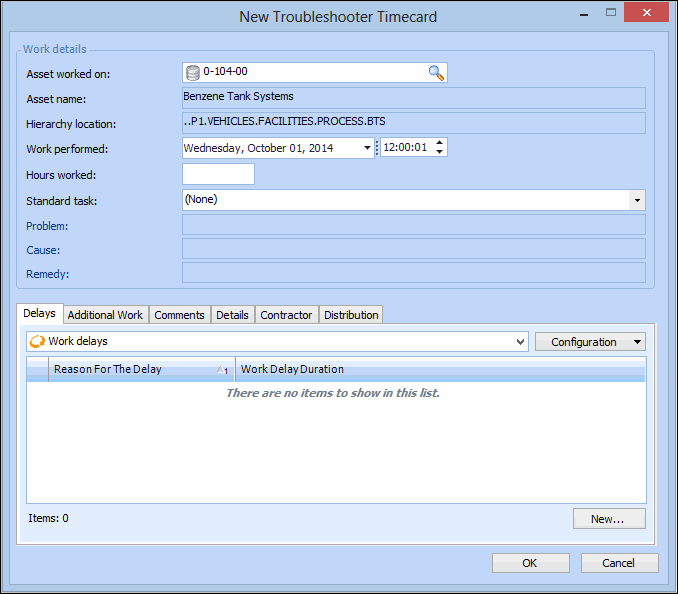
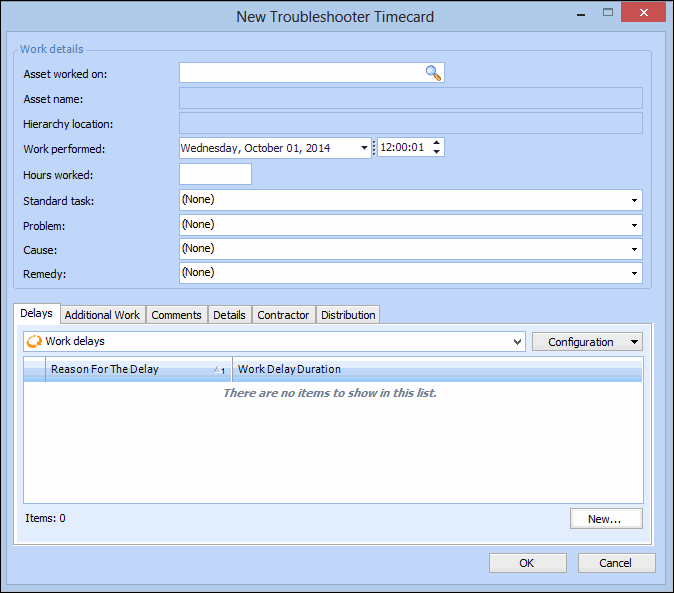
3. Right-click the asset, and select New, and then select Troubleshooter Timecard. The New Troubleshooter Timecard dialog appears.
4. Complete the Work details:
Make sure that the asset that was worked on is correct. To select an asset, click Browse. Select the asset in the selector dialog, and then click OK
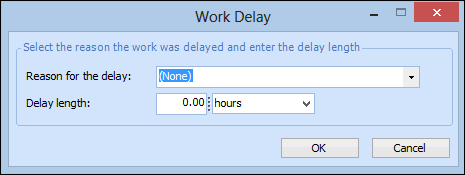
5. If there were any delays in completing the work, click New. The New Troubleshooter Timecard dialog appears. For example:
6. Select why the work was delayed from the Reason for the delay list, enter how long the delay was in the Delay length box, and then click OK.
7. To create a work request to complete the remaining work, select the Additional Work tab, and then select Yes, additional work is required option and then type a note about the work that is required in the Description box. If appropriate, enter a Completion date for the additional work and select the Maintenance group that should perform the work.Note: The text entered in the Description box will be the title of the new work request.
8. Select the Comments tab to enter any comments.
10.
11.
12. When you are finished entering information, click OK. APM saves and posts the labor charges, and if selected, creates a work request.