Transferring Consigned Inventory Between Warehouses

Transferring consigned inventory is similar to transferring regular inventory. In both cases, the user must select the appropriate warehouse inventory groups to transfer from and to. However, to transfer between different consignment inventory groups, the consignment supplier must be the same.
Four types of transfers are supported:
Note: You cannot transfer materials between warehouses at different sites that use different currencies. If you want to do so, use two inventory adjustment transactions instead.
This topic discusses the last three types of transfers. For information on transferring regular inventory, see Transferring Materials Between Warehouses.

From Consignment to Regular Inventory

A transfer from a consignment inventory group to a regular inventory group is treated like an issue from consignment. The customer is responsible for payment of the transferred items. Ownership transfer occurs when the material is transferred from the supplier's inventory. The transfer transaction has the following unique characteristics:
The transfer receipt transaction has the following unique characteristics:

From Regular Inventory to Consignment

A transfer from a regular inventory group to a consignment inventory group is treated like a return to consignment. The customer receives a credit for the transferred items. Ownership reverts to the supplier when the material is received into the supplier’s inventory group.
The transfer transaction has the following unique characteristics:
The transfer receipt transaction has the following unique characteristics:

From Consignment to Consignment

A transfer from a consignment inventory group to a consignment inventory group simply updates the balances in each warehouse inventory group. The items remain the property of the supplier.
The transfer transaction has the following unique characteristics:
The transfer receipt transaction has the following unique characteristics:

To Transfer Inventory To or From Consignment Warehouse Inventory Groups

1.
In the Site window, select the Resource Management view and then the Inventory tab.
2.
In the Warehouses tab, select the warehouse that you want to transfer materials or tools from. The warehouse items stocked in this warehouse are displayed in the table on the right.
3.
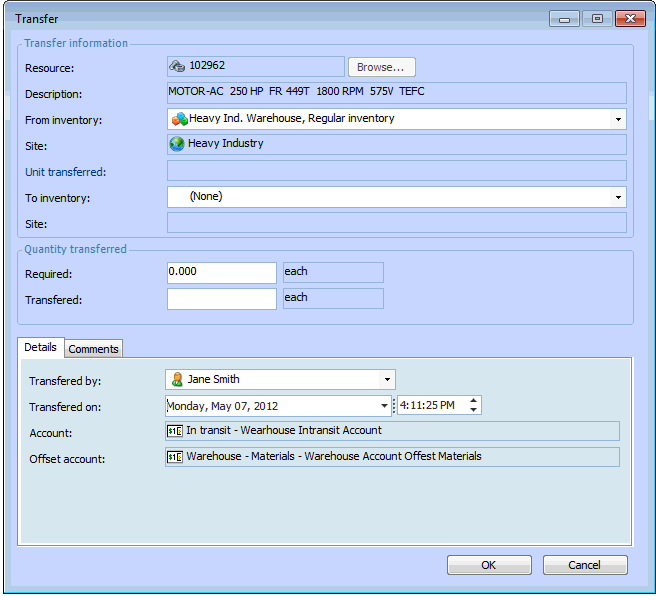
Right-click the item that you want to transfer and select Transfer Item. The Transfer dialog appears.
4.
The system displays default values in the Part number, Description, and Site information boxes. Complete the remaining sections of the dialog with the appropriate information.

Part to transfer:

From inventory: Select the warehouse inventory group that is sending the materials.
To inventory: Select the warehouse inventory group to receive the materials. You can only select an inventory group that already has the item being transferred listed as a warehouse item. If you are transferring consignment inventory, the consignment inventory groups must have the same supplier.
Note: You cannot transfer items to a warehouse inventory group that does not accept returns.

Quantity transferred:

Required: The amount of material requested. A discrepancy between the Transferred box and this box means that you are out of stock.
Transferred: The quantity of the item being transferred. This amount is subtracted from the on-hand quantity for the transferring warehouse.
Transferred by: The person transferring the material.
Transferred on: The date and time the material was transferred.
5.
When you are finished entering information, click OK. APM posts the transfer and makes the appropriate inventory adjustments to the warehouse inventory group that the item was transferred from.
In order to complete the transfer, the receiving warehouse must create a transfer receipt transaction. See Receiving Materials Transferred from Another Warehouse.