Setting up Warehouses for Tools

You can create a separate warehouse (or more than one) that will act as a tool crib or garage and maintain an inventory of tools.
For more information on setting up warehouses, please see **Setting up Warehouses.

To Set up a Warehouse for Tools

1.
On the site’s Resource Management view, select the Settings tab. Select the Inventory Settings node in the tree.
Tip: You can also select the site’s Administration menu, Resource Management Settings, and then Resources. The Resource Management Settings dialog appears.
2.
Select the Warehouses tab. This tab shows a list of warehouses for the site.
3.
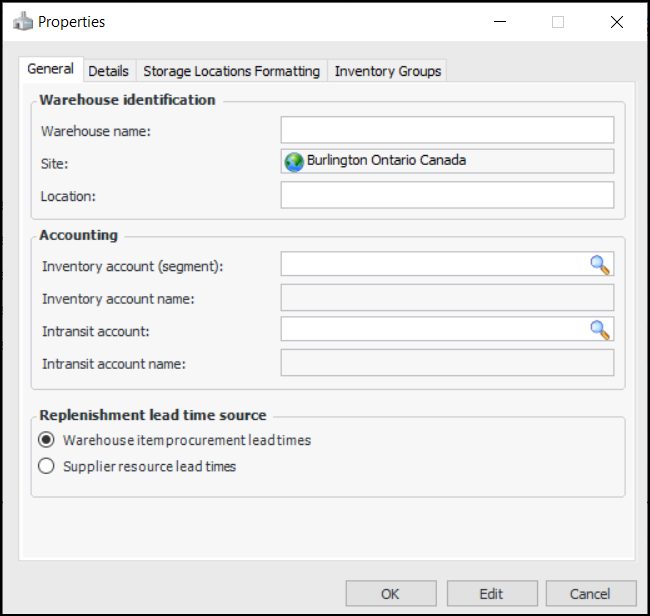
Click New. The Properties dialog appears:
4.
Warehouse item procurement lead times: The system will use the procurement lead time entered on each warehouse item.
Supplier resource lead times: The system will use the ‘order-to-receipt’ time entered on the supplier resource.
5.
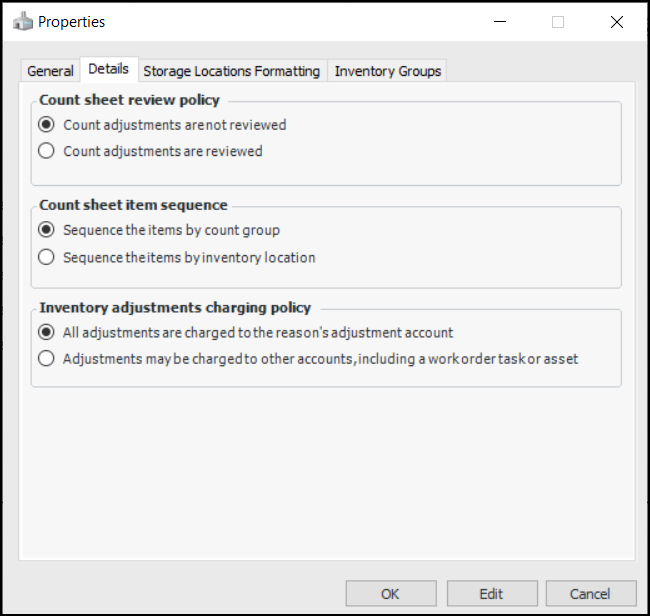
Select the Details tab.
6.
Count adjustments are not reviewed: The adjustments are created and posted when the counts are processed.
Count adjustments are reviewed: The adjustment transactions are created in a non-posted state. The adjustments must be reviewed and posted before the inventory balances are updated.
Sequence the items by count group and pick sequence: Count groups are processed by sequence number. Items in the group are ordered by their pick sequence numbers.
Sequence the items by inventory location: Items are ordered according to their primary storage locations.
All adjustments are charged to the reason's adjustment account: All adjustments are charged to the GL account specified on the adjustment reason.
Adjustments may be charged to other accounts, including a work order task or asset: The adjustment may be charged to a work order task, asset, or GL account. For example, if you review count adjustment transactions before posting, setting this option allows users to change the charging information on these transactions.
7.
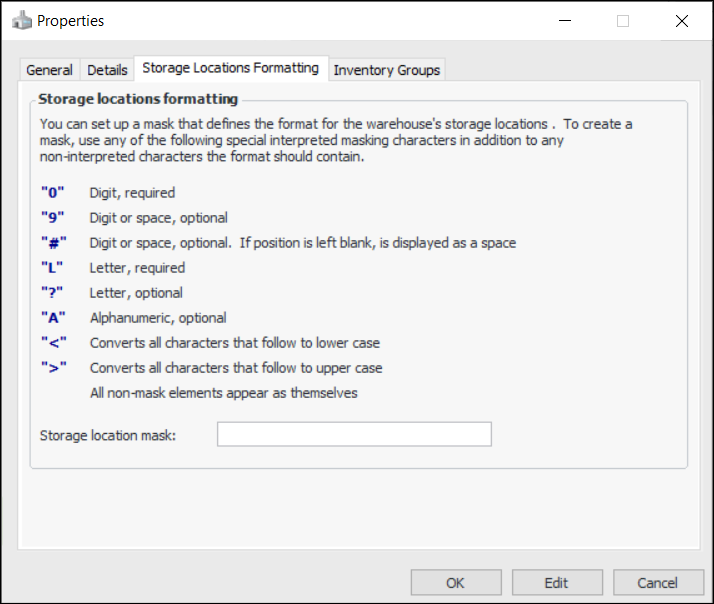
Select the Storage Locations Formatting tab.
8.
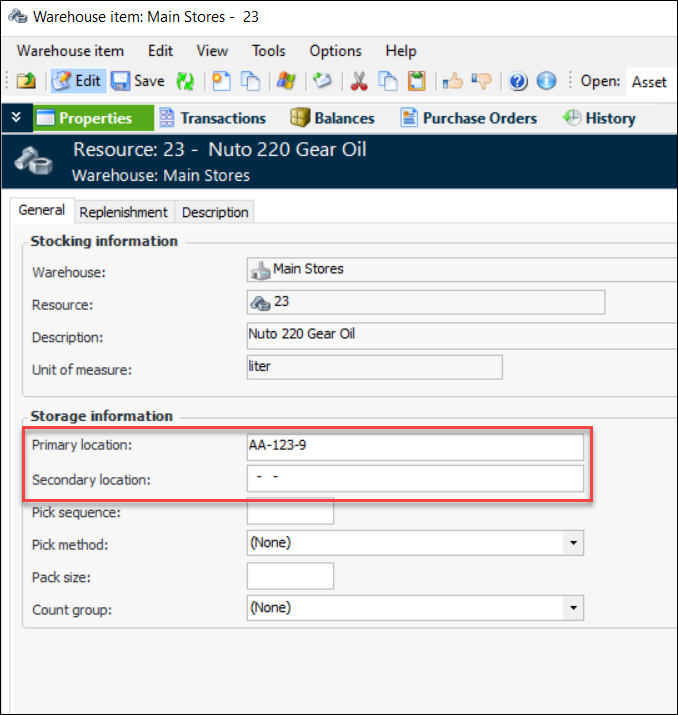
>LL-000-A
would accept the following primary location on a new warehouse item:
The mask also applies to the secondary location.
The mask is also used to format storage locations on warehouse items in table configurations, reports, and count sheets.
9.
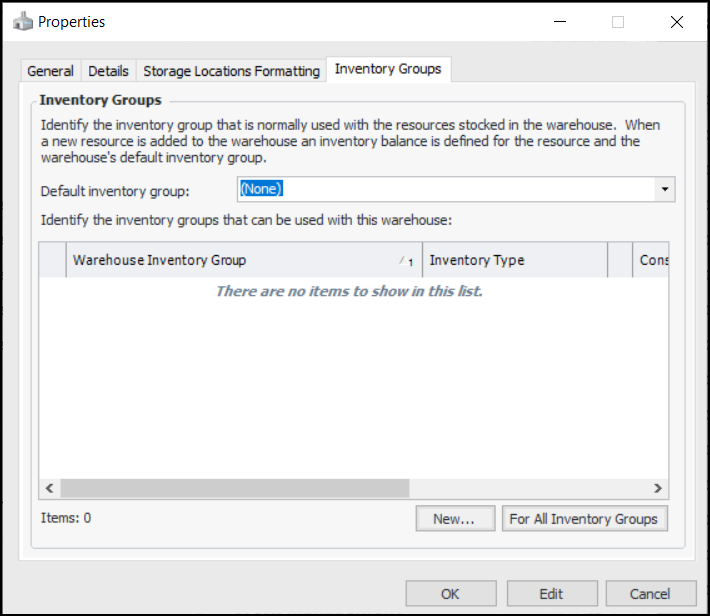
Select the Inventory Groups tab.
10.
Select an inventory group from the Default Inventory Group list. Unless the warehouse is for consignment inventory, select the inventory group for your regular inventory.
11.
To add another inventory group to the warehouse, click New. The Warehouse Inventory Group dialog appears. Select the inventory group that you want to link to the warehouse, and then click OK.
Note: If the default inventory group is a consignment group, you can only add regular inventory groups to the warehouse. Other consignment inventory groups cannot be added.
12.
When you are finished, click OK to close the warehouse’s Properties dialog. APM creates a new warehouse and adds it to the list.
13.
Repeat steps 3 to 12 for each warehouse that you want to create.
14.
Select the Default warehouse for the site. This warehouse will appear by default when you create a resource demand, and can be changed when necessary.