|
|


Converting a Tool Resource To Track Serialized Inventory
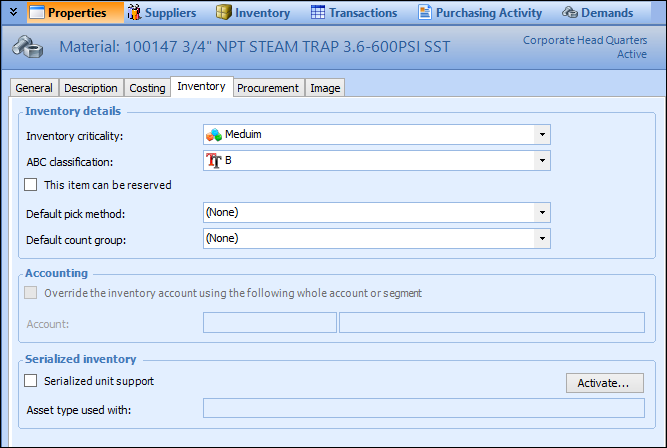
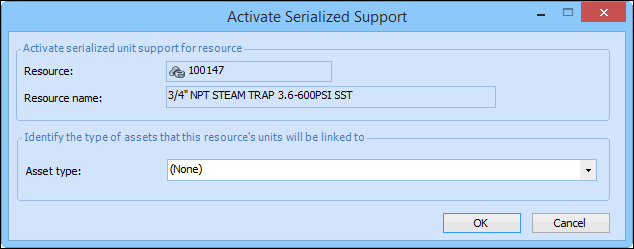
You can change a non-serialized inventory resource into serialized inventory. This topic explains how to activate serialized inventory support for the resource. However, if you have not yet linked assets to the resource, or reviewed and adjusted inventory balances for the resource, you should first complete those tasks. For more information, please see Checklists for Setting up Serialized Tool Resources.After you have activated the resource, you must convert the warehouse items to serialized units. For more information on creating serialized inventory units for resources, please see Creating Serialized Units for Existing Tool Resources.To Activate Serialized Inventory Support for an Existing Tool Resource
 is enabled.