
Creating Serialized Units for Existing Tool Resources

You can create serialized inventory units when you create a new resource and when you receive additional units of a resource. You can also convert existing resources to serialized inventory units. You can change a resource from non-serialized to serialized at any time.
When converting a resource into serialized inventory, you must first specify that the resource supports serialized units. Then convert the warehouse items and linked assets to serialized units.
You can convert balances for each warehouse in which the resource is stocked. When units have been generated for a warehouse item, balances are maintained through resource transactions.
When you convert warehouse items, the number of inventory units and the number of warehouse items must be the same. You must verify the following:
You can convert existing warehouse balances to serialized units. You must first activate serialized inventory support. For more information on converting a tool resource to track serialized inventory, please see Converting a Tool Resource To Track Serialized Inventory.

To Create Serialized Units for an existing Tool Resource
1.
From the site’s Resource Management view, select the Inventory tab, and then the Warehouses tab.
2.
3.
4.
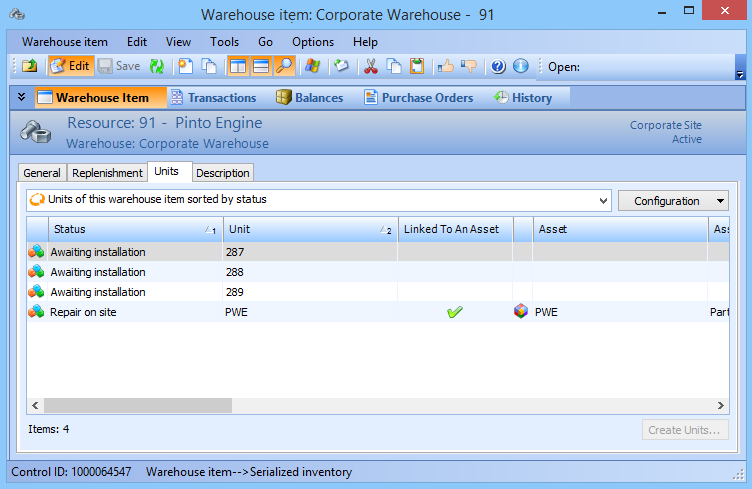
Select the Warehouse Item view, and then select the Units tab. This tab will be available only if the resource is defined as supporting serialized units.
5.
Select the Units of this warehouse item sorted by status configuration, and click Create Units. The Create Serialized Units dialog appears and the Verify Units button becomes available. The table at the bottom of the dialog lists the units that will be created. You can:
Add additional new units: Click New. The Create Inventory Units dialog appears. The most common reason for adding new units this way is to add units for assets that did not reference the resource.
6.
If the verification is unsuccessful, an error message describes why the units could not be created.
If the verification is successful, the Verify Units button is replaced with the Create Units button, and the unit information cannot be changed.
7.
8.
Click Create Units to complete the unit creation process. The units now appear in the list on the Units tab. They will be disabled until they are linked to an asset.