
Adding Found Assets as Serialized Units

You can add a new unit for a serialized resource. For example, this may be necessary after you have set up a serialized resource and you “find” an asset that was not included in your inventory balances. The status of the added unit is an “in inventory” status — “On-hand,” “Received,” or “Returned.”
If you will be linking the added unit to an asset, you must first issue the unit so you can update the status to “Issued” to match the asset status. For more information please see Issuing Serialized Tool Resources.

To Add A New Serialized Unit — Inventory Adjustment
1.
In the Site window, select the Resource Management view and then the Inventory tab.
2.
Select the Warehouses tab, and then select the warehouse in which the resource is stocked, in the table on left side. The list of stocked resources for the selected warehouse is displayed in the table on the right.
3.
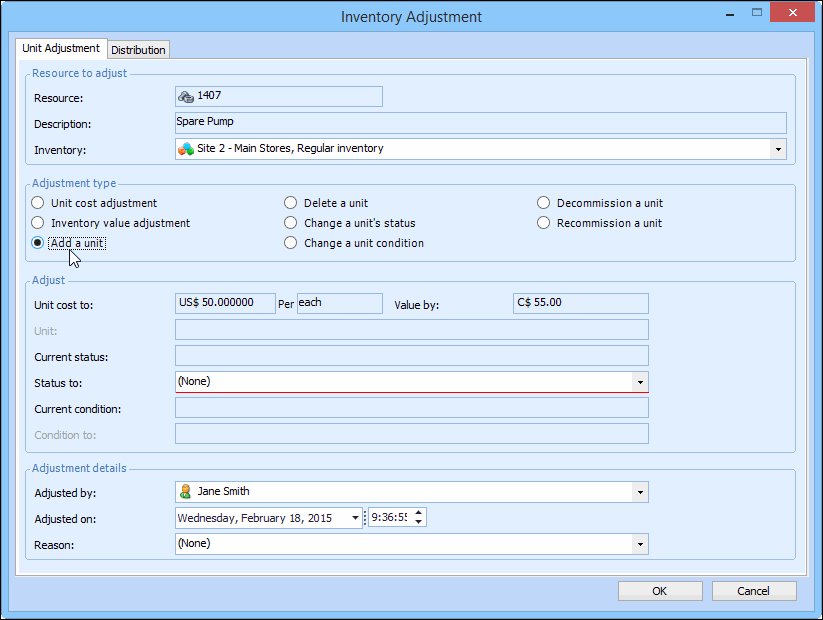
Right-click the serialized resource that you are adjusting and select Adjust Item. The Inventory Adjustment dialog appears.
4.
5.
Select Add a unit as the adjustment type.
6.
In the Status To box, select either Spare or Awaiting restock.
7.
8.
Click OK to add the new unit.